
Mail help · 5 steps
Sign up and add your domain
Create your Scalar360 Mail account, add the domain you own and publish the DNS records so mail for it goes live.
Before you start: You need a domain you own and access to wherever its DNS is managed (your domain provider).
1Create your account
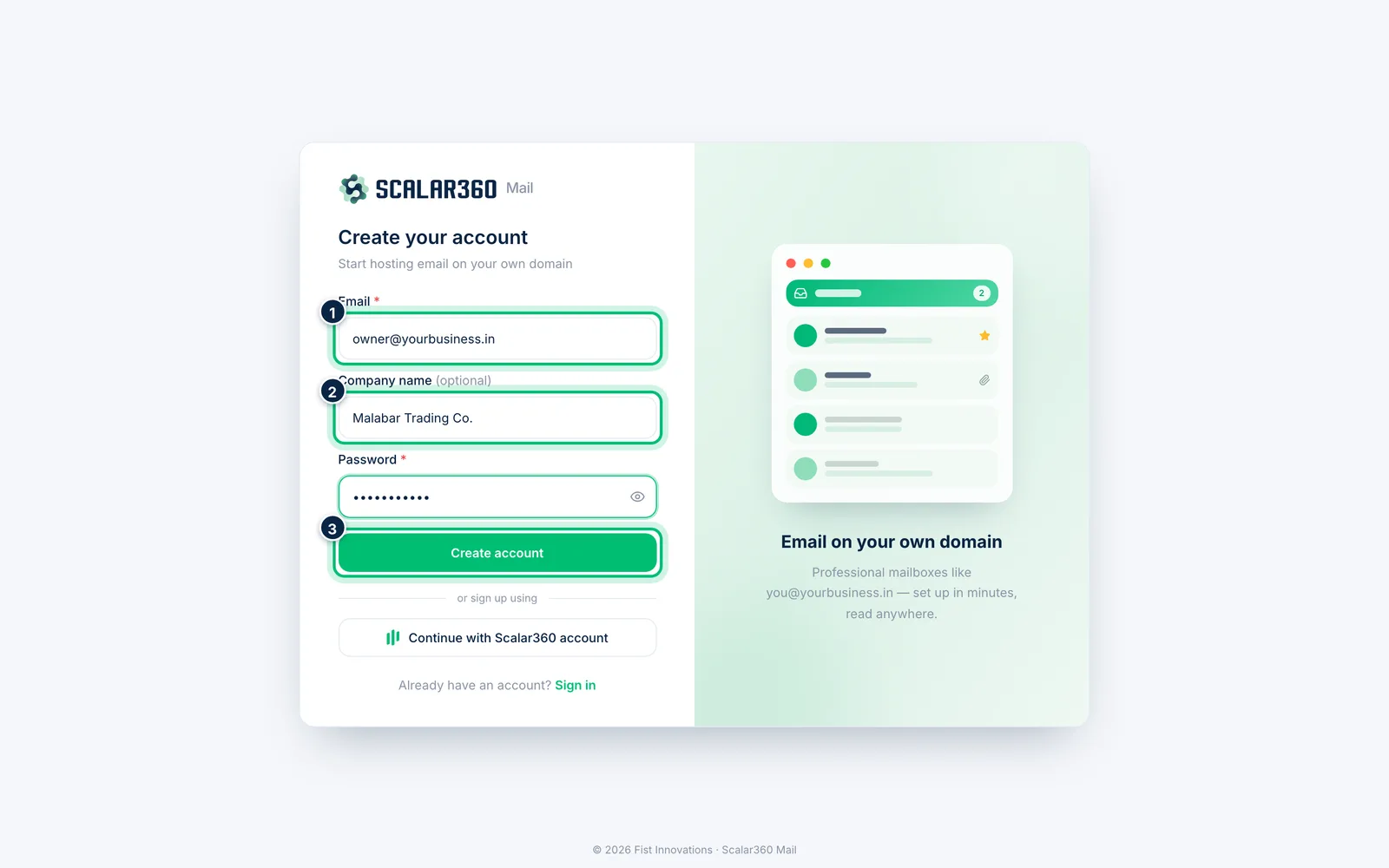
Open the sign-up page and enter your Email, your Company name (optional) and a Password of at least 8 characters, then choose Create account.
2Or continue with your Scalar360 account
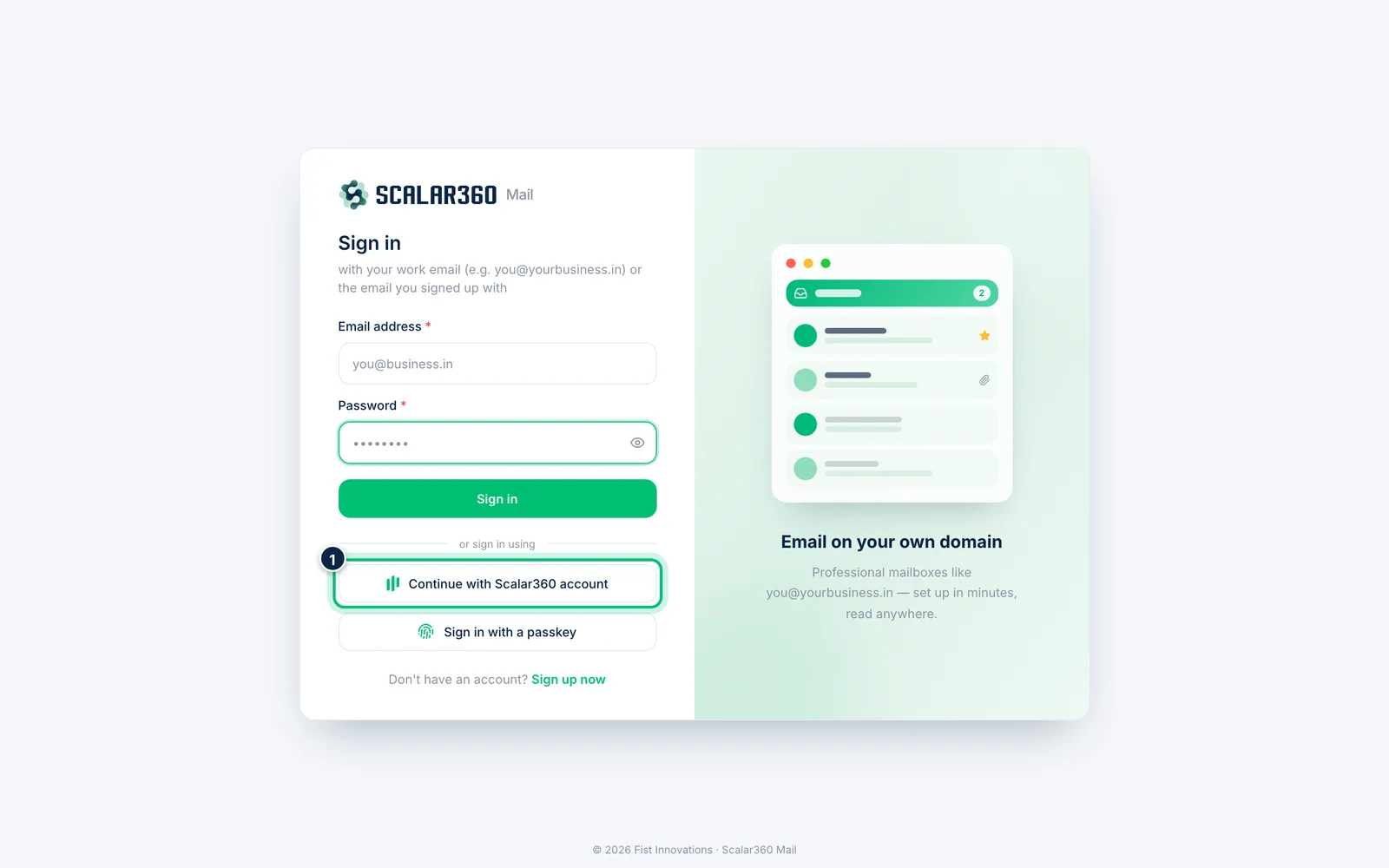
If you already use Scalar360, choose Continue with Scalar360 account on the sign-in page instead of making a separate password. Your Mail organisation is linked to your Scalar360 company.
3Add your domain
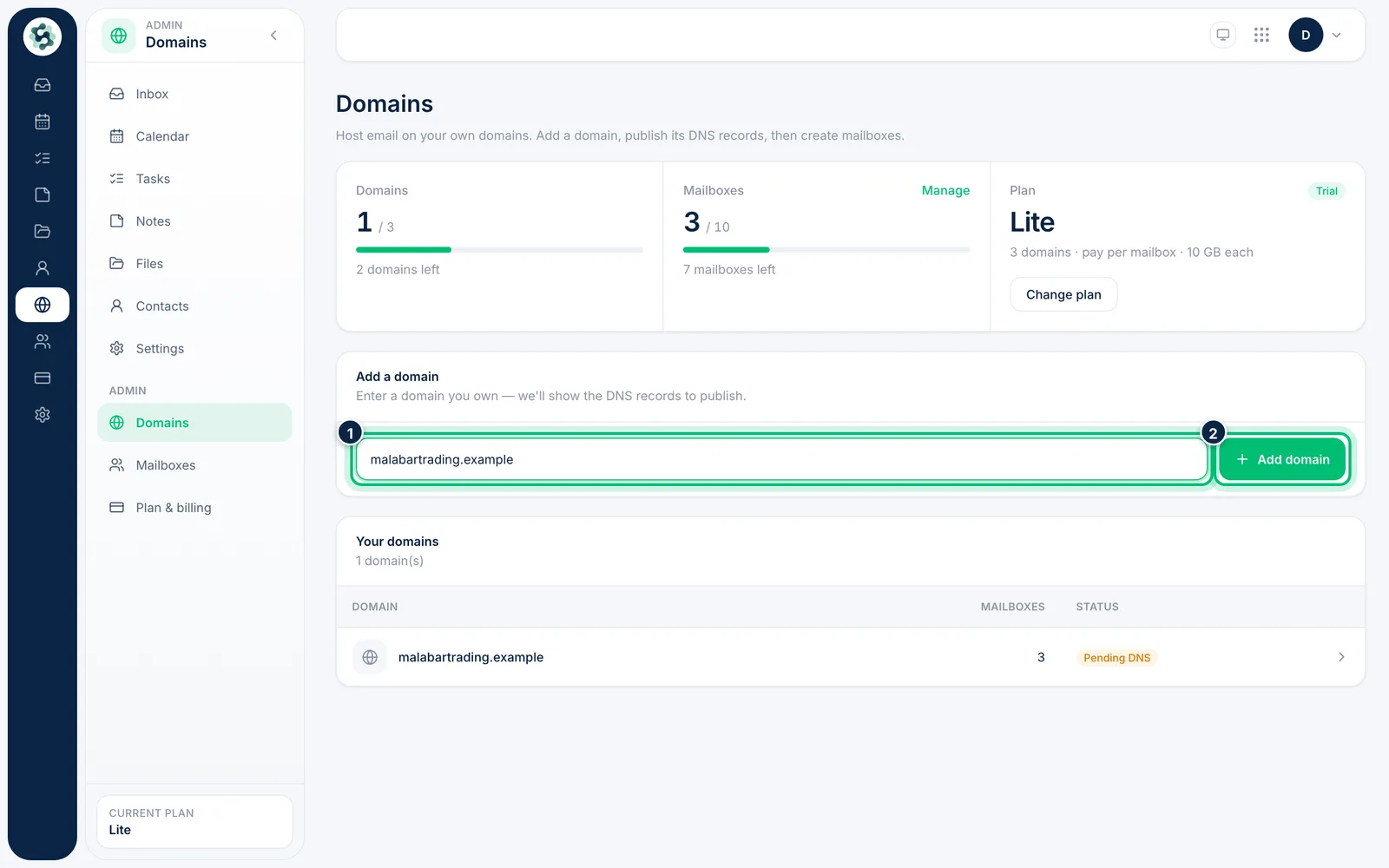
On Domains, type the domain you own under Add a domain and choose Add domain. The usage panel above shows how many domains and mailboxes your plan allows.
4Publish the DNS records
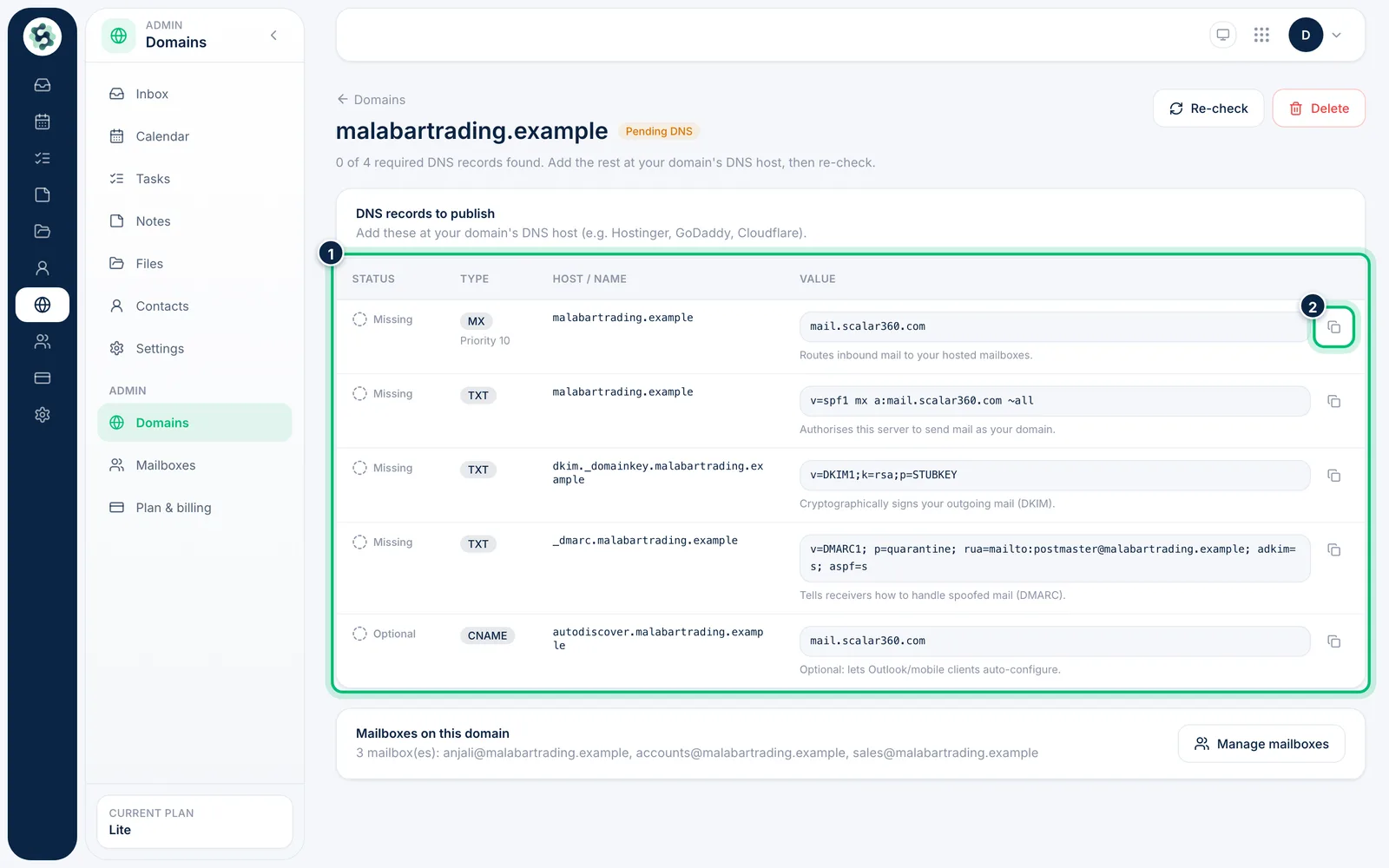
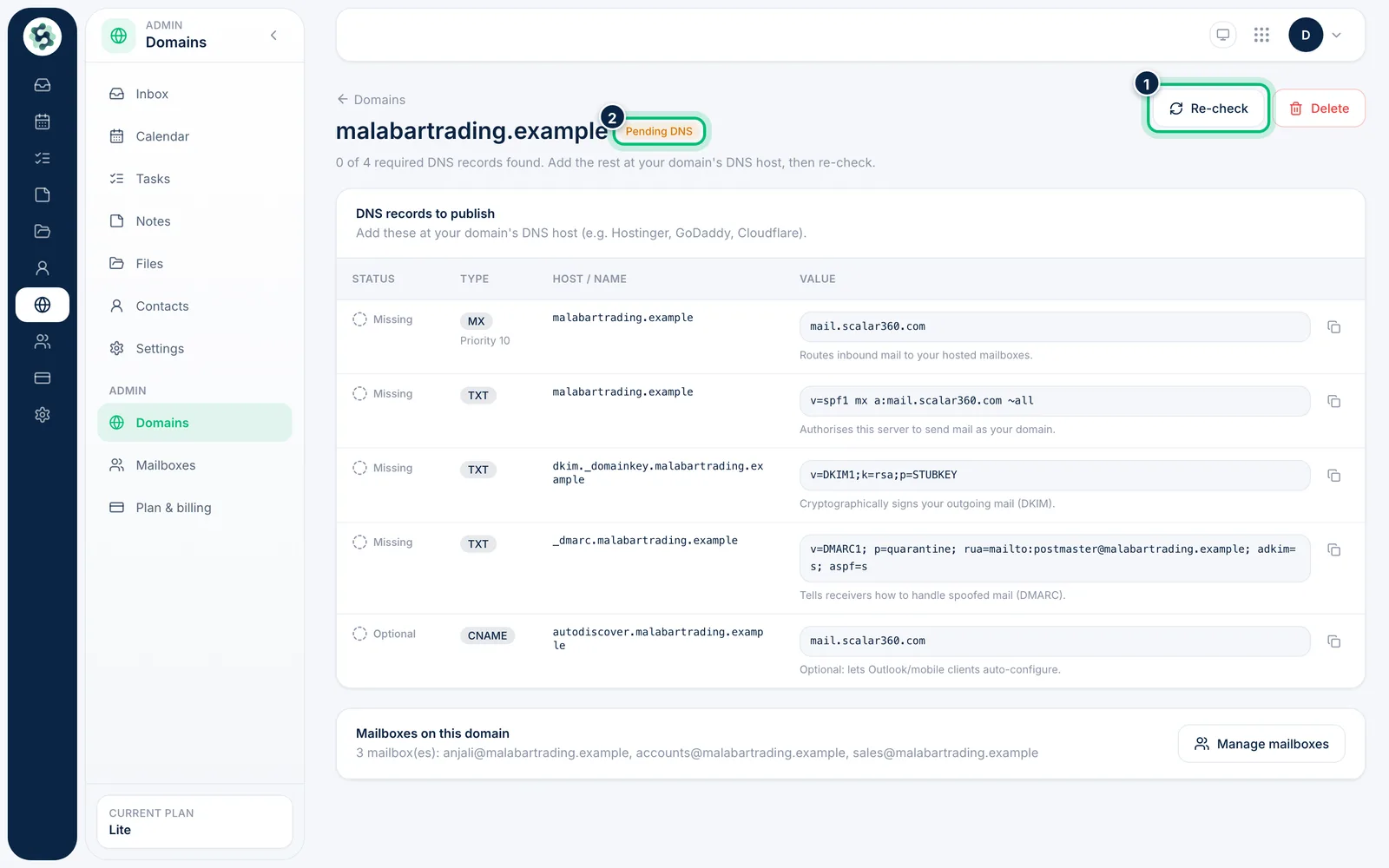
Open your domain from the Your domains list. DNS records to publish lists each record to add at your DNS host, with its Type, Host / Name and Value. Use the copy button beside a value to copy it exactly.
5Re-check until each record is found
After you add the records at your DNS host, choose Re-check. Each record shows Found or Missing, and the domain's badge changes from Pending DNS to Active once the required records are in place.
Related guides
Still stuck? Contact our support team.