
Mail help · 4 steps
Read and write mail in webmail
Find your way around the inbox, open and answer messages, and write a new one with recipients suggested from your contacts.
Before you start: Sign in with your mailbox address and password.
1Find your way around the inbox
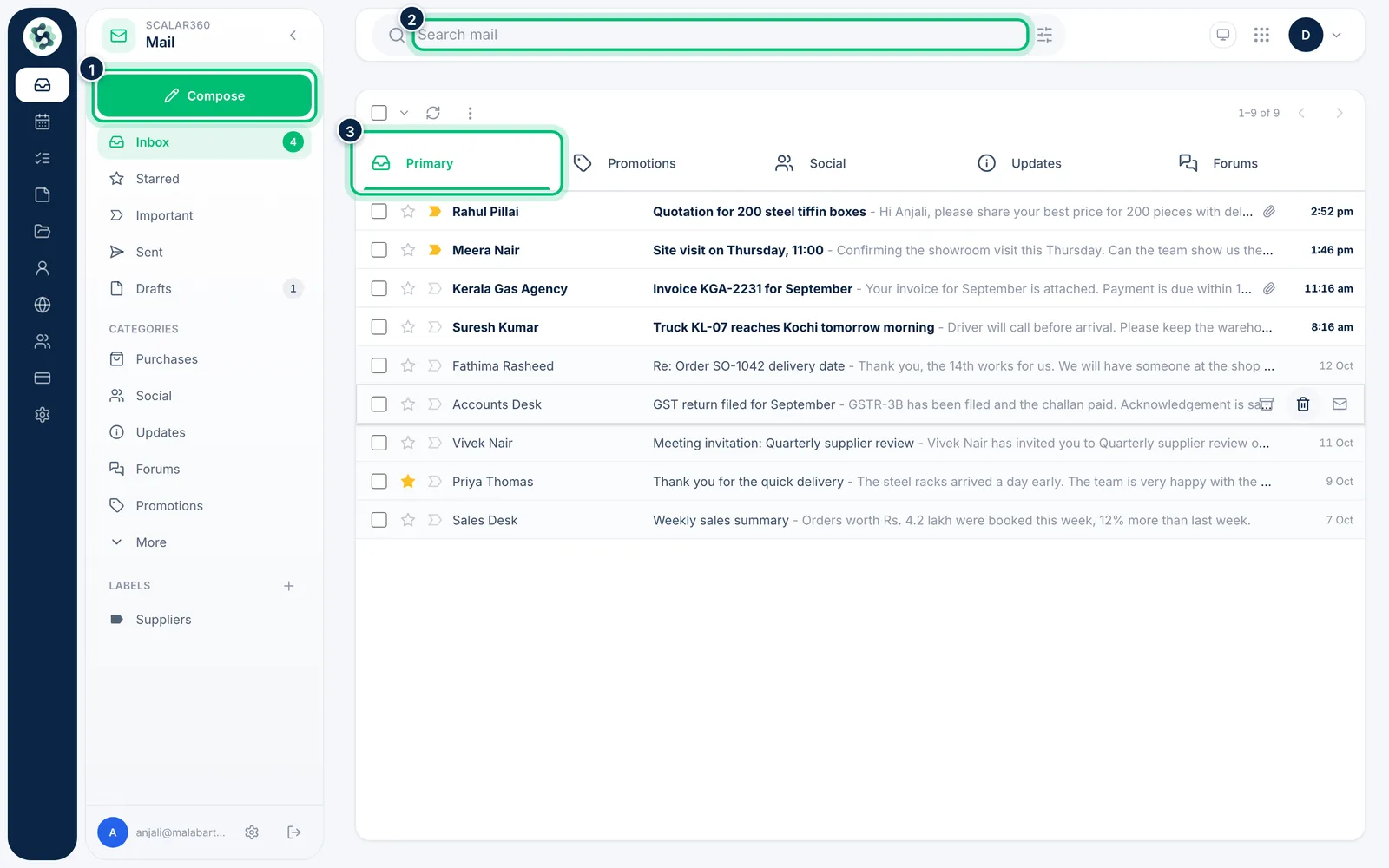
Your Inbox lists the newest messages first, with unread ones in bold and the Primary, Promotions, Social, Updates and Forums tabs above them. Use Search mail at the top, or choose Compose to write.
2Open a message
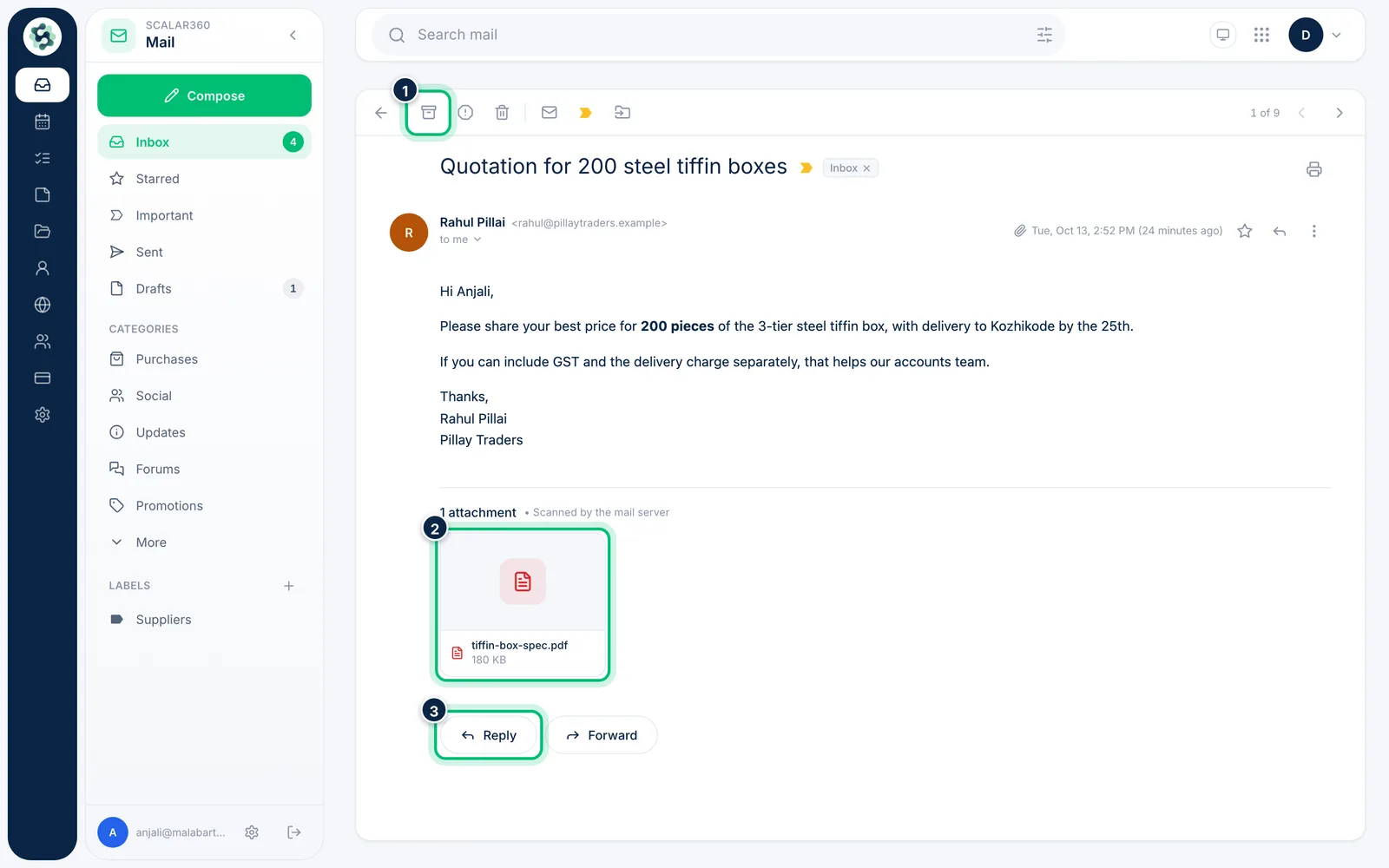
Select a message to read it. Attachments appear under the text, and the toolbar above lets you archive, report spam, delete, mark as unread or move it. Reply and Forward are below the message.
3Start a new message
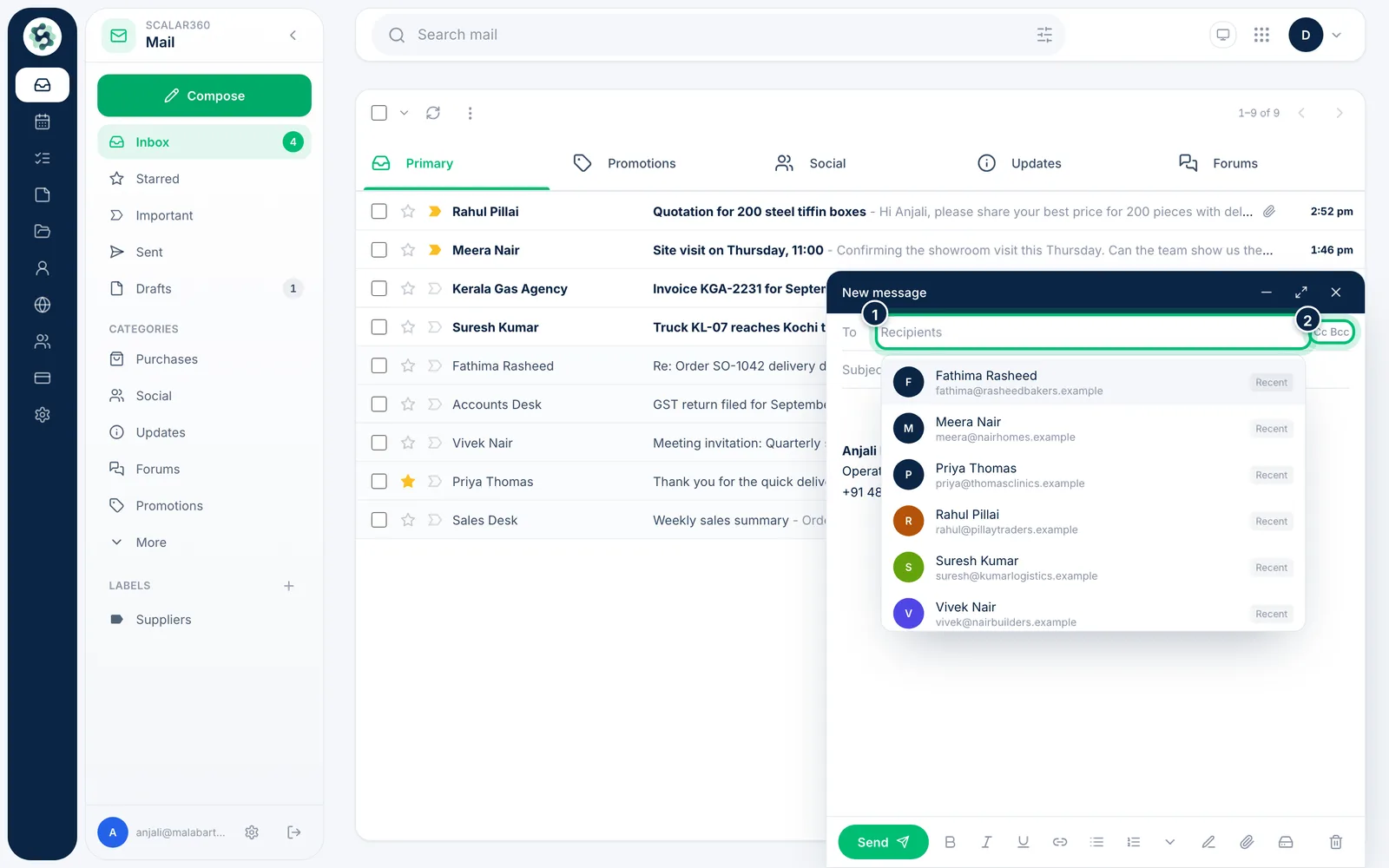
Choose Compose and start typing in To. People you have written to or saved as contacts are suggested; pick one to add them. Use Cc Bcc for more recipients.
4Write it and attach files
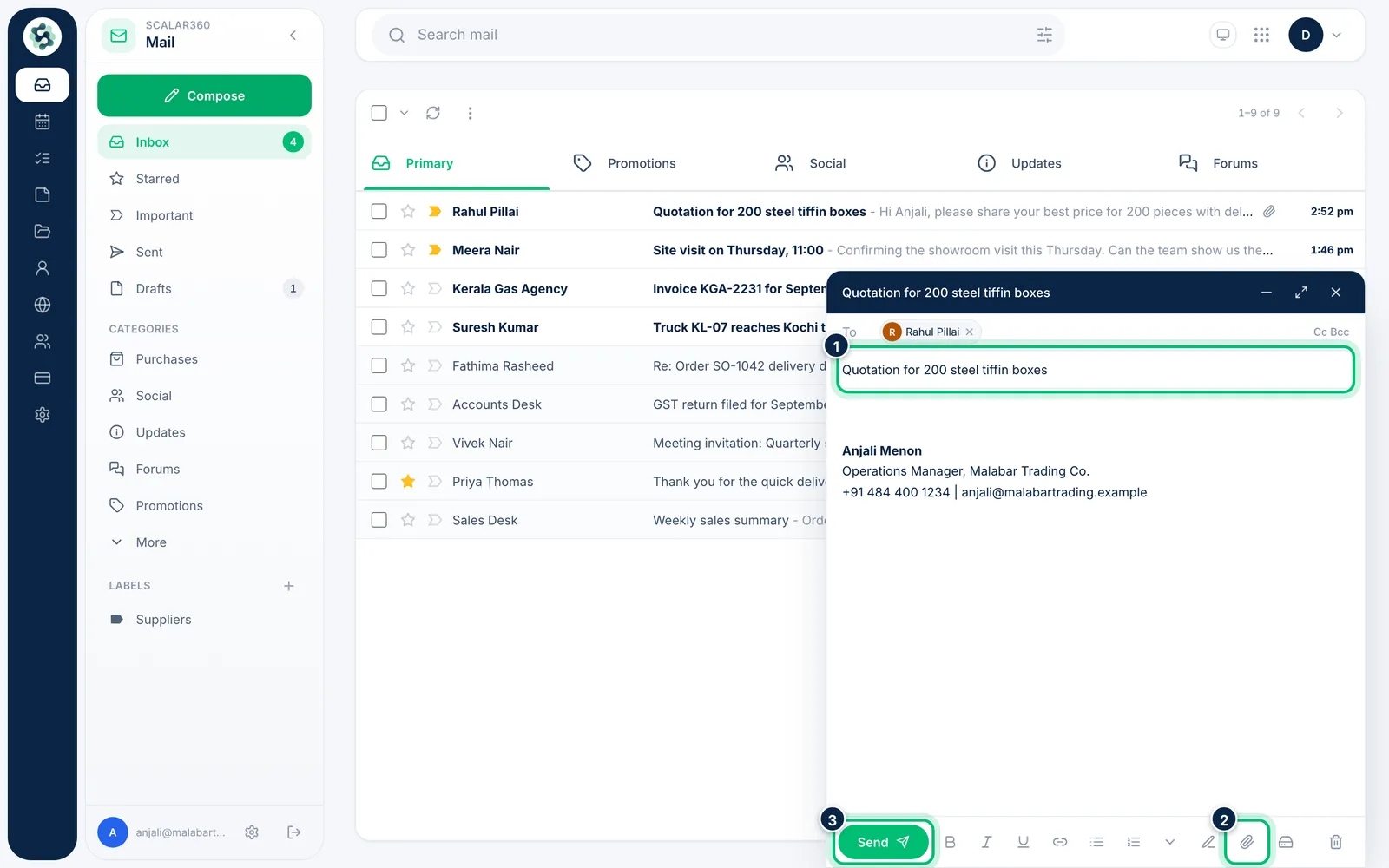
Add a Subject, write your message and format it with the toolbar at the bottom. Attach files from your computer or from Scalar360 Drive, then choose Send.
Related guides
Still stuck? Contact our support team.