
Scalar360 Mail · 3 steps
Secure your account and sign-in
Add 2-step verification and a passkey, manage the devices you're signed in on, and set up Google or Microsoft sign-in.
Before you start: Everyone can open these from Settings.
1Turn on 2-step verification and passkeys
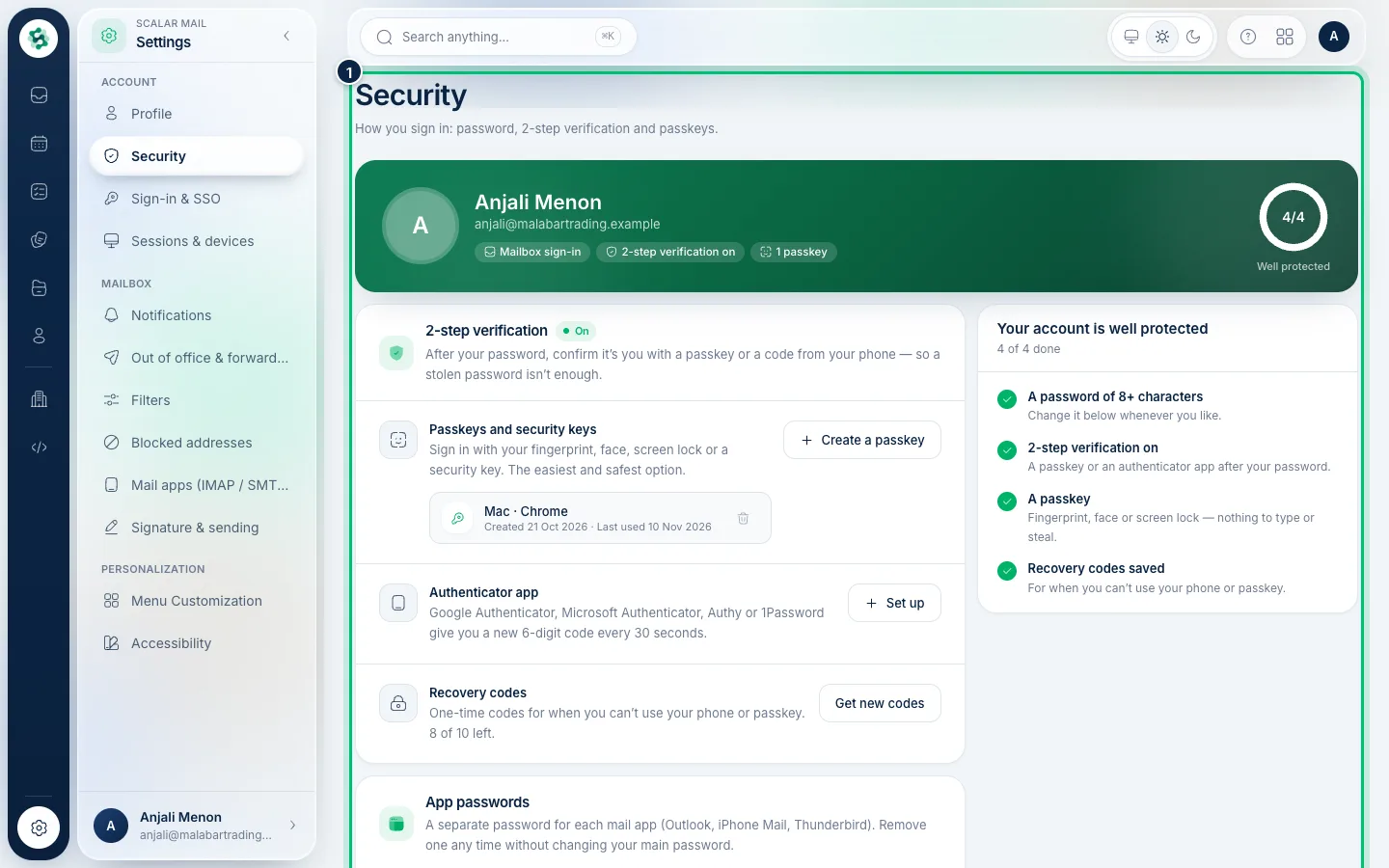
Choose Settings, then Security. Add a passkey (fingerprint, face or screen lock) or an authenticator app so a stolen password isn't enough. The ring shows how well your account is protected.
2Check your devices
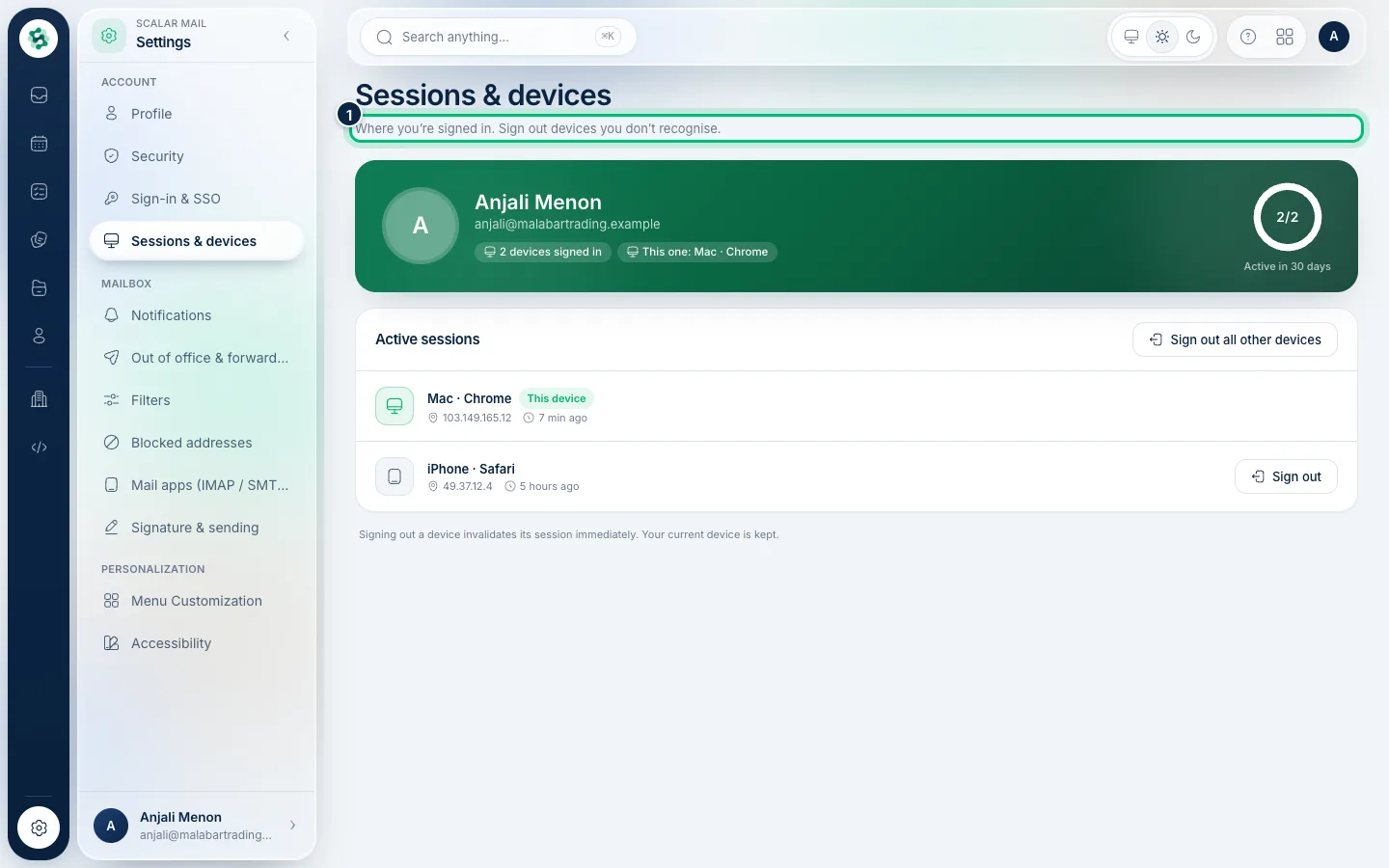
Sessions & devices lists everywhere you're signed in, with the current device marked. Sign out any device you don't recognise, or sign out all the others at once.
3Sign in with Google or Microsoft
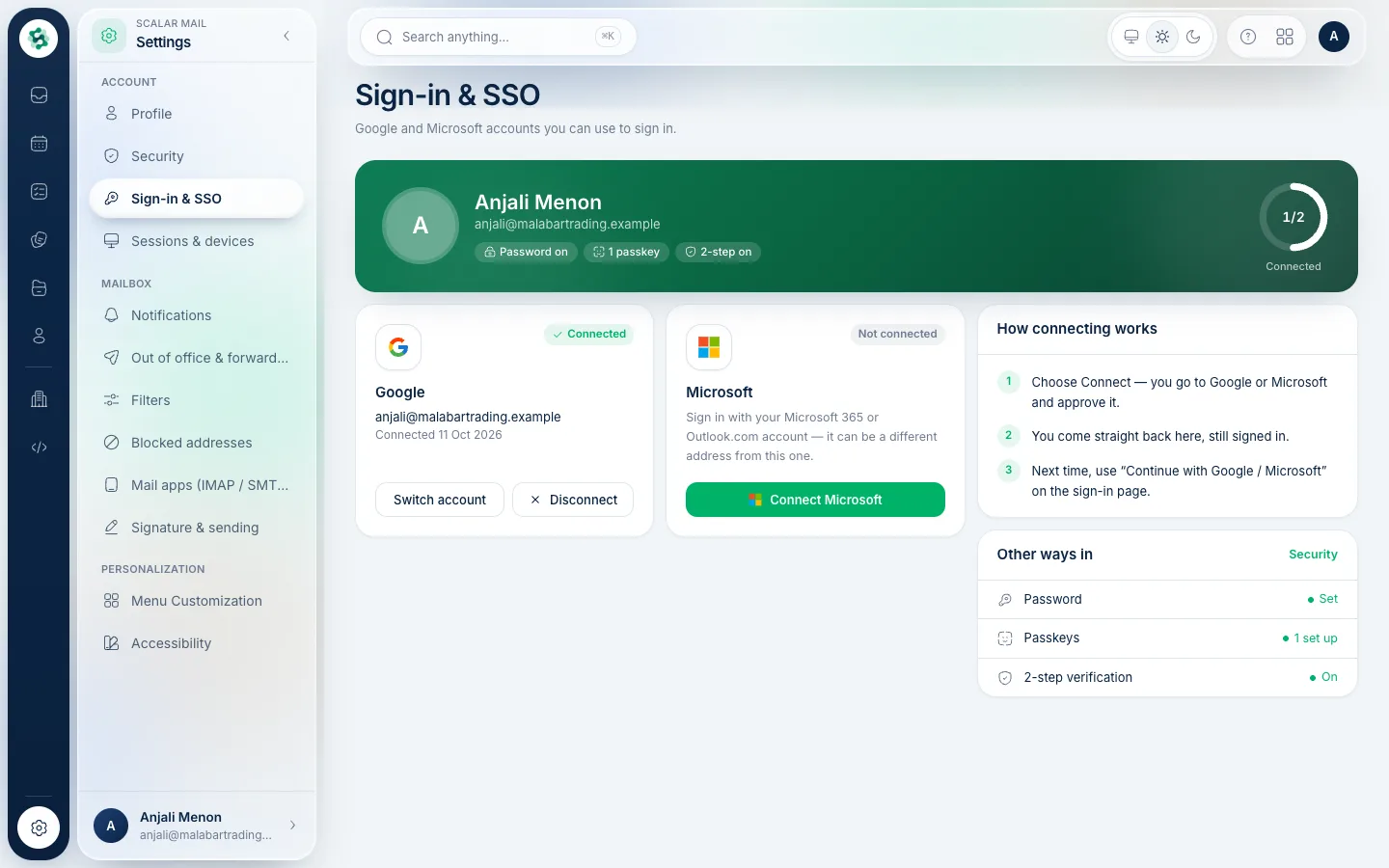
Sign-in & SSO lets the account owner connect a Google or Microsoft account to sign in with. People who join from Scalar360 sign in with their own account — nothing to connect.
Related guides
Still stuck? Contact our support team — or start a free trial to try this in your own company.