
Scalar360 Mail · 4 steps
Undo a send, schedule, and snooze
Pull a message back just after sending, send it at a chosen time, and snooze mail out of your Inbox until you need it.
Before you start: Sign in with a mailbox.
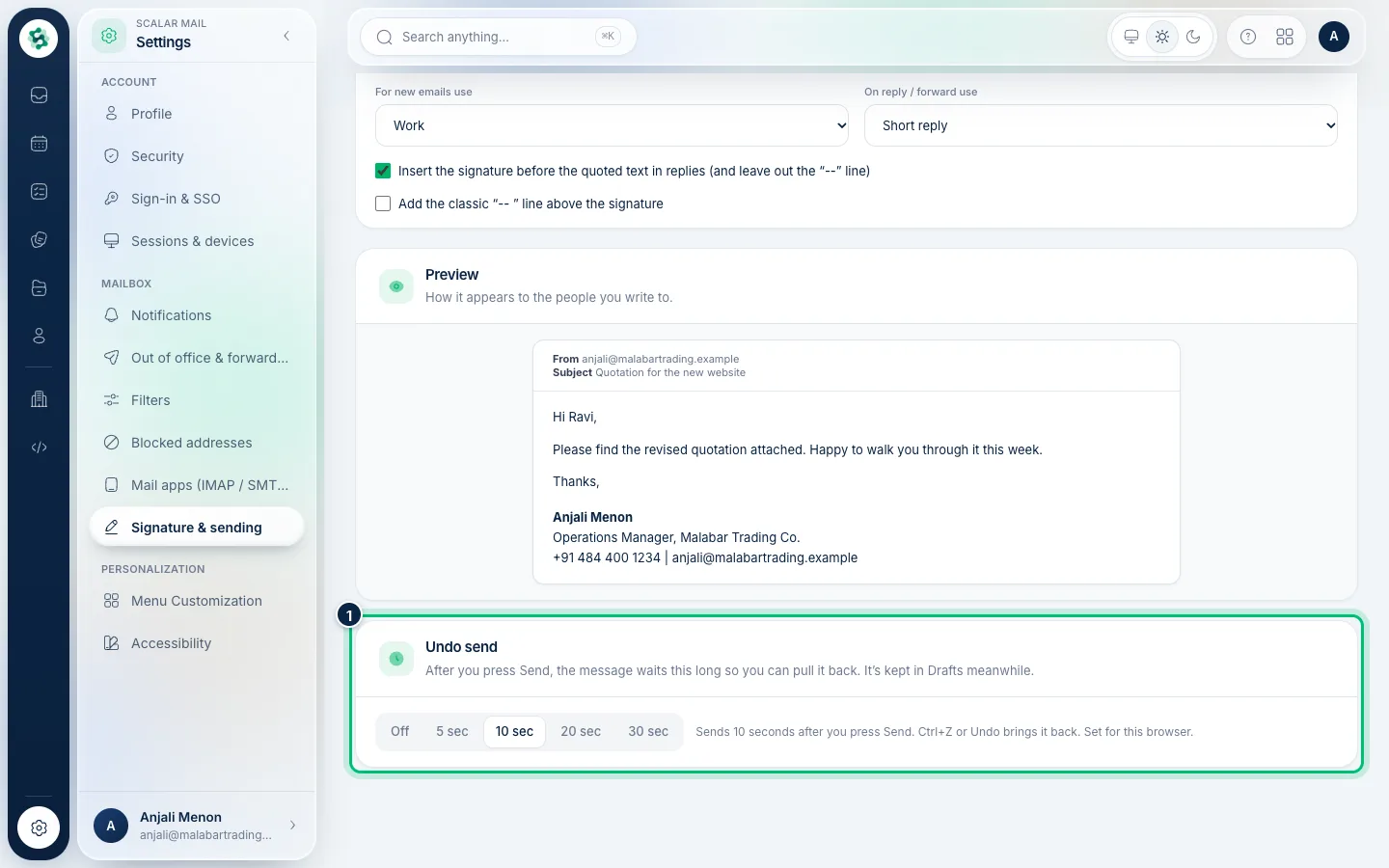
1Undo a send
After you choose Send, a bar shows Sending in Ns with Undo and Send now. Choose Undo (or press Ctrl+Z) to reopen the message exactly as it was. Set how long it waits in Settings › Signature & sending.
2Schedule a message for later
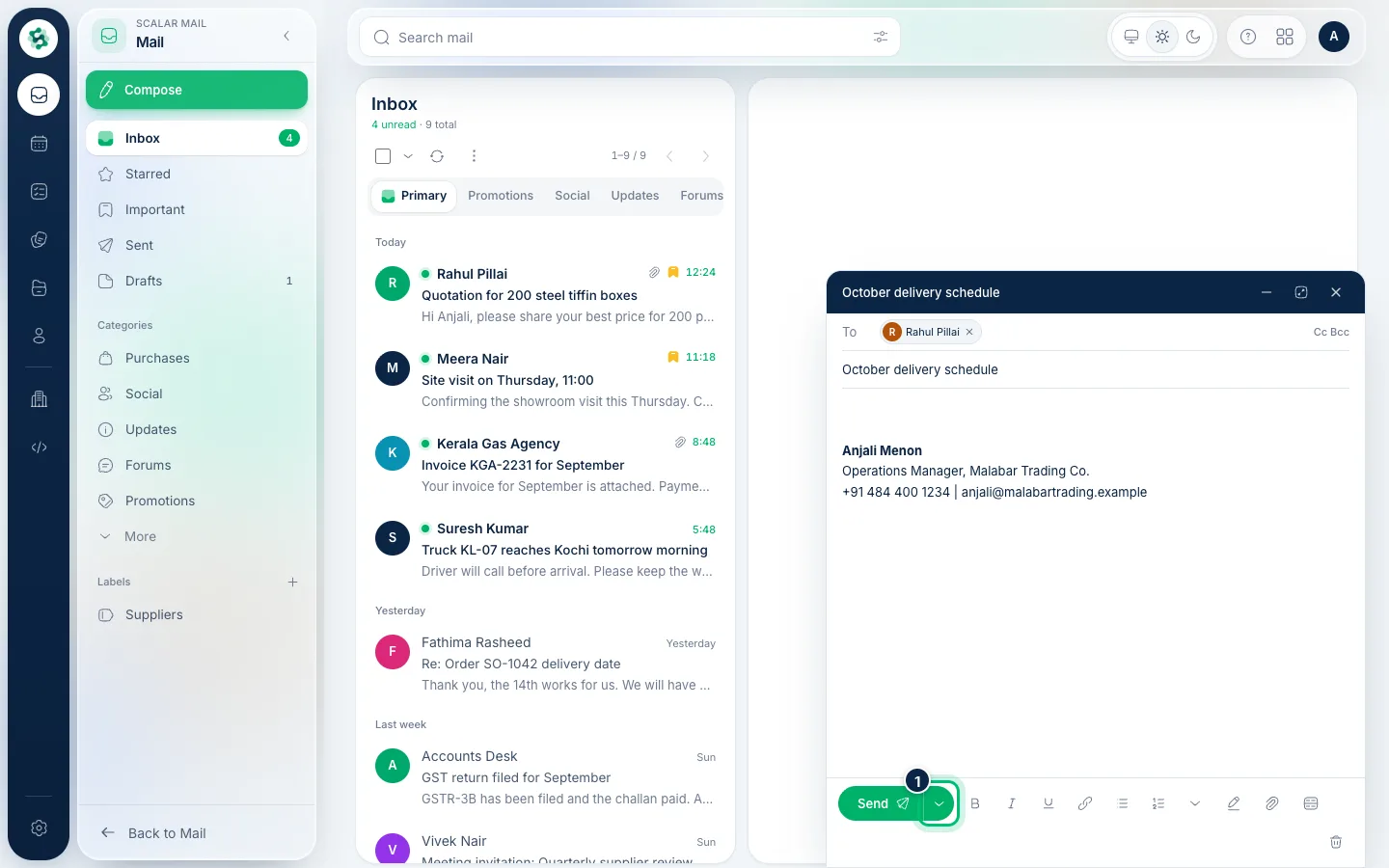
In the message window, the arrow next to Send offers this evening, tomorrow morning, Monday, or any date and time. The message goes out at that time even if you're signed out.
3See what's scheduled
A Scheduled folder appears while anything is waiting. Each message shows who it's to and when it sends, with Send now and Edit (which puts it back in Drafts).
4Snooze a message
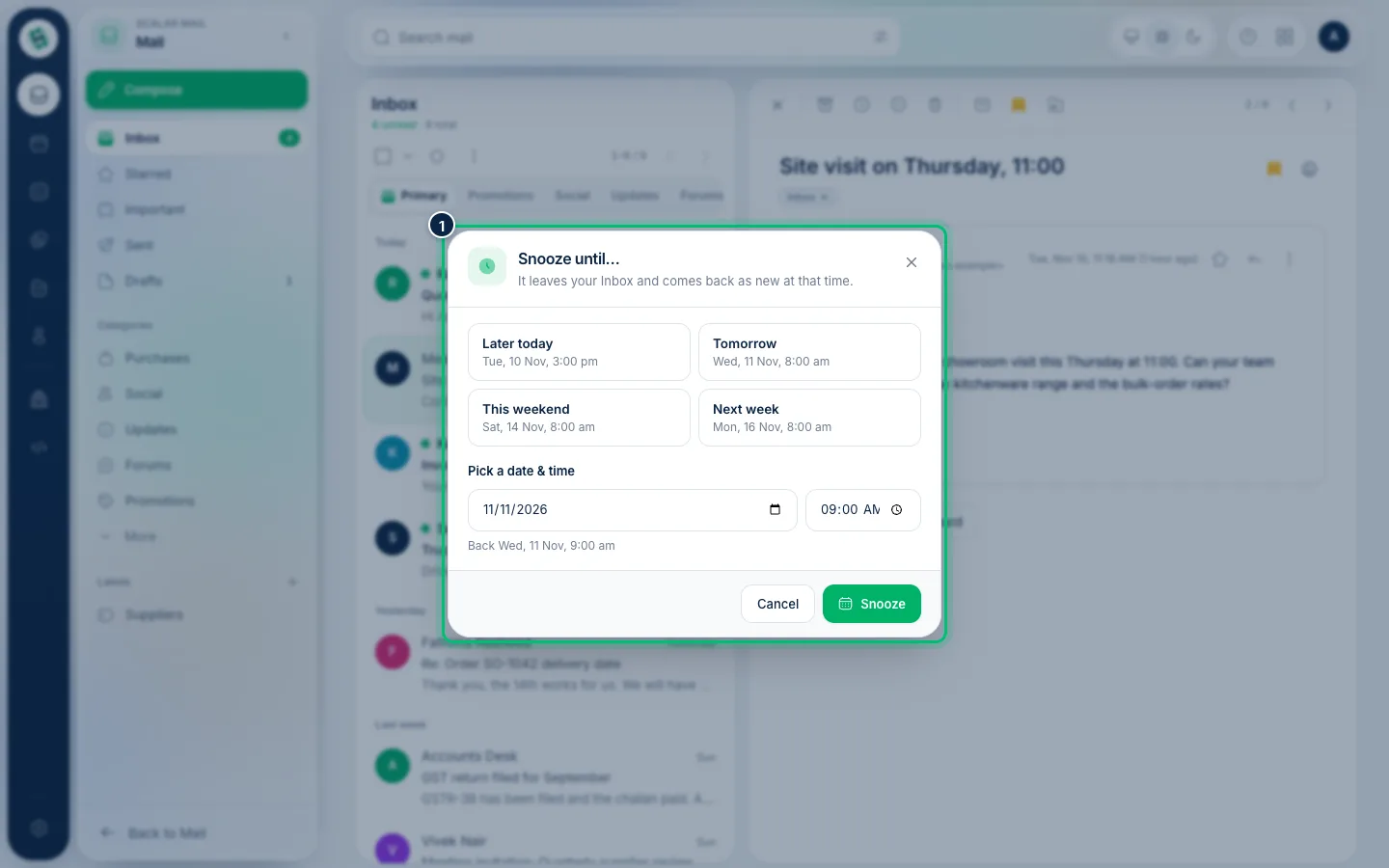
The clock button on an open message snoozes it: it leaves your Inbox and comes back as new at the time you pick — later today, tomorrow, the weekend, next week, or any time. A Snoozed folder lists what's resting, with the time it returns.
Related guides
Still stuck? Contact our support team — or start a free trial to try this in your own company.