
Scalar360 Mail · 4 steps
Sort incoming mail with filters
Make rules that file, star, mark read or forward new mail automatically — on the mail server, even while you're signed out.
Before you start: Sign in with a mailbox. Filters run on new mail that isn't spam, in the order you set.
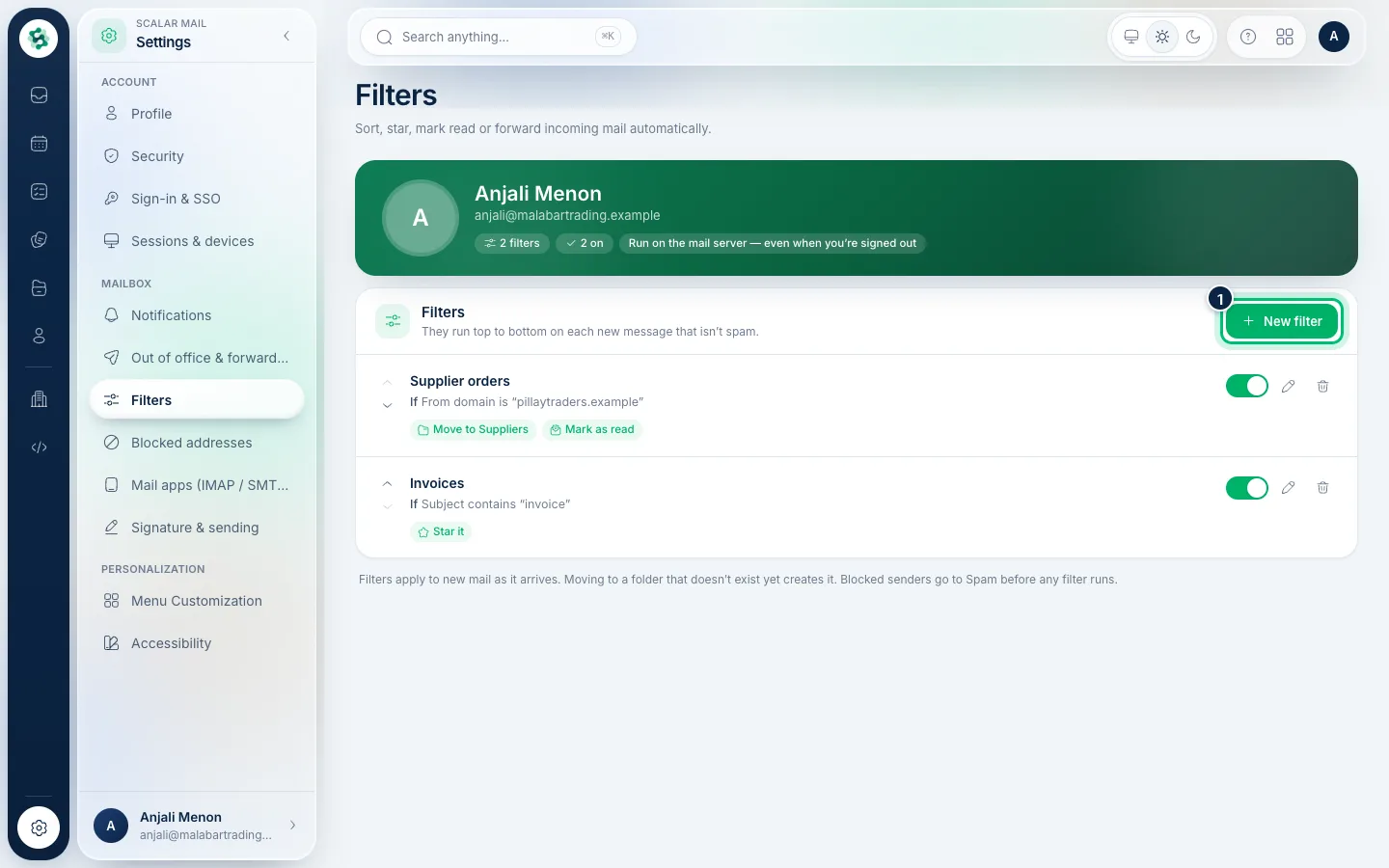
1Open Filters
Choose Settings, then Filters. Your filters are listed in the order they run, each showing what it looks for and what it does, with switches to turn them on or off and arrows to reorder them.
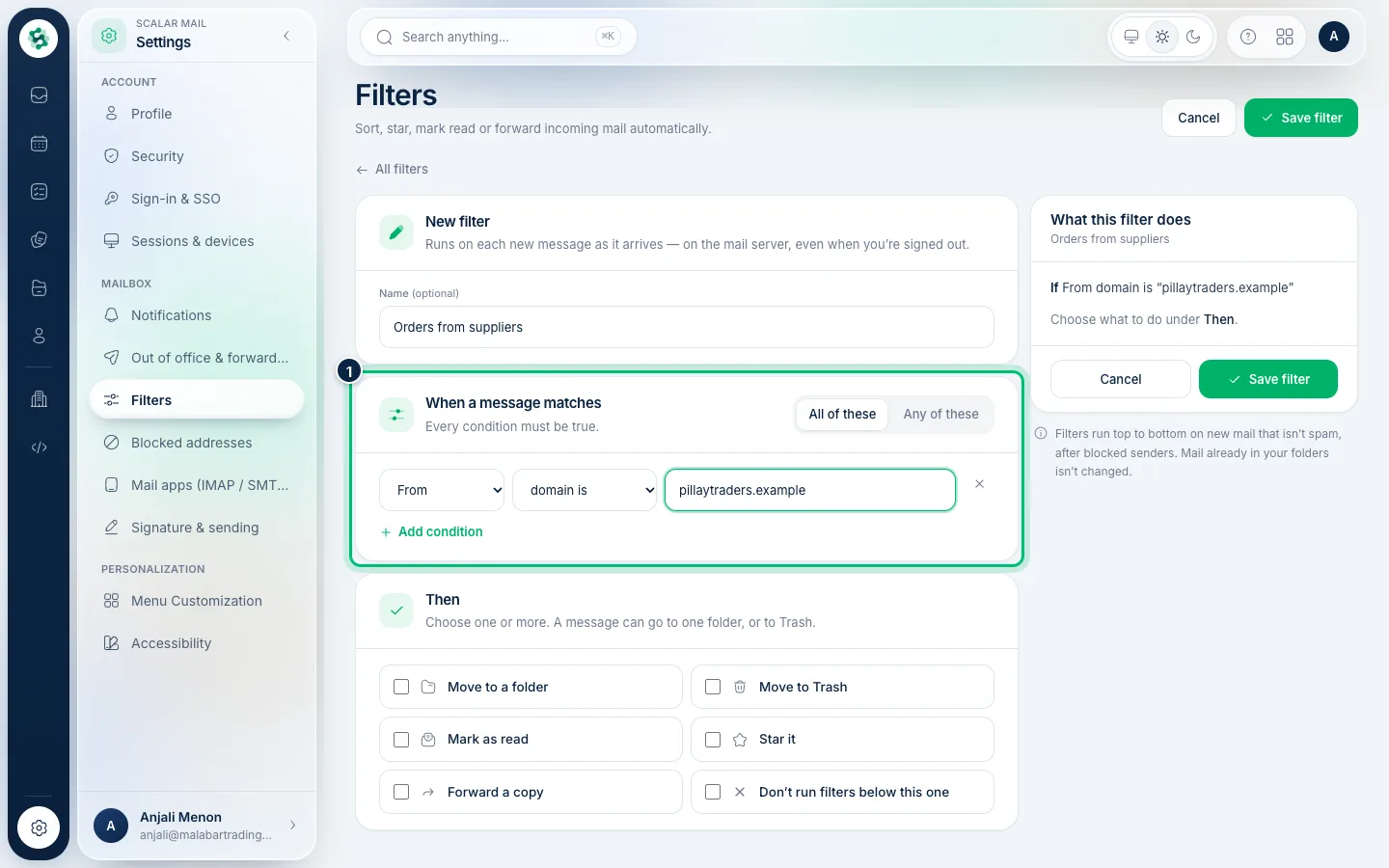
2Set the conditions
Choose New filter. Under When a message matches, pick All of these or Any of these, then build conditions on From, To or Cc or Subject — contains, is exactly, or the sender's domain. Choose Add condition for more.
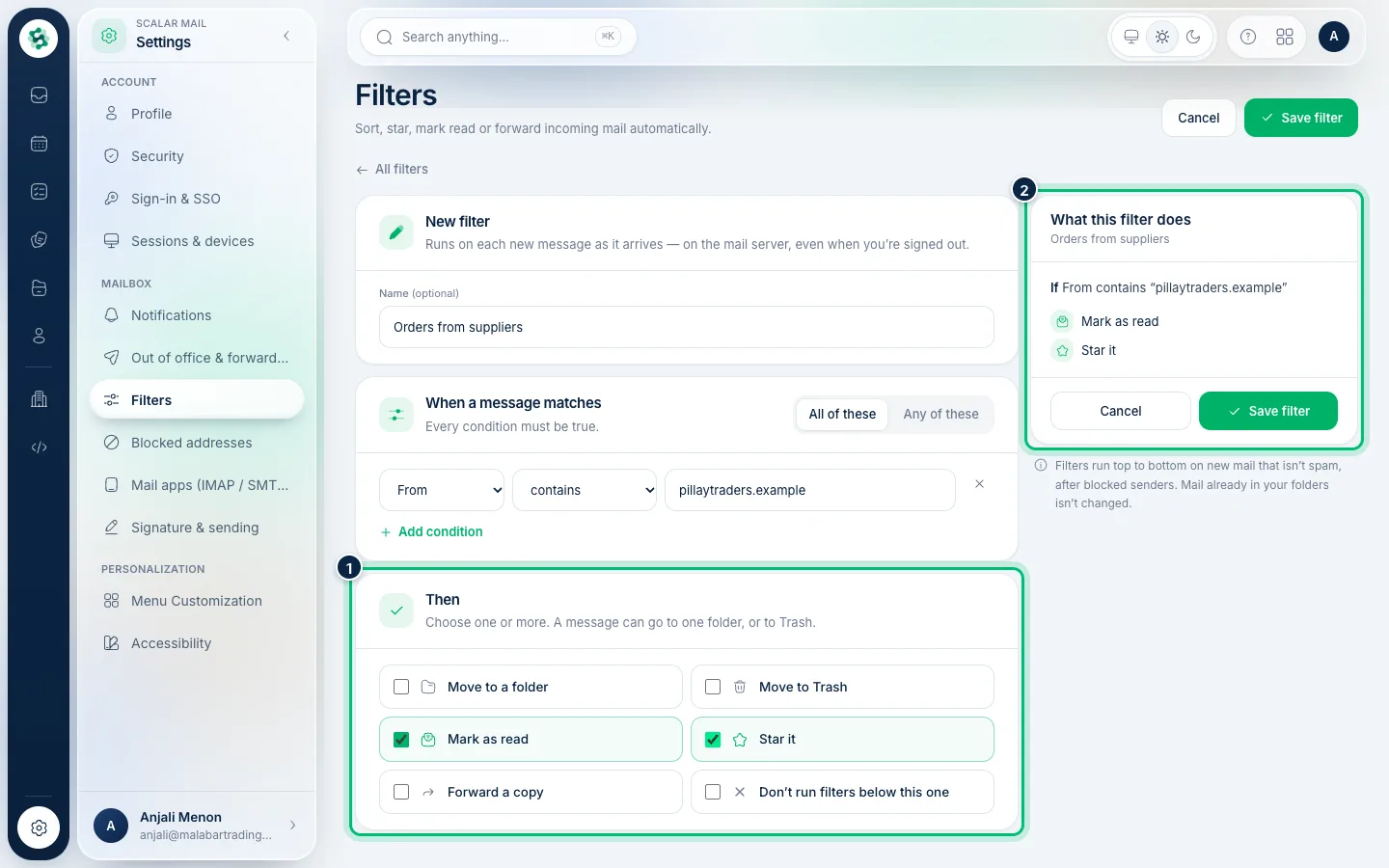
3Choose what to do
Under Then, tick what should happen: move to a folder, mark as read, star it, forward a copy, move to Trash, or stop later filters. The card on the right sums up what the filter will do; choose Save filter.
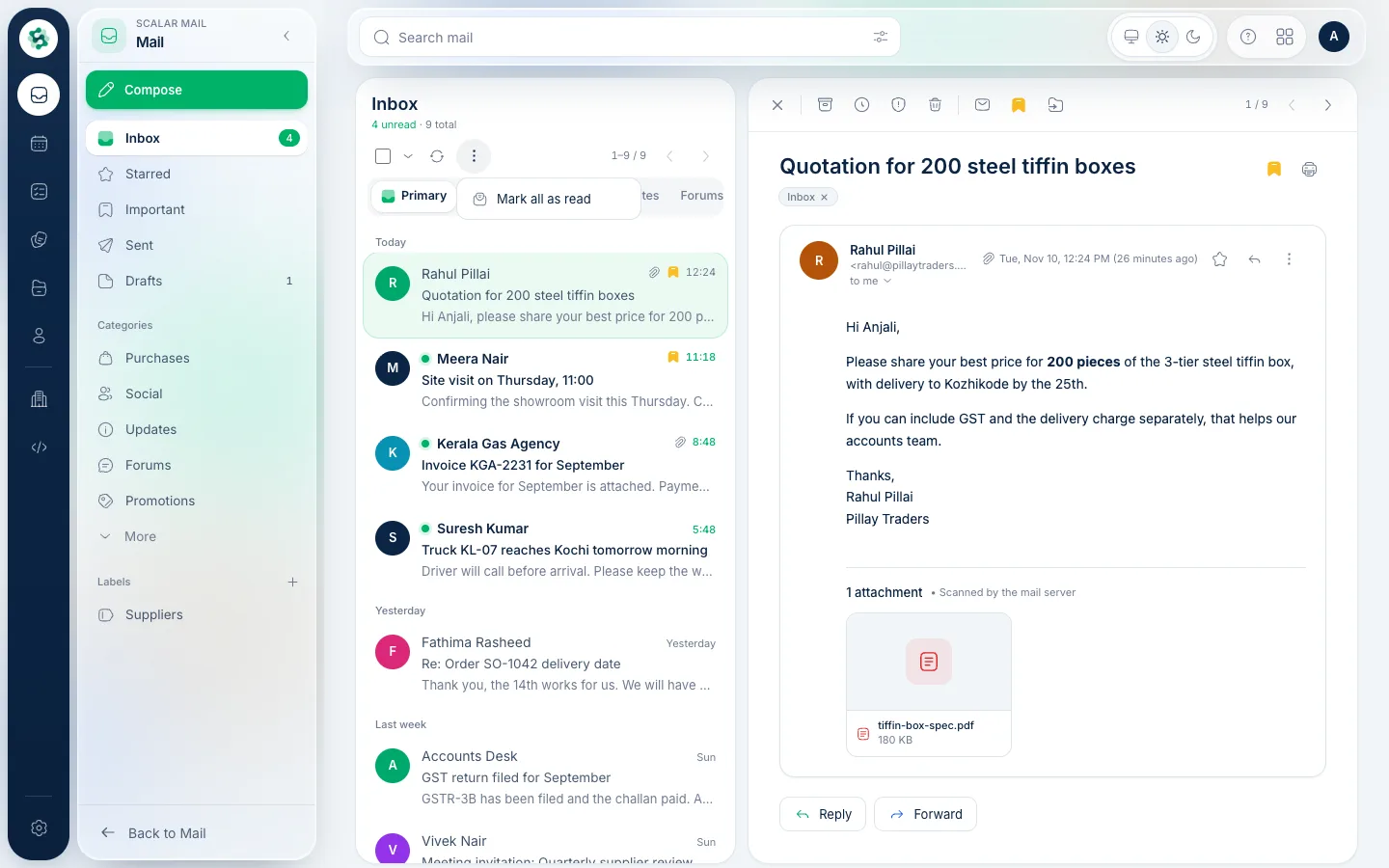
4Filter messages like a sender
Reading a message, its ⋯ menu has Filter messages like this, which opens a new filter already set to that sender — handy for routing everything from one company.
Related guides
Still stuck? Contact our support team — or start a free trial to try this in your own company.