
Scalar360 Mail · 3 steps
Make Mail your own
Hide modules you don't use, change the sidebar colour and style, and switch between the classic and unified layouts.
Before you start: Everyone can change these; they're saved to your account.
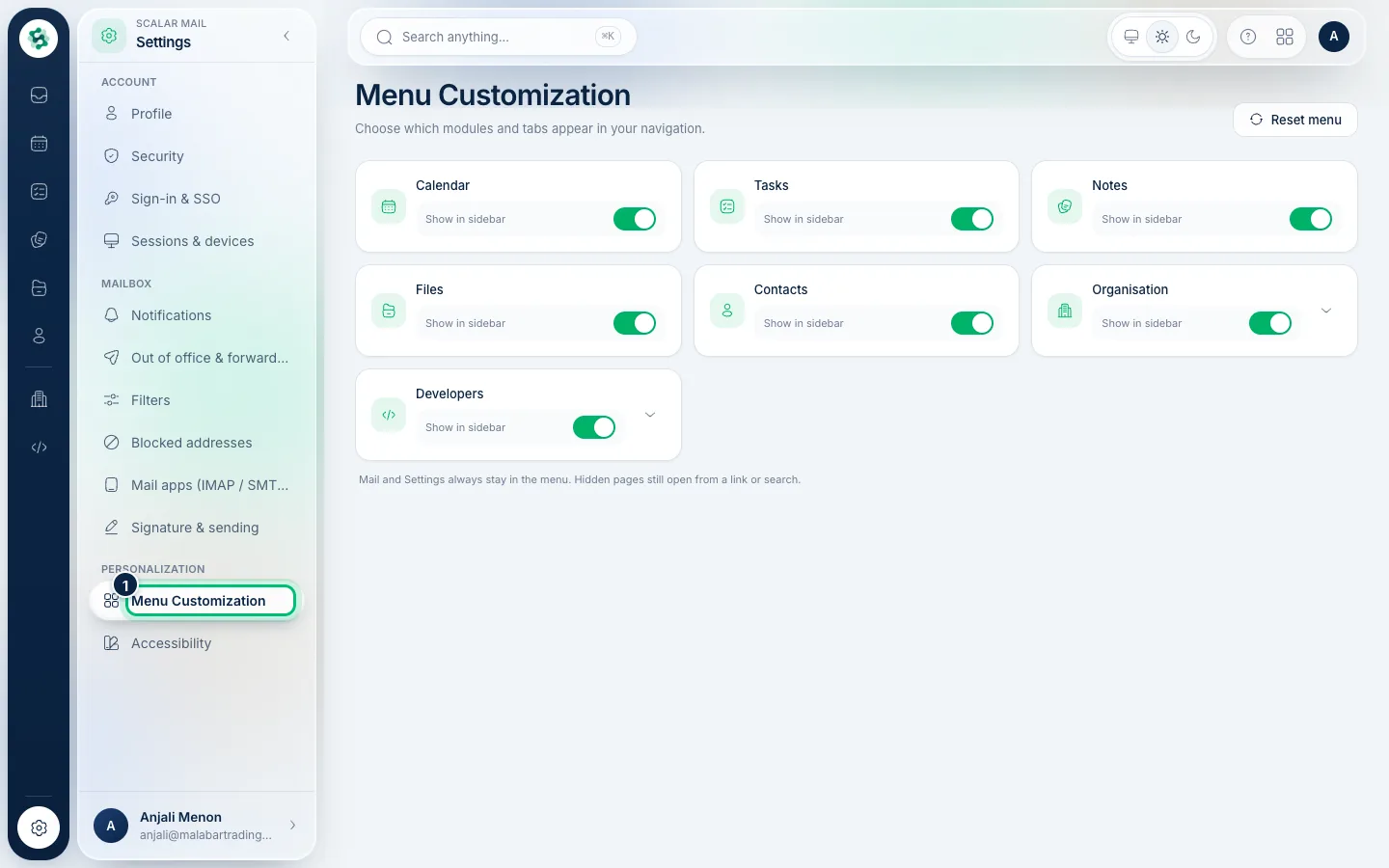
1Choose which modules appear
Choose Settings, then Menu Customization. Switch off modules and tabs you don't use to hide them from the sidebar; Mail and Settings always stay. Hidden pages still open from a link or search.
2Pick a sidebar colour and style
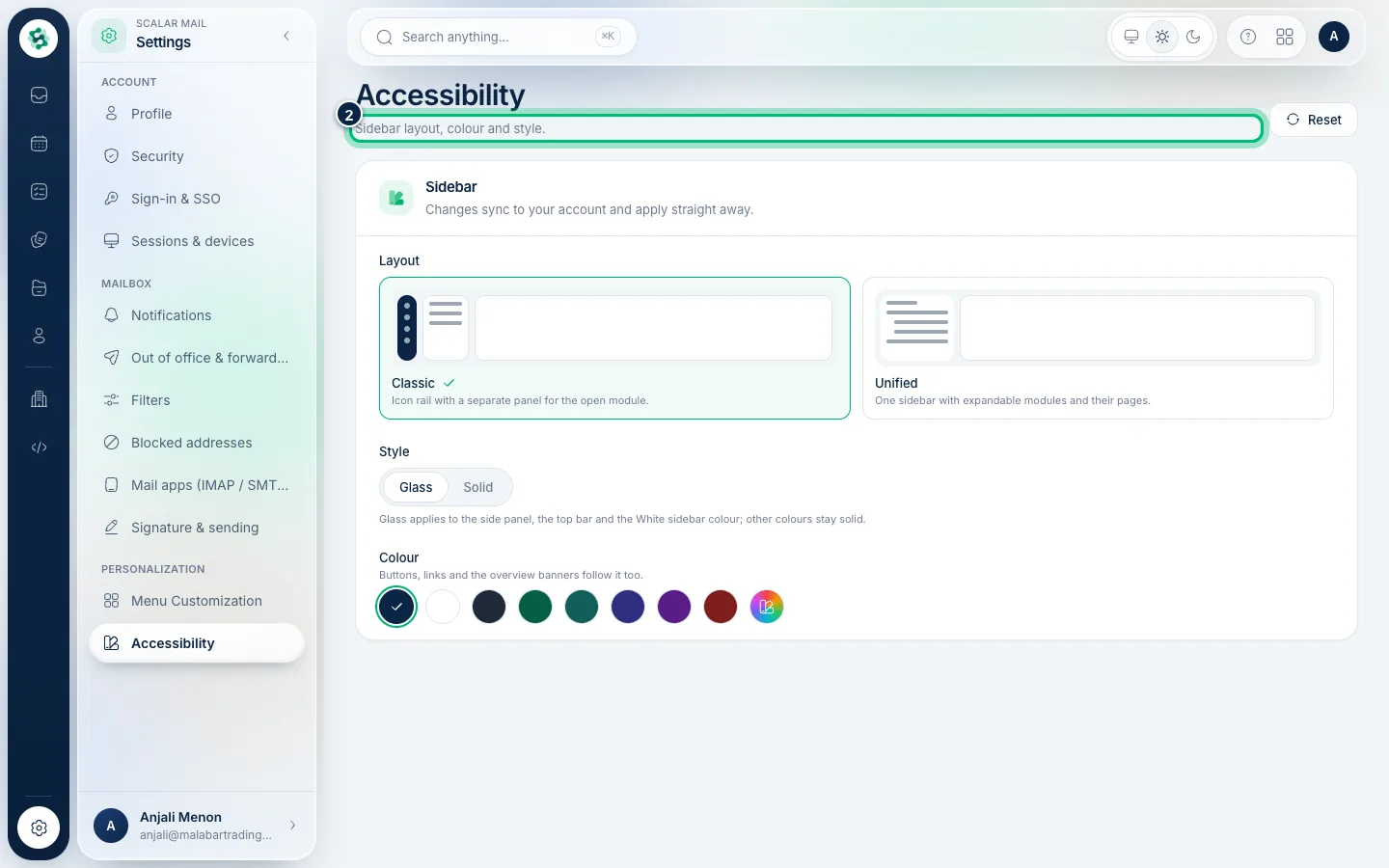
Open Accessibility. Choose a sidebar Colour — the buttons and banners follow it too — and Glass or Solid for the surfaces.
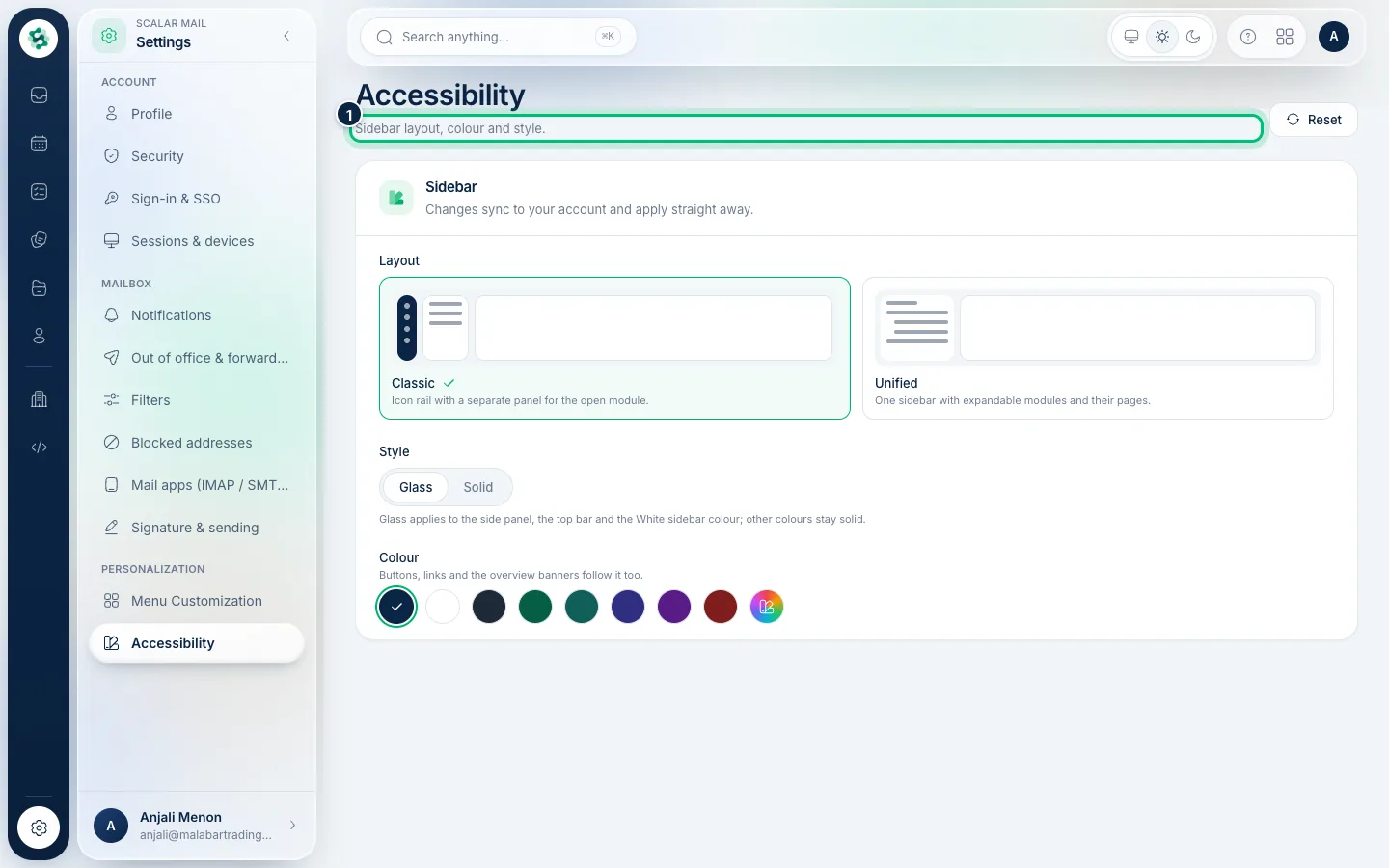
3Classic or unified layout
Still on Accessibility, Layout switches between Classic (an icon rail with a panel) and Unified (one sidebar with expandable modules). Press Ctrl+B any time to collapse or open the side panel.
Related guides
Still stuck? Contact our support team — or start a free trial to try this in your own company.