
Scalar360 Mail · 3 steps
Set up aliases and groups
Create extra addresses like hello@ or sales@ that deliver to one person, a whole team, or a catch-all — no extra mailbox needed.
Before you start: You need a domain added. Only admins can manage aliases.
1Open Aliases & groups
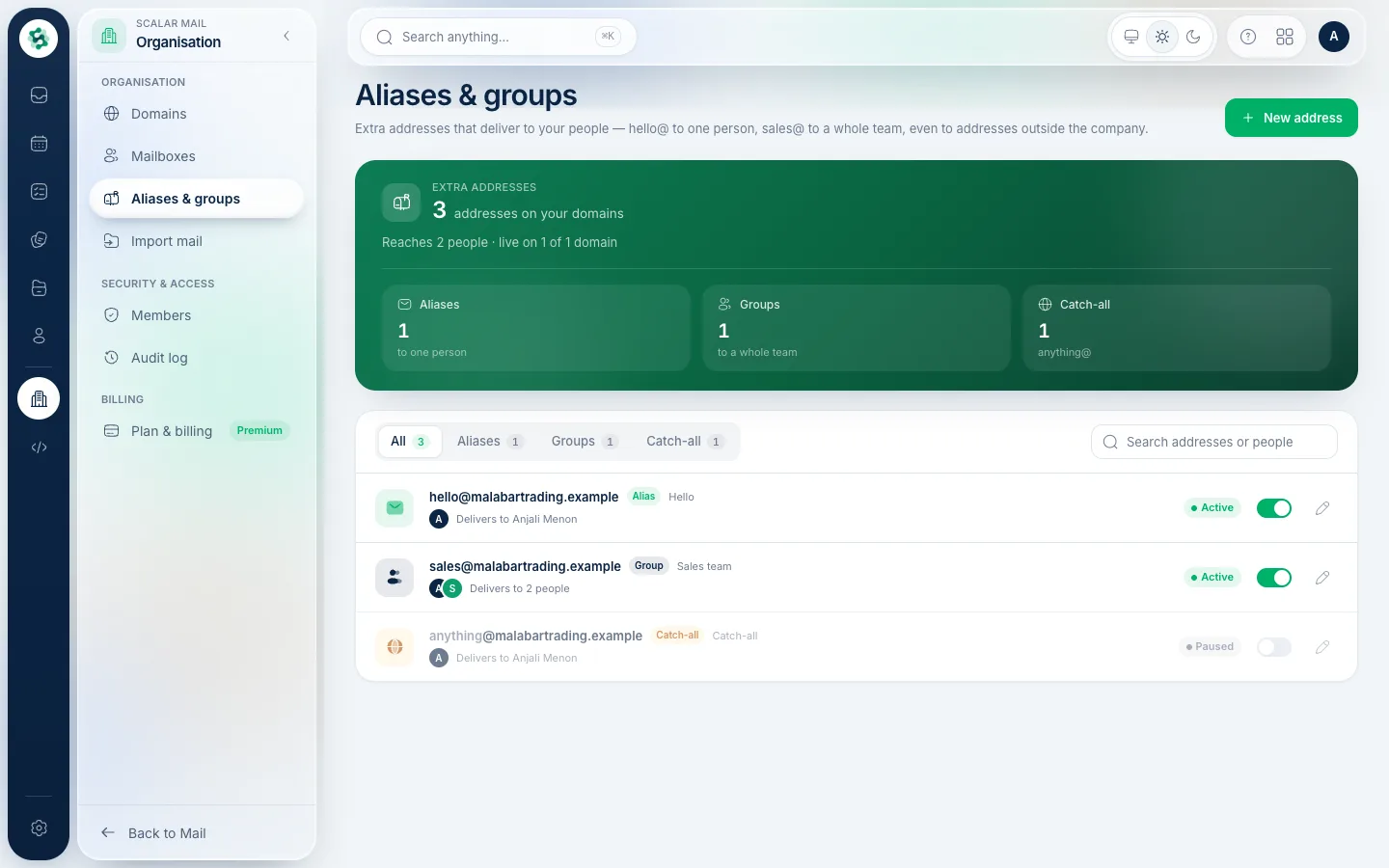
In the left menu open Aliases & groups. Each address shows where it delivers. Choose New address to make one.
2Choose the kind of address
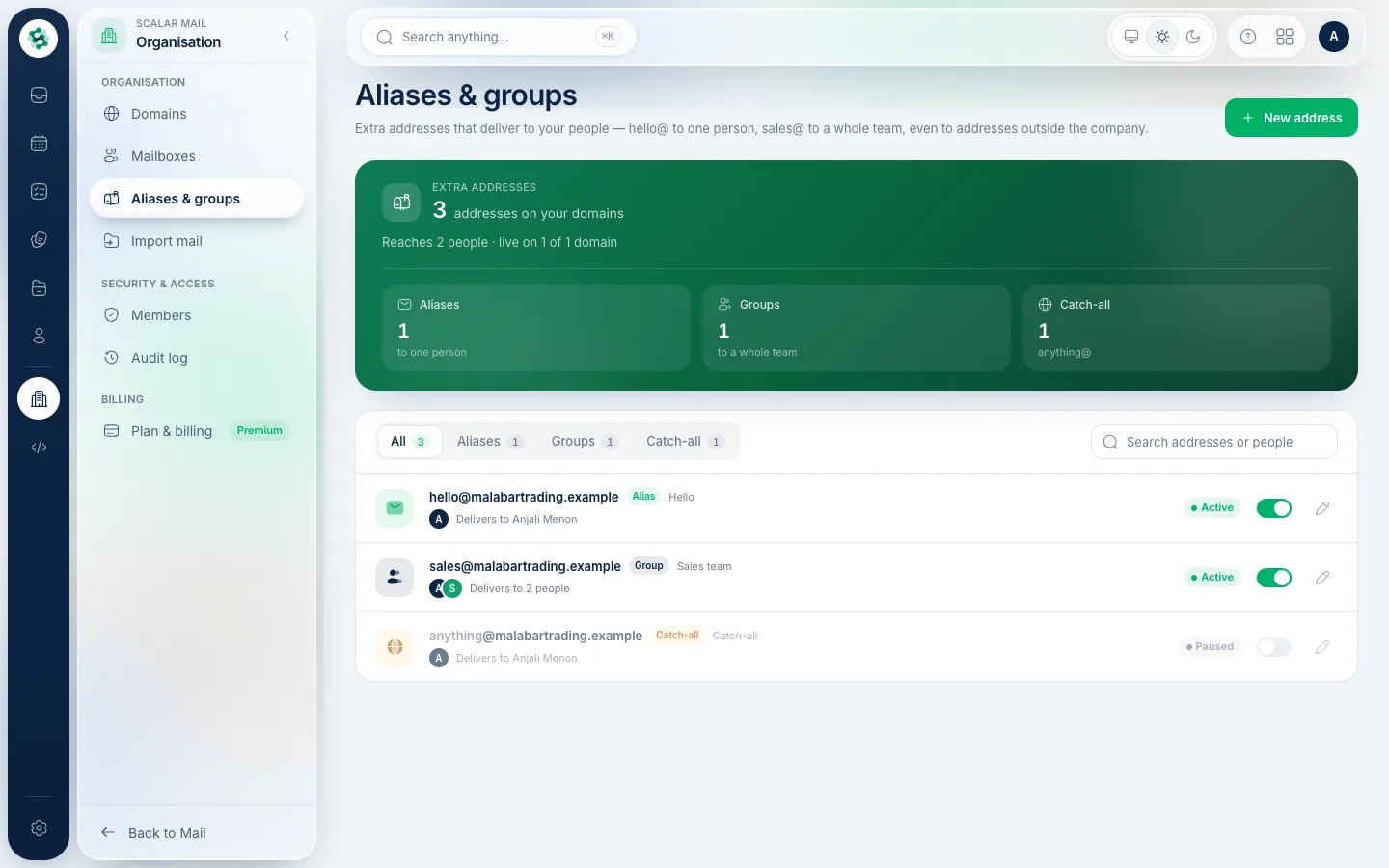
An alias lands in one inbox, a group sends a copy to several people, and a catch-all receives anything at your domain that has no mailbox. Pick the one you need.
3Set the address and where it goes
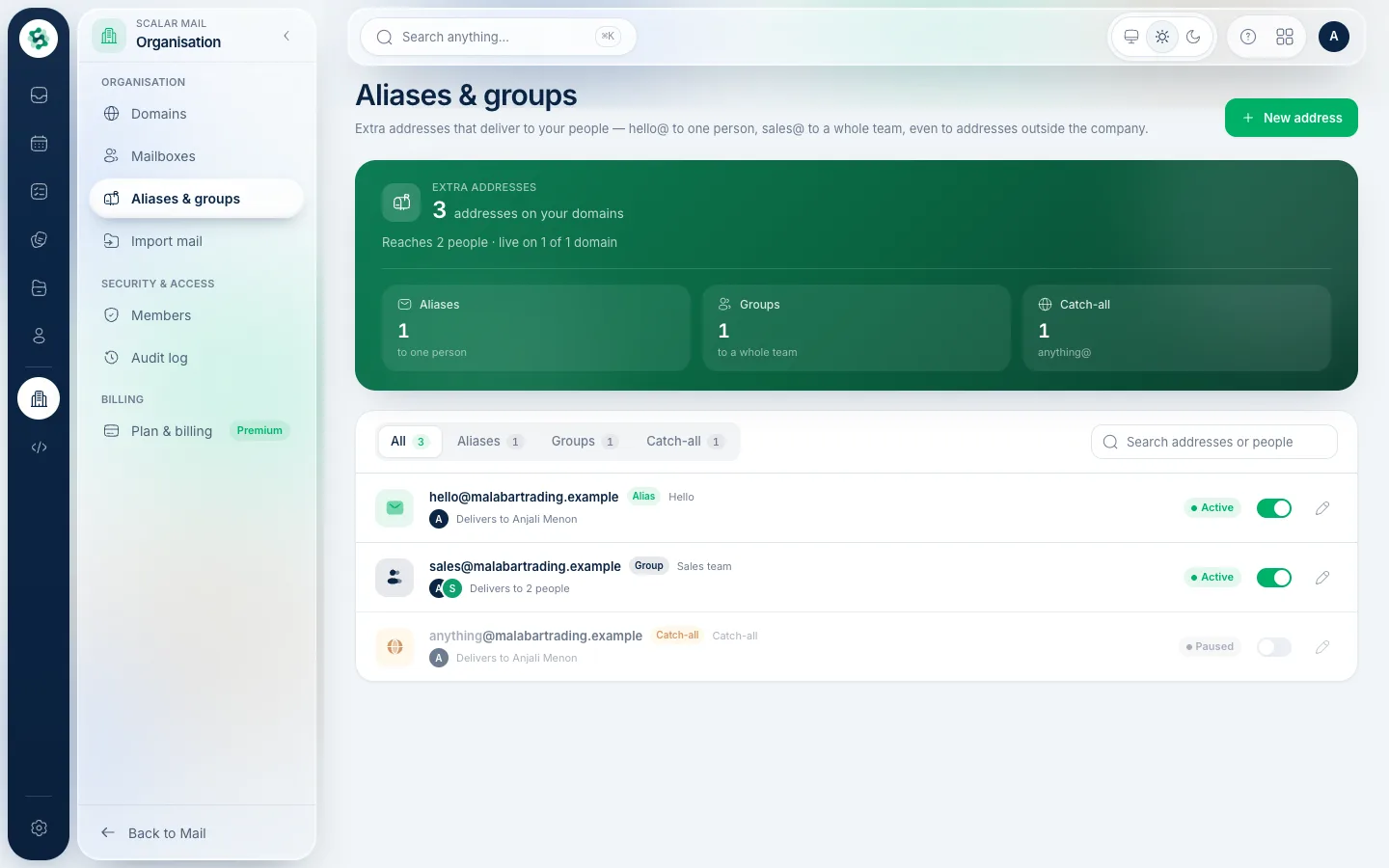
Enter the address before the @ and add one or more destinations — they can be your mailboxes or addresses outside your company. Save it, and mail starts flowing immediately.
Related guides
Still stuck? Contact our support team — or start a free trial to try this in your own company.