
Scalar360 Mail · 3 steps
Out of office, forwarding and blocked senders
Reply automatically while you're away, send a copy of your mail to another address, and stop mail from senders you don't want.
Before you start: Sign in with a mailbox. These run on the mail server, so they work even when you're signed out.
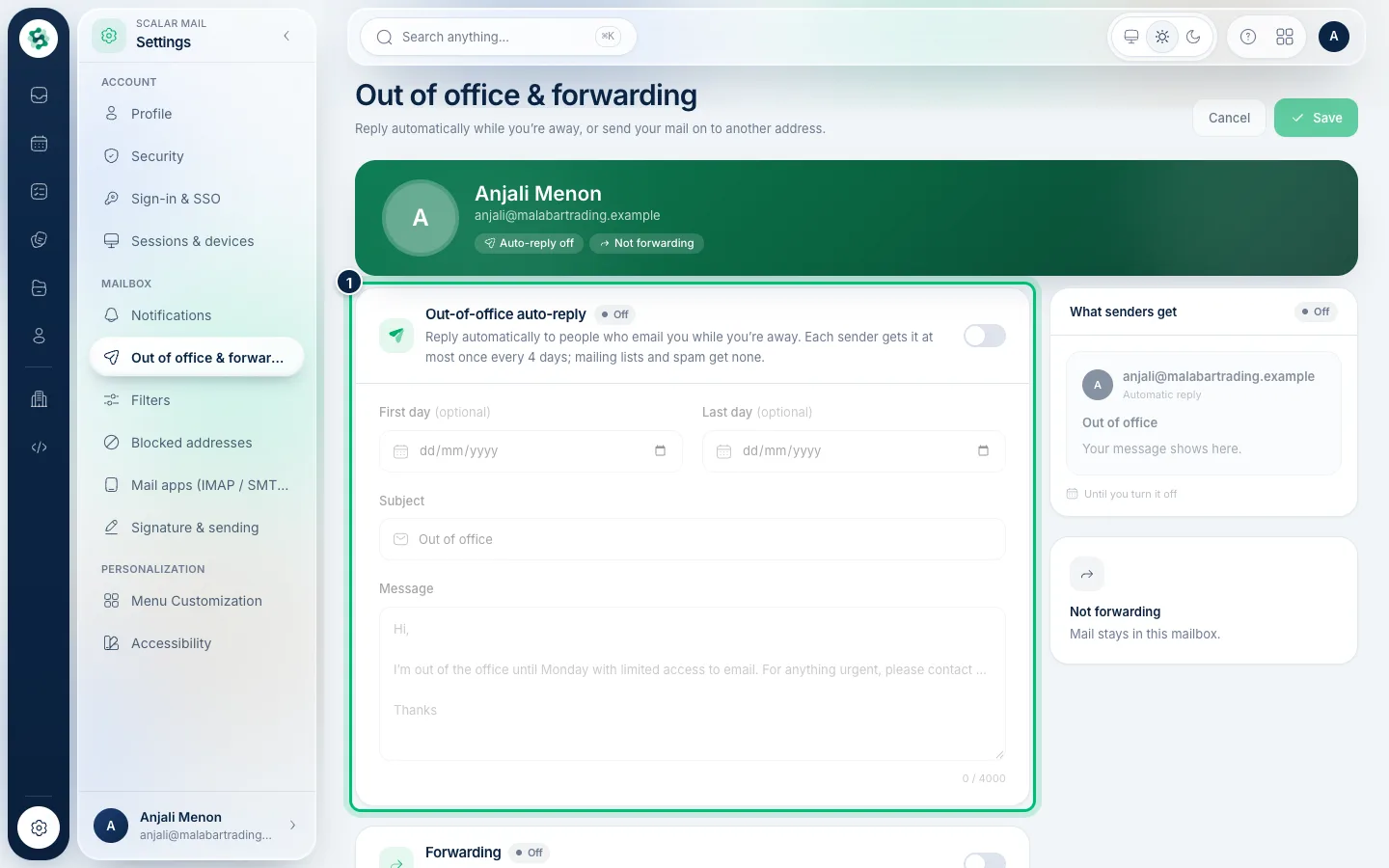
1Turn on an out-of-office reply
Choose Settings, then Out of office & forwarding. Switch on Out-of-office auto-reply, set the First day and Last day (both optional), a Subject and a Message. Each sender gets it at most once every few days.
2Forward your mail
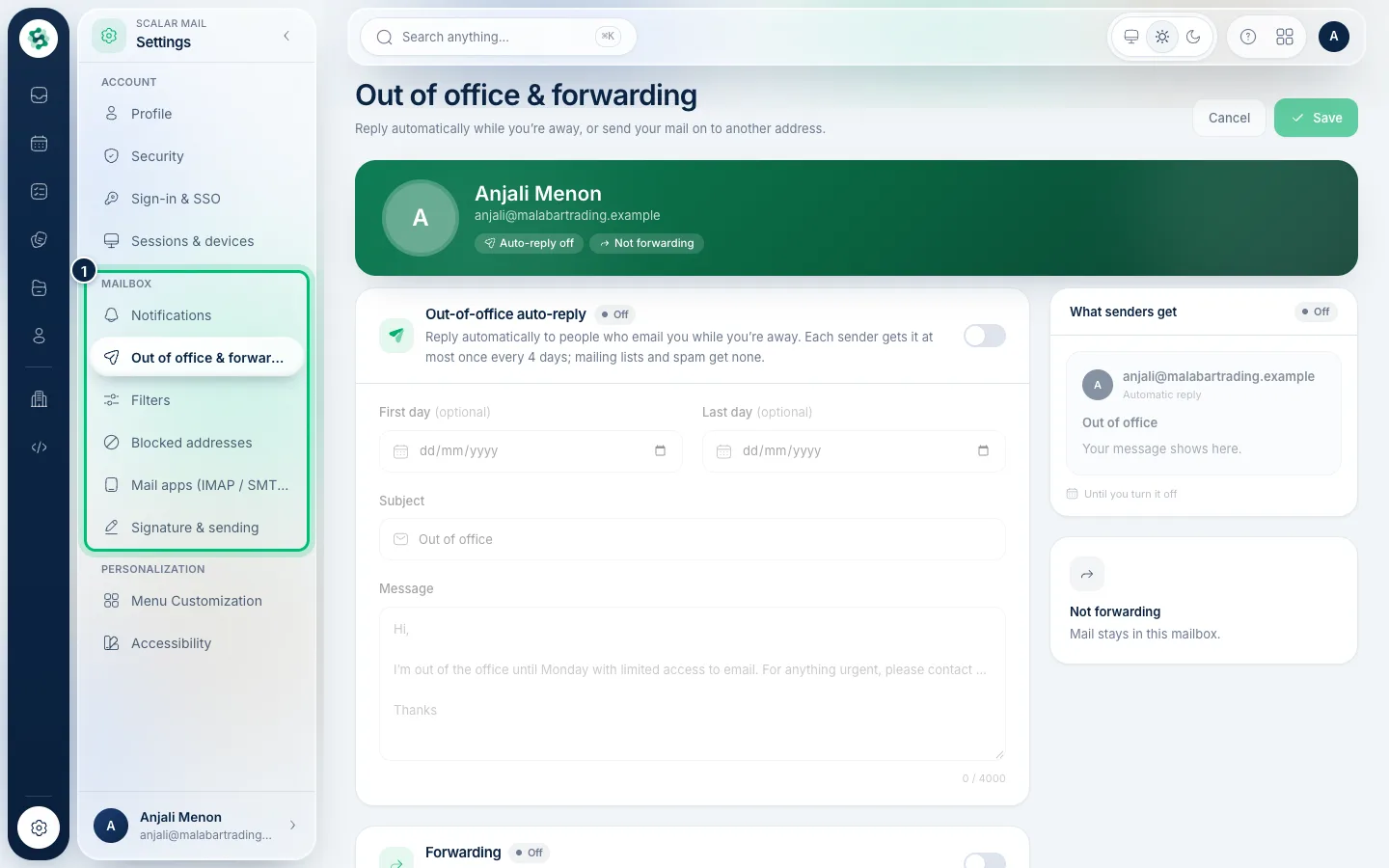
Under Forwarding, switch it on and enter the address to forward to. Choose Keep a copy to leave mail in this inbox as well, or send it only to the other address.
3Block a sender
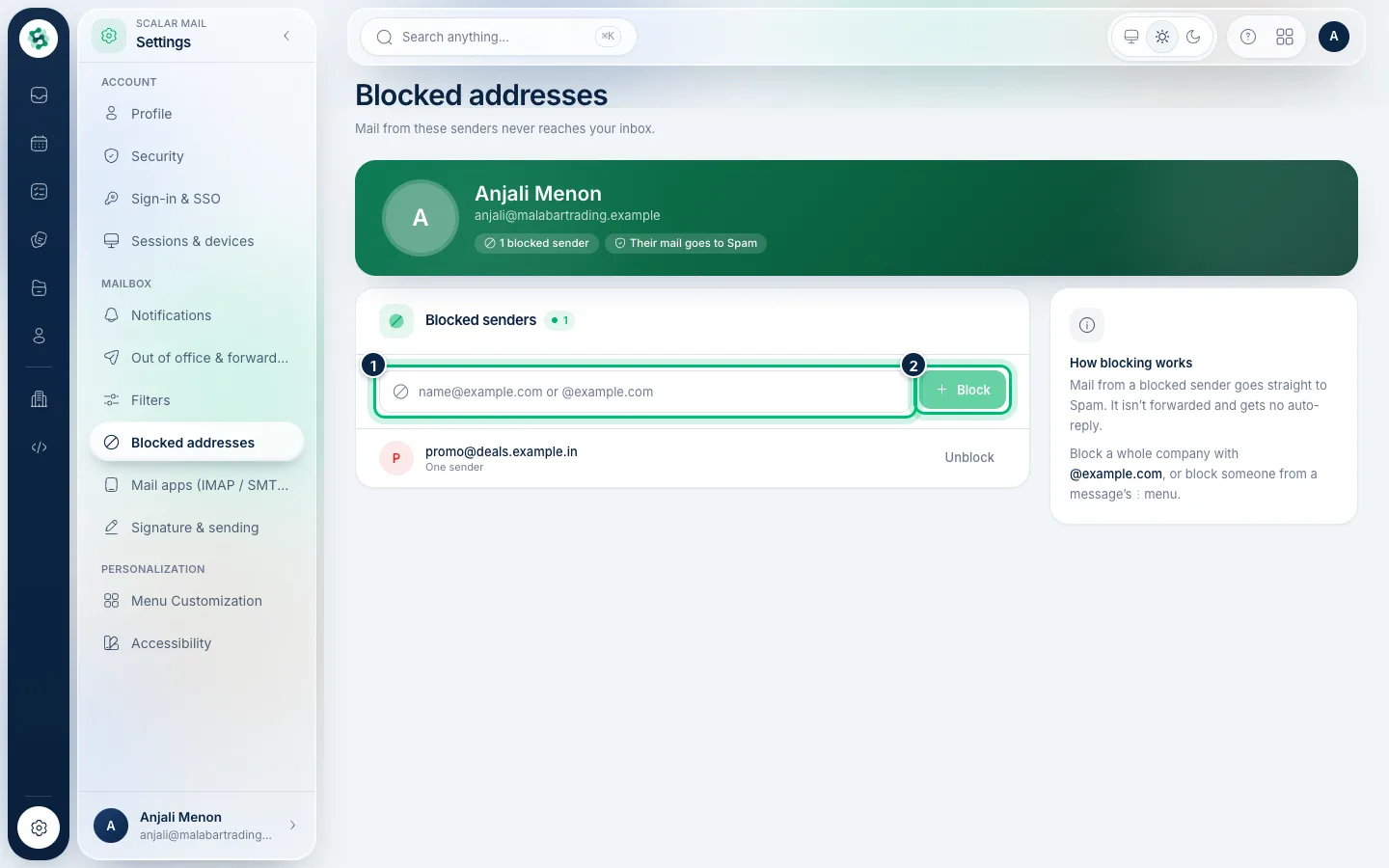
Open Blocked addresses. Enter an address like name@example.com, or @example.com for a whole company, and choose Block. Their mail goes straight to Spam — no reply, no forwarding. You can also block a sender from a message's ⋯ menu.
Related guides
Still stuck? Contact our support team — or start a free trial to try this in your own company.