
Accounting & GST · 6 steps
Reconcile a bank statement
Import your bank statement and match each line to the receipts, payments and expenses already in your books.
Before you start: Record your receipts and payments first, so there's something to match the statement against.
1Add your bank account and import a statement
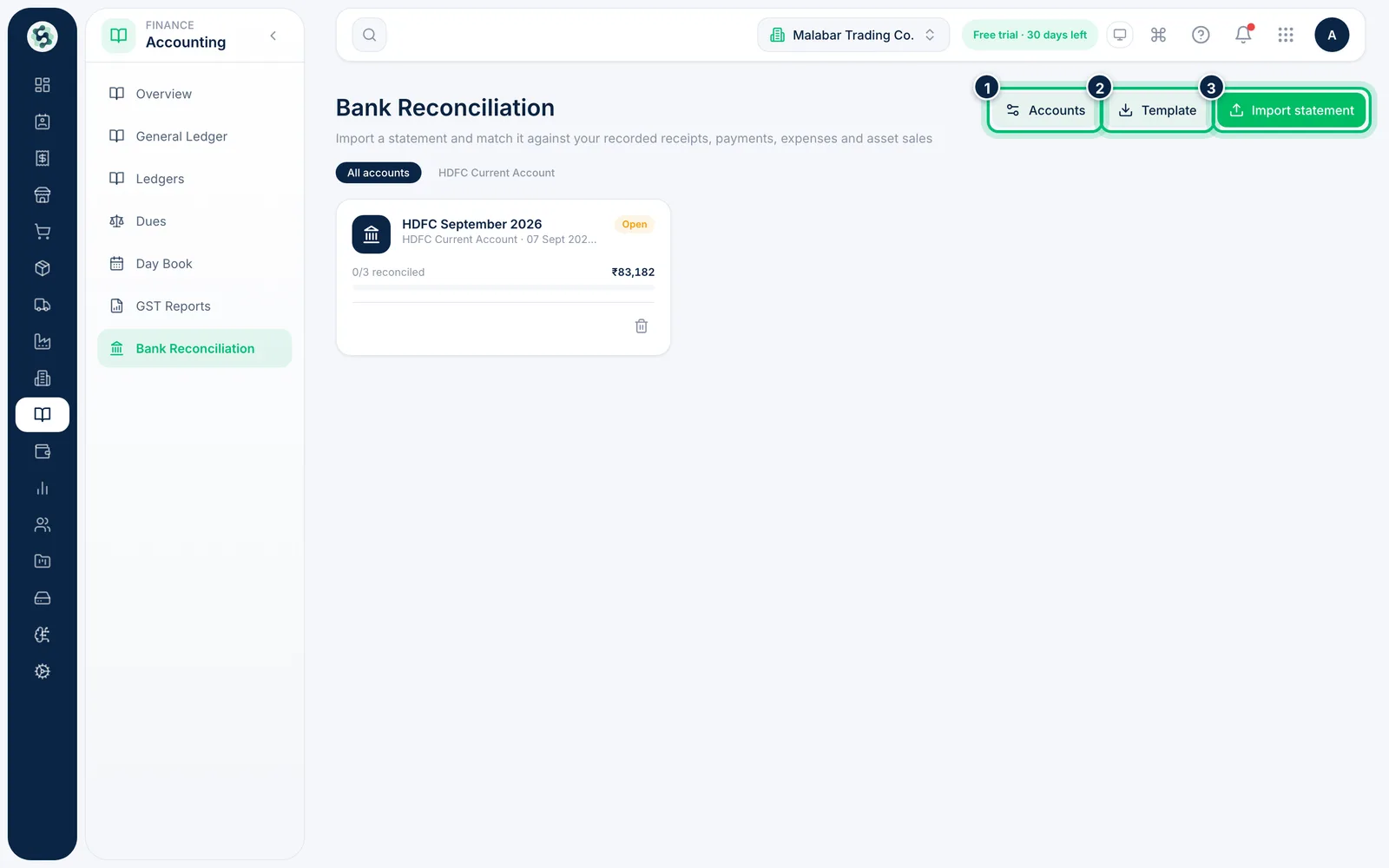
Open Accounting → Bank Reconciliation. Use Accounts to add each bank account, Template to download a sample CSV, and Import statement to upload a CSV or Excel statement.
2Choose the account and file
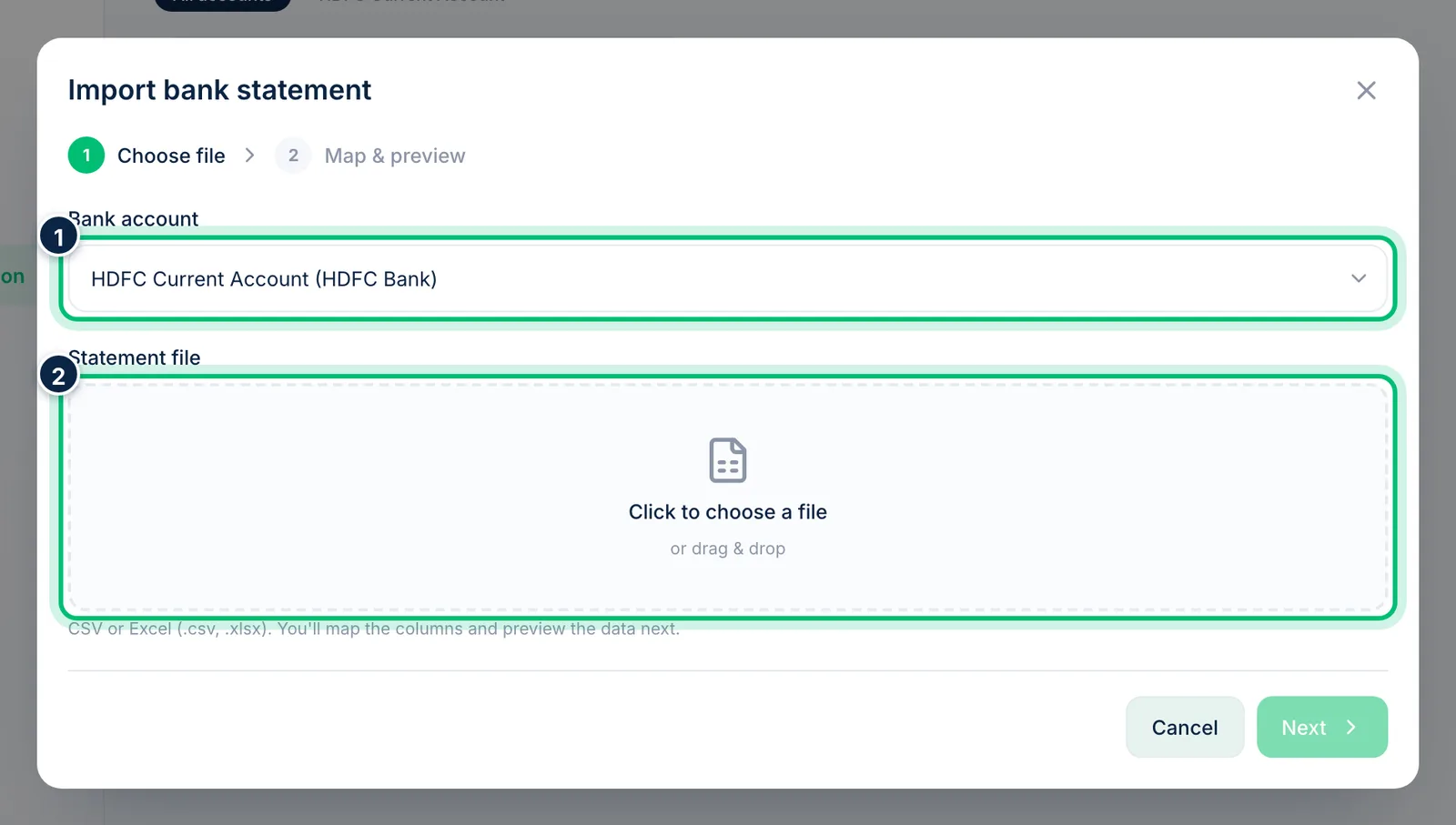
Pick the Bank account and choose your Statement file, then Next. On the next screen you map the columns (Date is required, plus Debit/Credit or a signed Amount), check the preview and enter the opening and closing balances.
3Open the statement
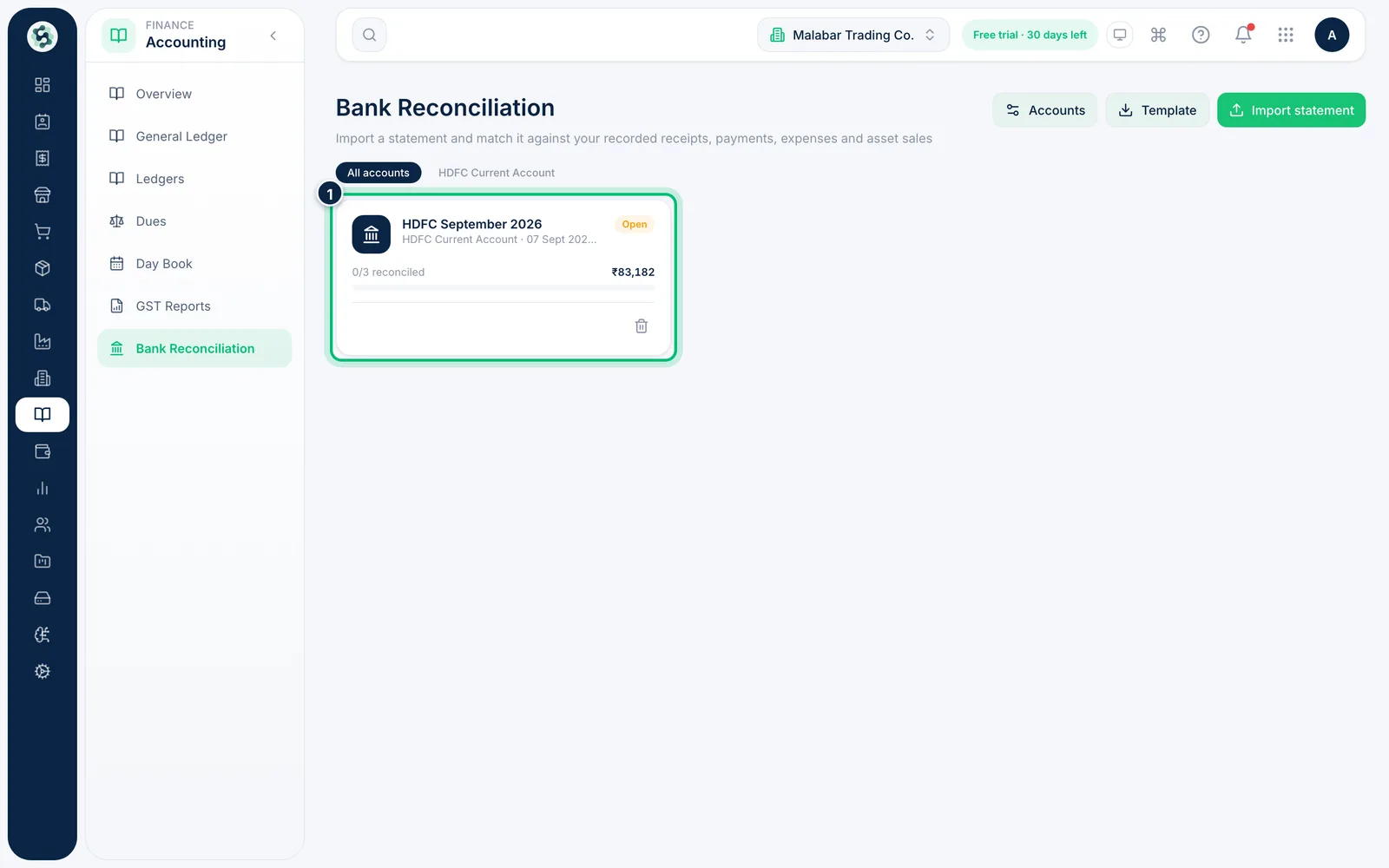
Each imported statement appears as a card showing the account, the period and how many lines are reconciled. Click it to start matching.
4Match lines to your records
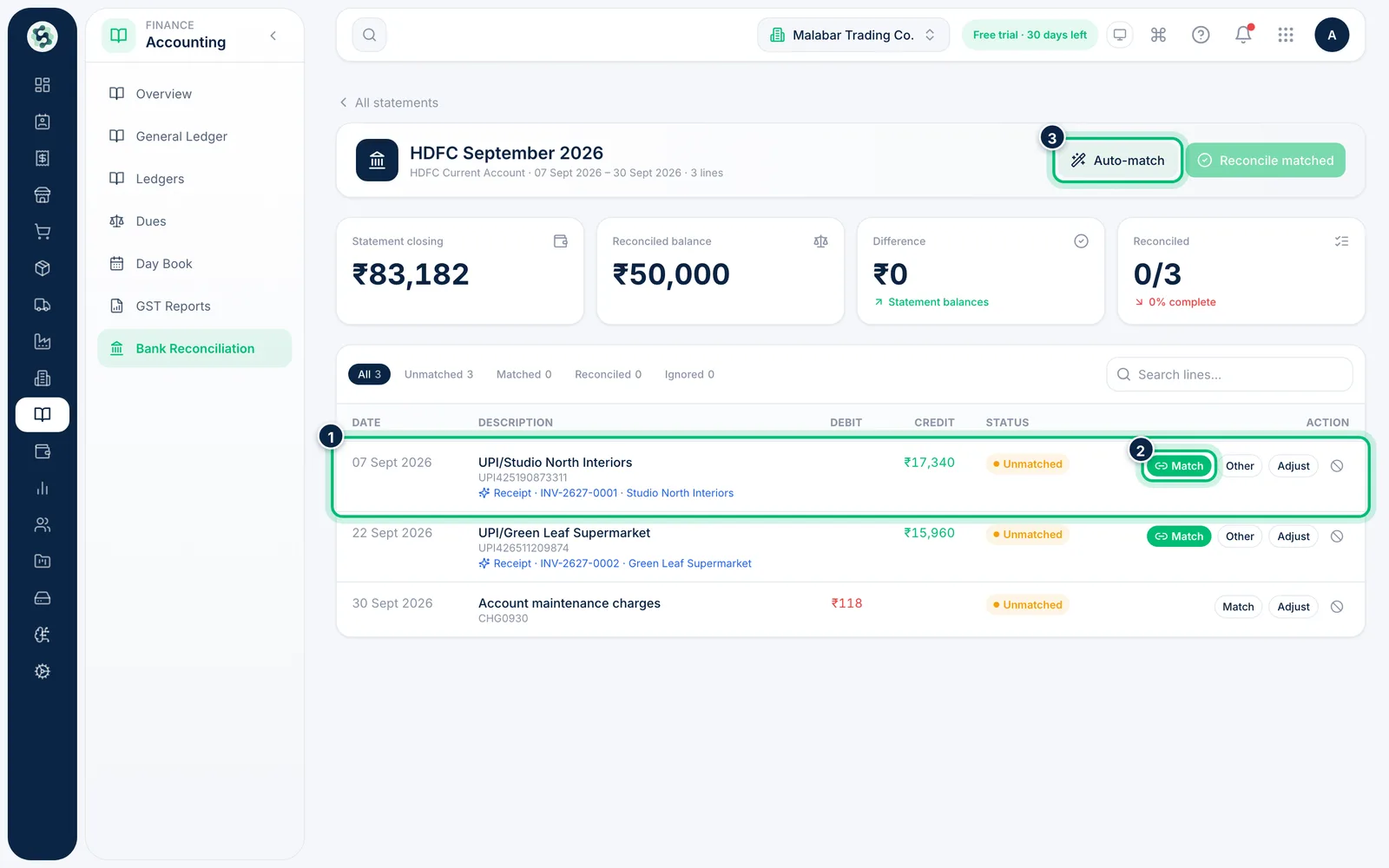
Scalar360 suggests a matching receipt or payment by amount and date. Choose Match to accept a suggestion, Other to pick a different one, or Auto-match to match every line it's sure of.
5Post bank charges as an adjustment
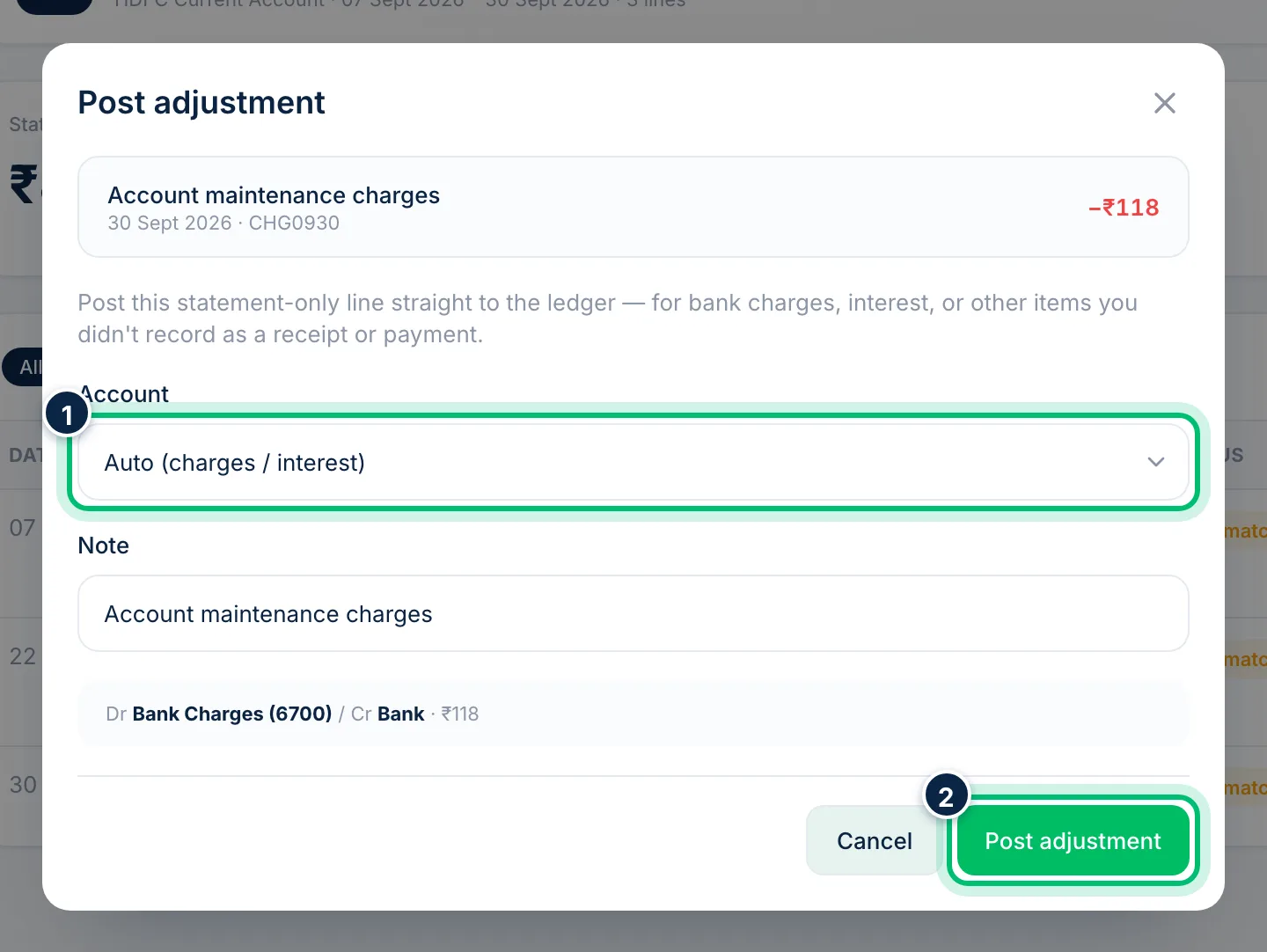
For lines that only exist on the statement, such as bank charges or interest, choose Adjust. Leave Account on Auto (charges / interest) or pick one, and check the Note — the preview shows the entry that Post adjustment will make, naming the accounts, for example "Bank Charges (6700)".
6Reconcile the matched lines
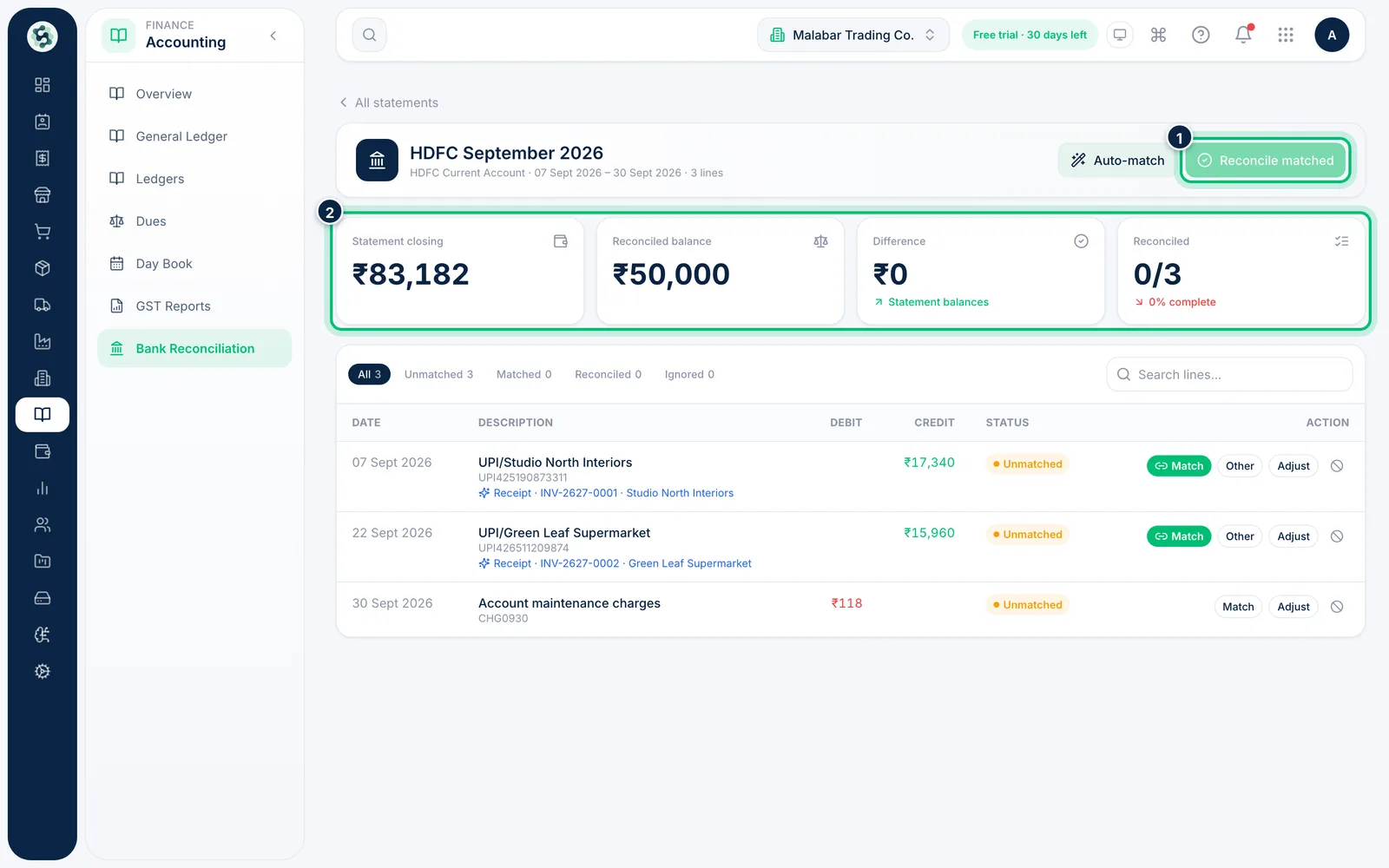
When lines are matched, choose Reconcile matched to confirm them. The cards at the top track the Statement closing, Reconciled balance, any Difference, and how many lines are done.
Related guides
Still stuck? Contact our support team — or start a free trial to try this in your own company.