
Inventory · 4 steps
Track low stock and reorder
Spot items that have fallen to their reorder level and turn them into draft purchase orders in a few clicks.
Before you start: Set a Reorder level on each item you want to watch.
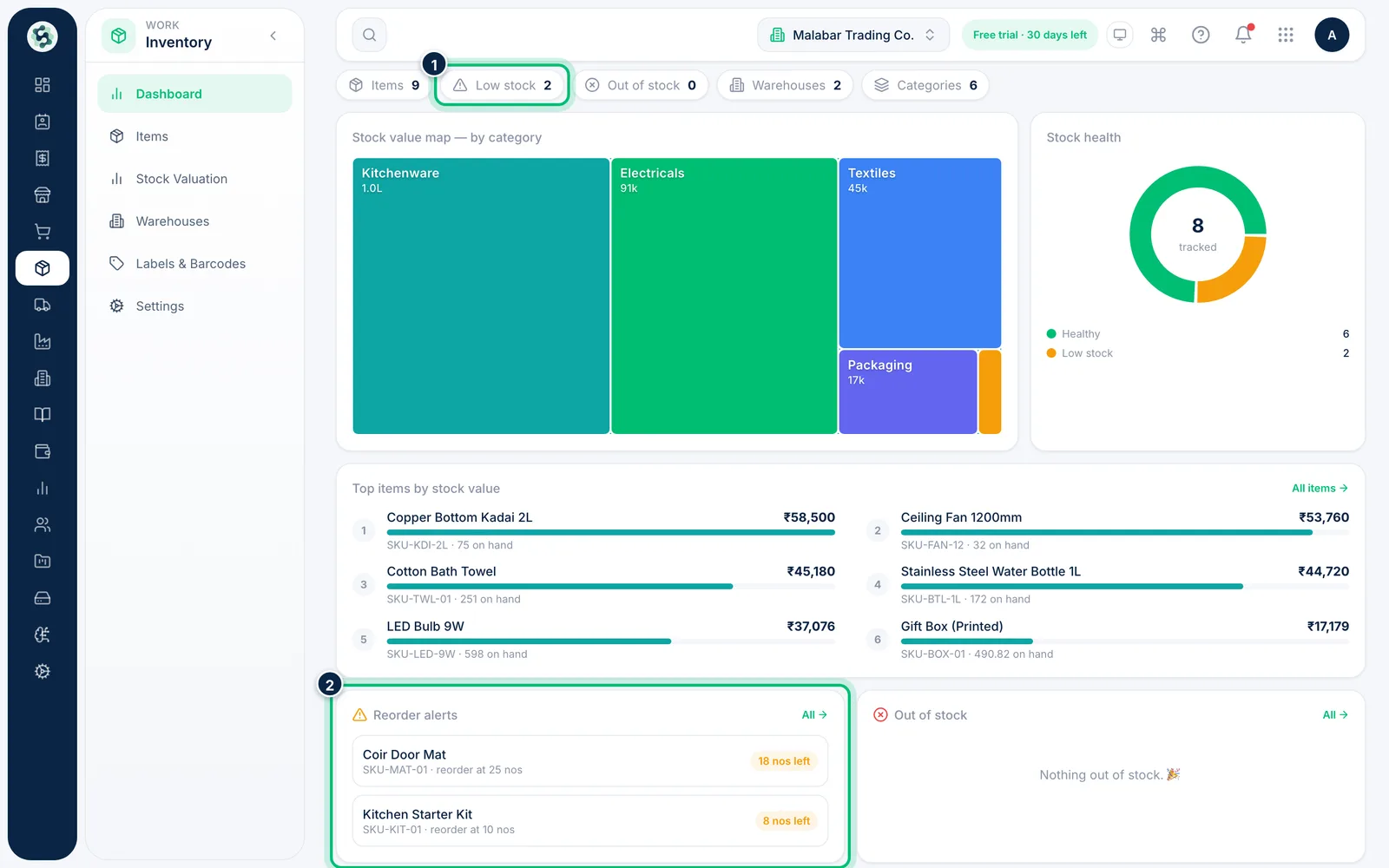
1Check the inventory dashboard
Open Inventory → Dashboard. The Low stock and Out of stock counts and the Reorder alerts list show what needs attention.
2Filter the item list
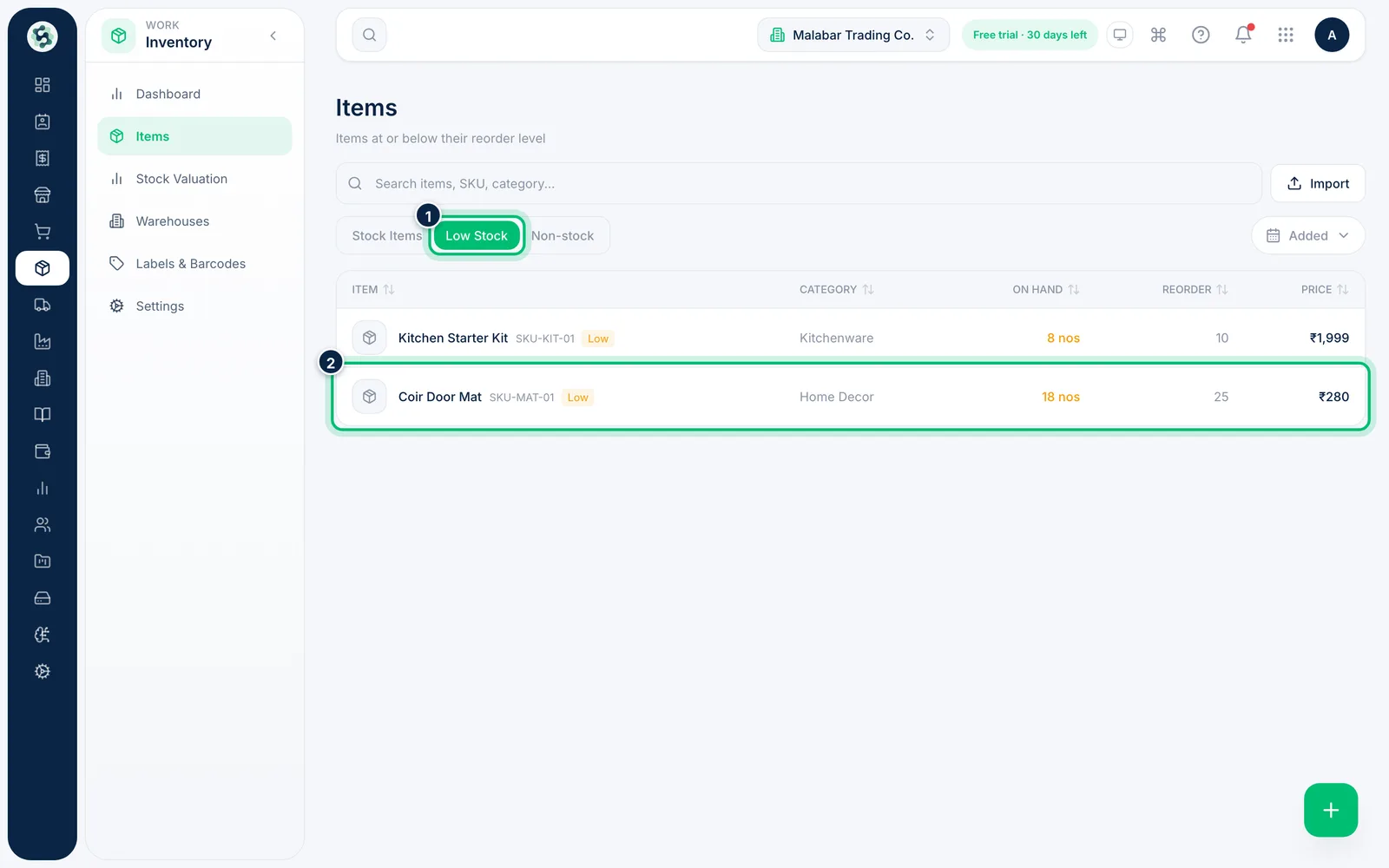
On Inventory → Items, choose Low Stock to see only items at or below their reorder level.
3Open Reorder and set quantities
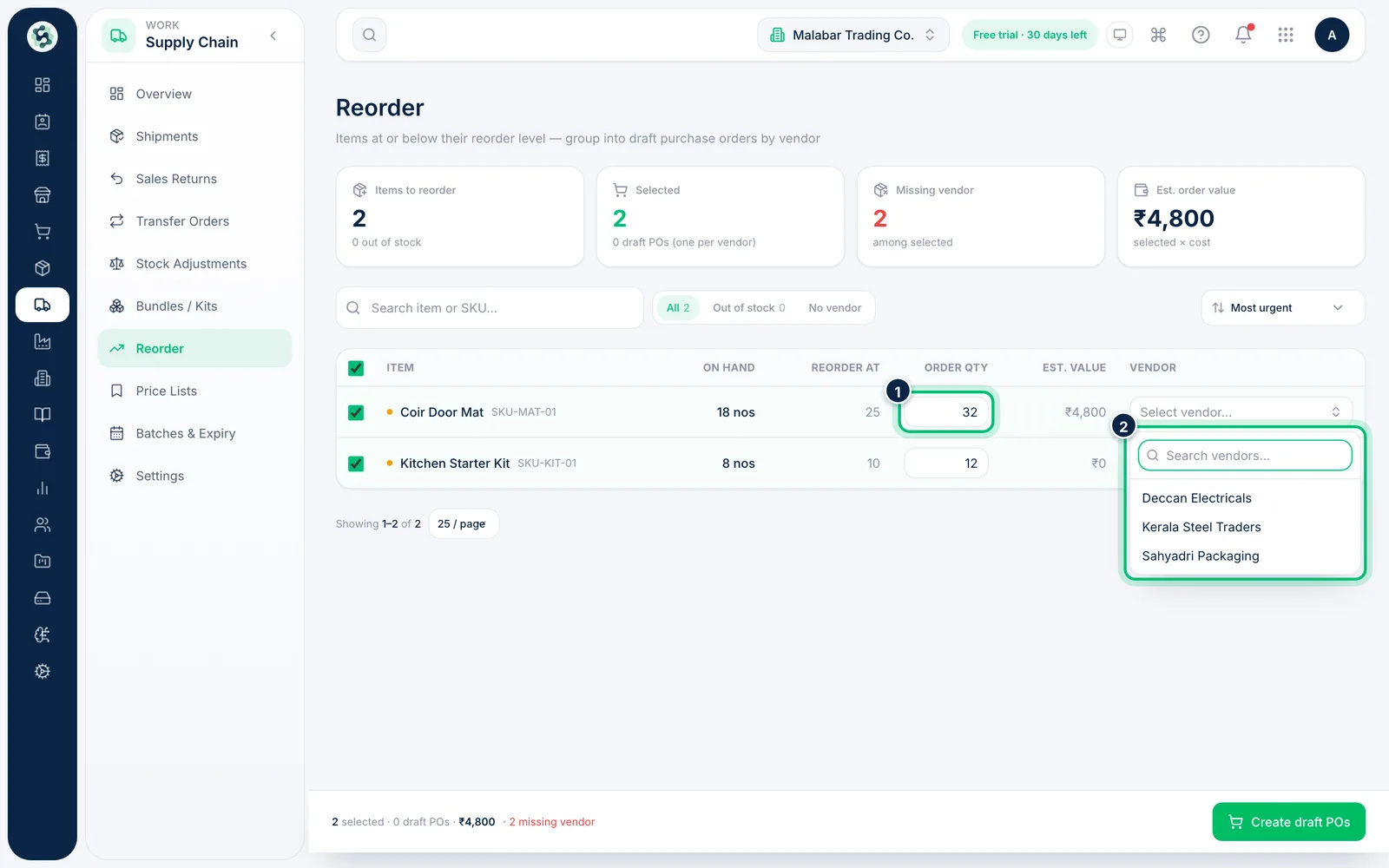
Open Supply Chain → Reorder. Every item at or below its reorder level is listed and ticked, with a suggested Order qty you can change. Pick a Vendor for each item — an item's preferred vendor is chosen for you and marked Preferred.
4Create draft purchase orders
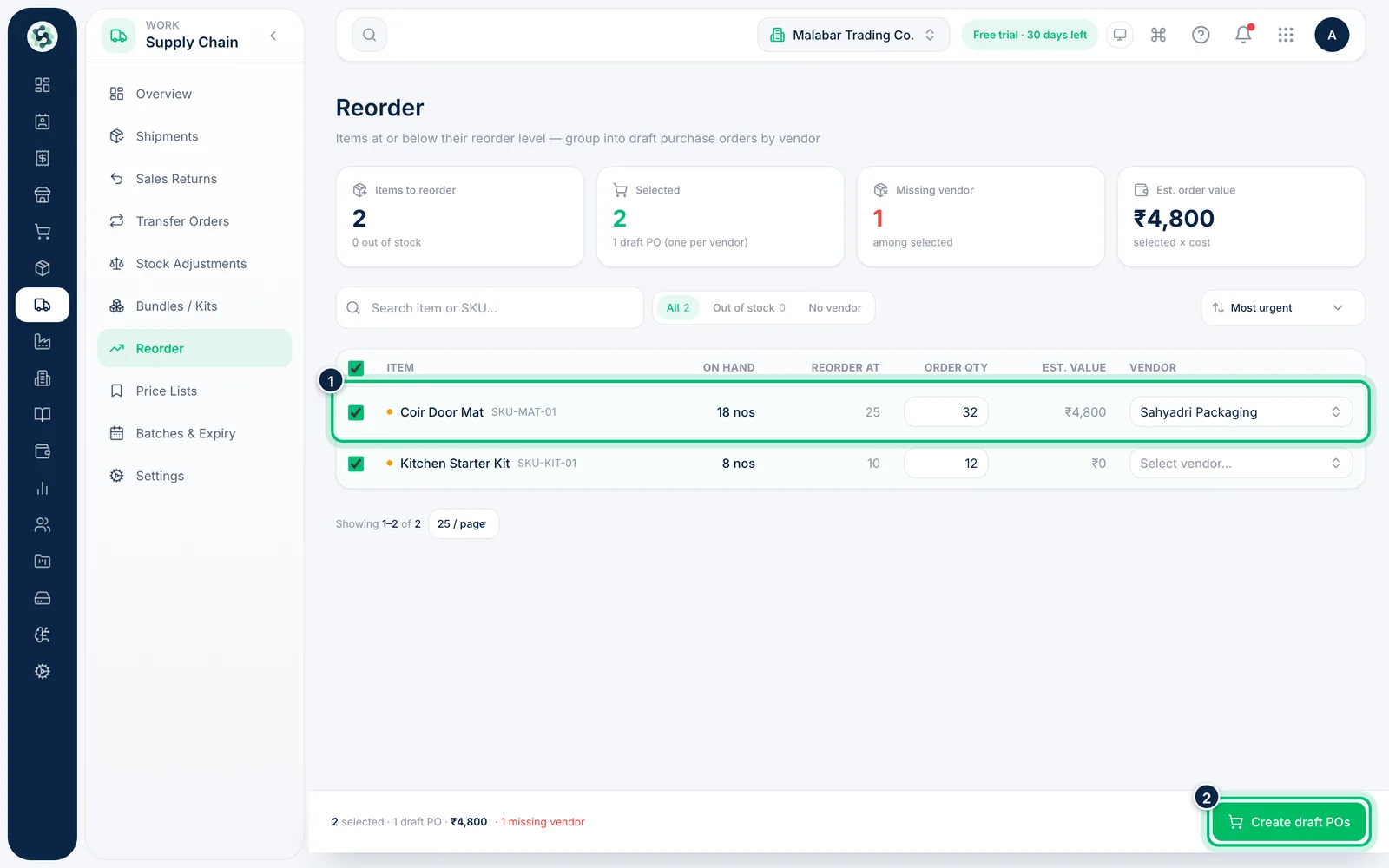
Choose Create draft POs. Scalar360 makes one draft purchase order per vendor, ready for you to review and send from Purchase & Vendors → Purchase Orders.
Related guides
Still stuck? Contact our support team — or start a free trial to try this in your own company.