
Drive · 3 steps
Create folders and rename items
Keep Drive tidy with folders for each area of the business, and rename files or folders any time.
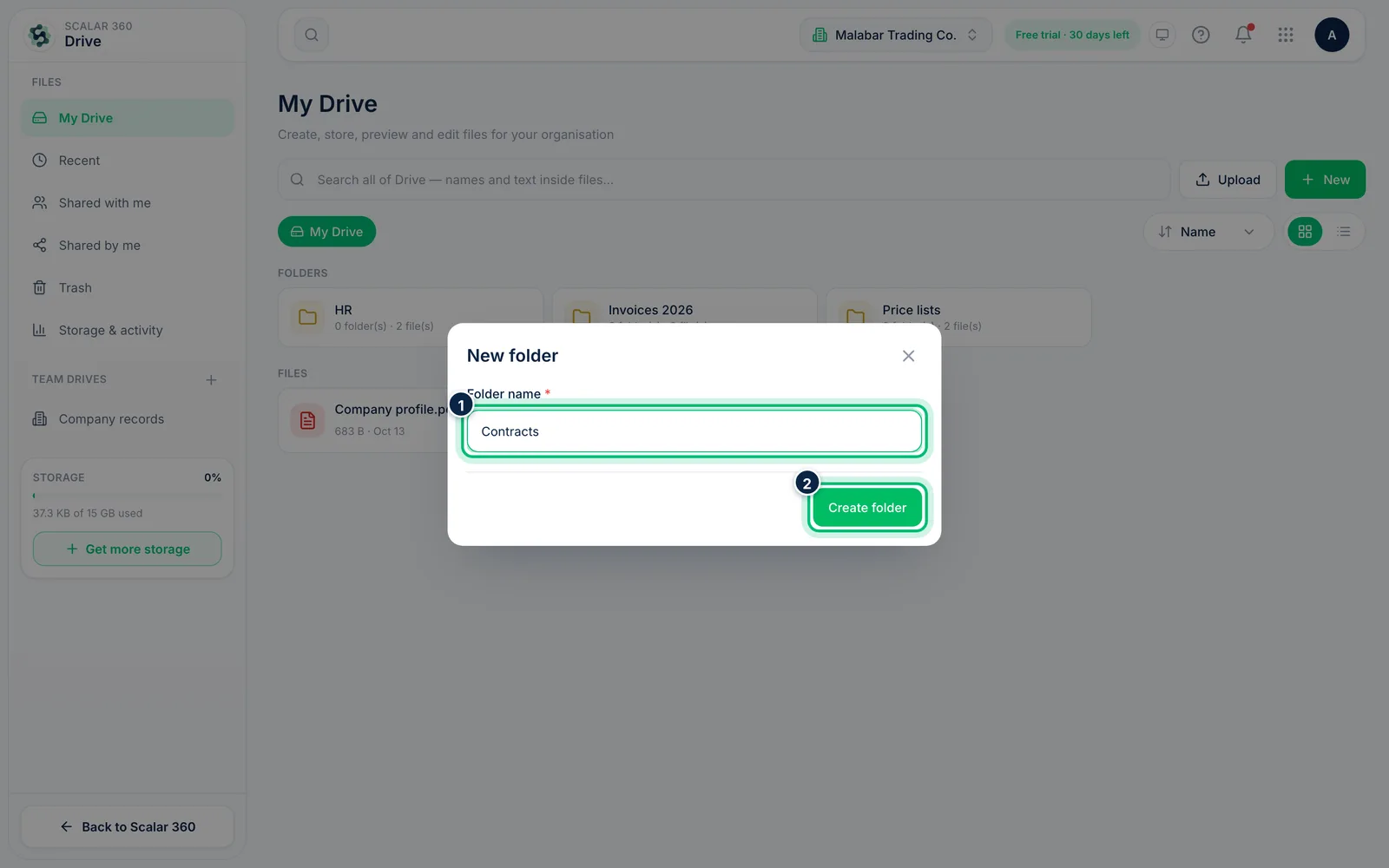
1Create a folder
Choose New, then New folder. Type a Folder name, for example *Contracts*, and choose Create folder. The folder is created inside the folder you're currently viewing.
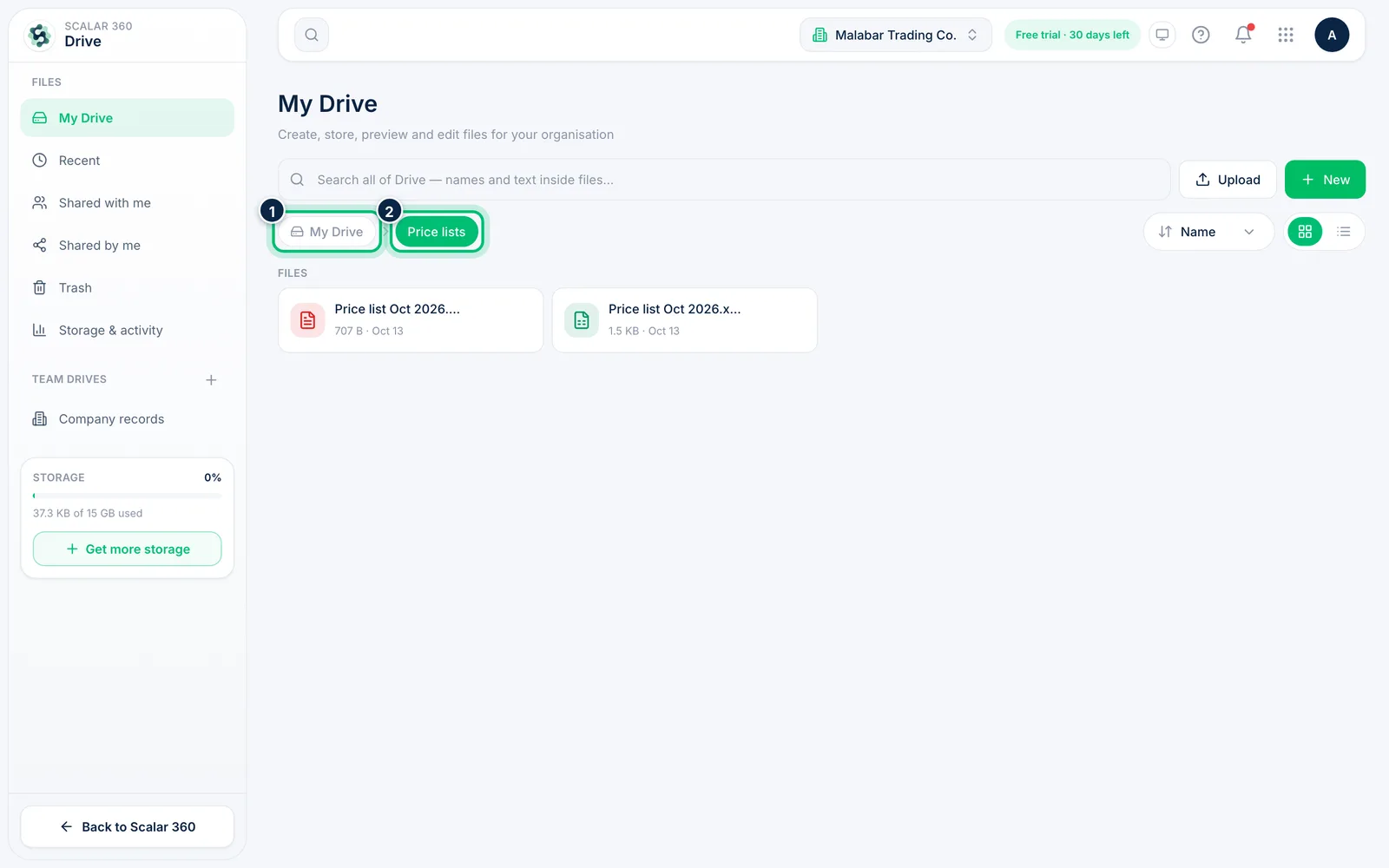
2Open a folder and find your way back
Select a folder to open it. The path above the list, such as My Drive then the folder name, shows where you are; select any part of it to go back up.
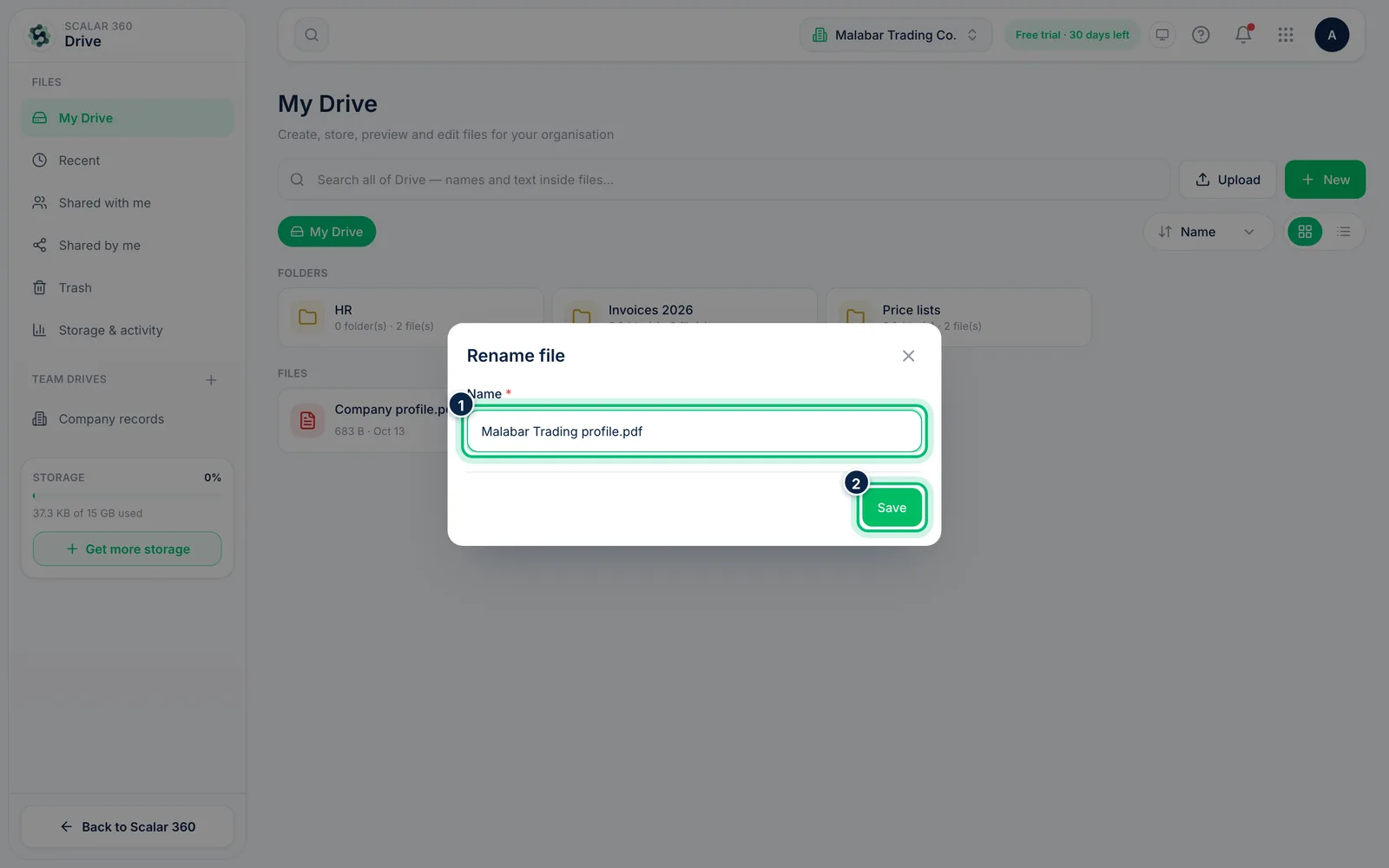
3Rename a file or folder
Choose the More button (three dots) on the item and pick Rename. Change the Name and choose Save. Folders have the same menu.
Related guides
Share a folder with teammatesGive colleagues access to a folder and decide whether they can only view its files or edit them too.Delete files and restore them from TrashRemove what you no longer need, safely: deleted items wait in Trash for 30 days so you can bring them back.
Still stuck? Contact our support team — or start a free trial to try this in your own company.