
Scalar360 Mail · 4 steps
Create mailboxes and make someone an admin
Give each person an address on your domain, and control who can manage domains, mailboxes and billing.
Before you start: You need a domain added first. Only admins see the Domains, Mailboxes and Plan & billing pages.
1Open Mailboxes
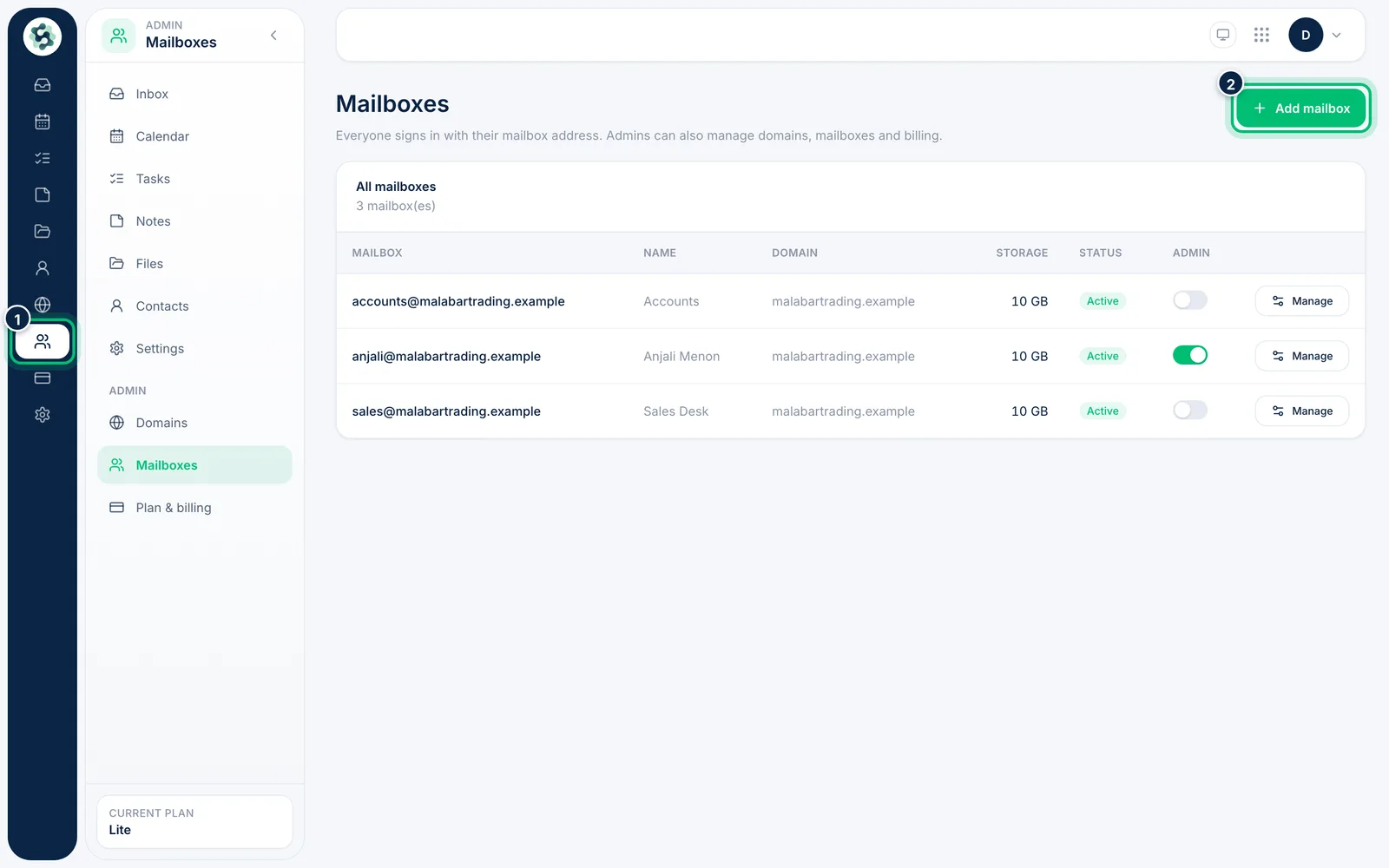
In the left menu open Mailboxes. The table lists each address with its Domain, Storage, Status and Admin switch. Choose Add mailbox to create another.
2Fill in the new mailbox
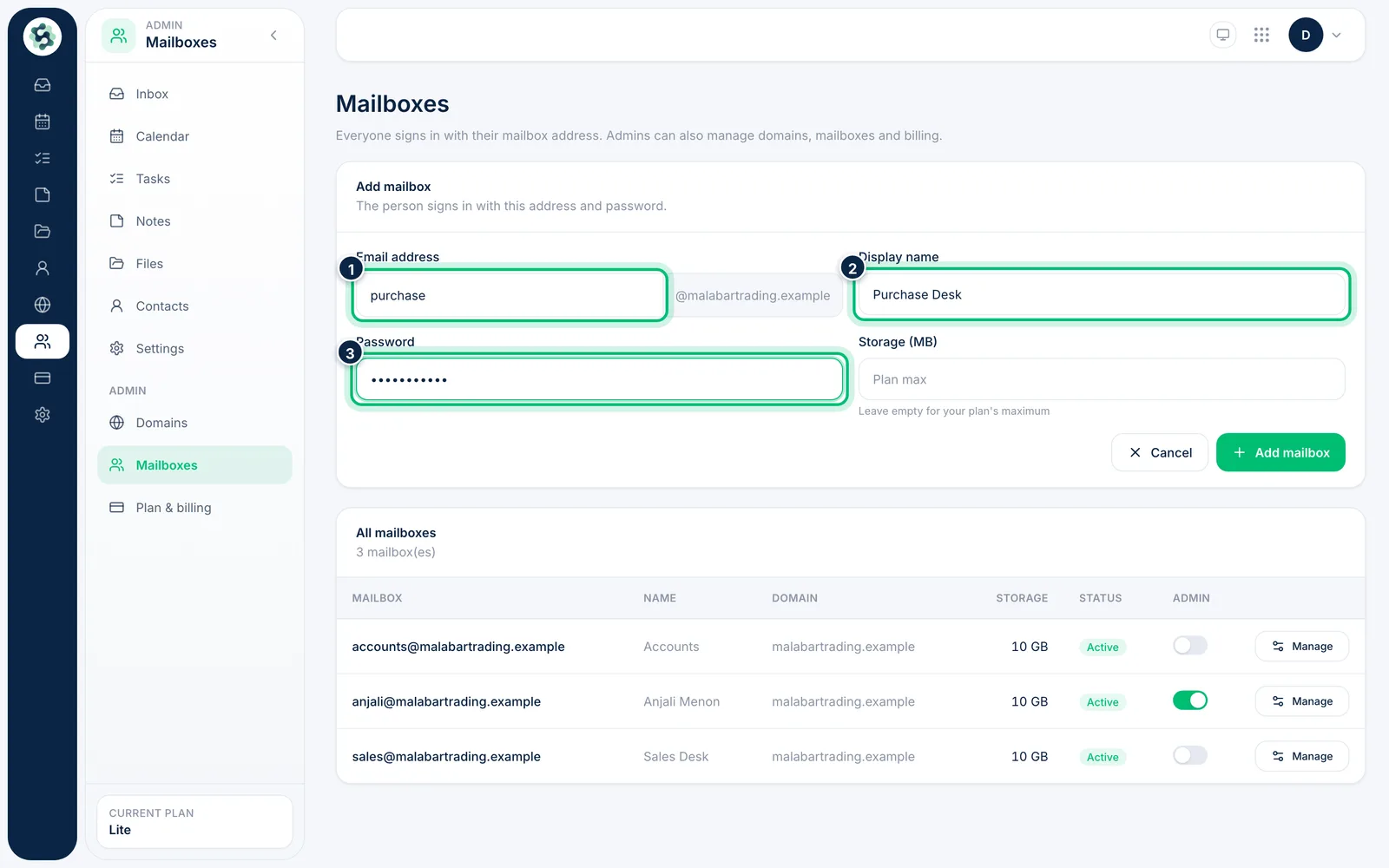
Enter the Email address before the @, a Display name and a Password of at least 8 characters. Storage (MB) can stay empty to use your plan's maximum.
3Manage a mailbox
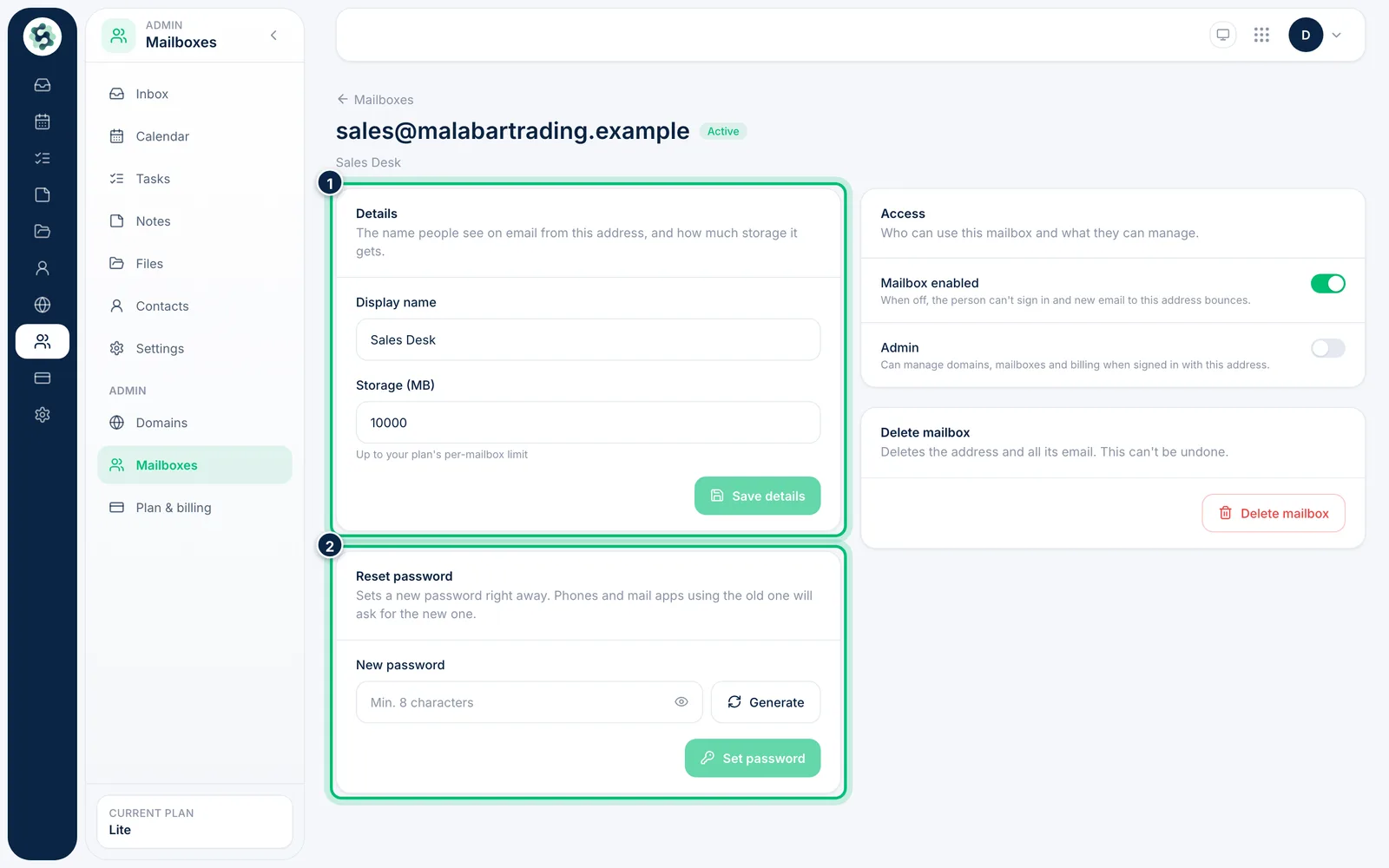
Choose Manage on a mailbox to change its Display name and storage, set a new password with Reset password, or turn it off with Mailbox enabled.
4Make a mailbox an admin
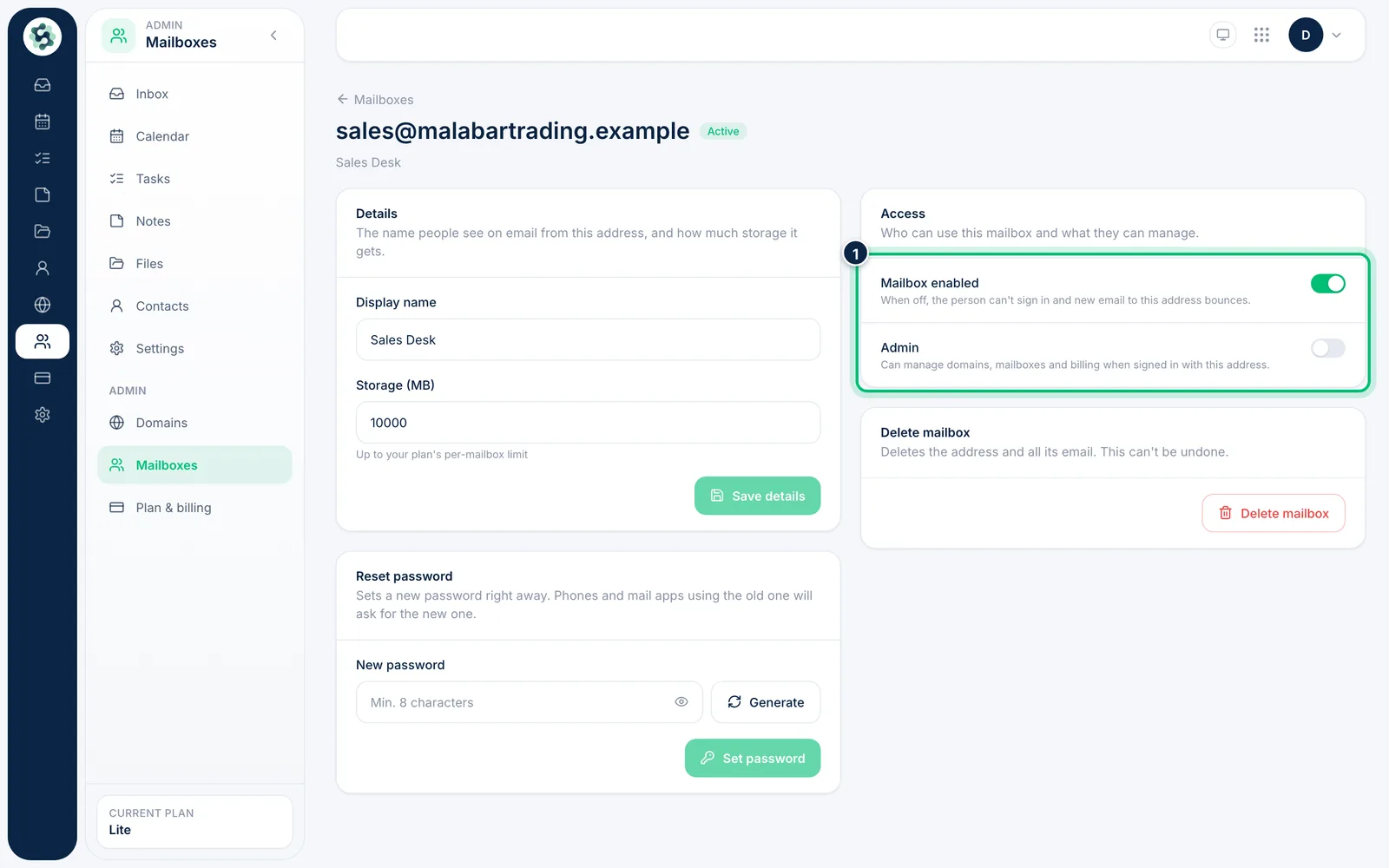
Under Access, switch on Admin so that person can manage domains, mailboxes and billing when they sign in with this address. Turn it off to give them only their inbox.
Related guides
Still stuck? Contact our support team — or start a free trial to try this in your own company.