
CRM · 5 steps
Set up pipelines, sources and templates
Shape the CRM to how you sell — your own stages and pipelines, lead sources and categories, and reusable email and WhatsApp messages.
Before you start: CRM settings apply to your whole organisation.
1Open CRM settings
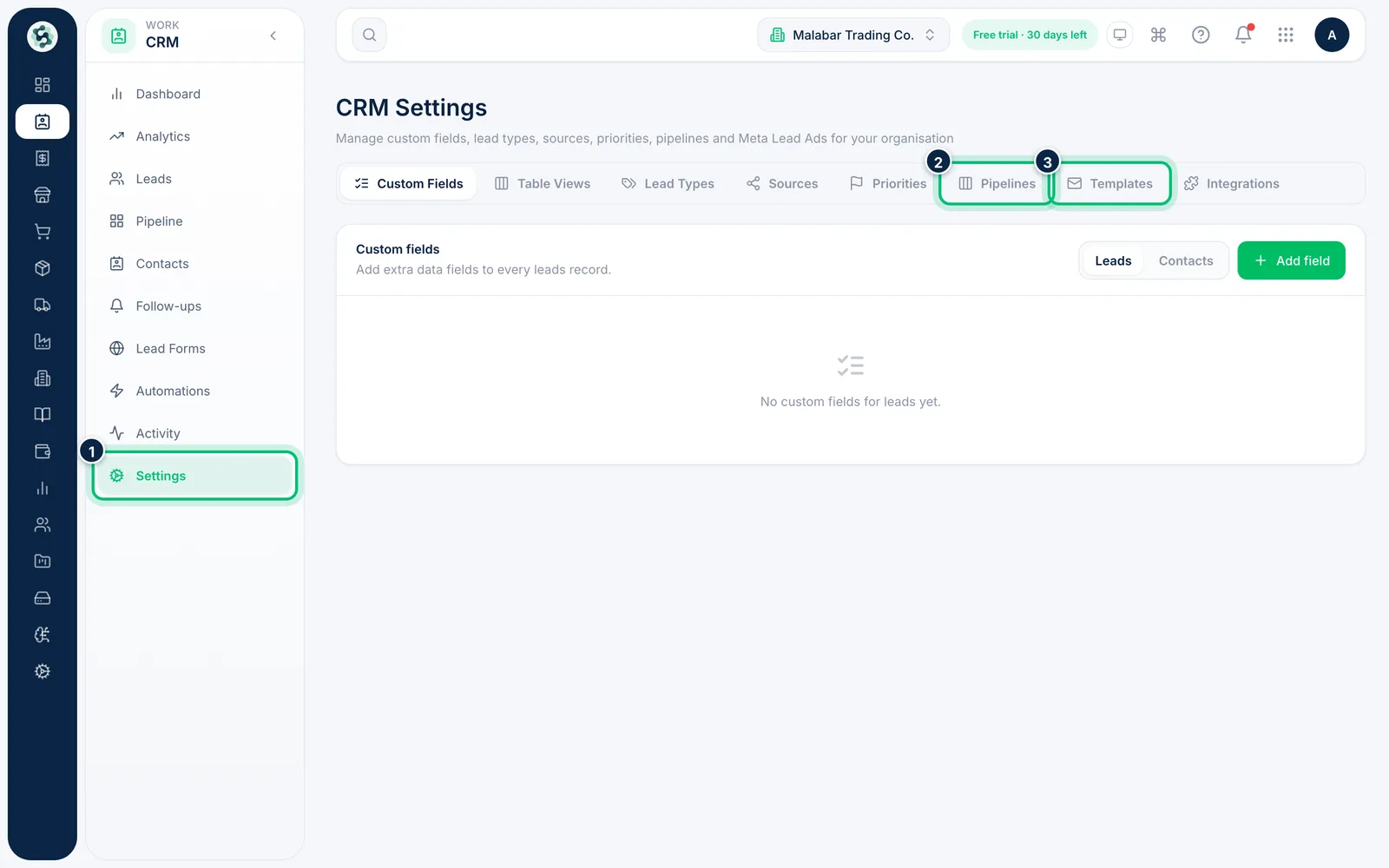
Go to CRM → Settings. The tabs cover Custom Fields, Table Views, Lead Types, Sources, Priorities, Pipelines, Templates and Integrations.
2Edit a pipeline's stages
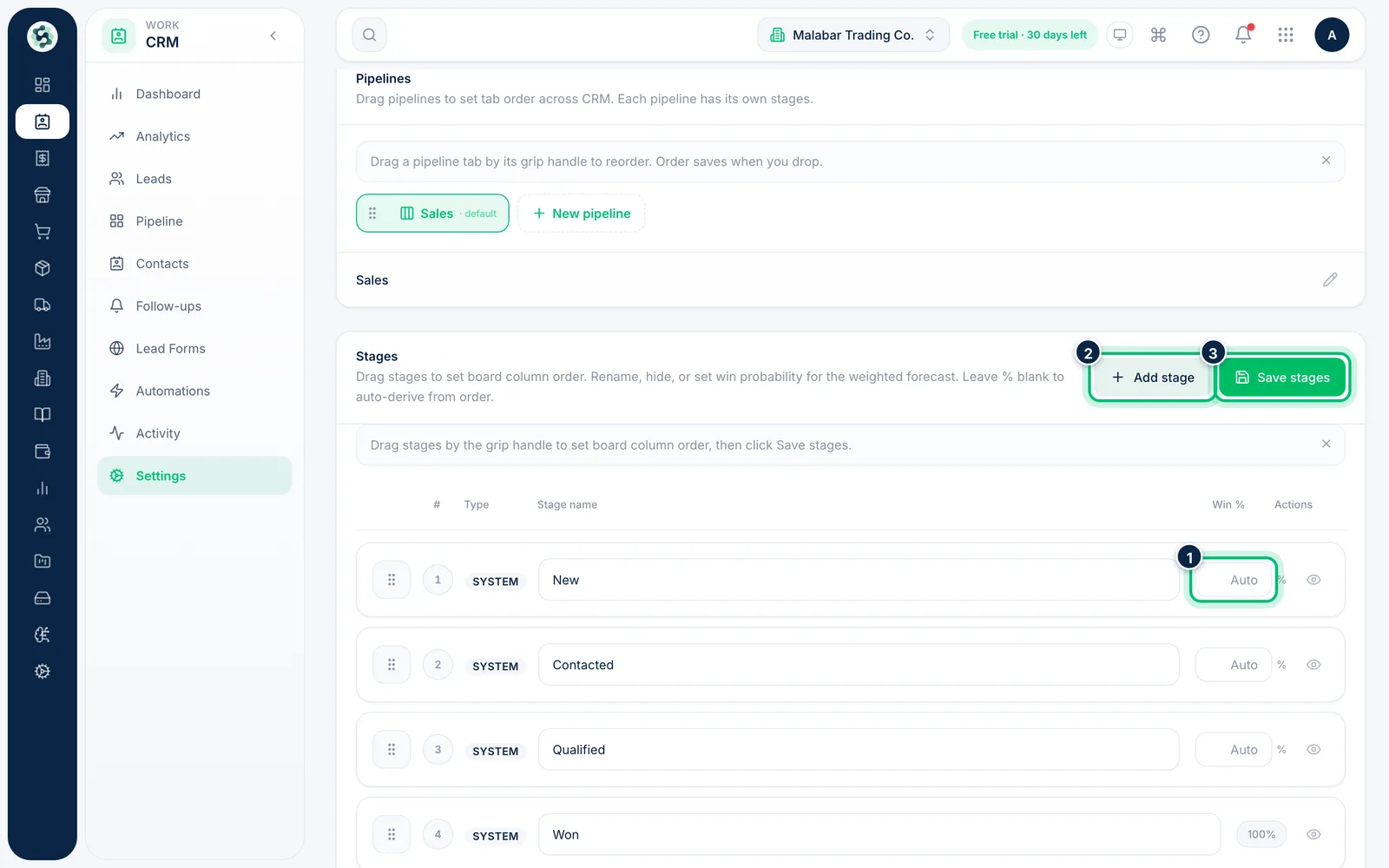
On Pipelines, pick a pipeline, then rename stages, drag them into order, hide the ones you don't use or set a Win % for the forecast. Choose Add stage for a new one and Save stages when you're done.
3Add a lead source
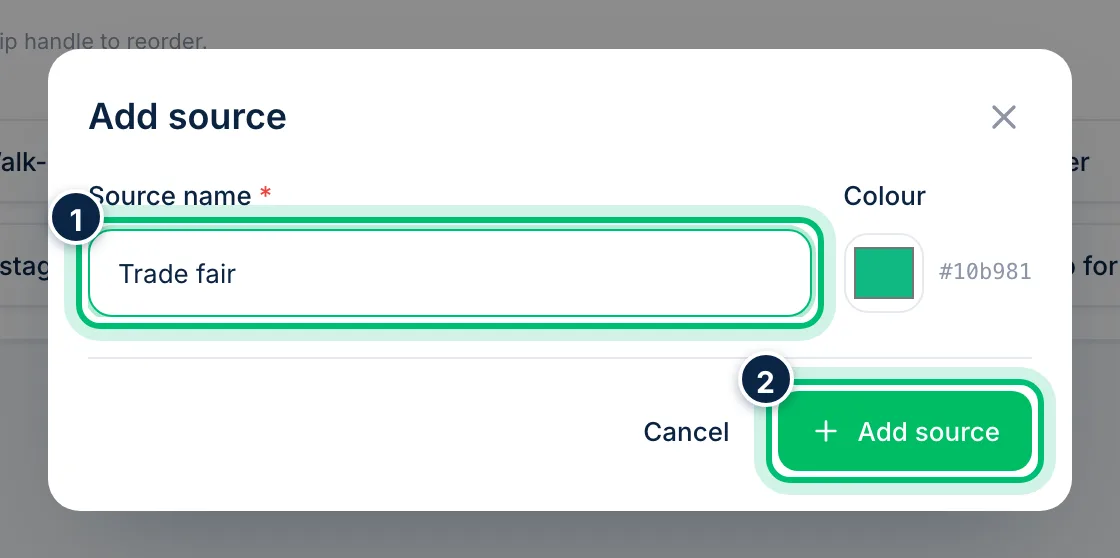
On Sources, choose Add source, type a Source name — such as Google Ads or Trade fair — and choose Add source in the dialog. Lead Types and Priorities work the same way.
4Manage outreach templates
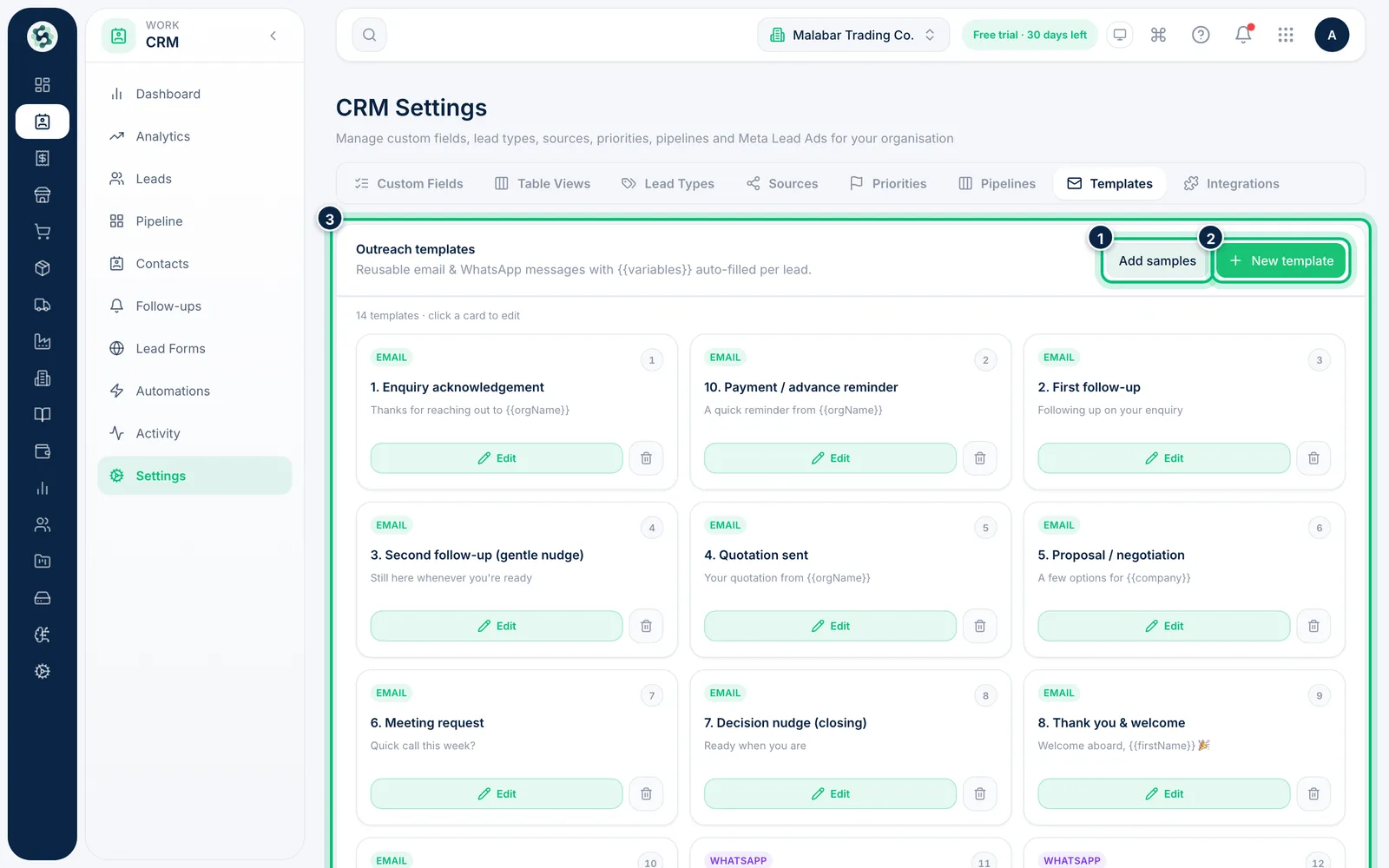
On Templates, see your email and WhatsApp messages. Choose Add samples to load a ready-made set, or New template to write your own.
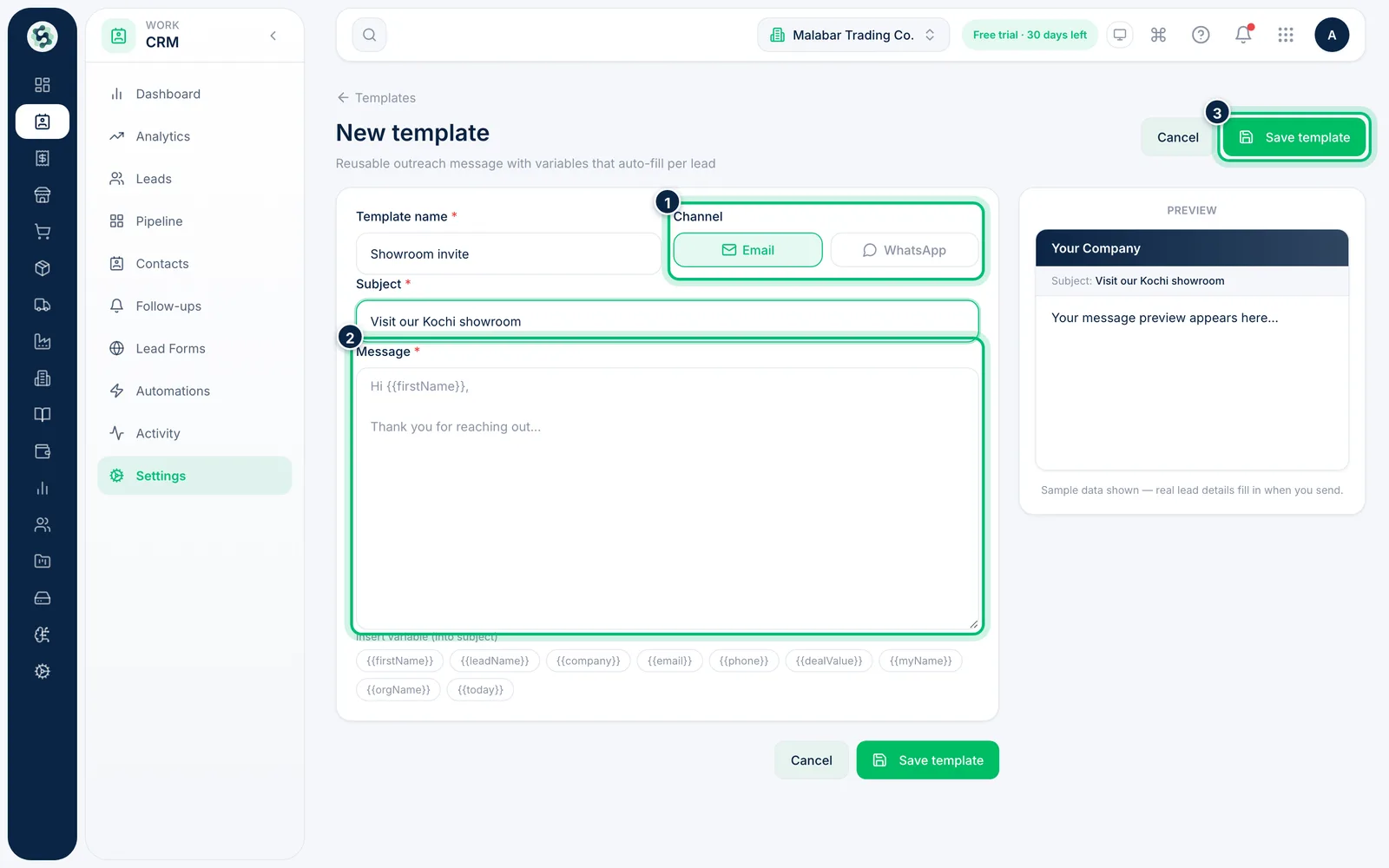
5Write a template with variables
Give it a Template name, choose Email or WhatsApp, and write the Subject and Message. Click a variable such as {{firstName}} to insert it — it's filled in for each lead when you use the template. Choose Save template.
Related guides
Still stuck? Contact our support team — or start a free trial to try this in your own company.