
Getting started · 4 steps
Your profile, password and two-step sign-in
Update your photo, name and phone, change your password and protect your sign-in with a passkey or authenticator app.
Before you start: Every user can change their own profile and security settings.
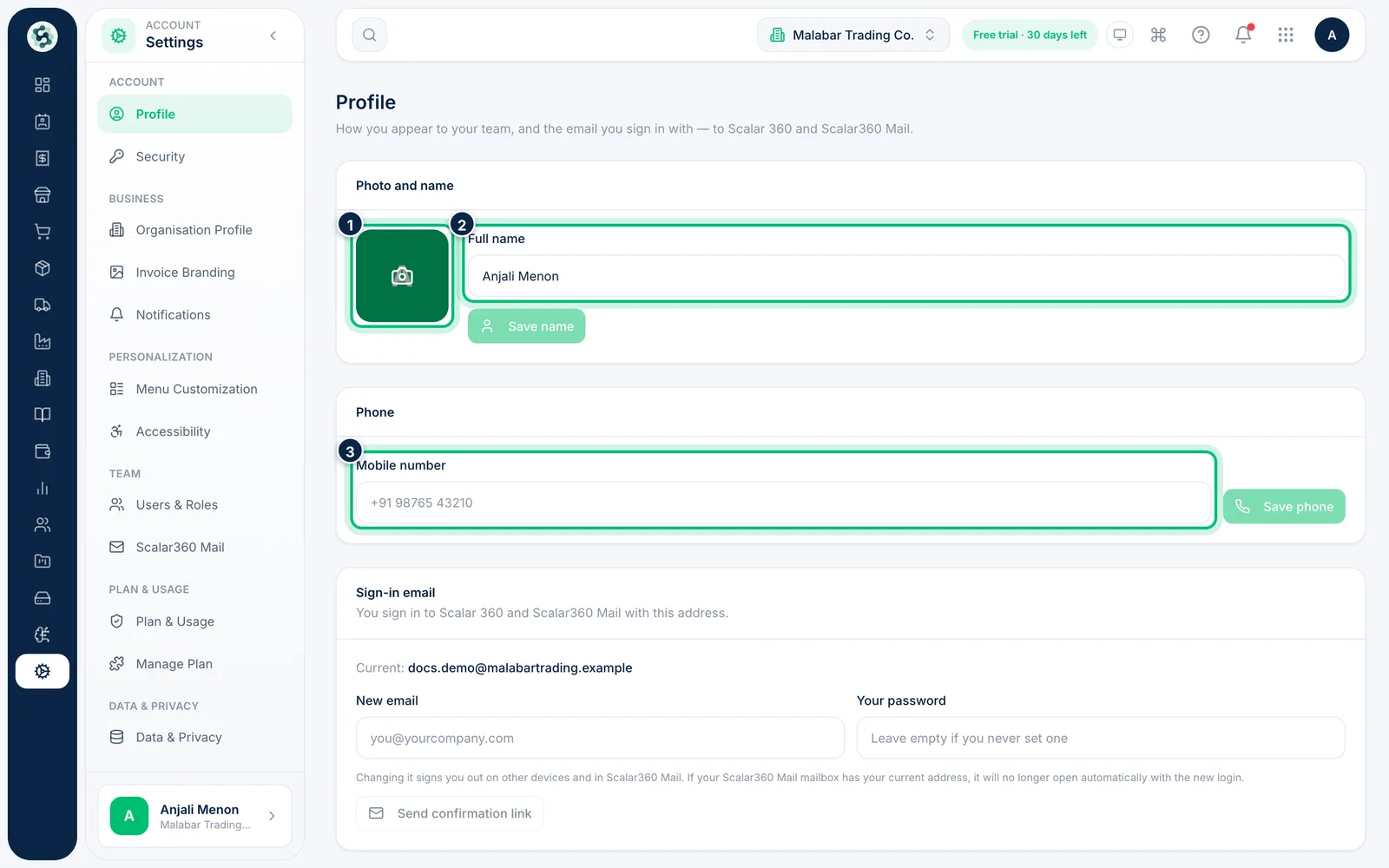
1Update your photo and name
Go to Settings → Profile. Click your picture to upload a new photo, edit your Full name and choose Save name. Add a Mobile number below and choose Save phone.
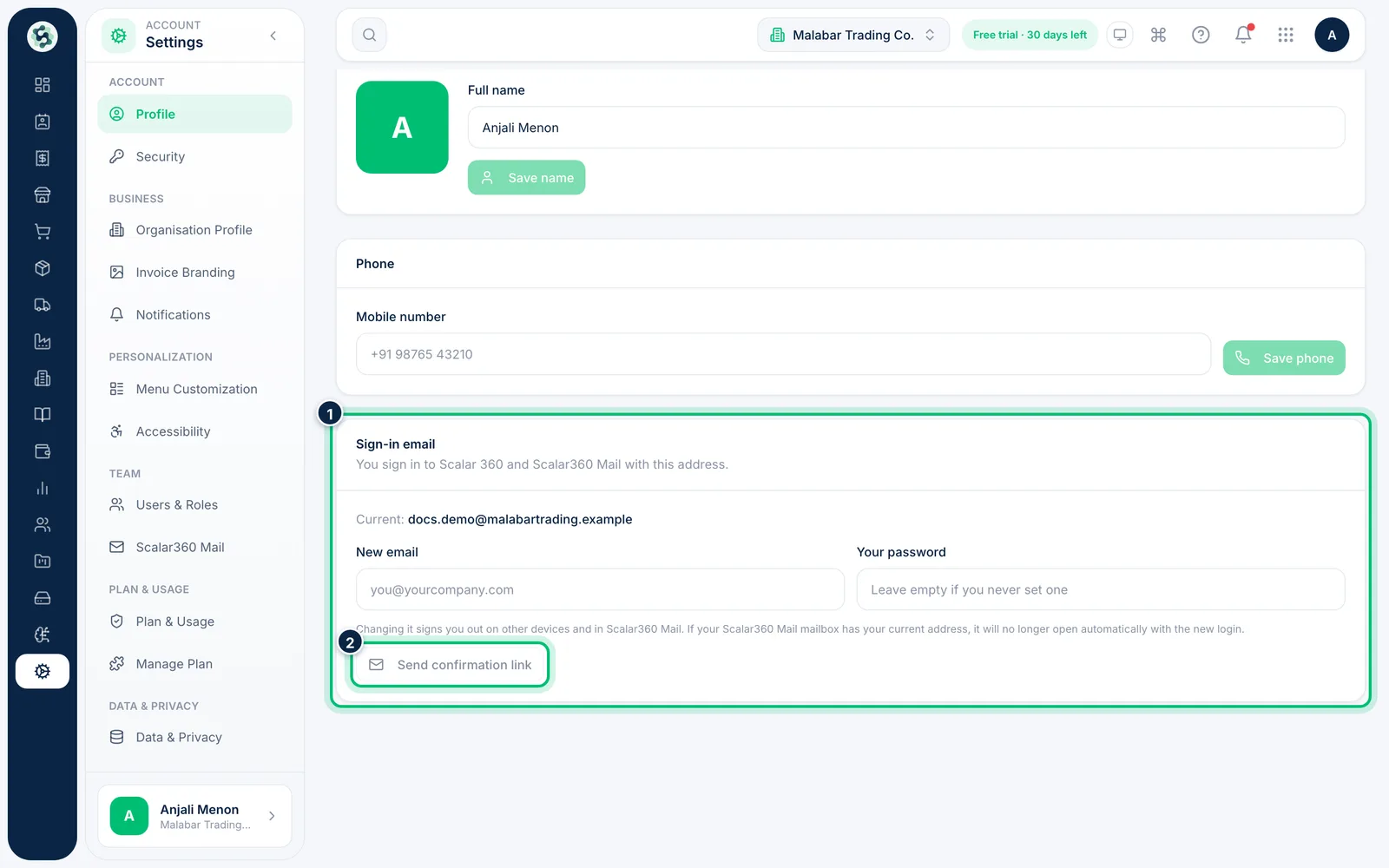
2Change your sign-in email
Under Sign-in email, enter the New email and your password, then choose Send confirmation link. Your email changes only after you open the link.
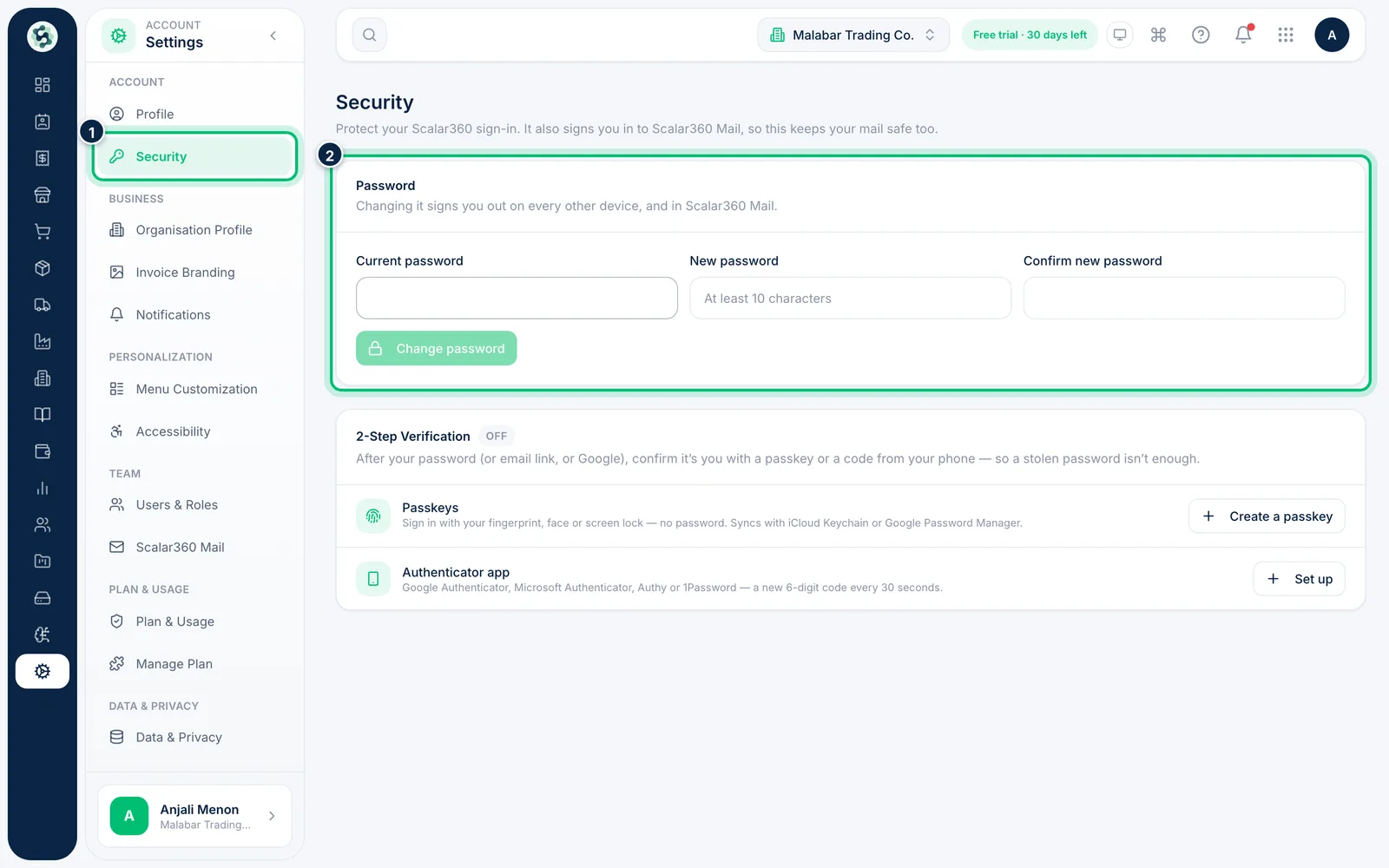
3Change your password
Open Settings → Security. Under Password, enter your Current password and a New password of at least 10 characters twice, then choose Change password. This signs you out on your other devices.
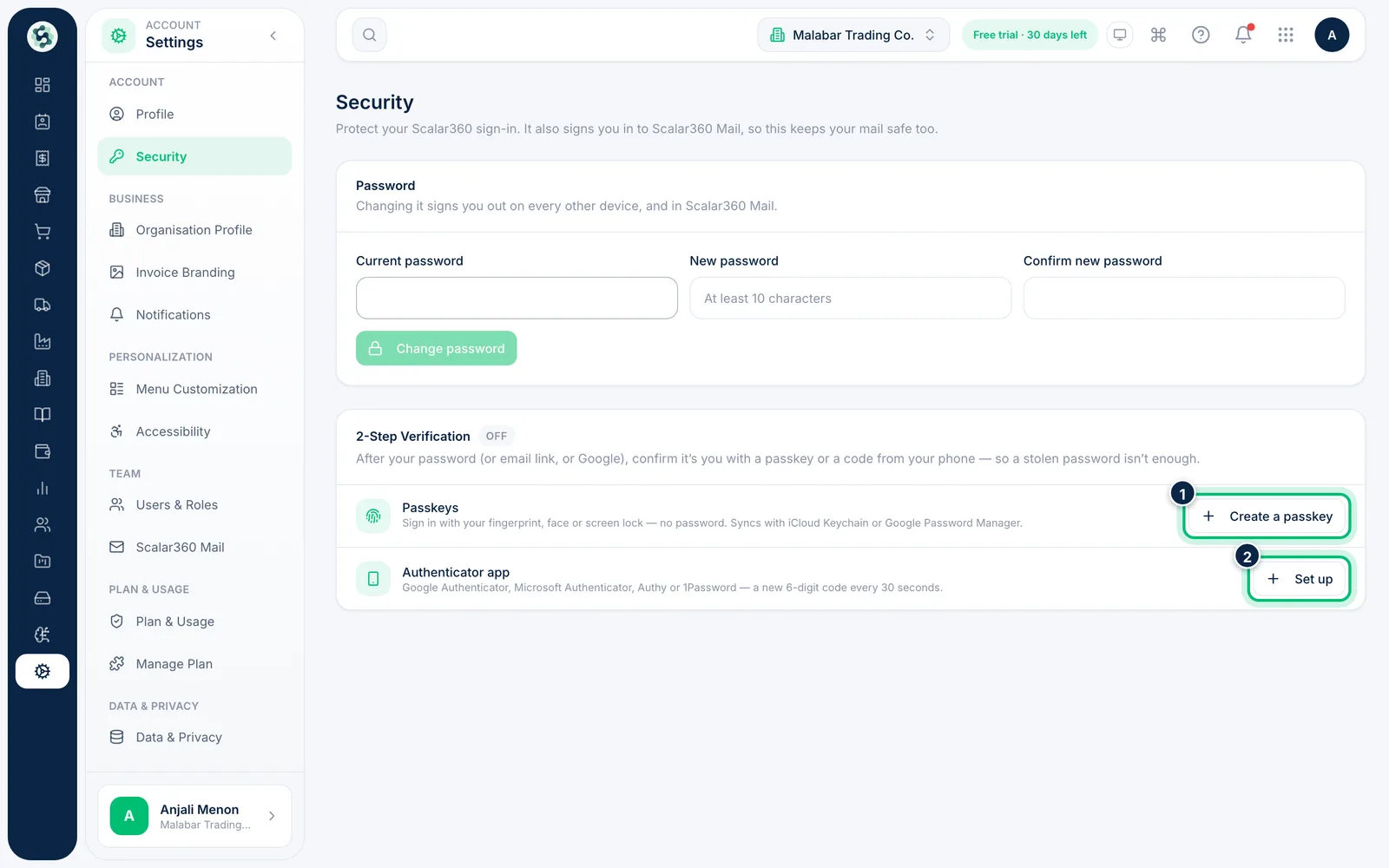
4Turn on 2-Step Verification
Under 2-Step Verification, choose Create a passkey to sign in with your fingerprint, face or screen lock, or Set up an authenticator app for 6-digit codes. Once it's on, save your recovery codes somewhere safe.
Related guides
Still stuck? Contact our support team — or start a free trial to try this in your own company.