
Inventory · 3 steps
Import items in bulk
Bring in your whole catalogue from a CSV or Excel file, with opening quantities, instead of adding items one by one.
Before you start: You need at least one warehouse — imported quantities are added to the warehouse you choose.
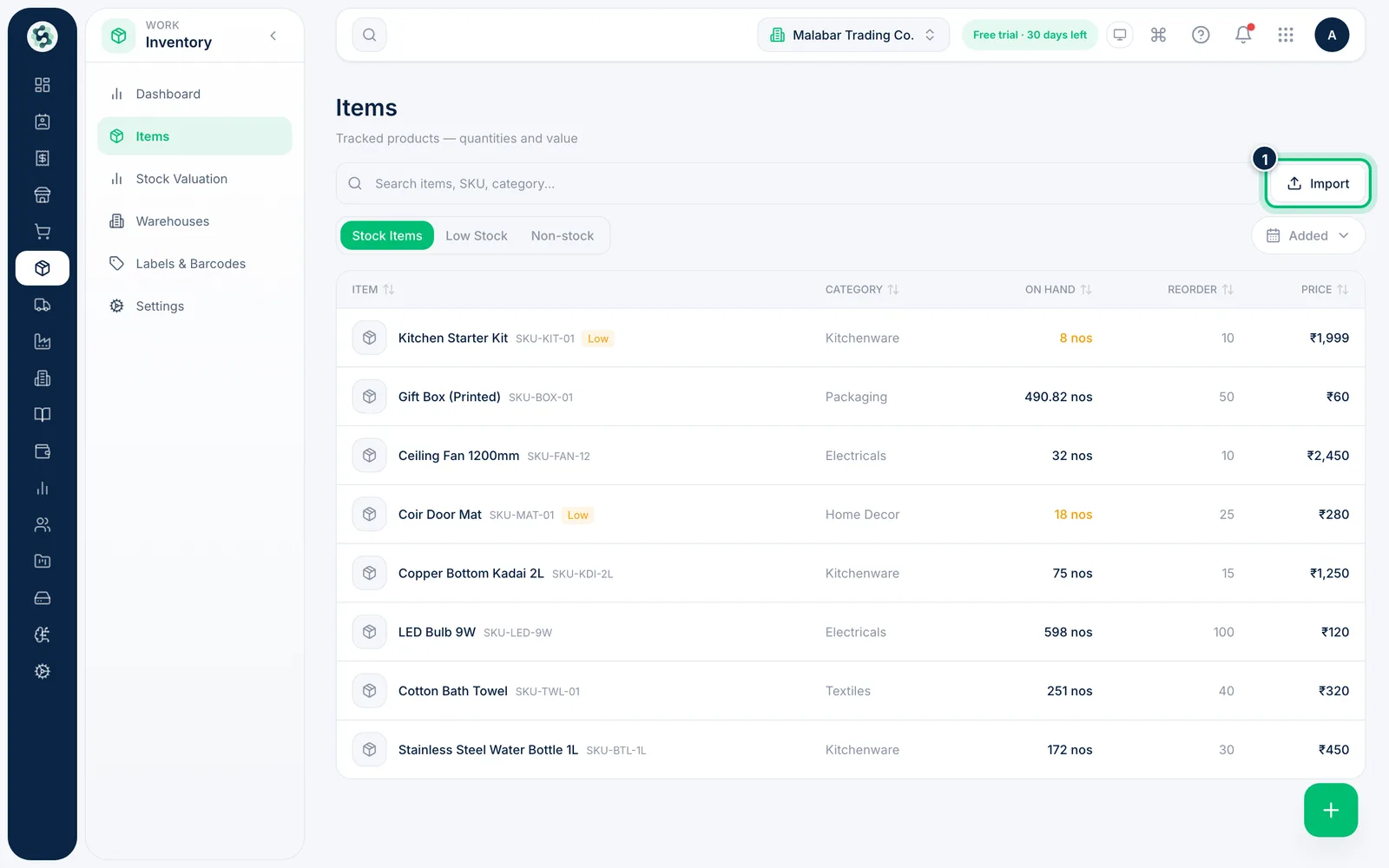
1Open the import
Go to Inventory → Items and choose Import next to the search bar.
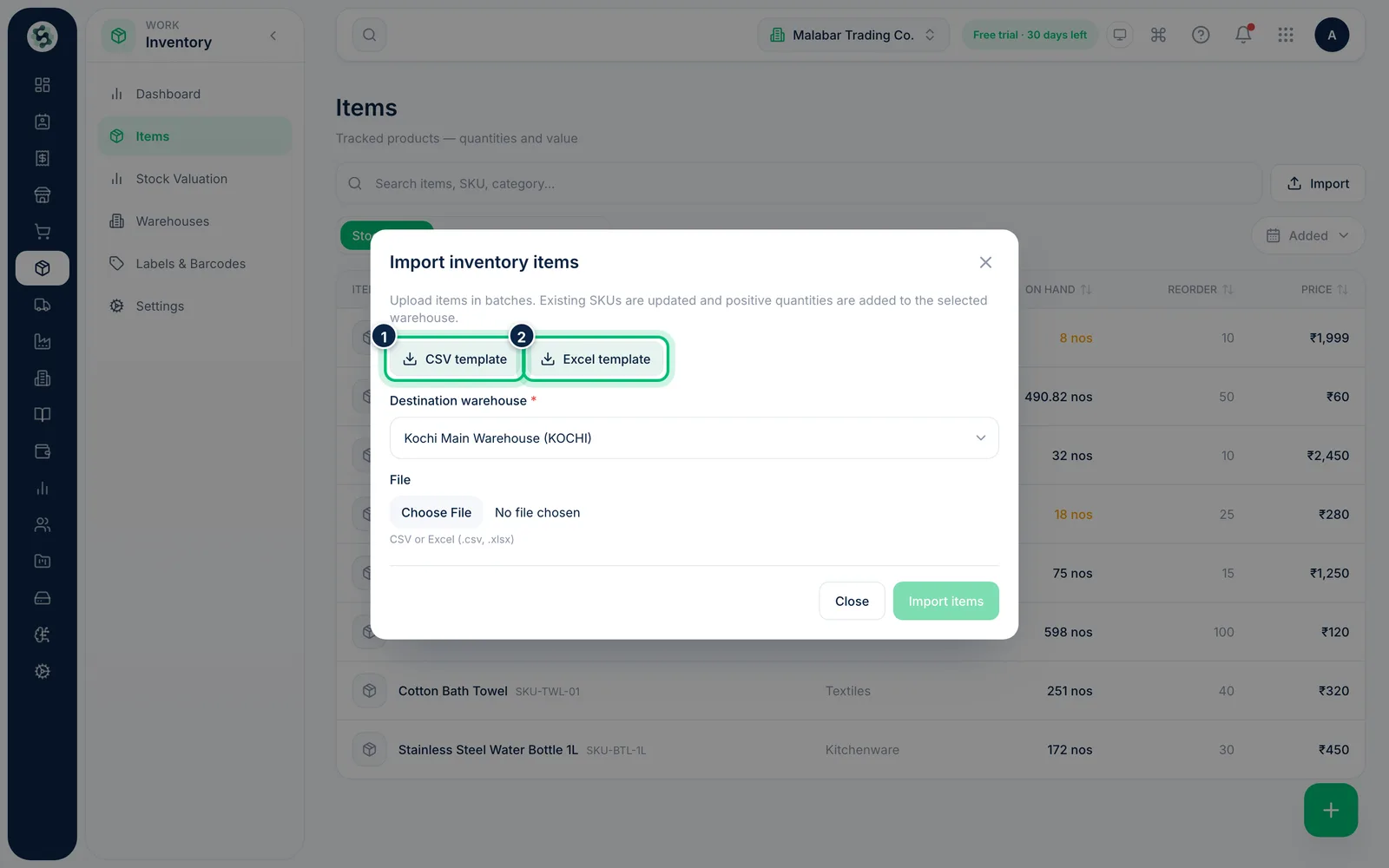
2Download a template
Choose CSV template or Excel template and fill in one row per item. Only the SKU is required; you can also give the name, category, HSN, barcode, unit, price, cost, GST %, reorder level and quantity.
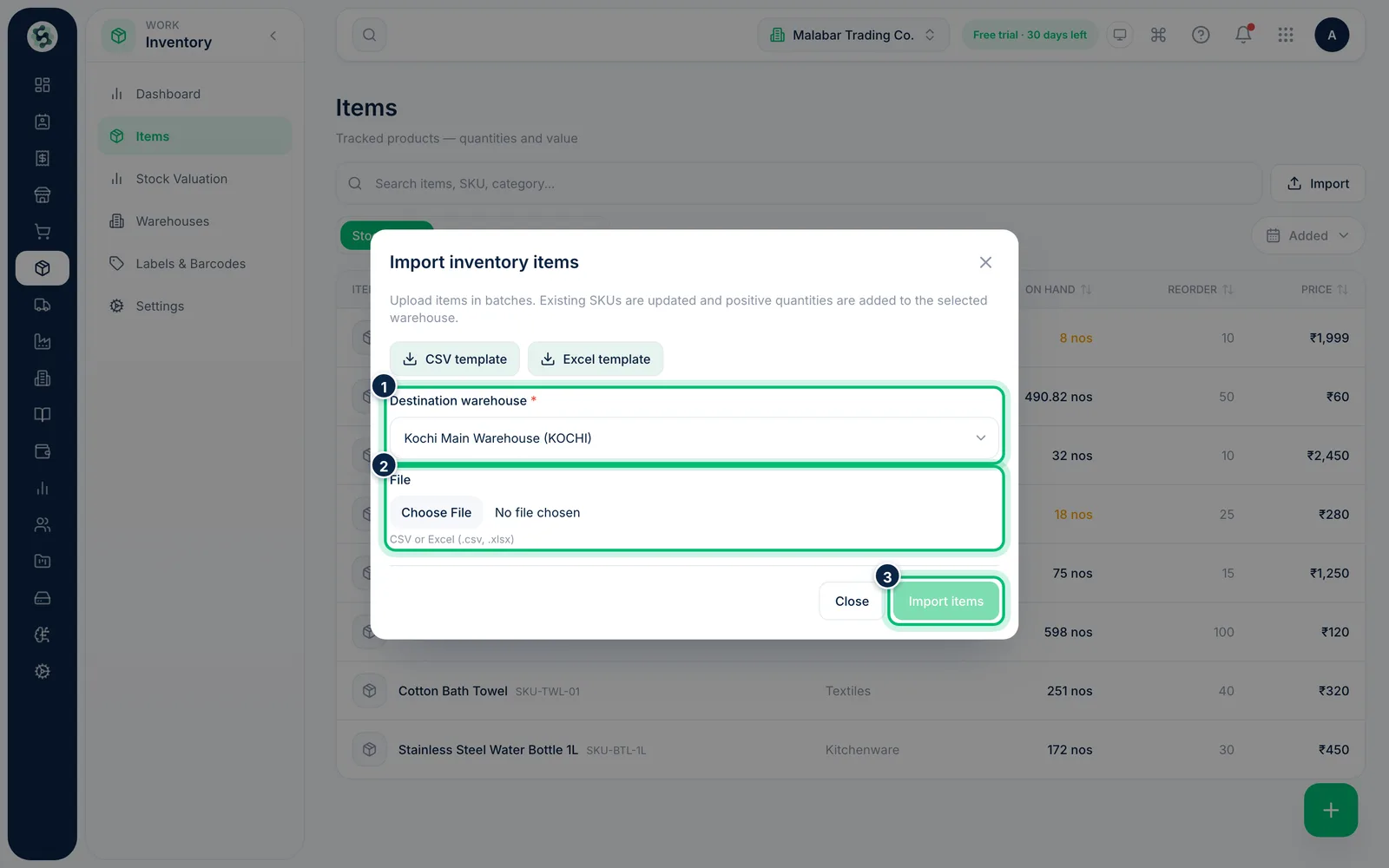
3Choose the warehouse and upload the file
Pick the Destination warehouse, choose your file under File and select Import items. Rows with an SKU you already have update that item, and positive quantities are added to the selected warehouse.
Related guides
Still stuck? Contact our support team — or start a free trial to try this in your own company.