
Asset management · 4 steps
Set up approval workflows
Define who must approve asset requests by type and amount, so high-value purchases always go to the right people.
1Open the Approvals settings
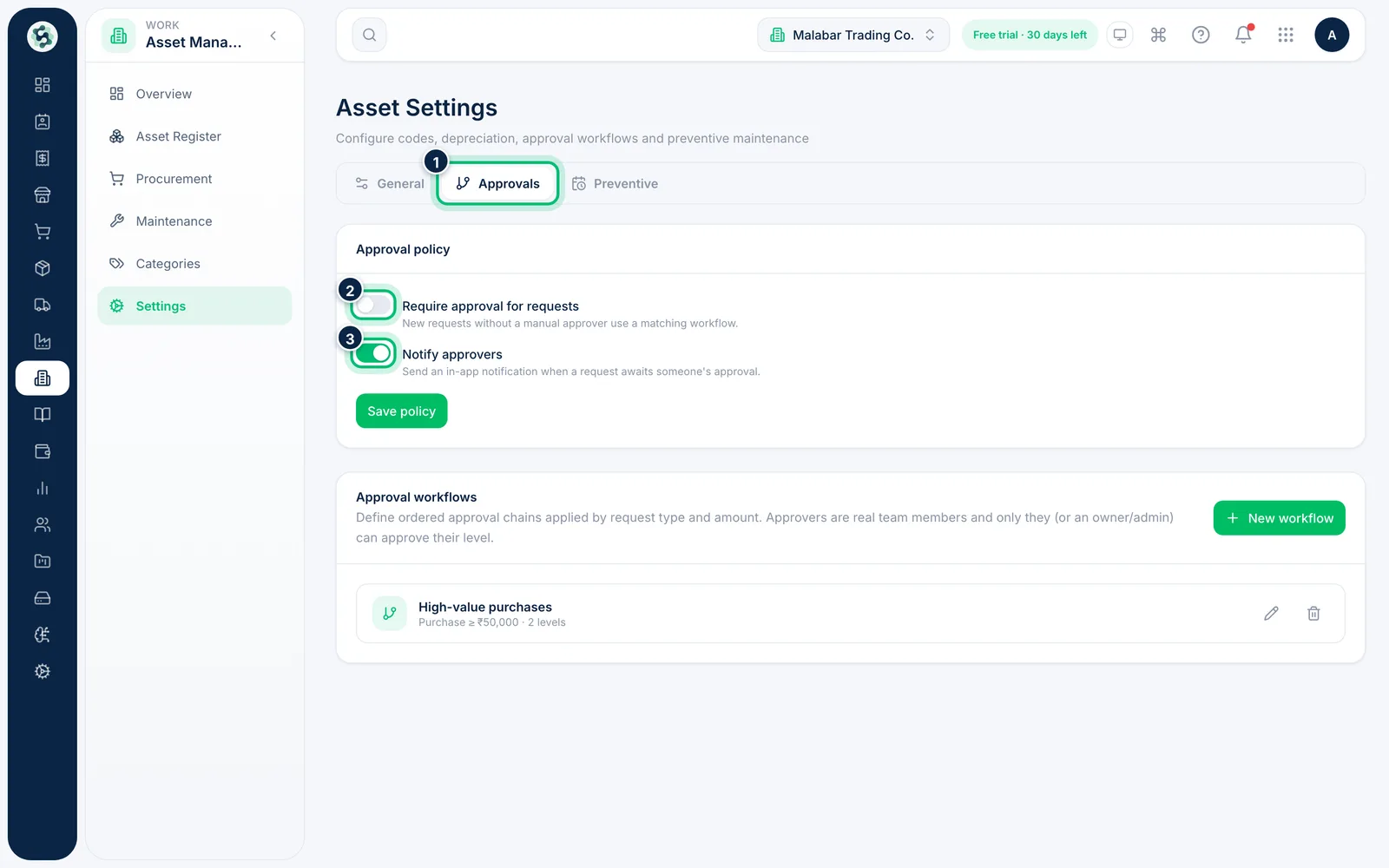
Go to Asset Management → Settings and open the Approvals tab. Turn on Require approval for requests so new requests follow a matching workflow, and Notify approvers to send an in-app notification when a request awaits someone.
2Review your workflows
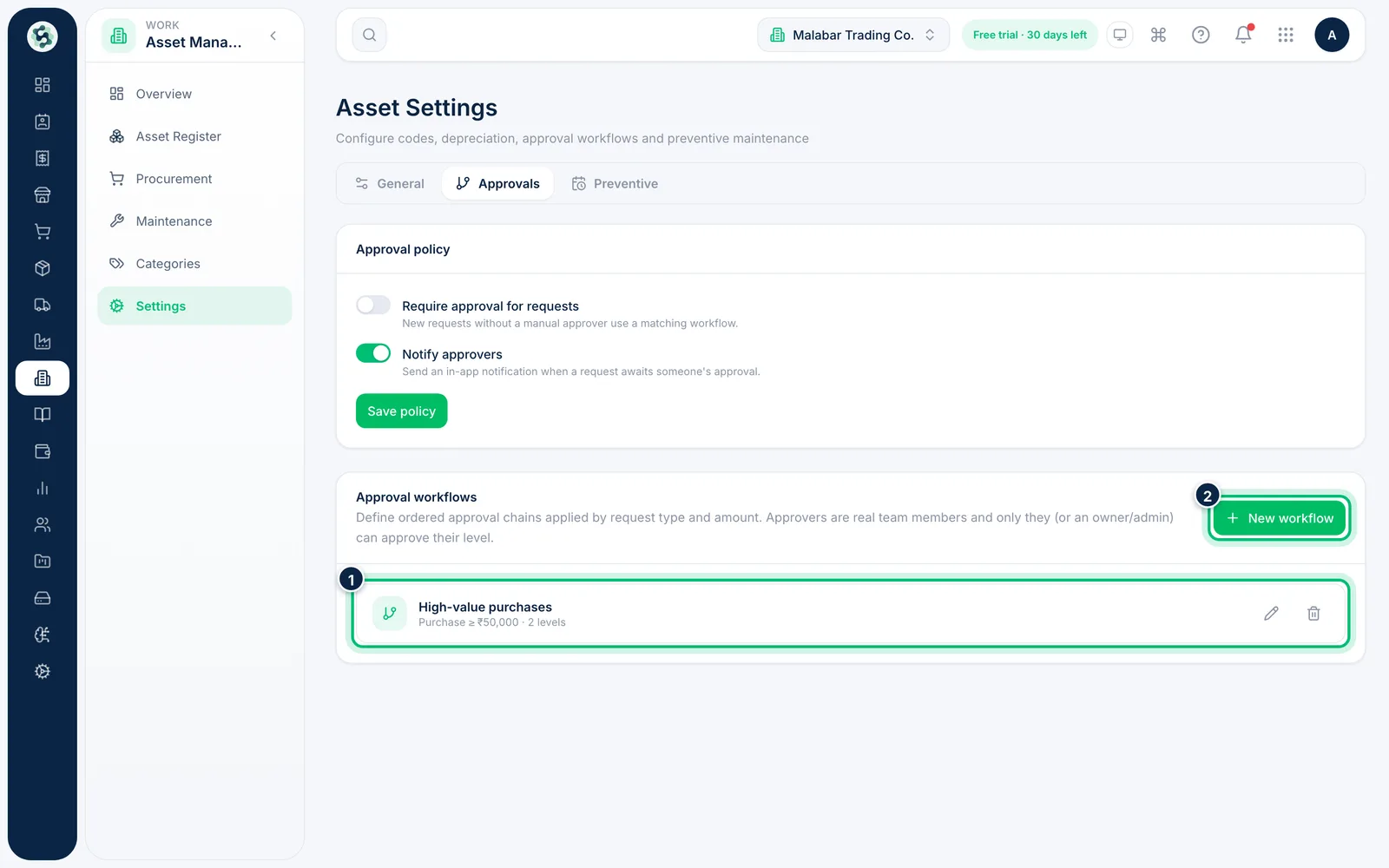
Approval workflows lists each chain with what it applies to, the minimum amount and the number of levels. The one marked Default is used when nothing more specific matches. Choose New workflow to add one.
3Say when the workflow applies
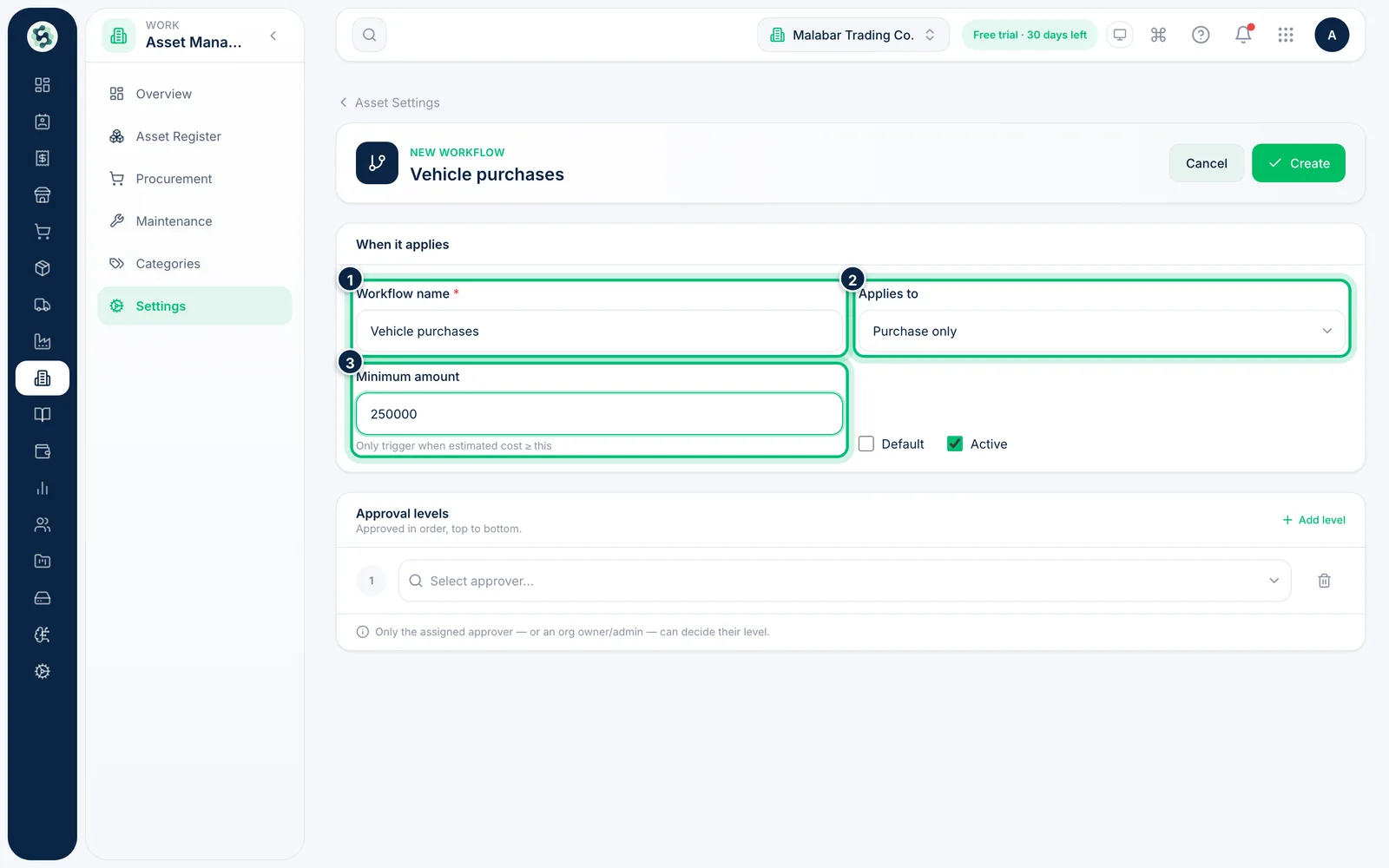
Enter a Workflow name, choose Applies to — all requests, purchases only or service only — and set a Minimum amount. It then triggers only when the estimated cost is at least that much.
4Add the approval levels
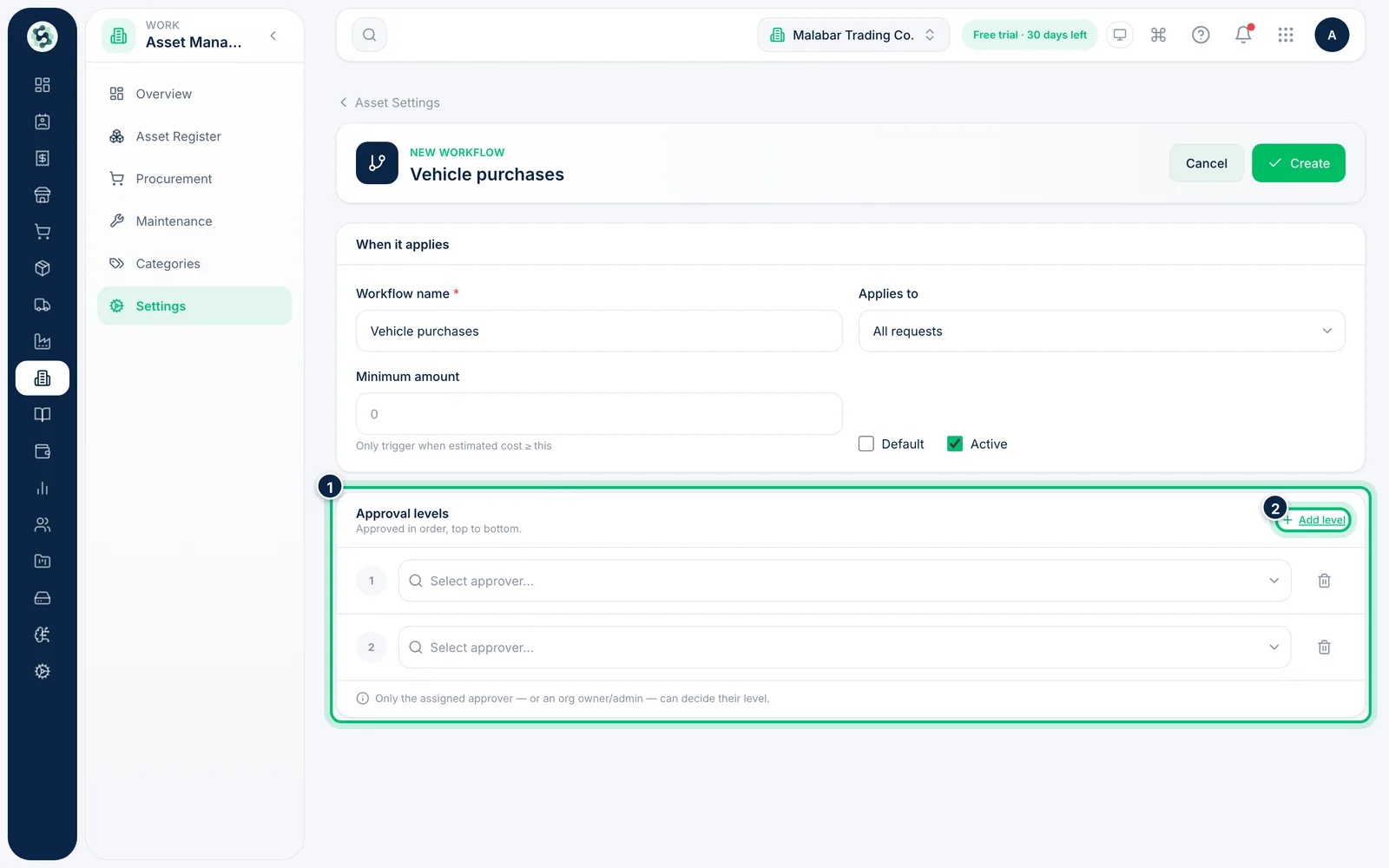
Under Approval levels, choose Add level for each step and select the approver for it. Levels are approved in order, top to bottom. Choose Create to save the workflow.
Related guides
Still stuck? Contact our support team — or start a free trial to try this in your own company.