
Drive · 3 steps
Share a folder with teammates
Give colleagues access to a folder and decide whether they can only view its files or edit them too.
Before you start: You can share items you own. The people you add must already be users in your organisation.
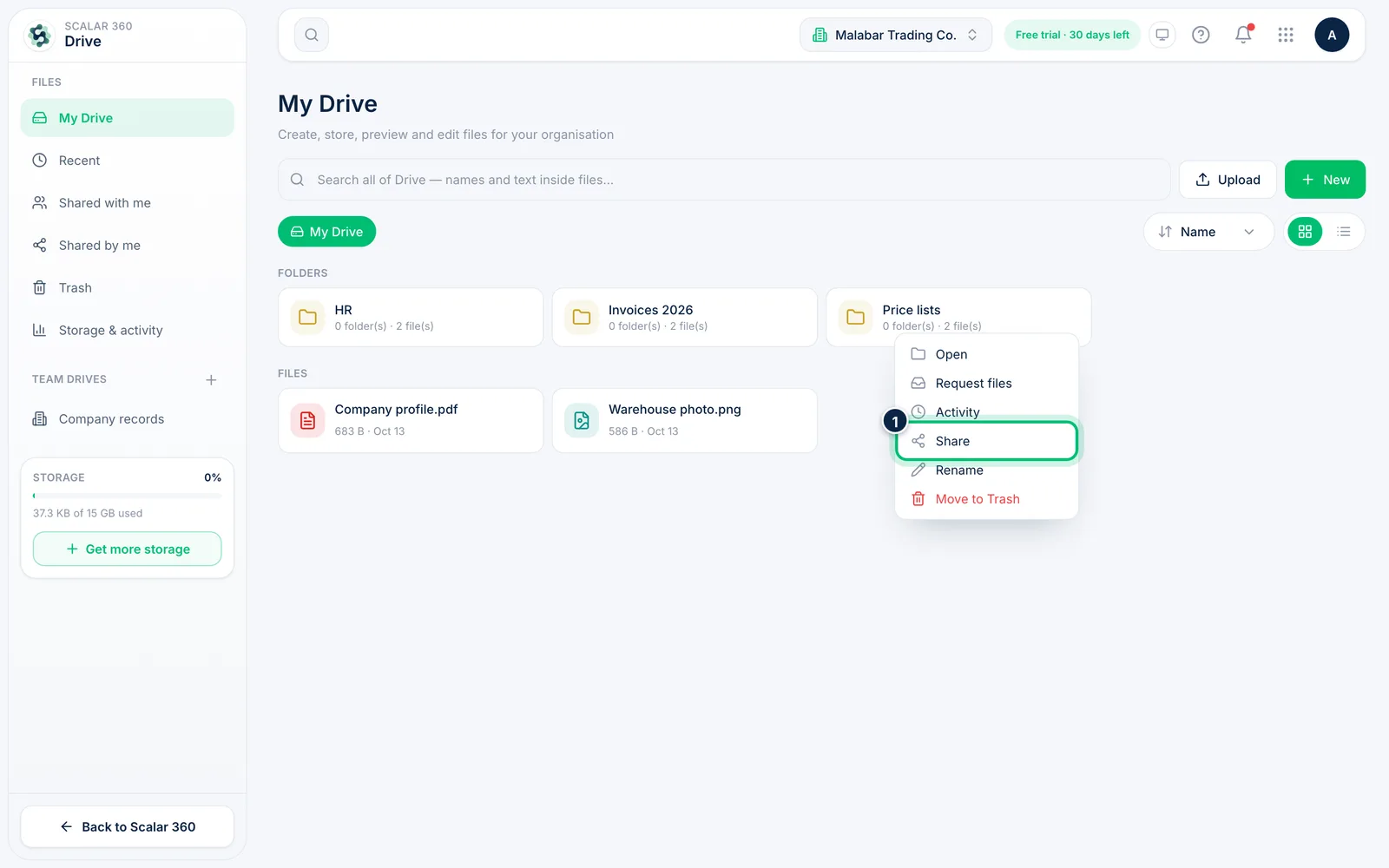
1Open the Share dialog
Choose the More button on the folder and pick Share. The same menu on a single file shares just that file.
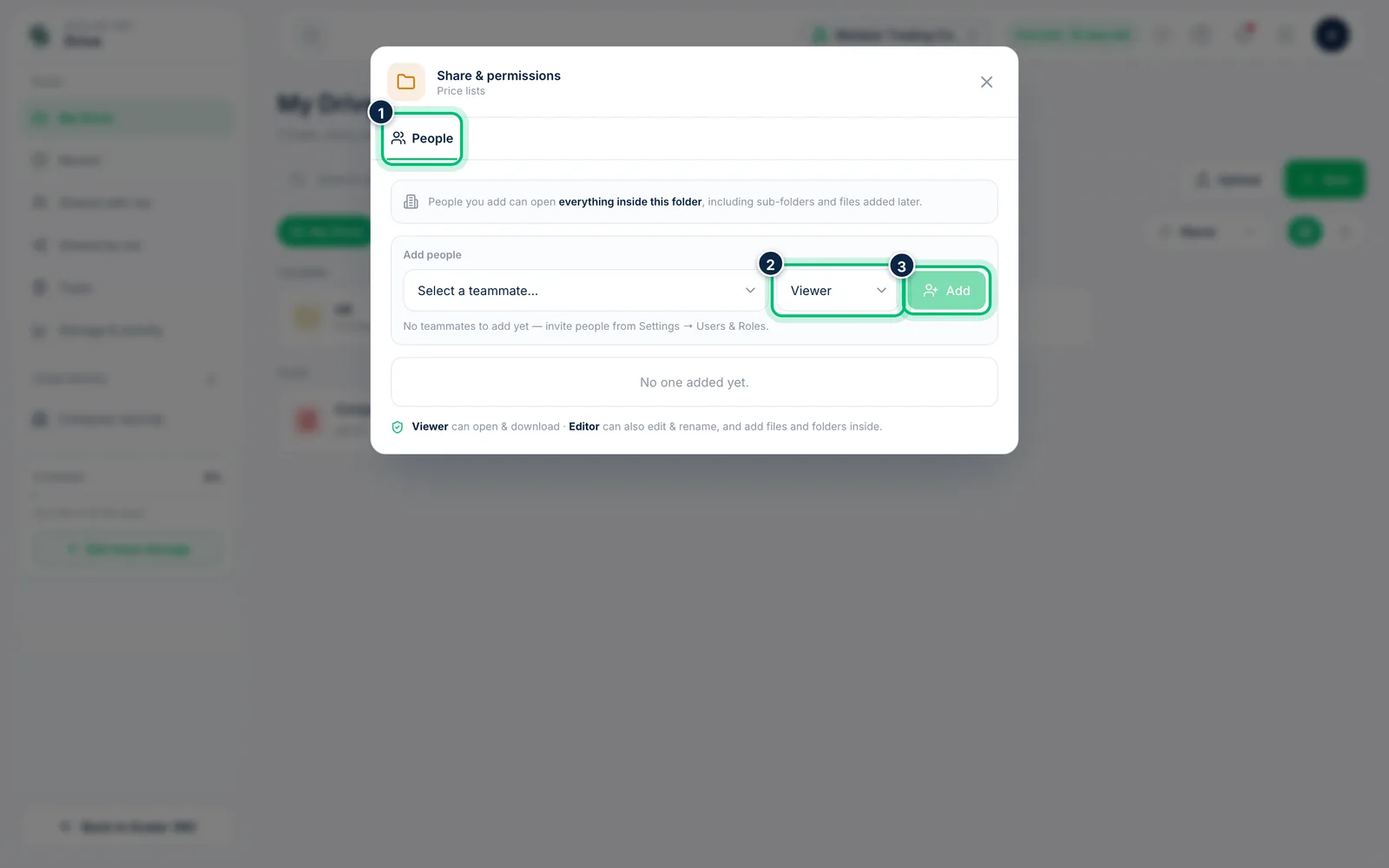
2Add people
On the People tab, choose a teammate under Add people, pick their permission and add them. People you add can open everything inside the folder, including sub-folders and files added later.
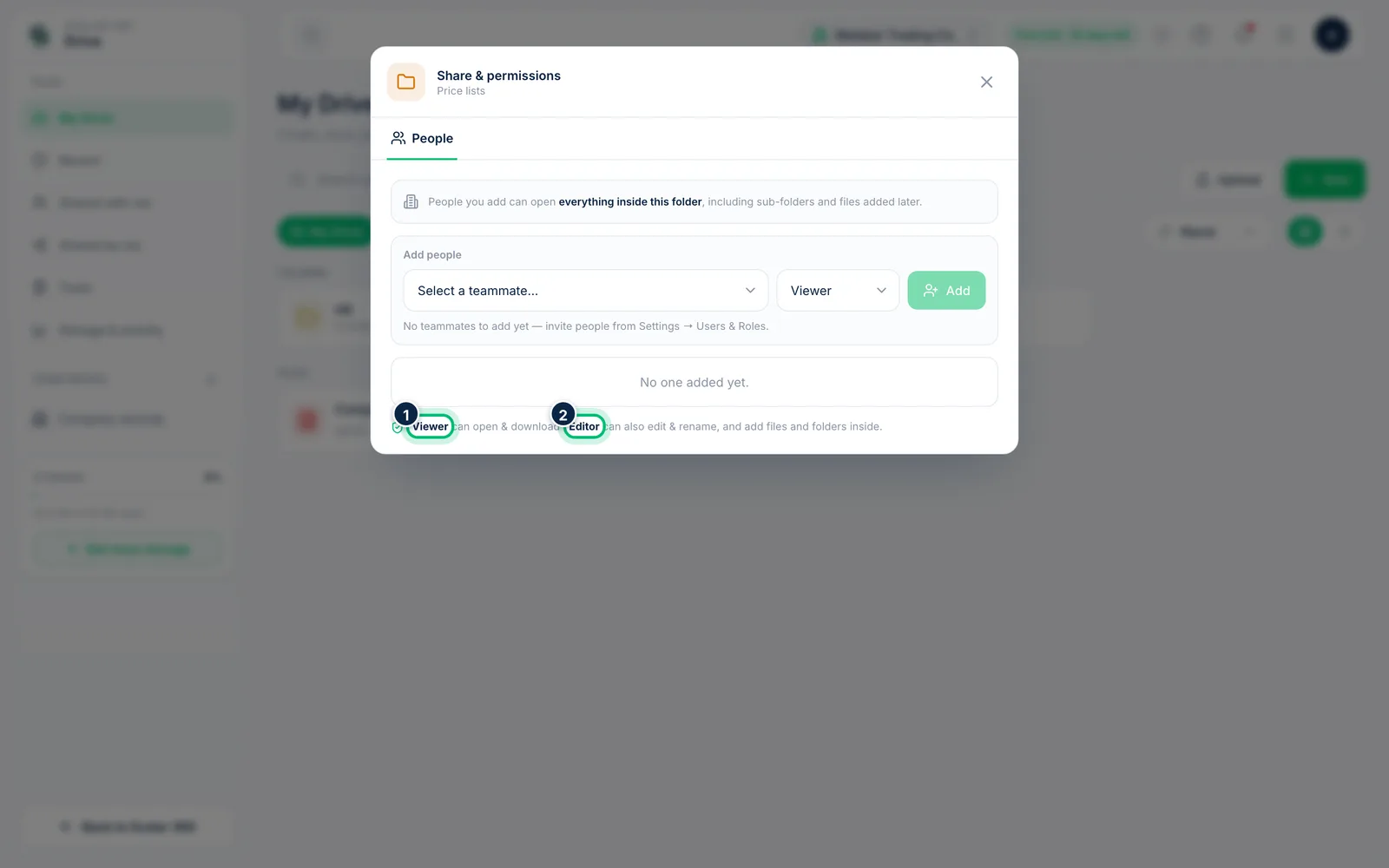
3Choose Viewer or Editor
A Viewer can open and download. An Editor can also edit and rename, and add files and folders inside a shared folder. You can change a person's permission from the list or remove them at any time.
Related guides
Still stuck? Contact our support team — or start a free trial to try this in your own company.