
Drive · 4 steps
Upload files and folders
Add files, or a whole folder from your computer, to Drive so the team can find them in one place.
Before you start: Drive opens as its own app from the Scalar360 apps menu in the top bar. You need permission to upload; without it you can browse but not add files.
1Open My Drive
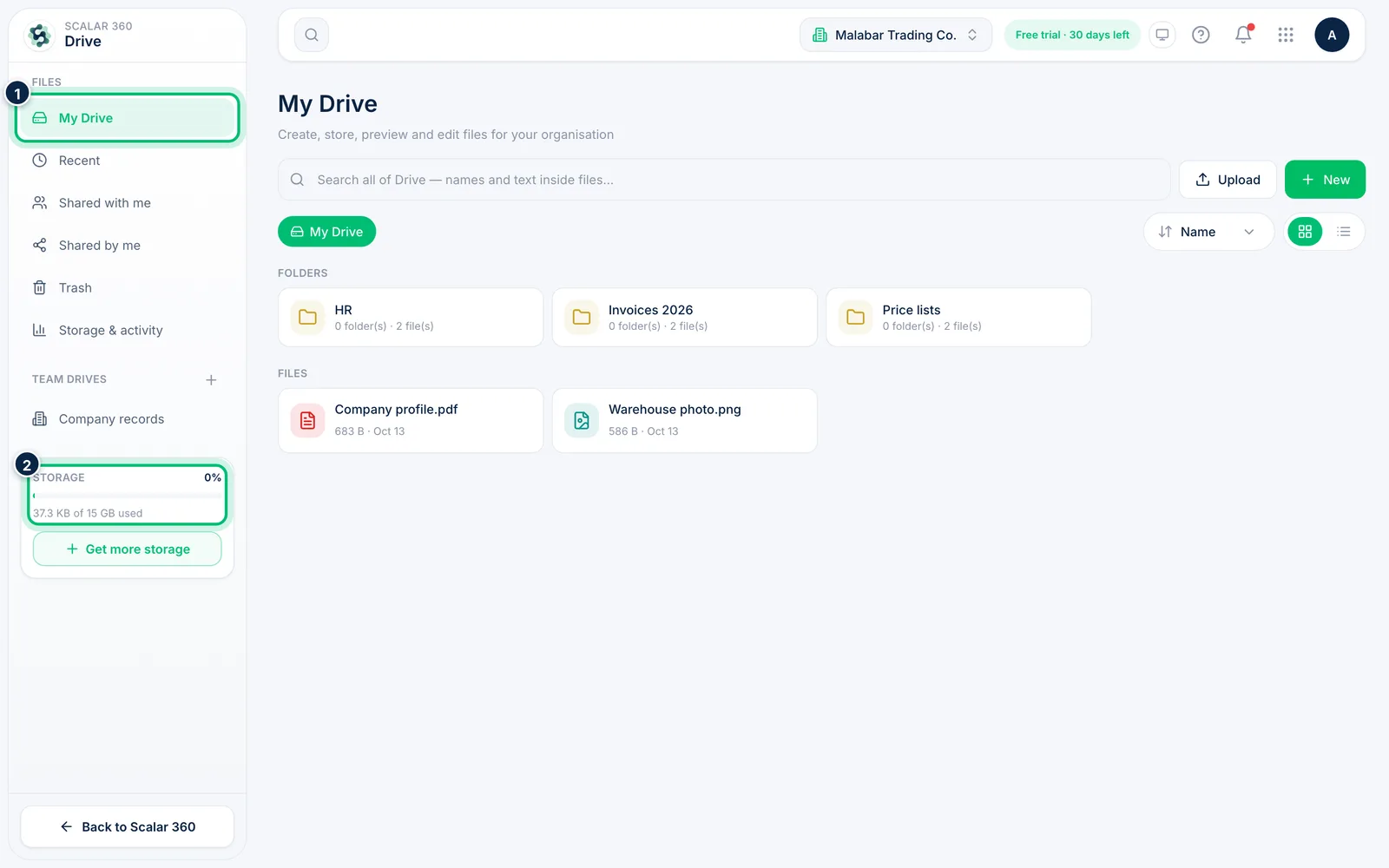
Open Drive from the Scalar360 apps menu in the top bar. My Drive shows your top-level folders and files, and the Storage card on the left shows how much of your plan you've used.
2Upload files
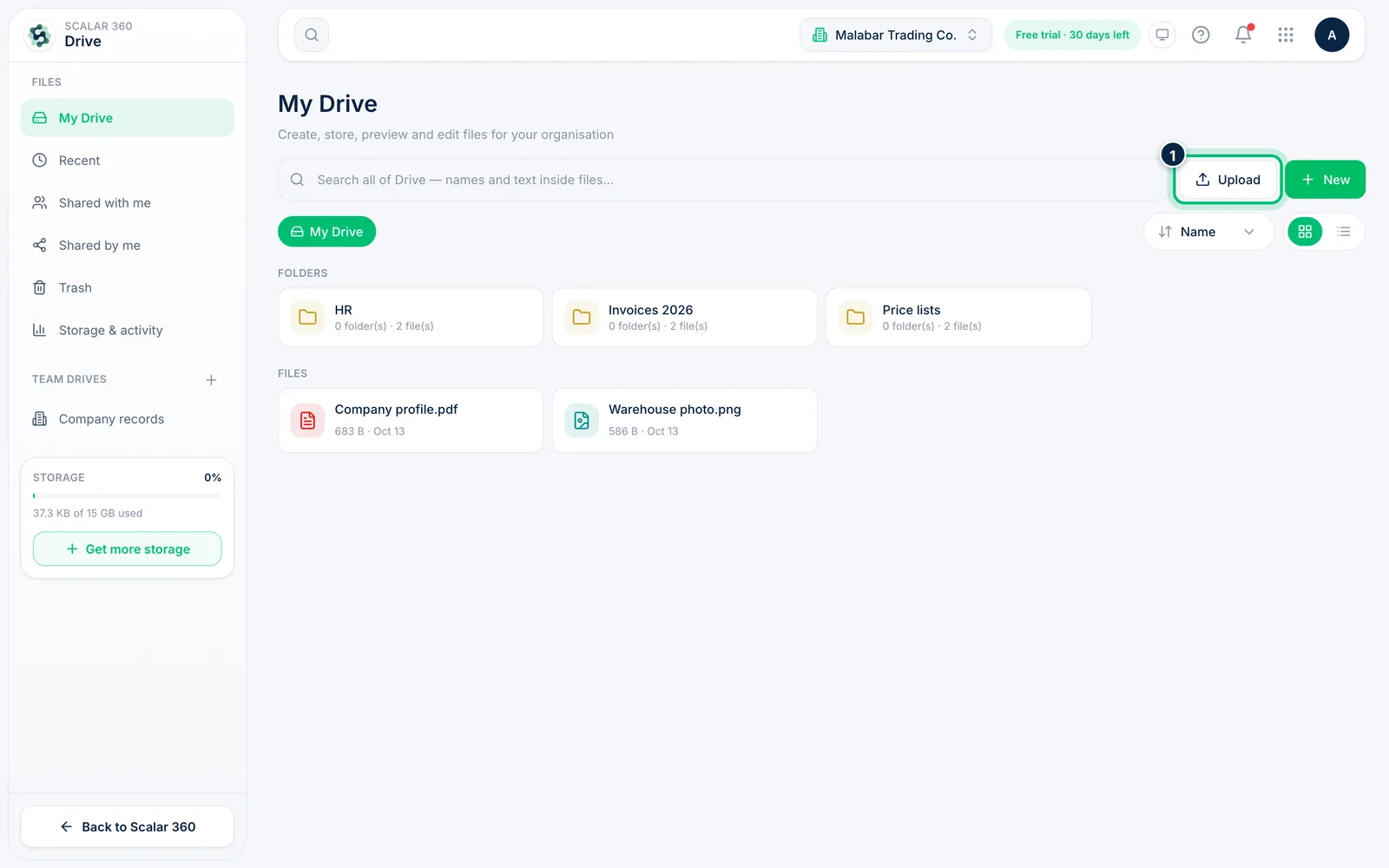
Choose Upload and pick one or more files from your computer. They are added to the folder you're in and a message confirms how many were uploaded. You can also drag files straight onto the page.
3Upload a whole folder
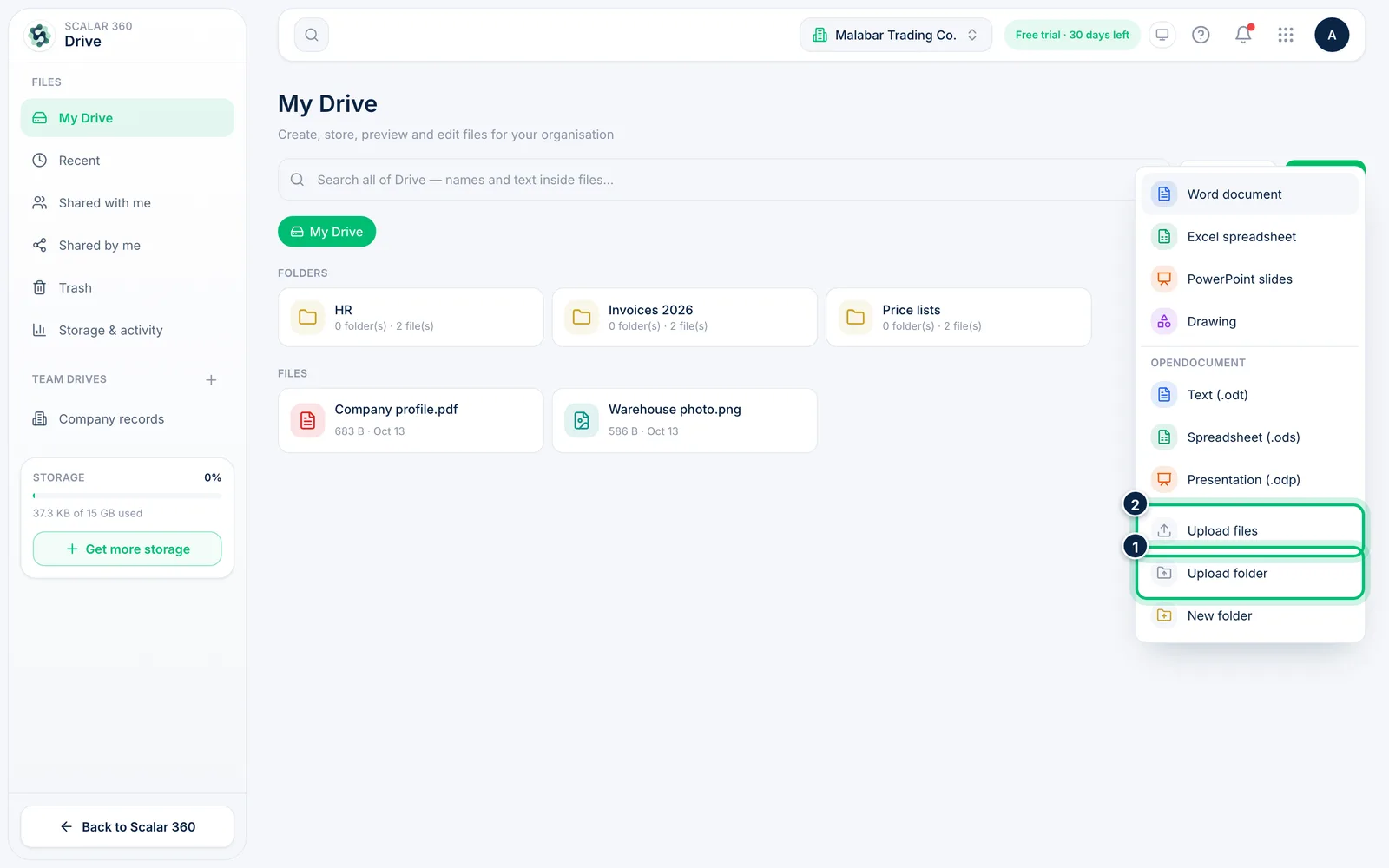
Choose New, then Upload folder to bring in a folder with everything inside it, keeping its sub-folders. Upload files in the same menu does the same as the Upload button.
4Sort and switch the view
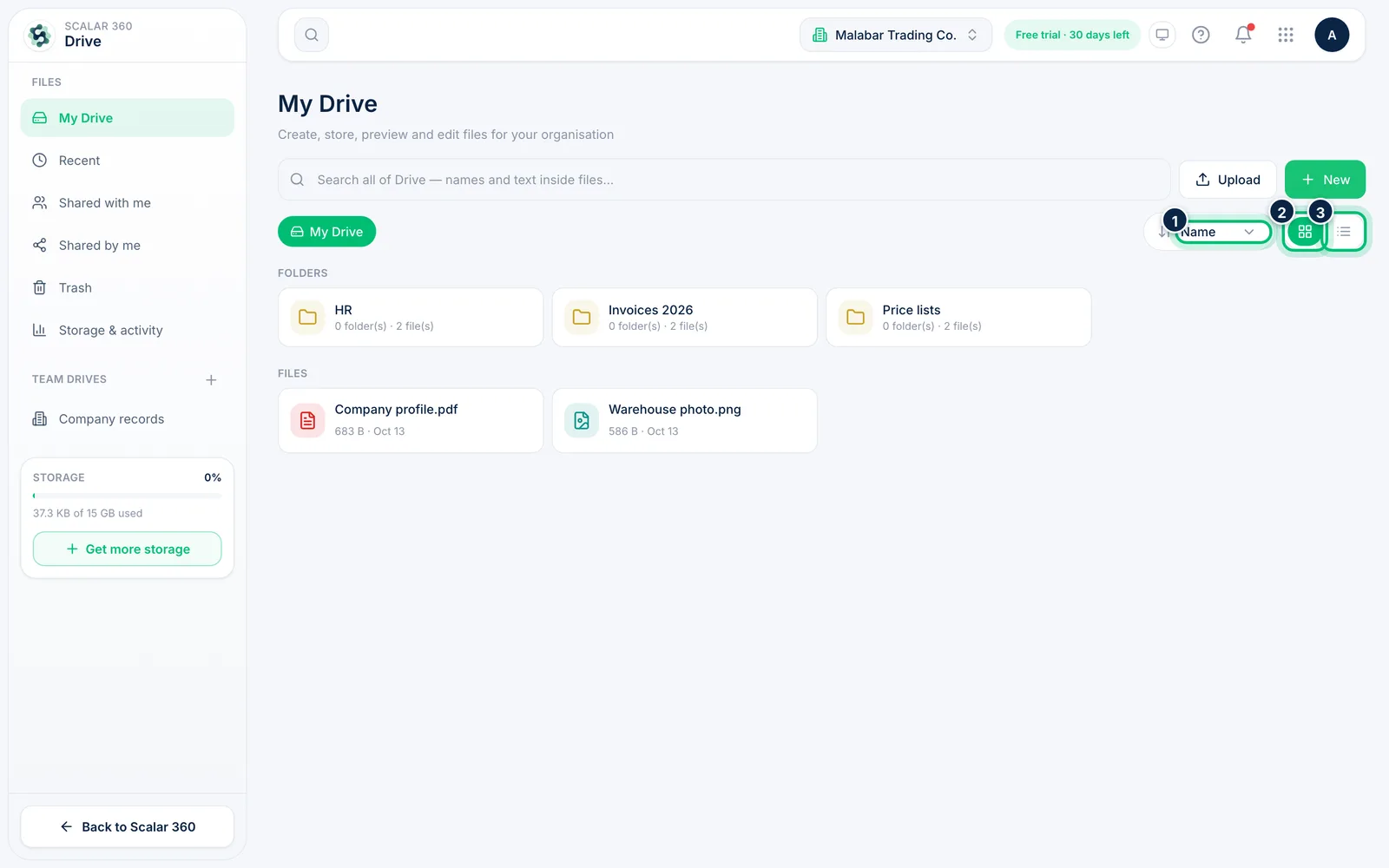
Use Sort by to order items by Name, Last modified or Size. The two buttons beside it switch between Grid view and List view; Drive remembers your choice.
Related guides
Still stuck? Contact our support team — or start a free trial to try this in your own company.