
Drive · 4 steps
Search, preview and download files
Find a file by name or by words inside it, look at it without downloading, and save a copy when you need one.
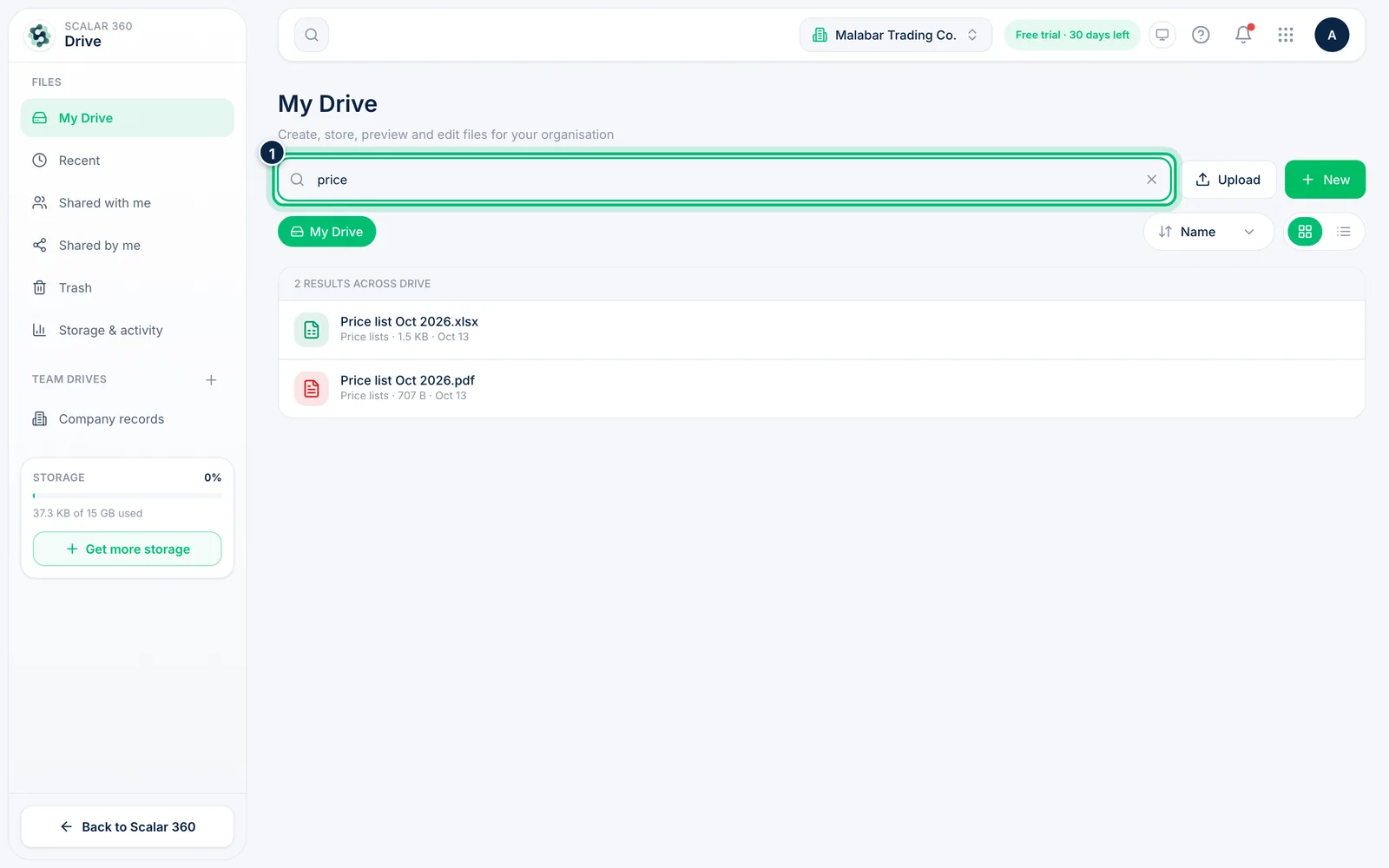
1Search all of Drive
Type at least two characters in the search box at the top of My Drive. Drive searches file names and the text inside files, and marks matches found inside a file with In file.
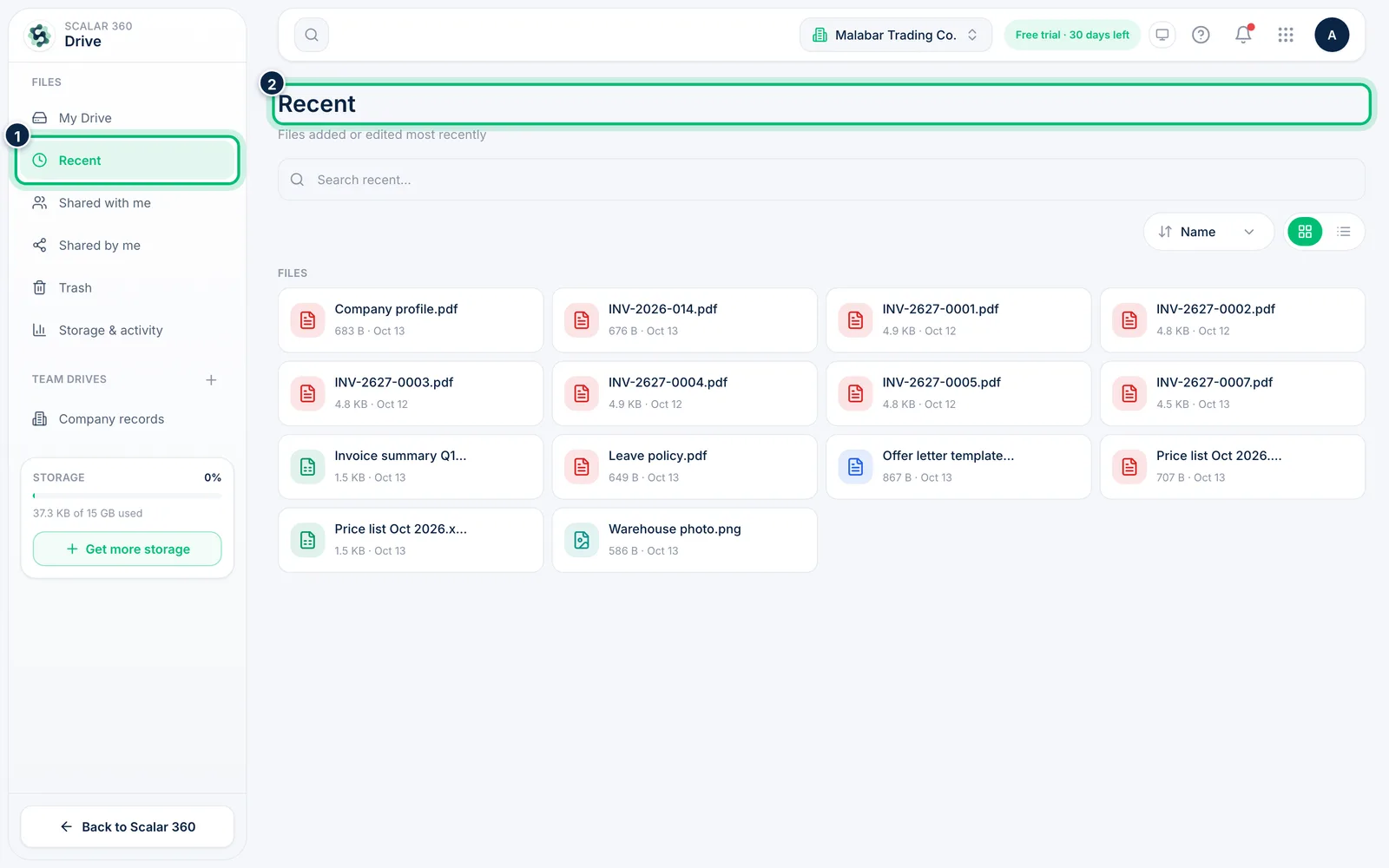
2Pick up where you left off
Open Recent in the left panel to see the files added or edited most recently, whichever folder they're in.
3Preview a file
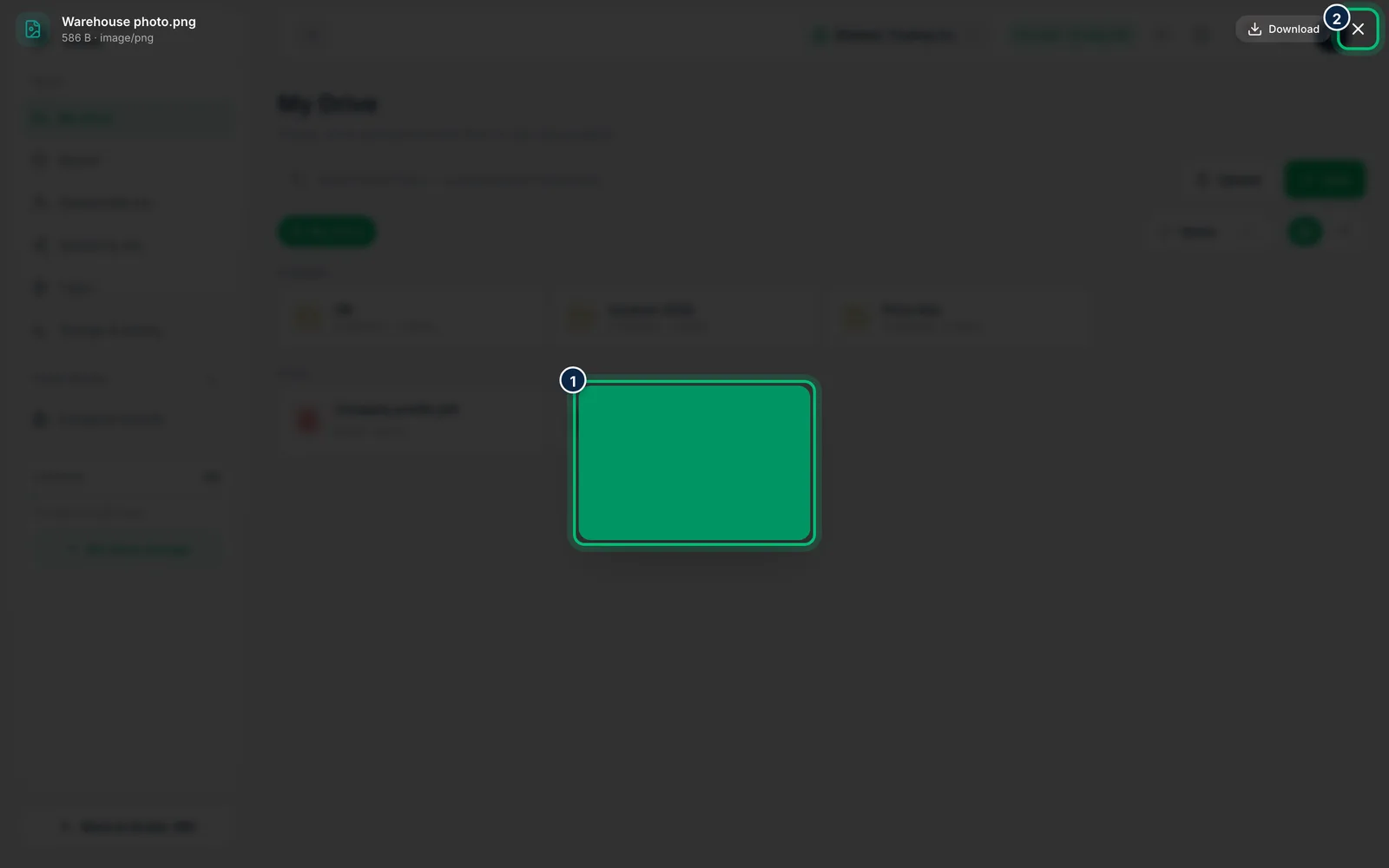
Select a file to open it in a preview. Images, PDFs and text files show right in Drive; other types offer a Download button instead. Press Esc or the close button to return.
4Download a copy
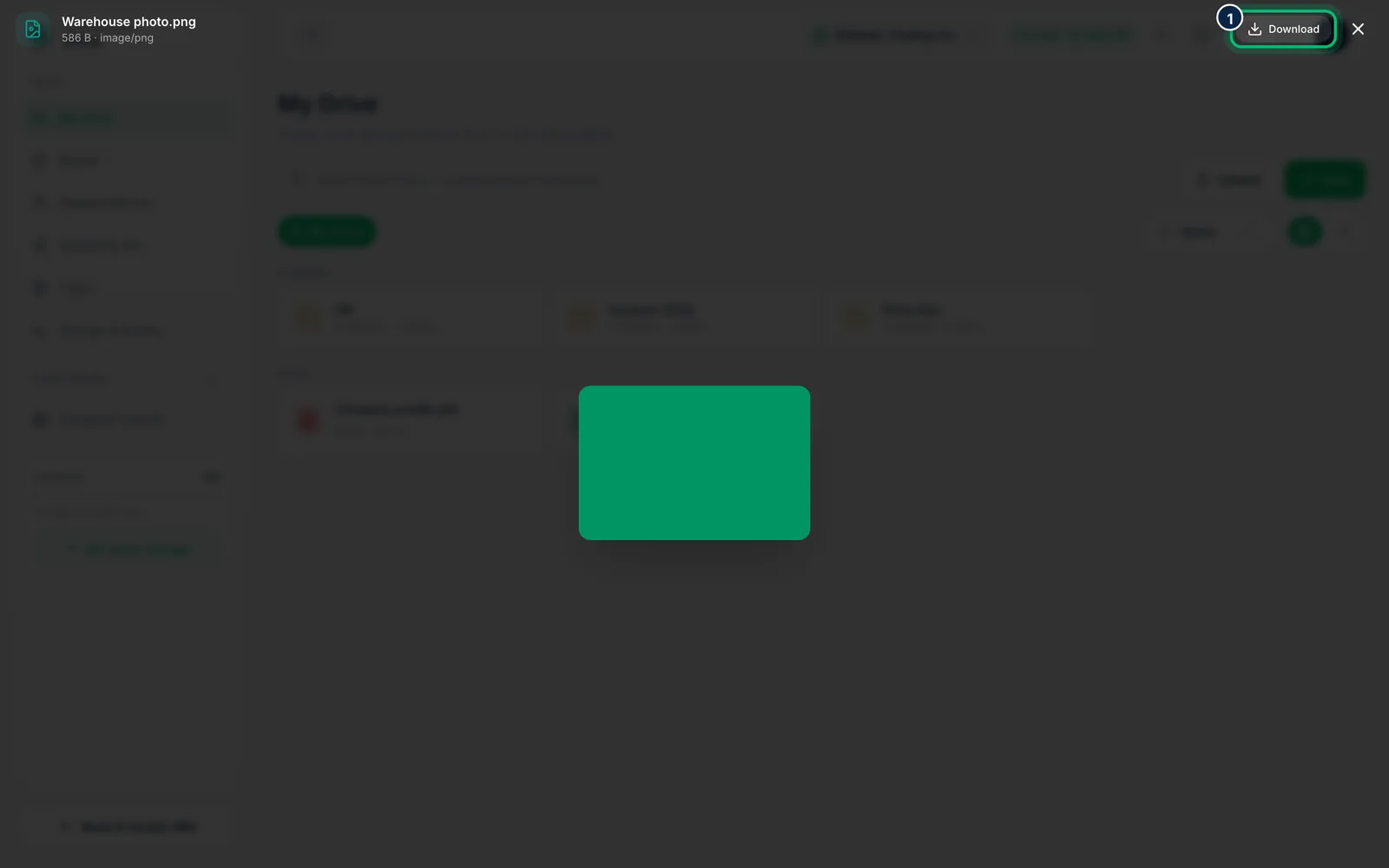
Choose Download in the preview, or the download icon that appears on a file in the list, to save it to your computer.
Related guides
Still stuck? Contact our support team — or start a free trial to try this in your own company.