
Settings & administration · 4 steps
Choose your notifications
Decide which alerts reach you in the app and by email, and set up desktop pop-ups and alert sounds.
Before you start: Alert choices are saved to your account. Desktop and sound options are saved on the browser you are using.
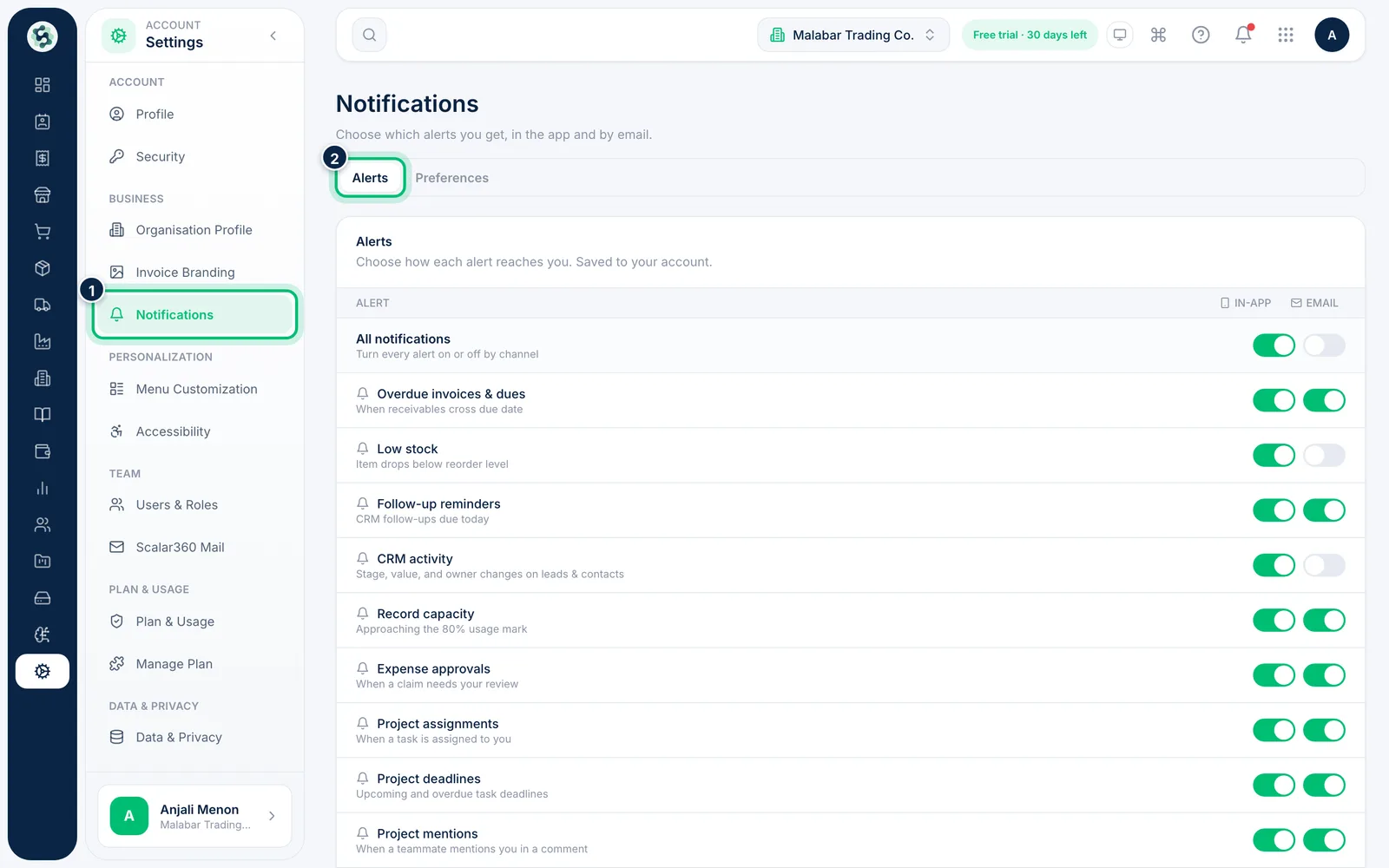
1Open Notifications
Go to Settings → Notifications. The Alerts tab lists every alert Scalar360 can send, such as Low stock and Overdue invoices & dues.
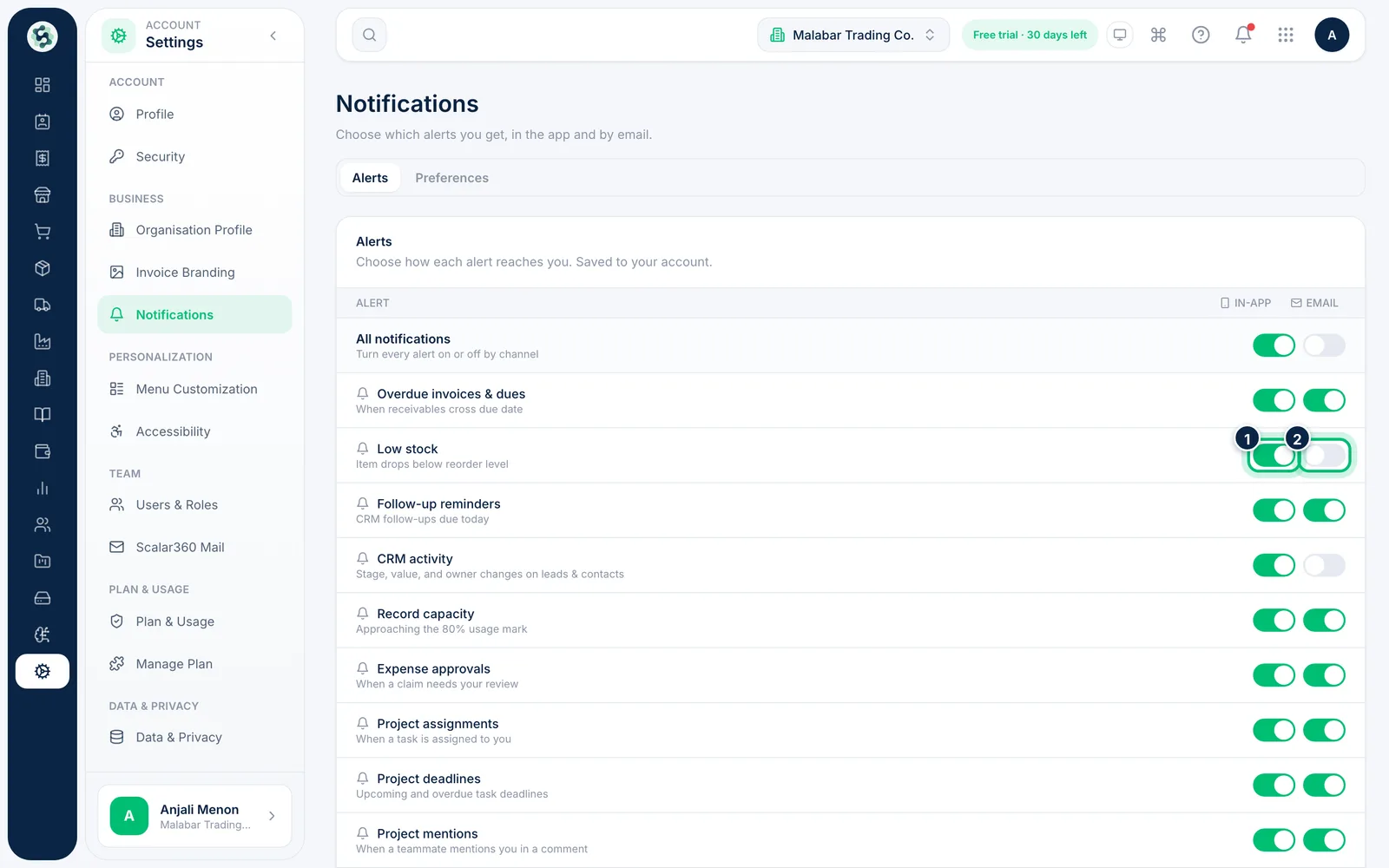
2Pick a channel for each alert
Each alert has two switches: In-app and Email. Turn one on or off and the change is saved straight away.
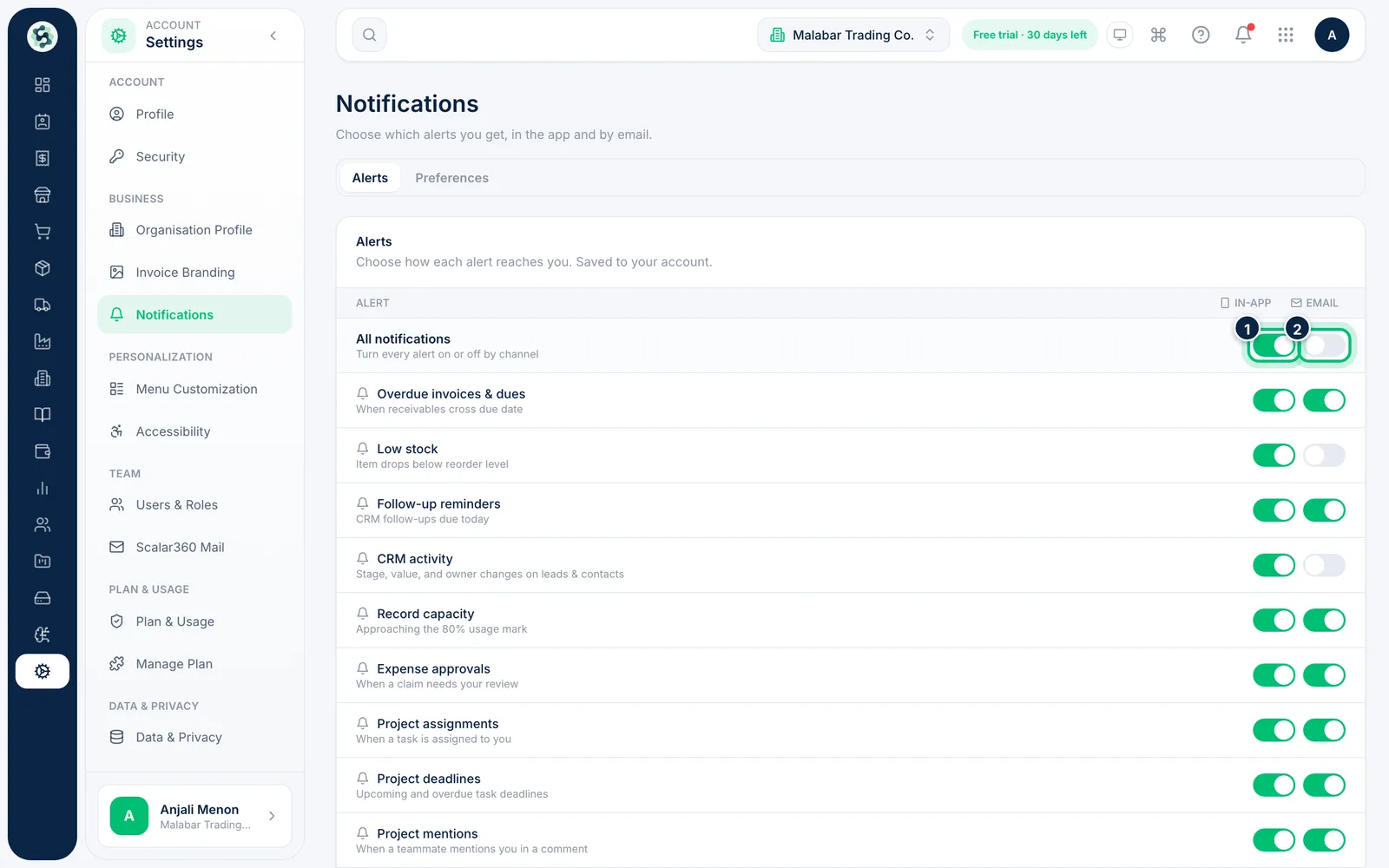
3Switch every alert at once
The All notifications row at the top turns every alert on or off for a channel in one click.
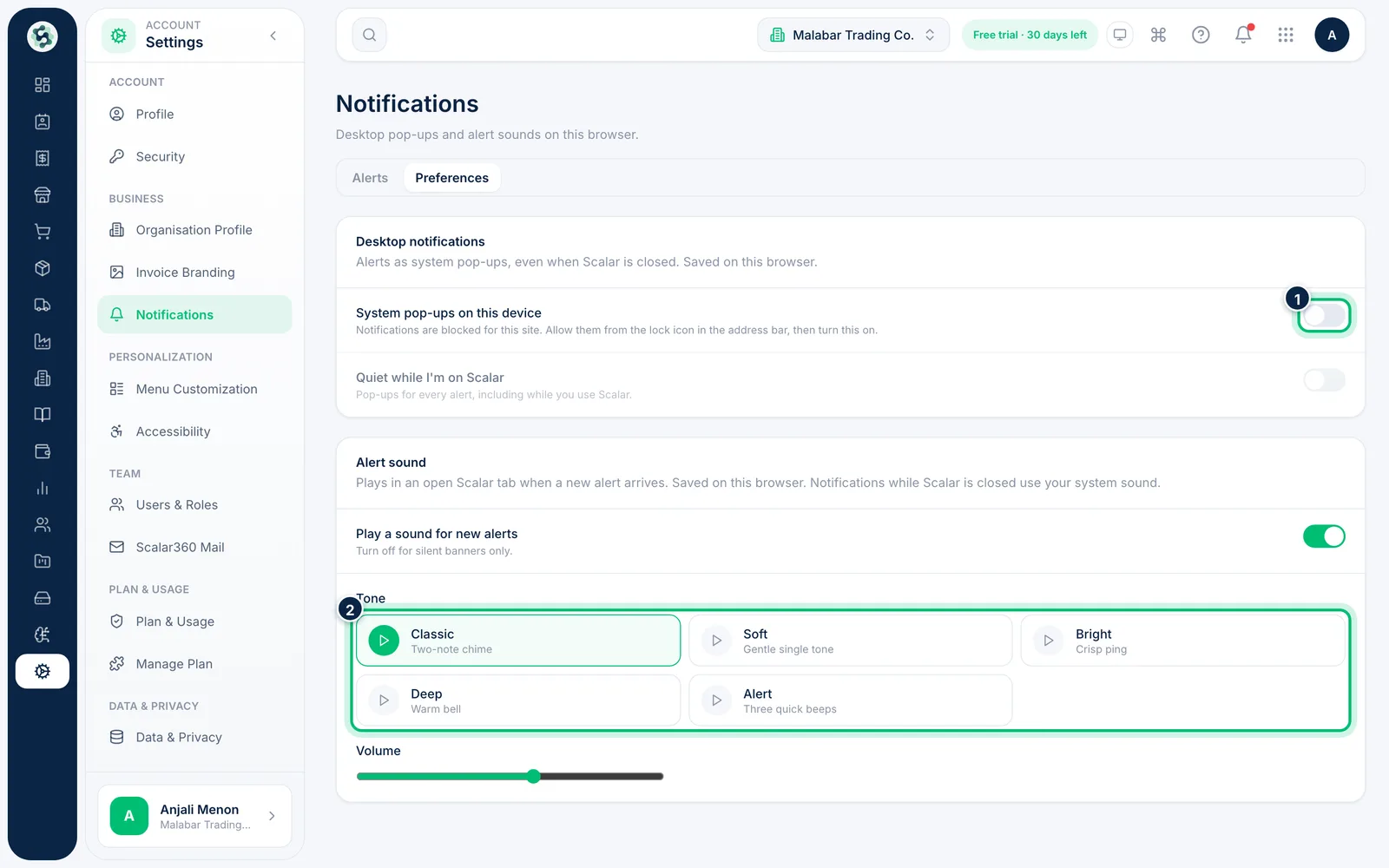
4Set desktop pop-ups and sound
Open the Preferences tab. Turn on System pop-ups on this device to get alerts even when Scalar360 is closed, and choose an alert Tone and Volume for new alerts.
Related guides
Still stuck? Contact our support team — or start a free trial to try this in your own company.