
CRM · 4 steps
Stay on top of follow-ups
See which open leads are due for a call today, which you've missed and what's coming up — and tick them off as you go.
Before you start: A lead appears here when it has a follow-up date and is still open — in any stage except Won or Lost. The count matches Follow-ups today on the CRM dashboard.
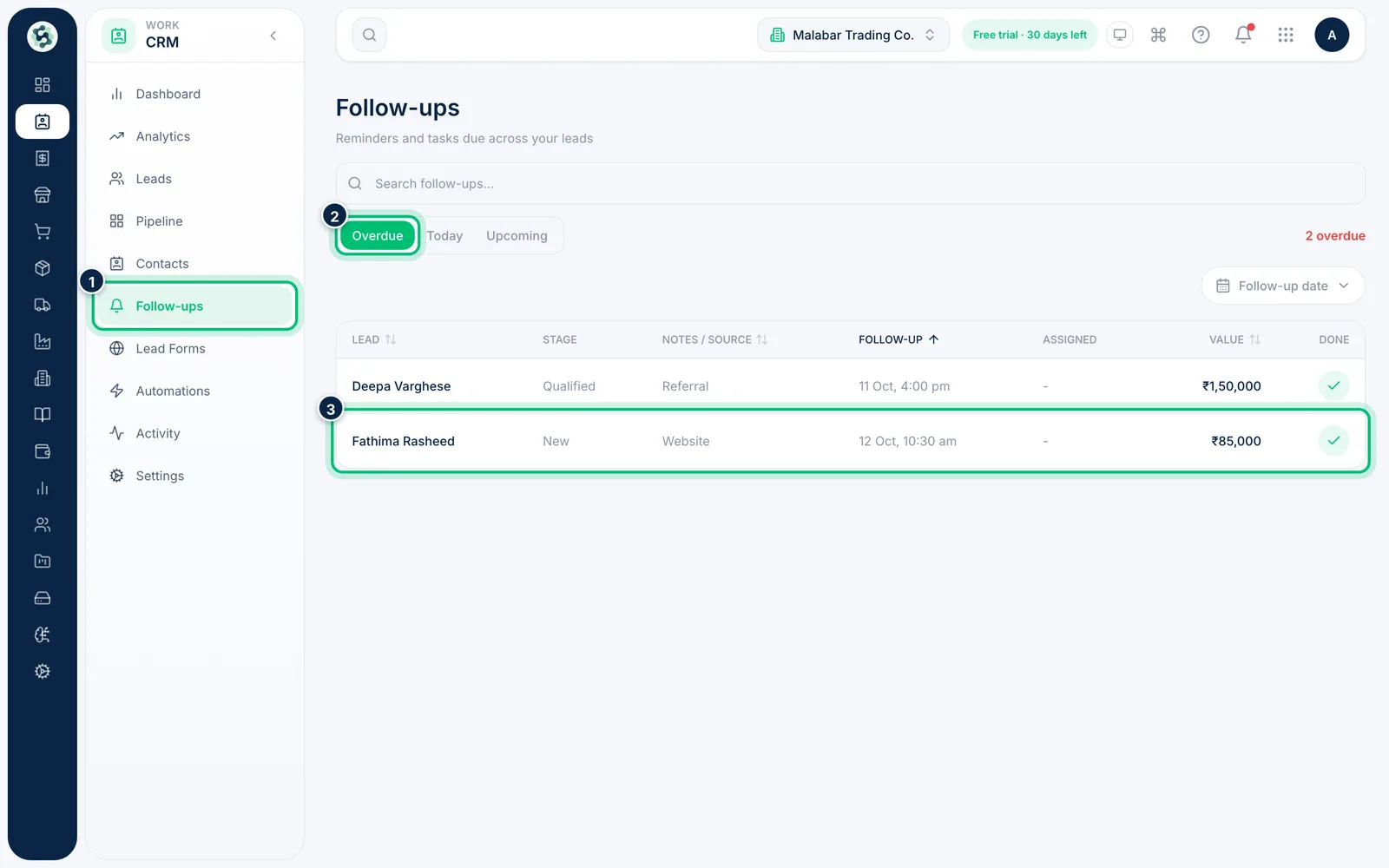
1Open Follow-ups
Go to CRM → Follow-ups. It opens on Overdue — follow-ups whose date has passed — with the lead, notes or source, follow-up date and time (shown like "13 Oct, 4:00 pm"), owner, deal value and current Stage.
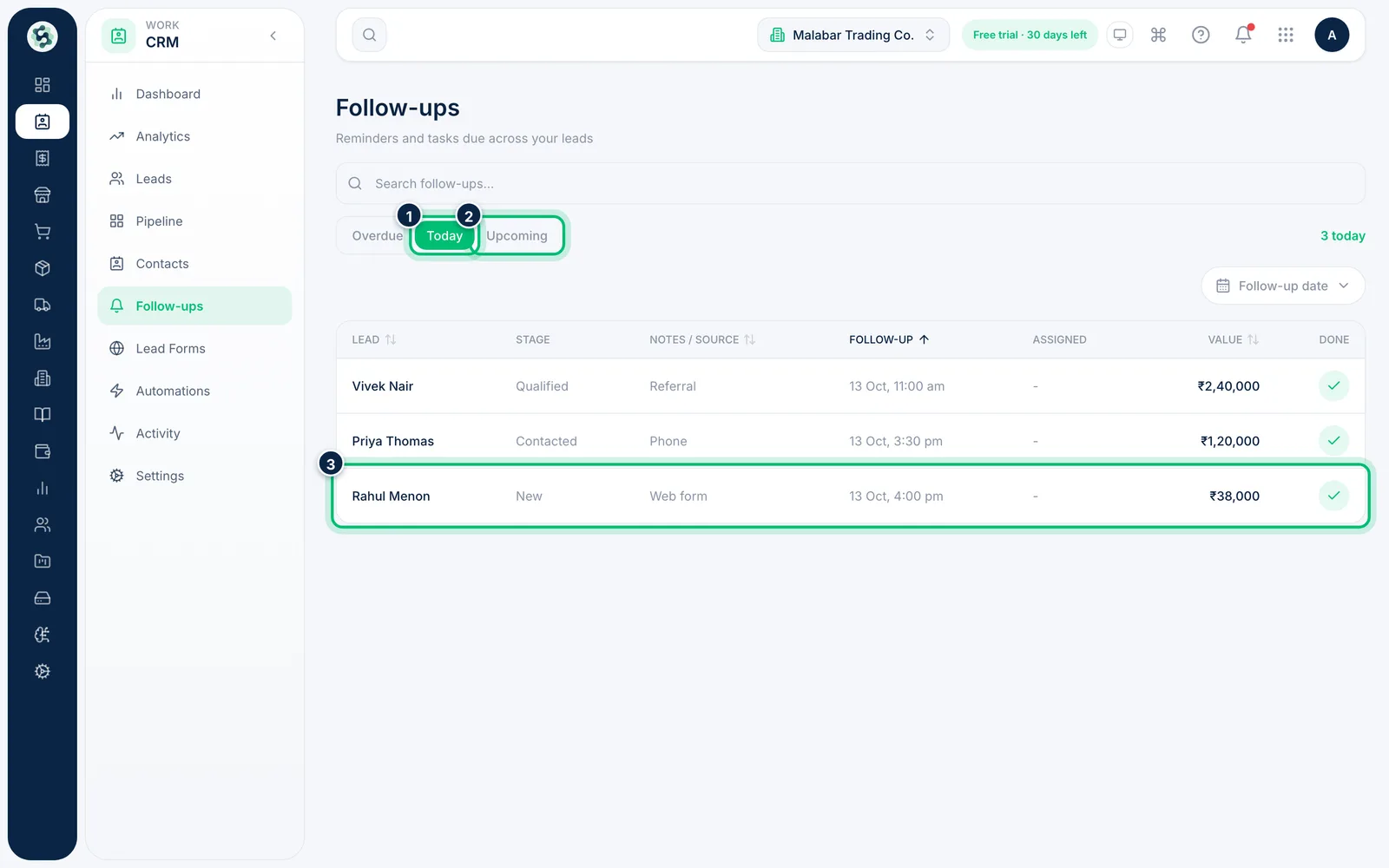
2Check today's and upcoming follow-ups
Switch to Today for the leads to contact today, or Upcoming for the days ahead. Search or set a Follow-up date range to narrow the list.
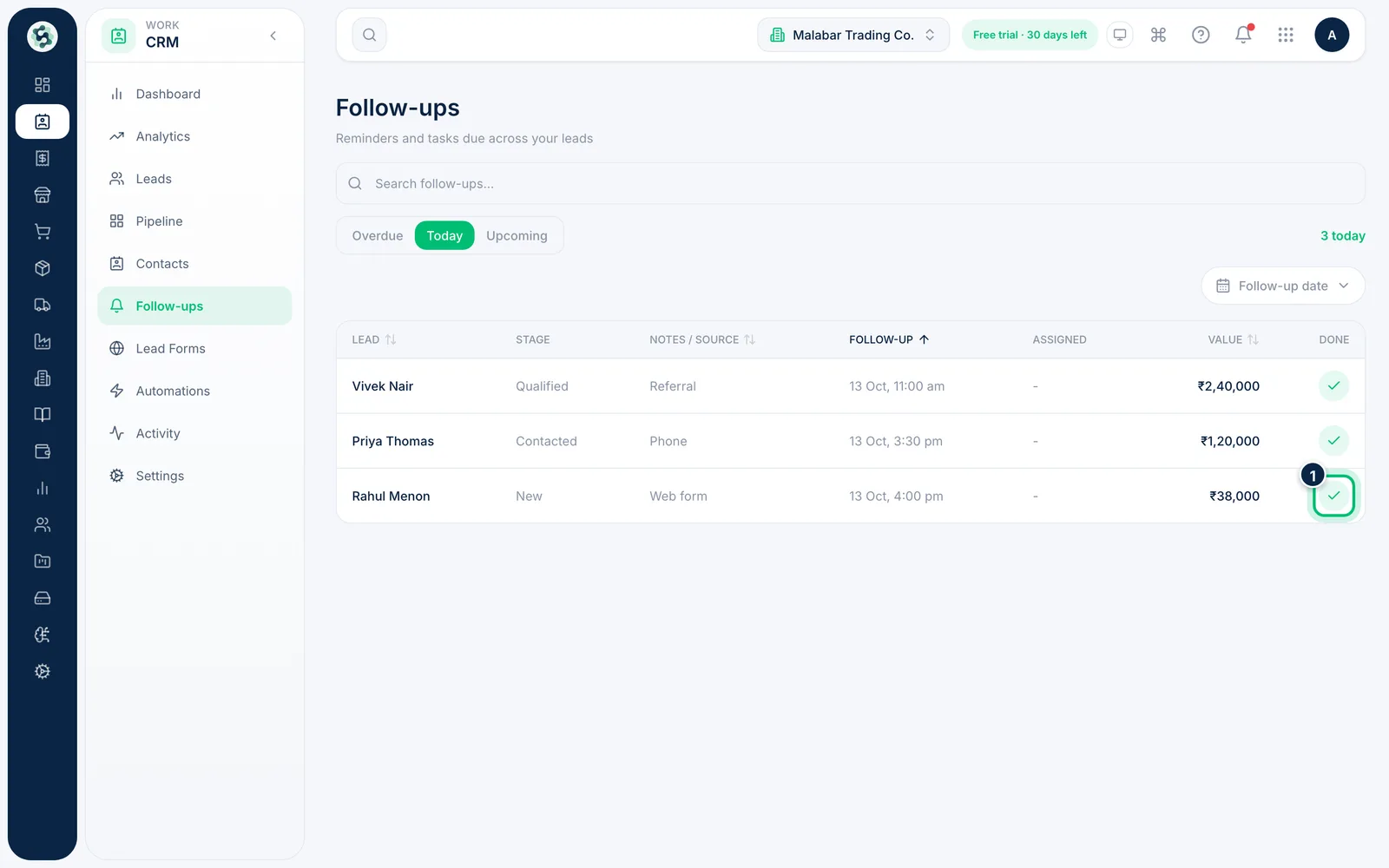
3Mark a follow-up done
Once you've spoken to the lead, choose the tick under Done. The follow-up is completed and drops off the list, and Follow-up completed is logged on the lead's timeline. The lead stays in its stage — except a lead still in the first stage (New), which moves to Contacted. Click the row instead to open the lead and log what was said.
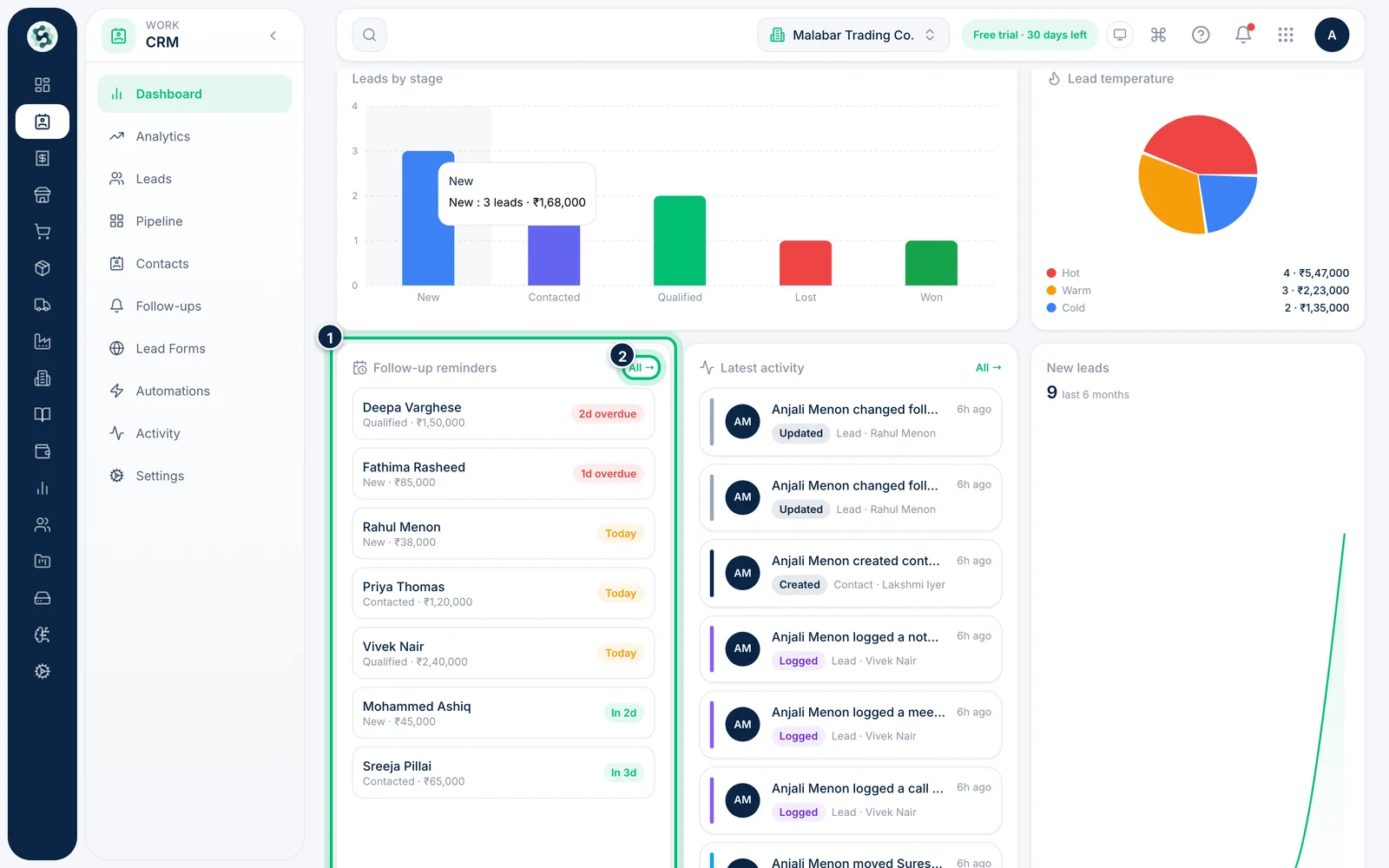
4See reminders on the dashboard
The CRM Dashboard lists the next Follow-up reminders, marking each one overdue or due today. Its Follow-ups today card counts follow-ups across all stages. Choose All → to come back to this list.
Related guides
Still stuck? Contact our support team — or start a free trial to try this in your own company.