
Accounting & GST · 5 steps
Enter opening balances when you start using Scalar360
Record what each account held on the day you moved from your old books, and check that the difference reaches zero before you save.
Before you start: Have your closing trial balance from your old books as on the day you start, usually the first day of your financial year. Item opening stock is counted from your items, so add your items and their starting quantities first.
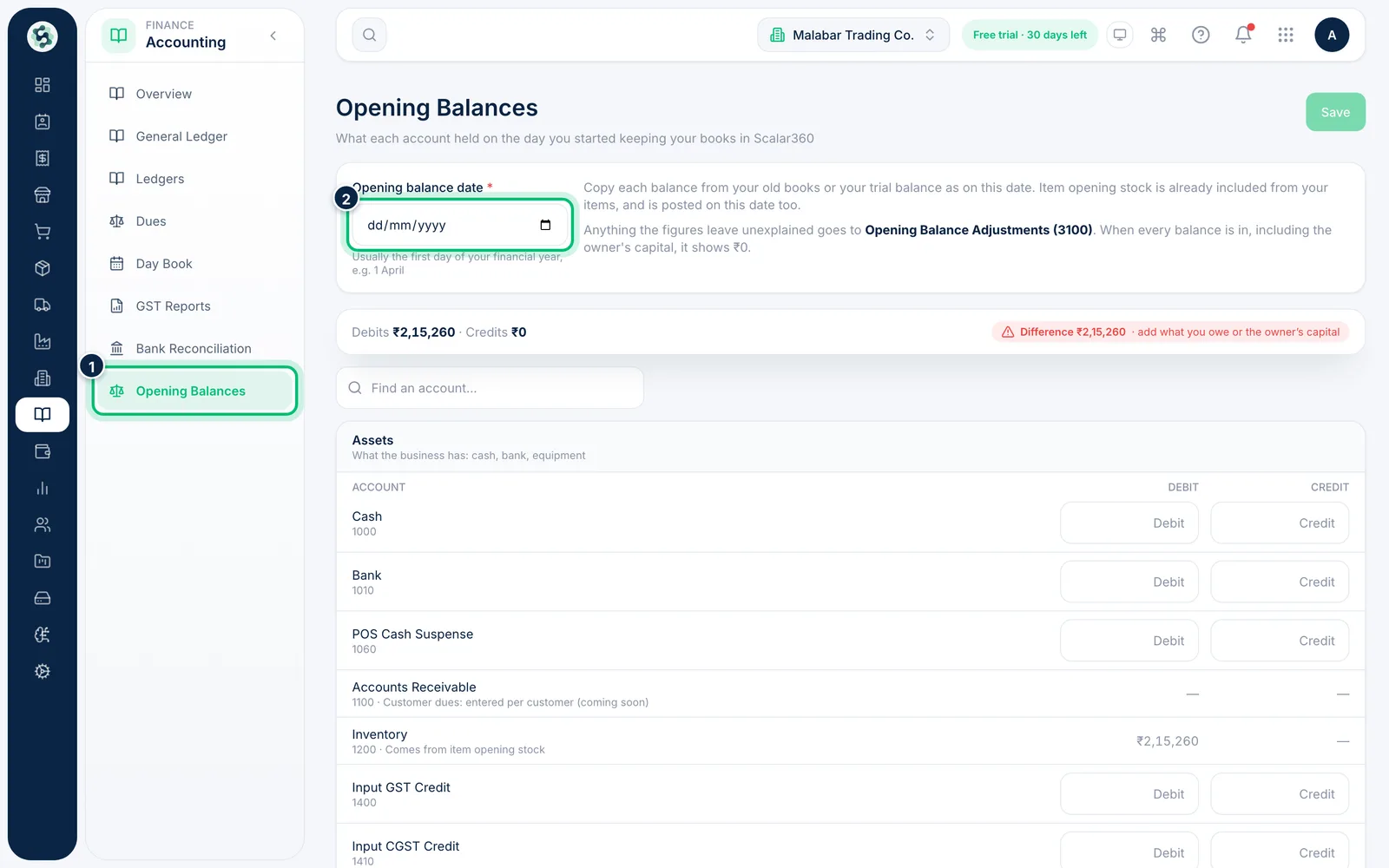
1Open Opening Balances and set the date
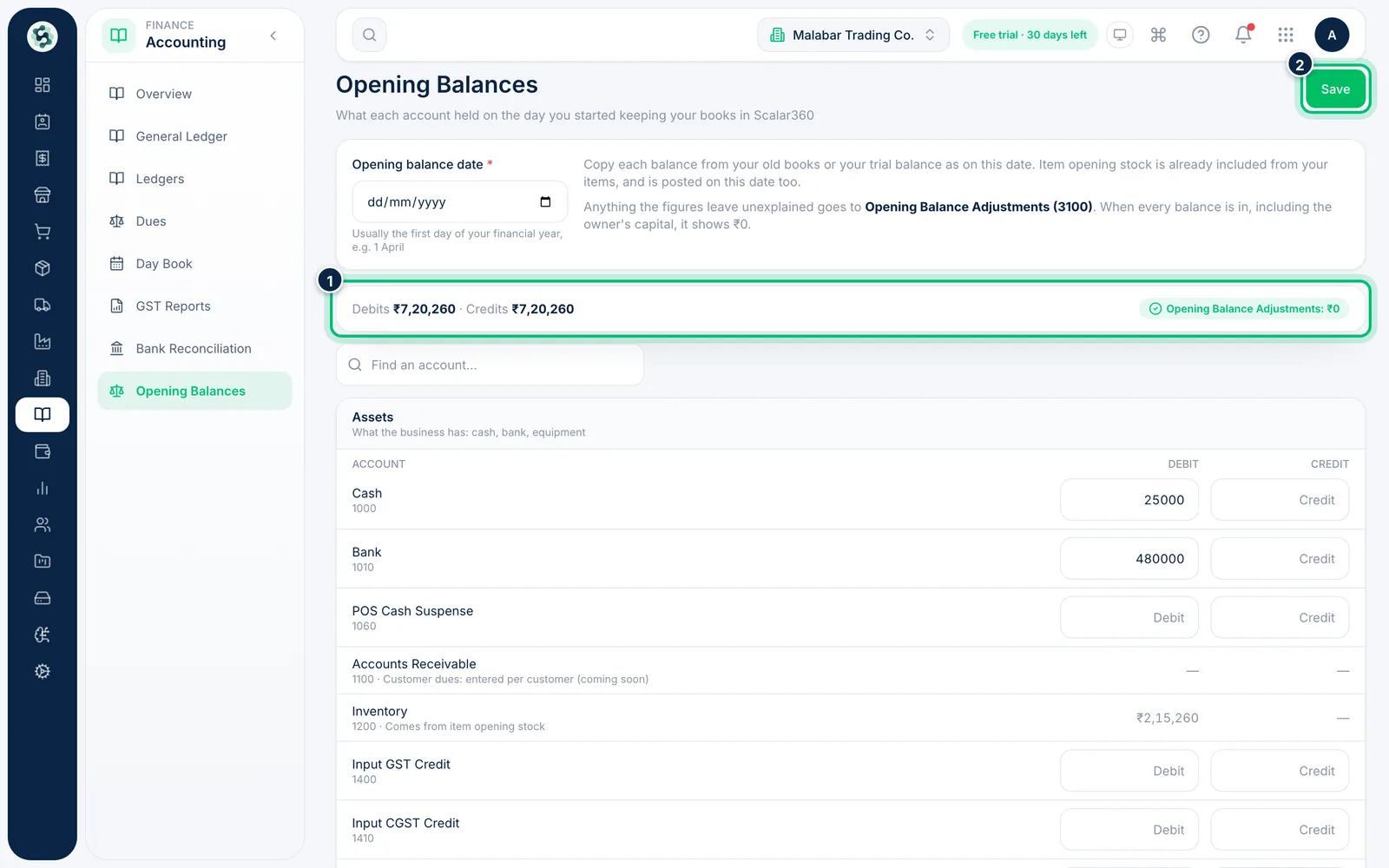
In the left menu open Accounting → Opening Balances. Choose the Opening balance date, usually the first day of your financial year, for example 1 April. The date is required.
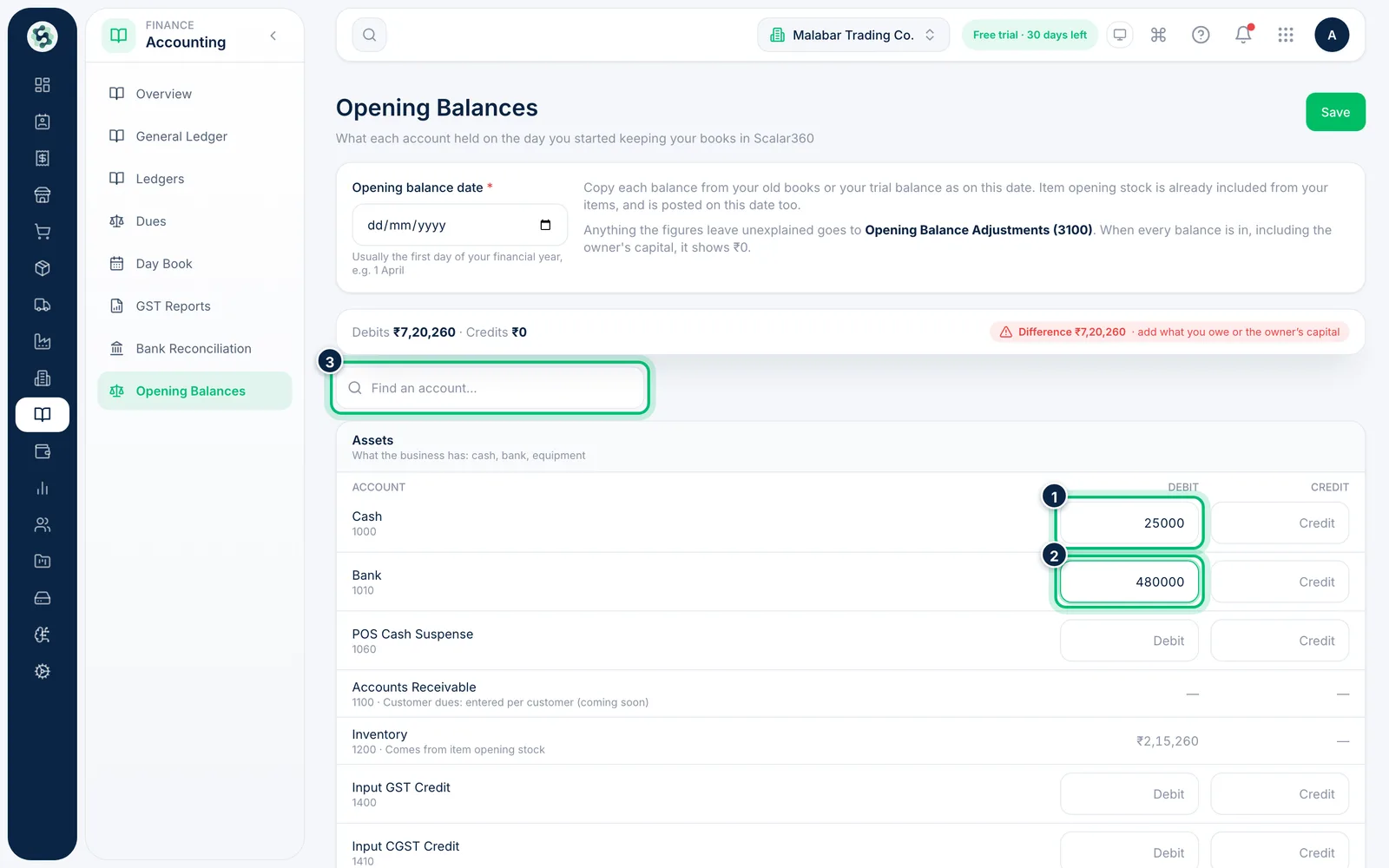
2Enter your assets
Under Assets, type each balance from your old books in Debit, for example the cash in hand and the bank balance. An account takes either a debit or a credit, not both. Use Find an account… to jump to an account by name or code.
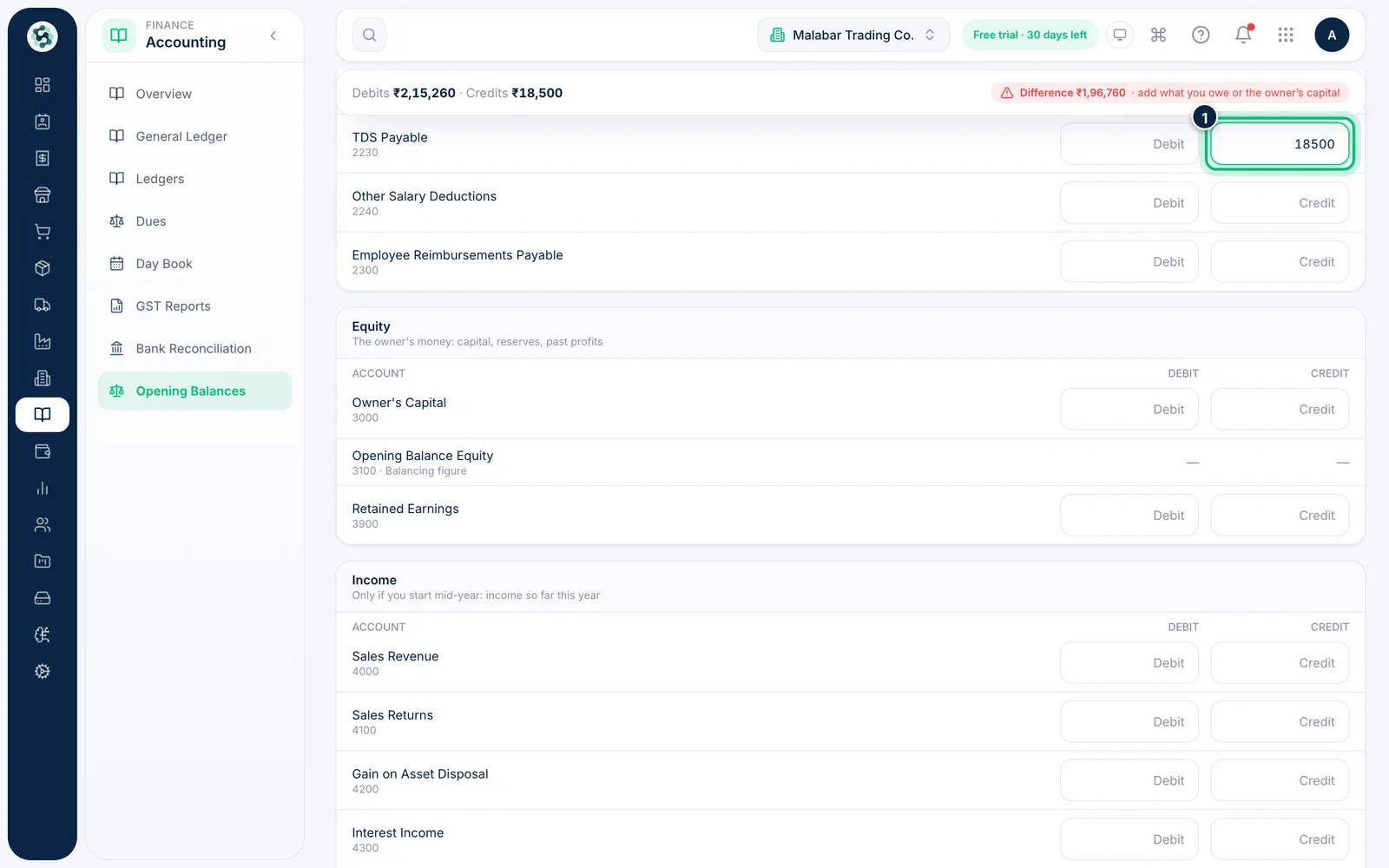
3Enter what you owe
Under Liabilities, type each balance in Credit, for example tax payable such as TDS Payable. Accounts that show a note instead of boxes, such as inventory, are filled in elsewhere.
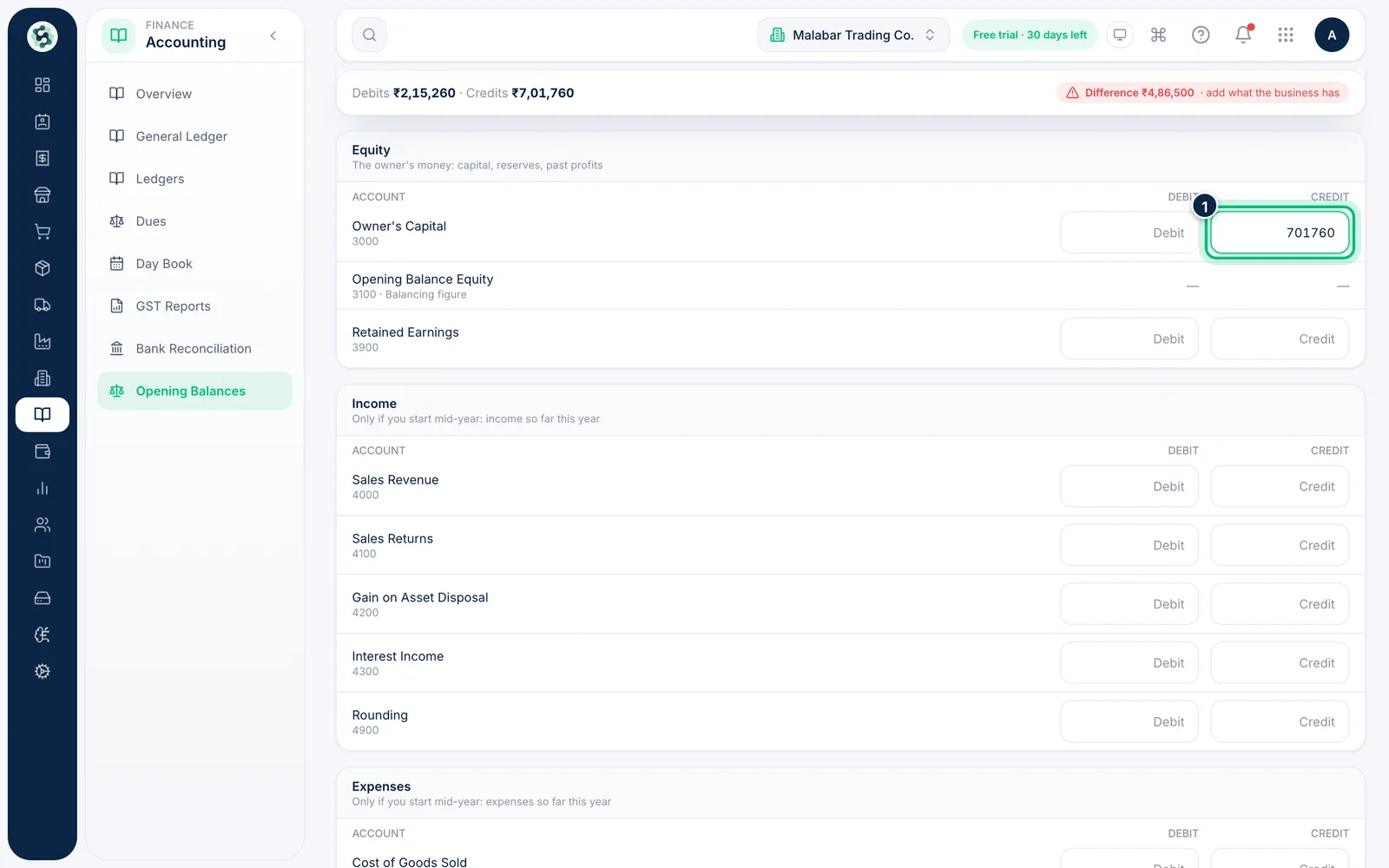
4Enter the owner's capital and reserves
Under Equity, add the owner's money, such as Owner's Capital and Retained Earnings, in Credit. Enter income and expenses only if you start in the middle of a year.
5Bring the difference to zero, then save
The bar at the top totals your Debits and Credits and shows the Difference while figures are missing. When every balance is in, it turns to Opening Balance Adjustments: ₹0. Choose Save to post the balances.
Related guides
Still stuck? Contact our support team — or start a free trial to try this in your own company.