
Expenses · 3 steps
Use the dashboard and All Claims
See your organisation's spending at a glance and find any claim from any member.
Before you start: You need the View All permission for expenses to see other members' claims.
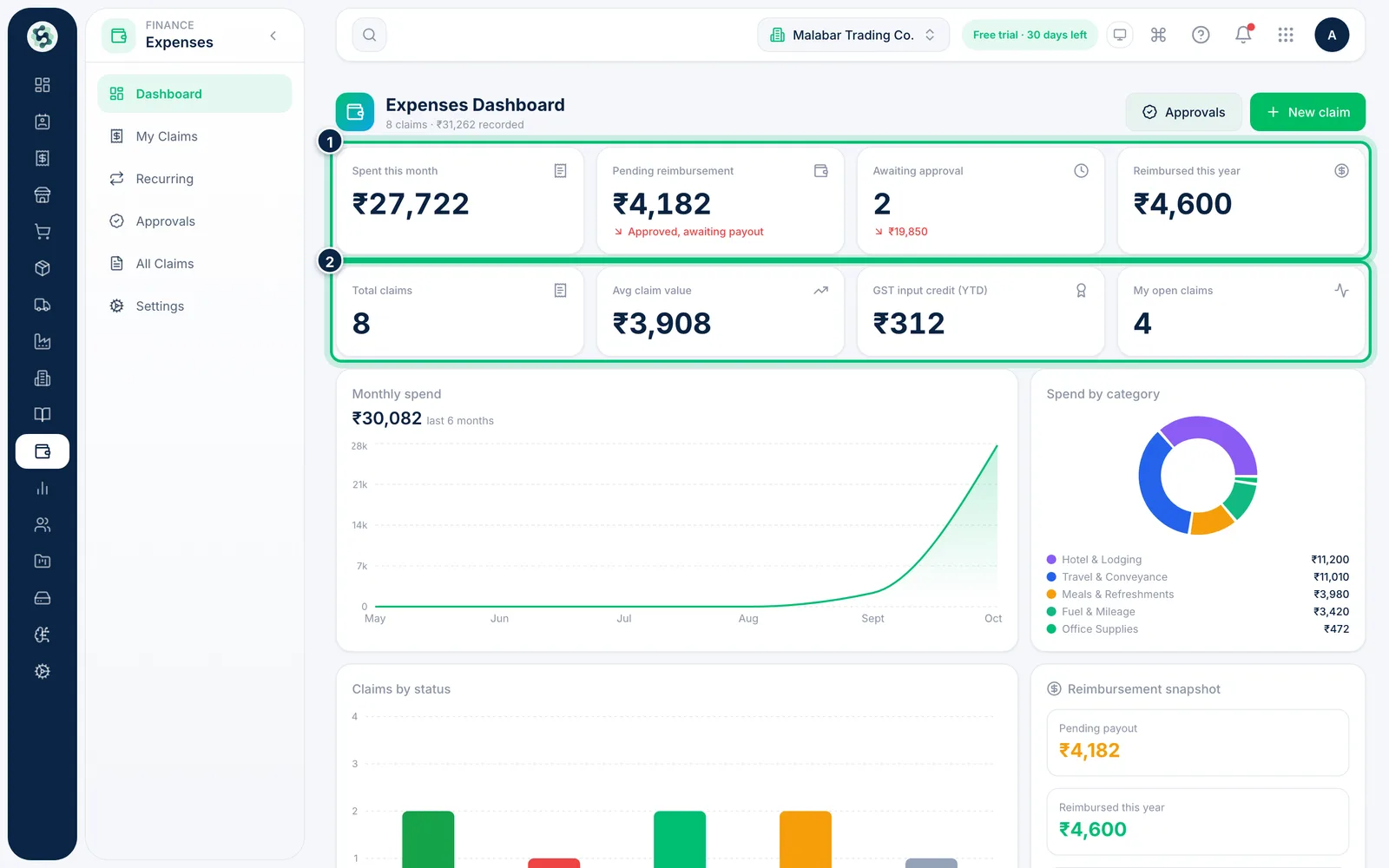
1Read the headline figures
The Expenses Dashboard opens with Spent this month, Pending reimbursement, Awaiting approval and Reimbursed this year. The second row adds the claim count, average claim value and GST input credit (YTD).
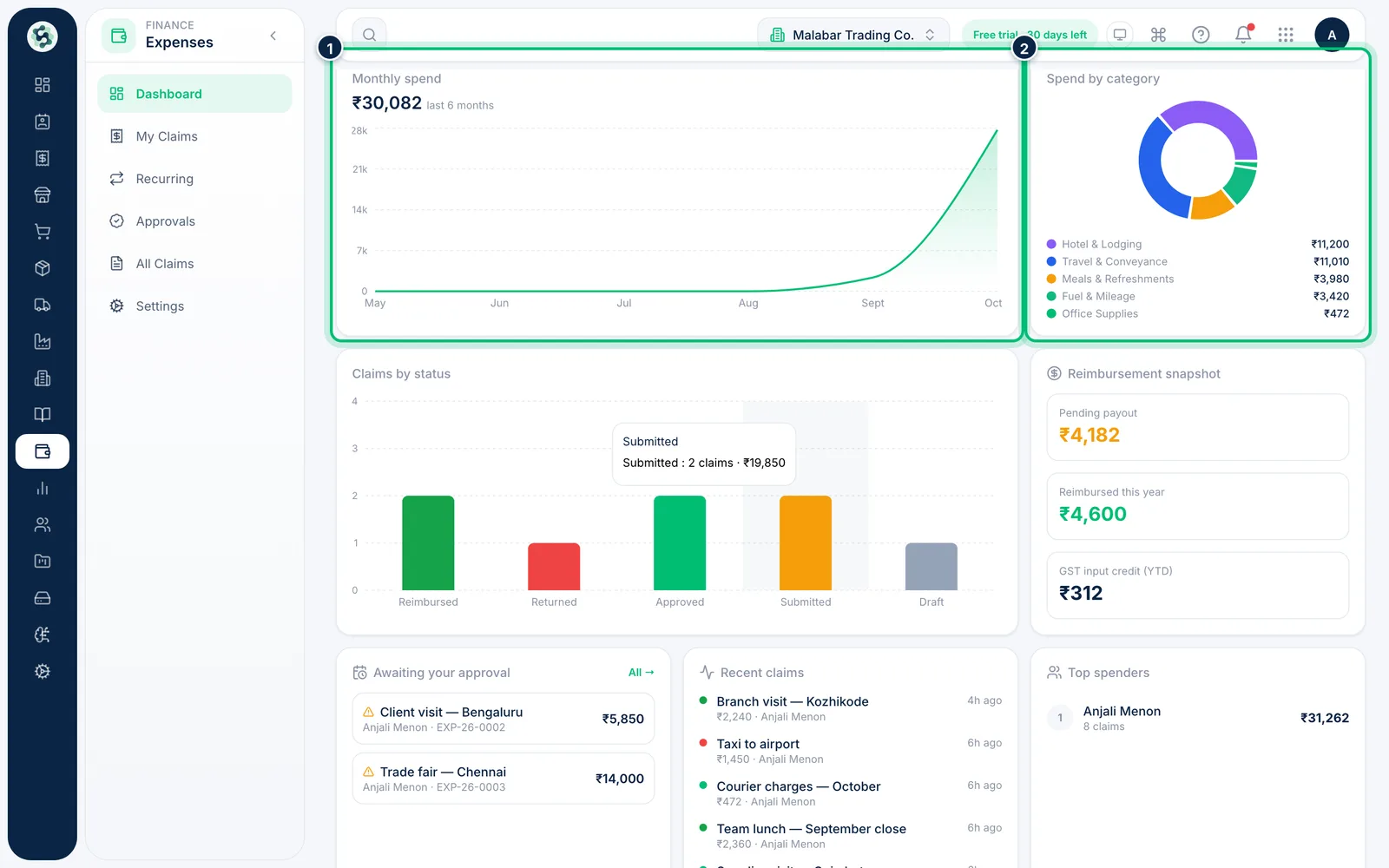
2See where the money goes
Monthly spend charts the last six months, Spend by category breaks it down by head, and Claims by status shows how many claims sit at each stage.
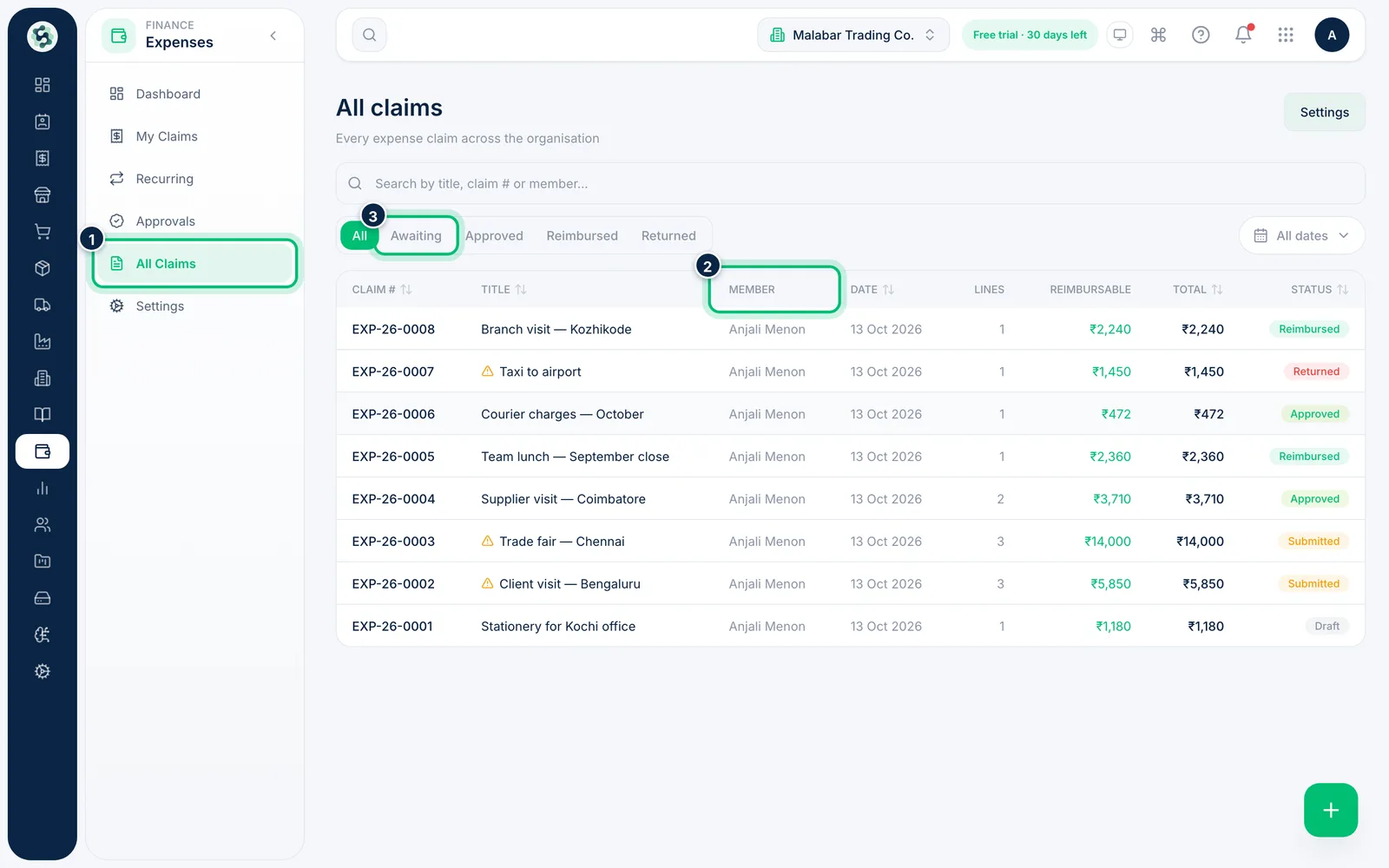
3Find any claim
Go to Expenses → All Claims for every claim in the organisation, with a Member column. Filter with the tabs — Awaiting, Approved, Reimbursed, Returned — search, or pick a date range, and click a row to open it.
Related guides
Still stuck? Contact our support team — or start a free trial to try this in your own company.