
Getting started · 6 steps
Find your way around
Get to know the dashboard, the module rail and menu, search, the organisation switcher, the apps grid and shortcuts.
1Start from the dashboard
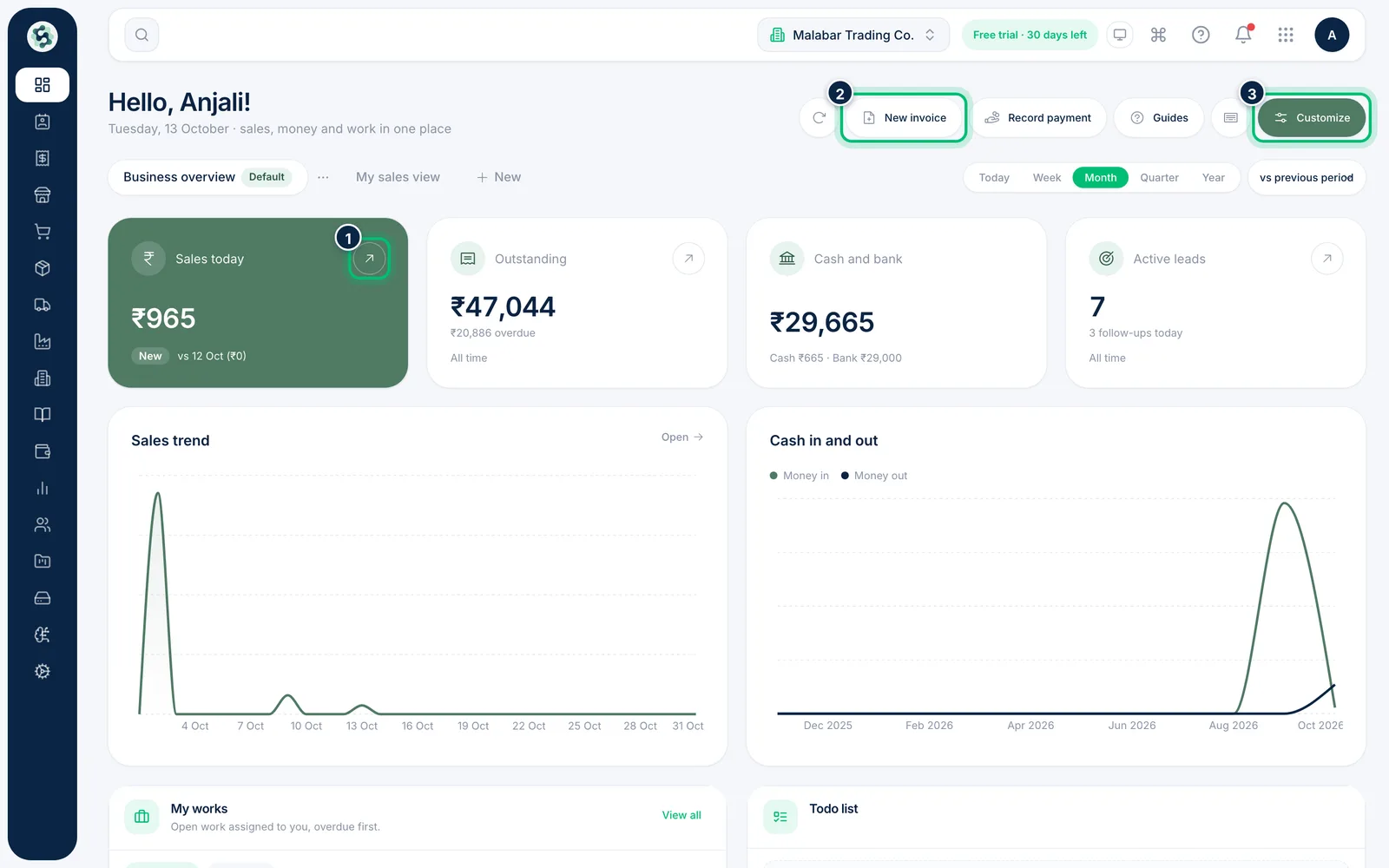
The dashboard opens with Business overview: sales today, what customers owe you, active leads, cash in and out, your tasks, top debtors and low stock. Use New invoice or Record payment to jump straight into everyday tasks, and Customize to make the dashboard your own.
2Open a module from the rail
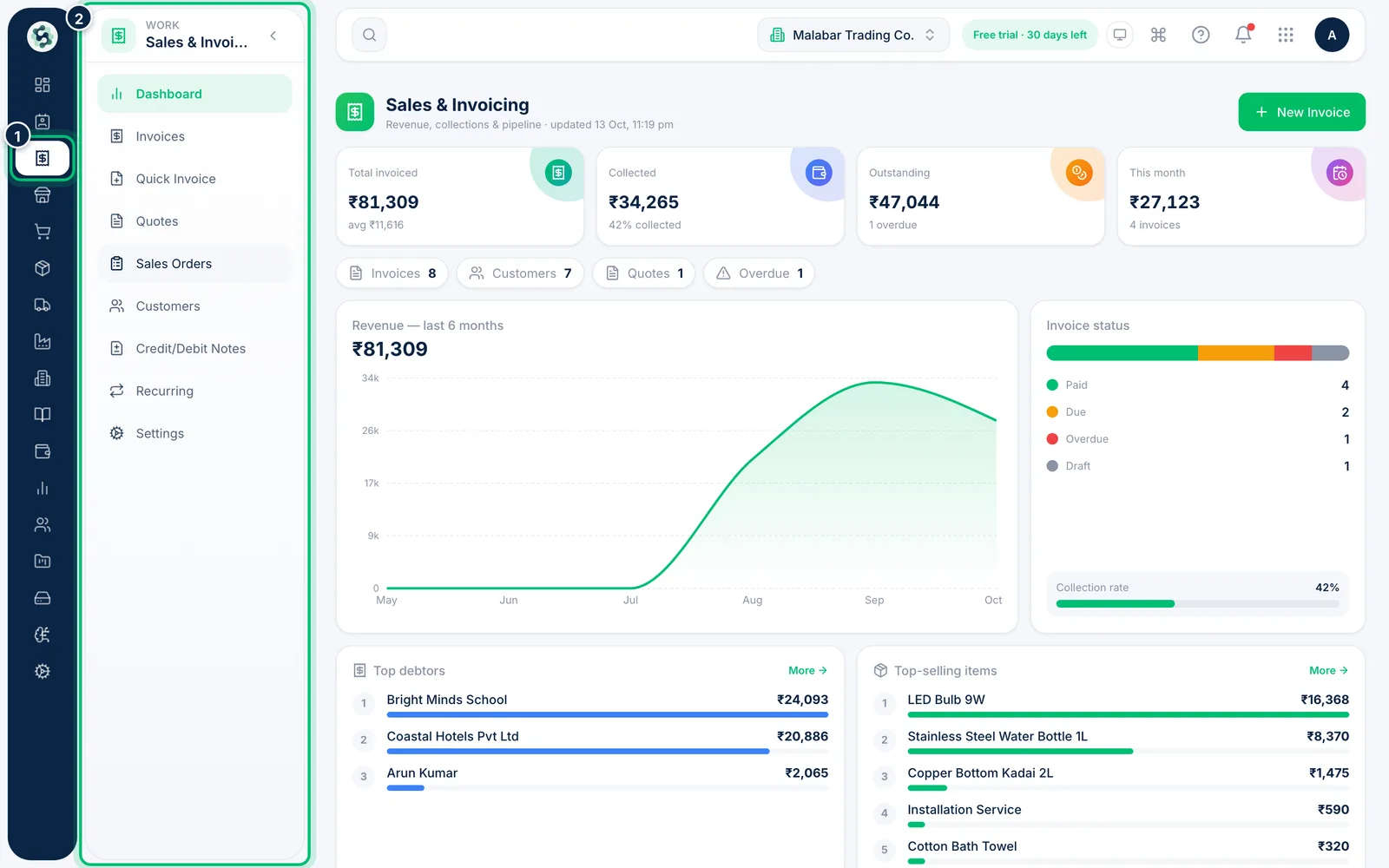
The dark rail on the left lists every module you can use — hover an icon to see its name. Pick one, such as Sales & Invoicing, and its menu opens next to the rail with all of its pages.
3Search for anything
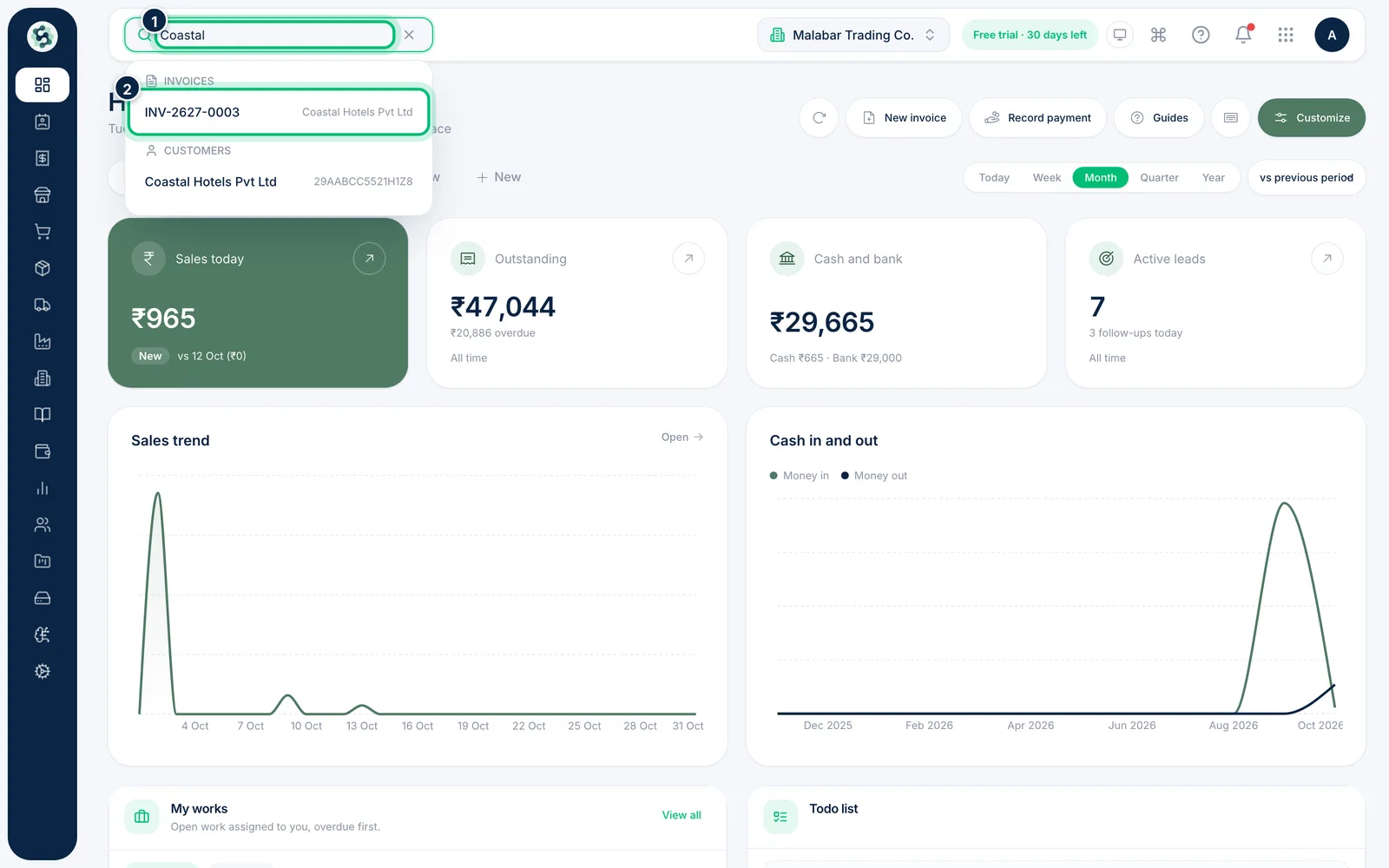
Click the magnifying glass at the top, or press Ctrl + K (⌘ K on a Mac). Type a name or number to find invoices, customers, items, leads, settings and pages.
4Switch between organisations
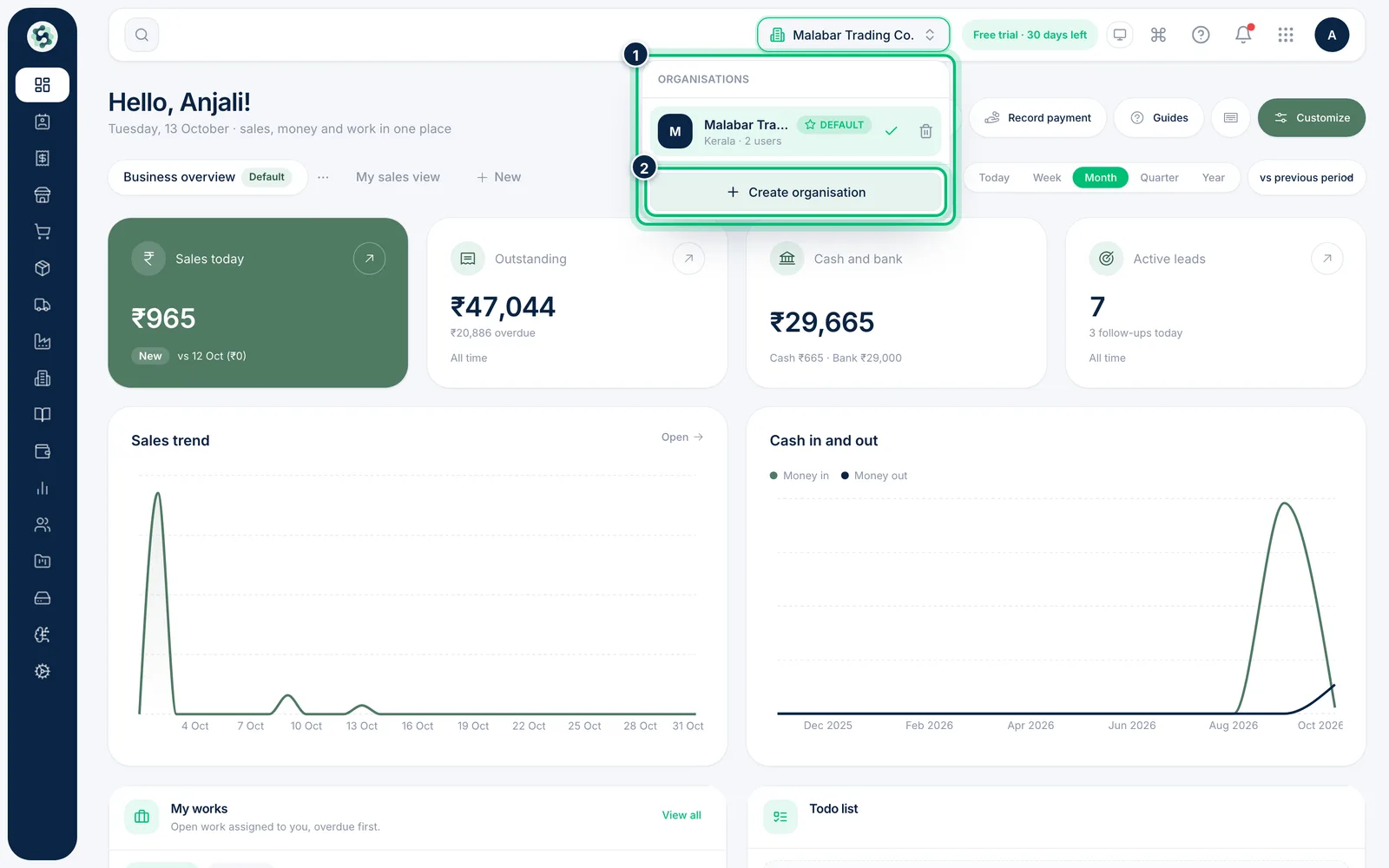
If you run more than one business, click the company name at the top to move between them. Choose Create organisation to add another one.
5Open other Scalar360 apps
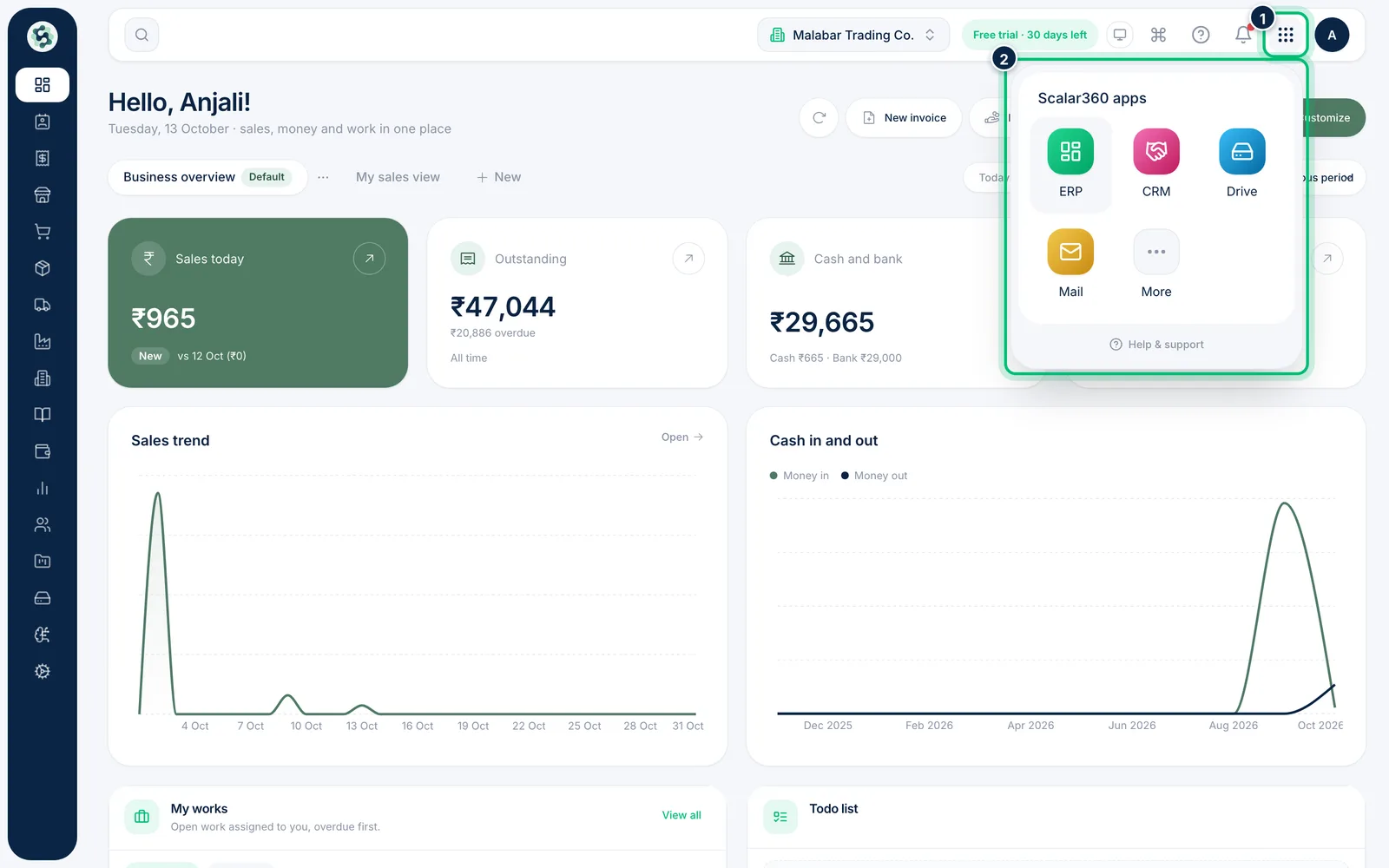
The grid icon at the top right opens Scalar360 apps — ERP, CRM, Drive and Mail — so you can move between them without signing in again.
6Use shortcuts
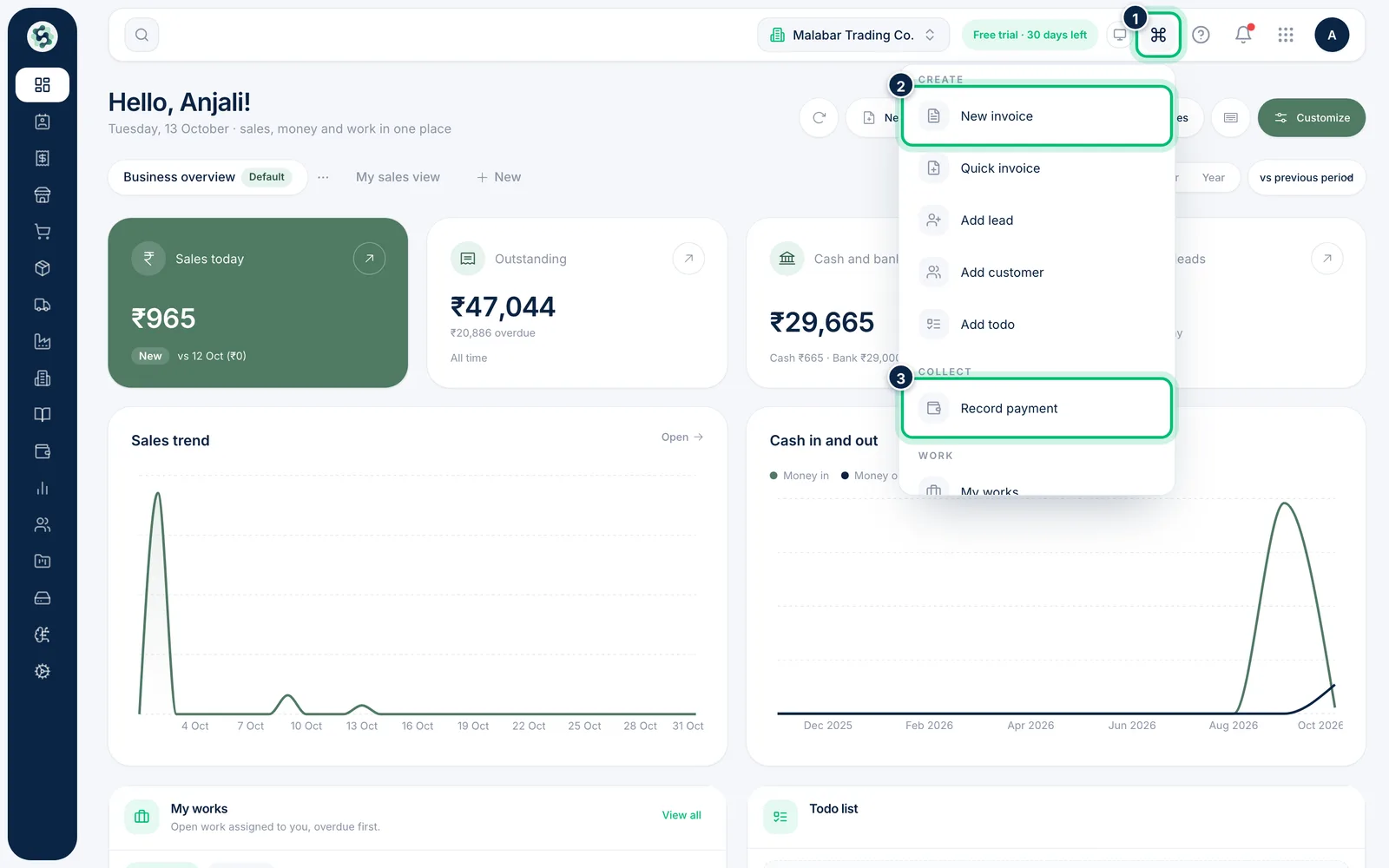
The Shortcuts button in the top bar is on every page. Use it to create an invoice, add a lead or customer, record a payment, open search or change the theme from any page.
Related guides
Still stuck? Contact our support team — or start a free trial to try this in your own company.