
Point of sale · 5 steps
Create automatic offers
Set up discounts the till applies on its own — percent off, buy one get one, spend and save, bundles and more.
Before you start: You need permission to edit POS promotions or settings.
1Open Offers
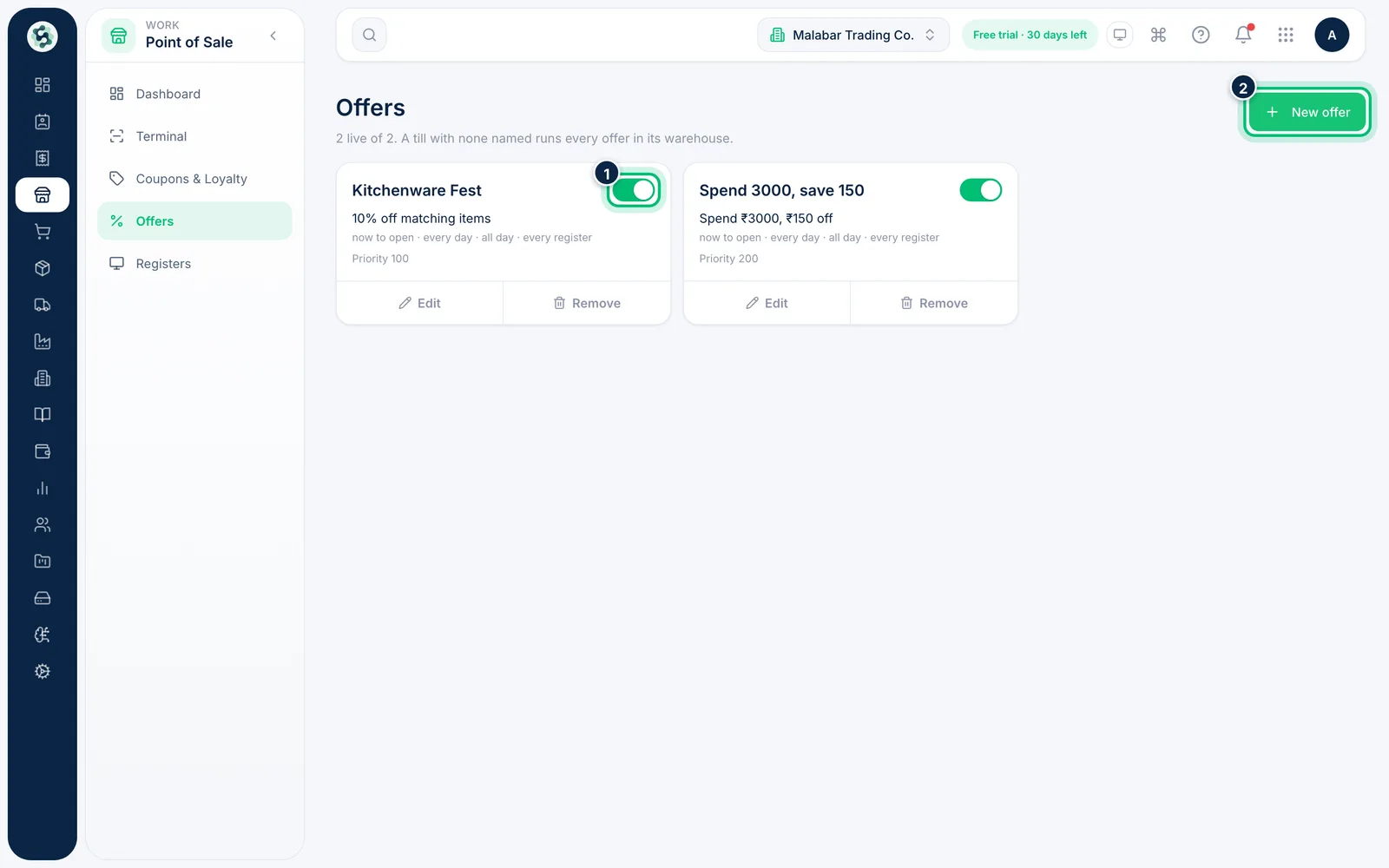
Go to Point of Sale → Offers. Each card shows the deal, when it runs and its priority. Use the switch to turn an offer on or off, then choose New offer to add one.
2Choose the type of offer
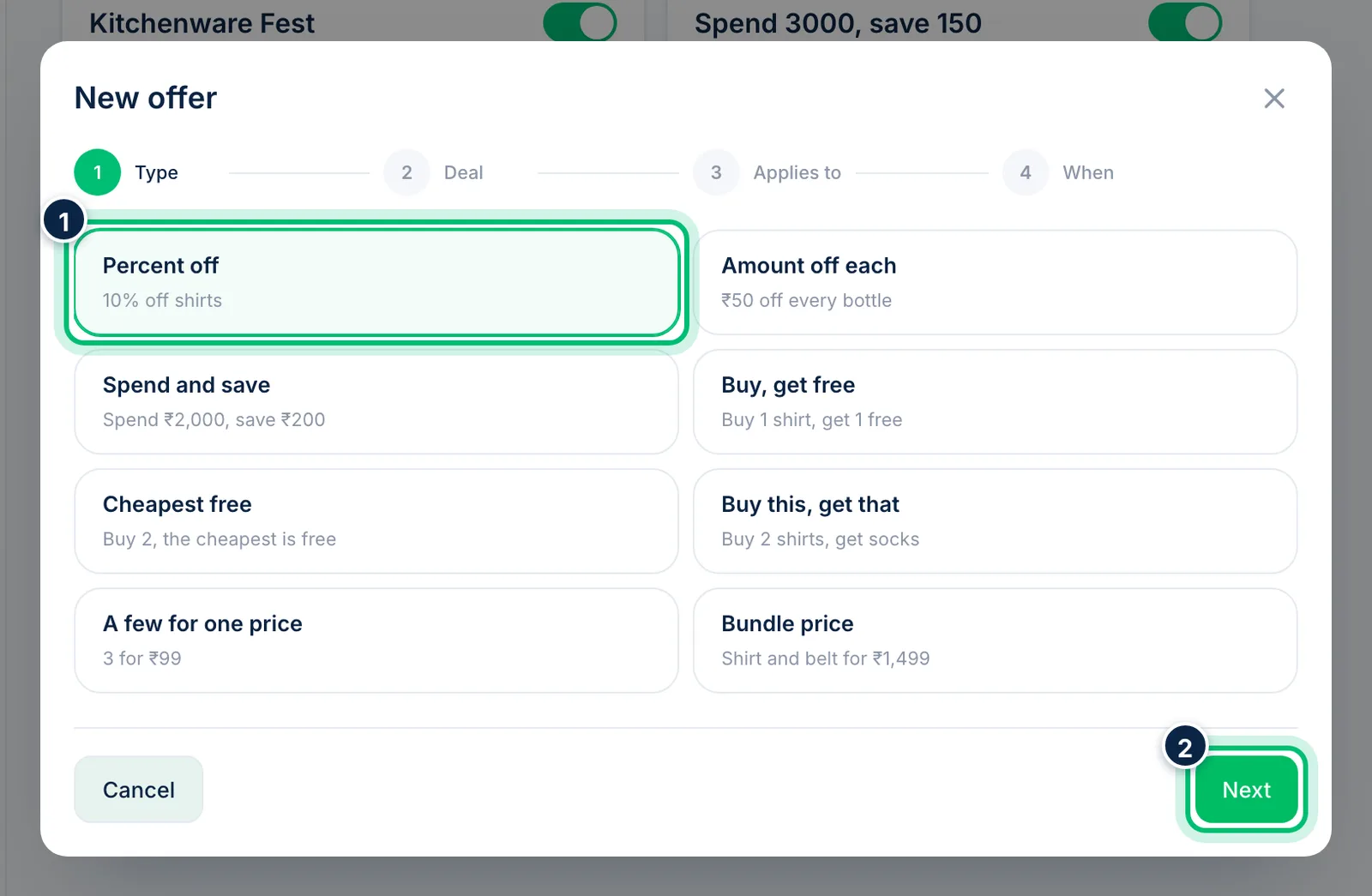
Pick one of the eight types, such as Percent off, Spend and save, Buy, get free or Bundle price, and choose Next.
3Describe the deal
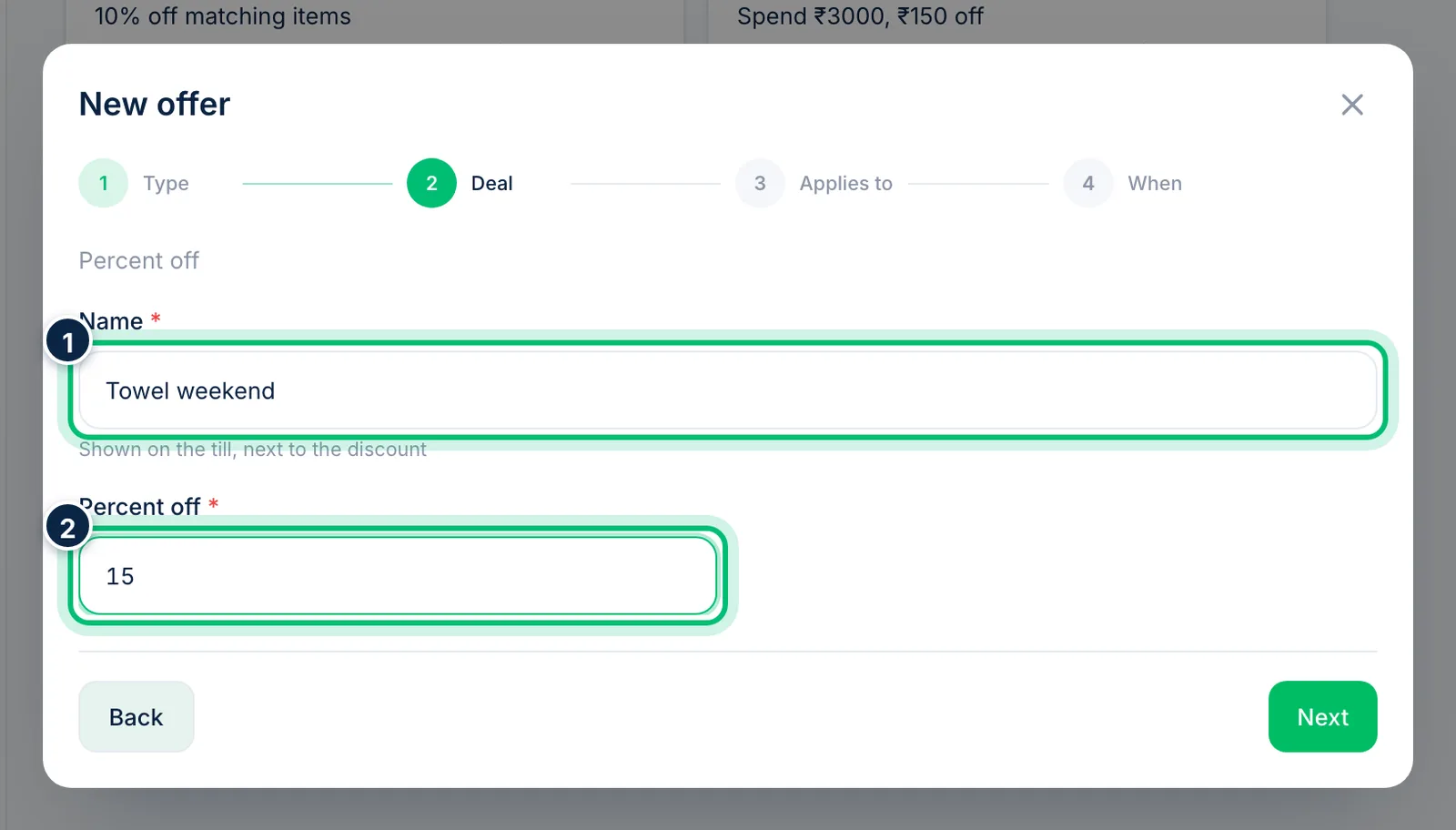
Enter a Name — the till shows it next to the discount — and the deal itself, such as the Percent off. Choose Next.
4Choose what it applies to
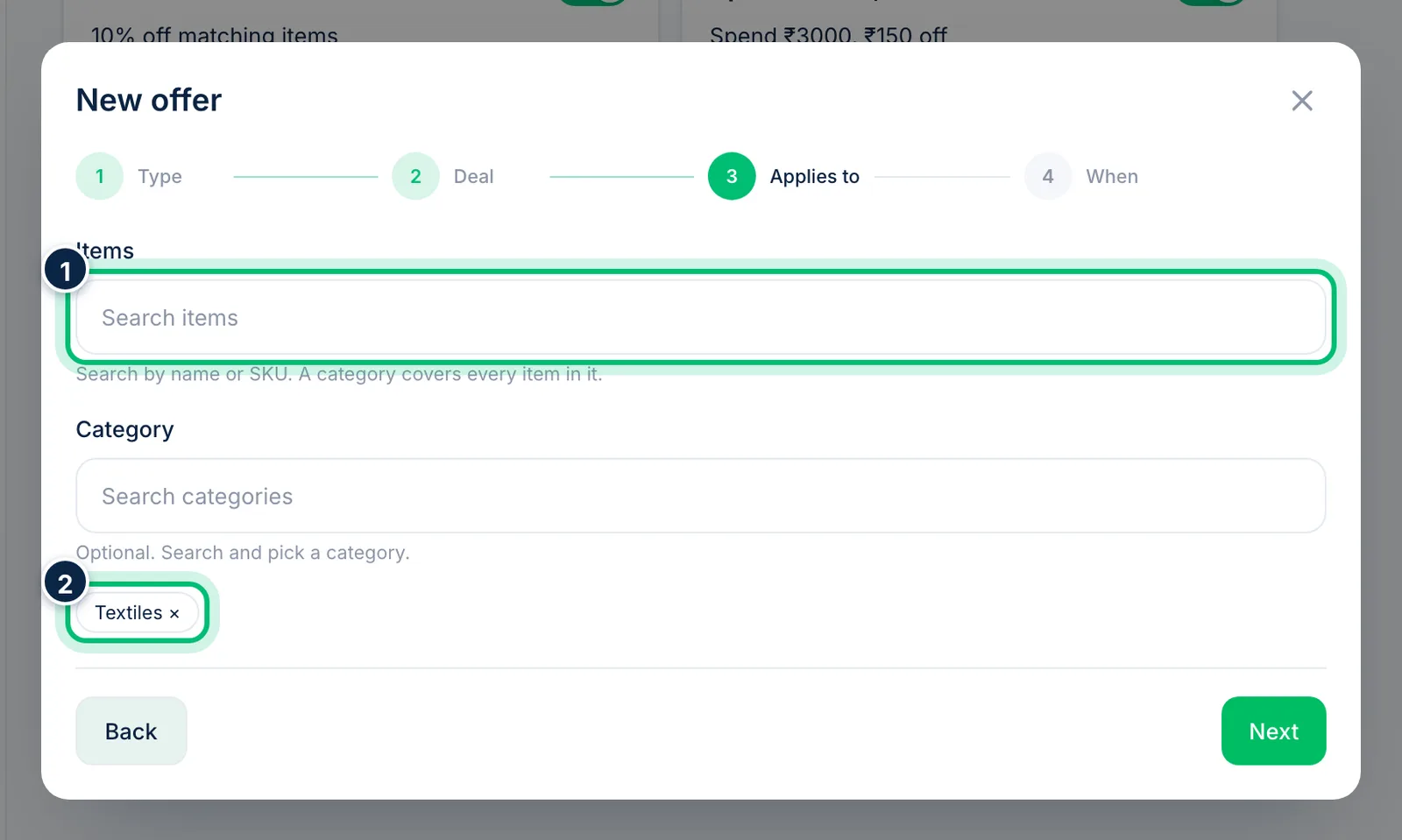
Search for Items by name or SKU, or pick a Category to cover every item in it. Spend-and-save offers apply to the whole bill. Choose Next.
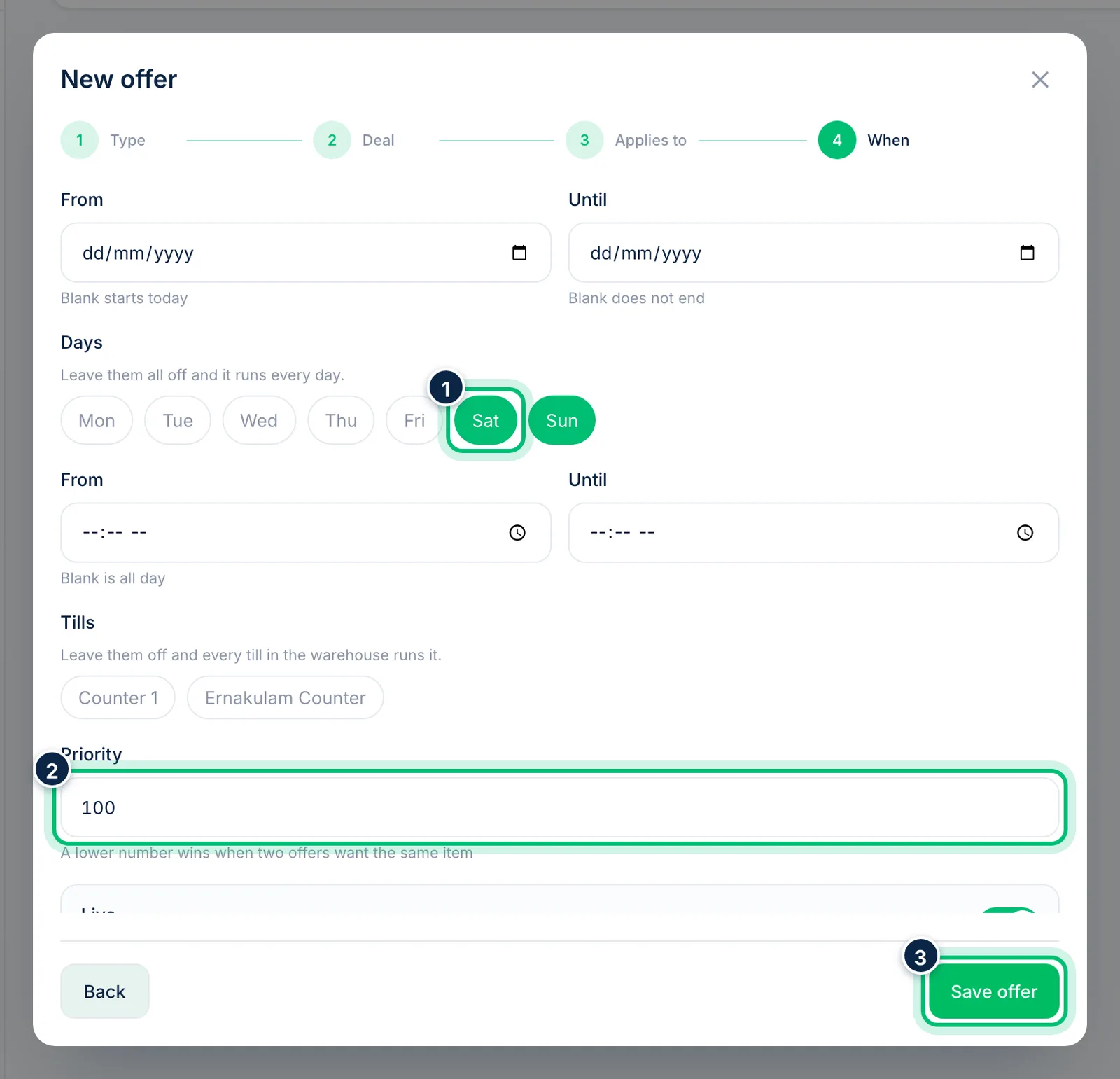
5Set when it runs and save
Set the dates, Days and hours the offer runs — leave them blank for always. Pick Tills to limit it to certain registers. When two offers want the same item, the lower Priority number wins. Choose Save offer.
Related guides
Still stuck? Contact our support team — or start a free trial to try this in your own company.