
CRM · 3 steps
Manage contacts
Keep one directory of everyone you do business with — people added by hand and leads you've won.
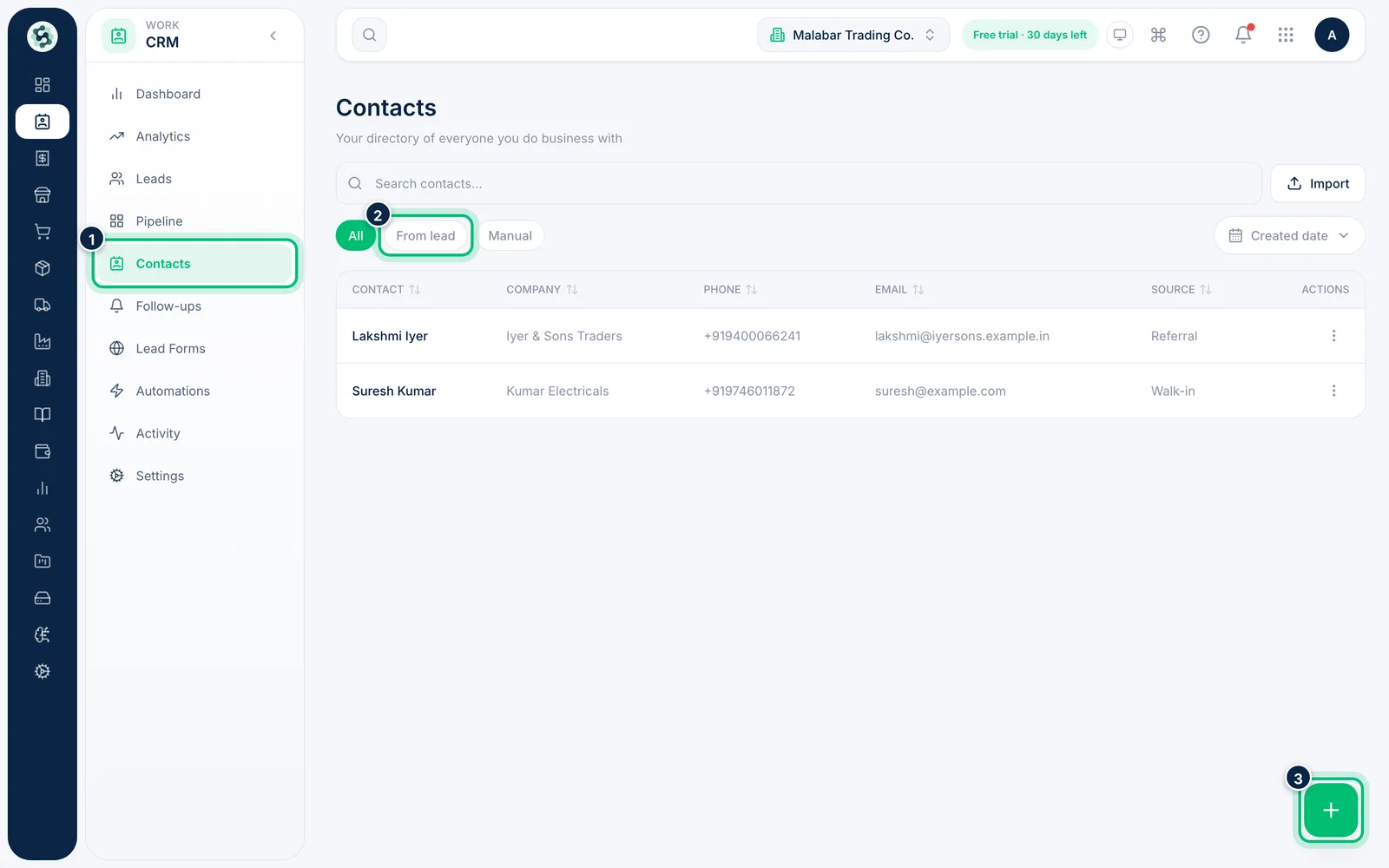
1Open Contacts
Go to CRM → Contacts. Use From lead to see contacts created from won leads, or Manual for the ones you added yourself. Choose the + button to add a contact.
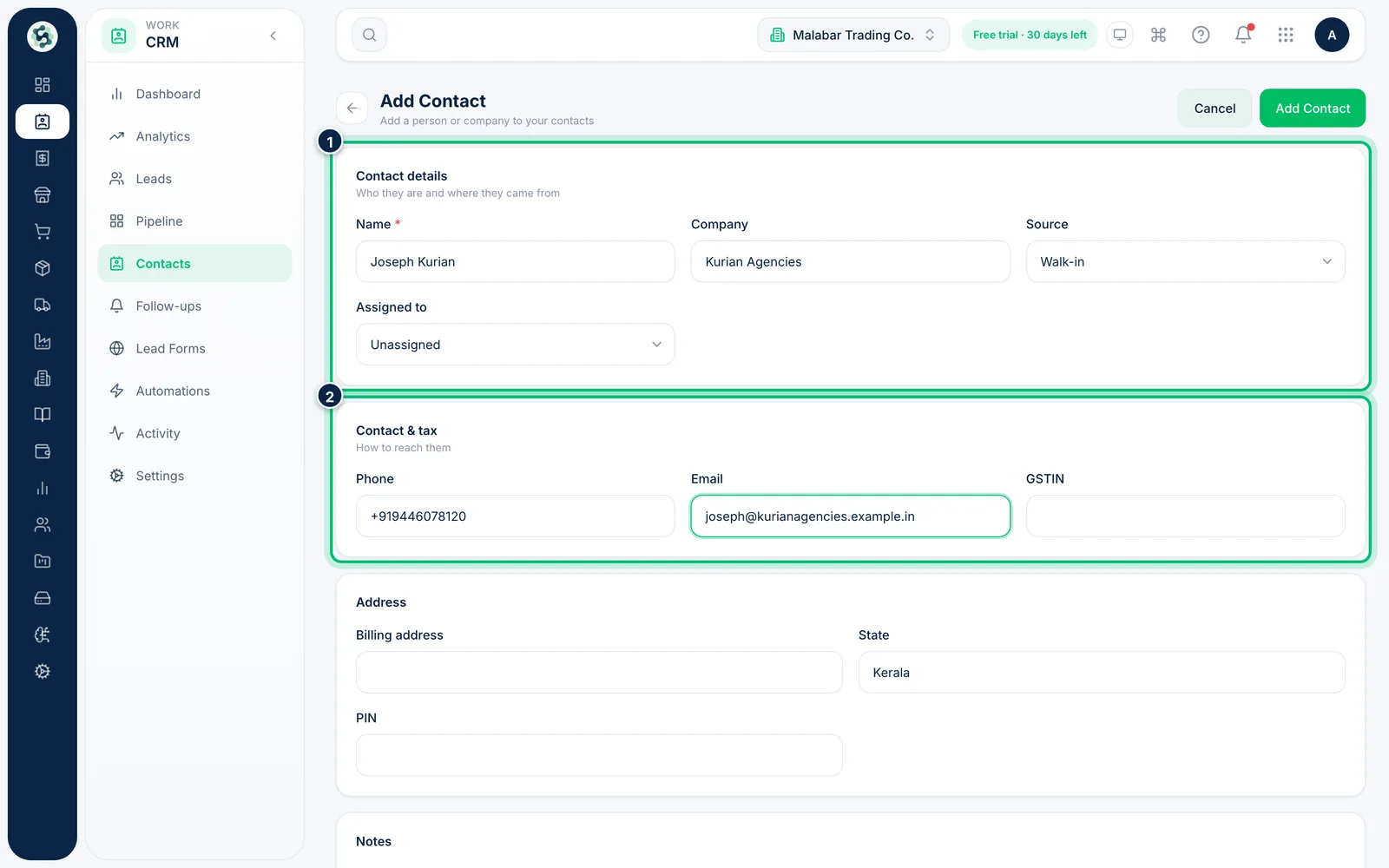
2Fill in the contact's details
Only Name is required. Add the Company, Source and who it's Assigned to, then the Phone, Email, GSTIN and address. Choose Add Contact to save.
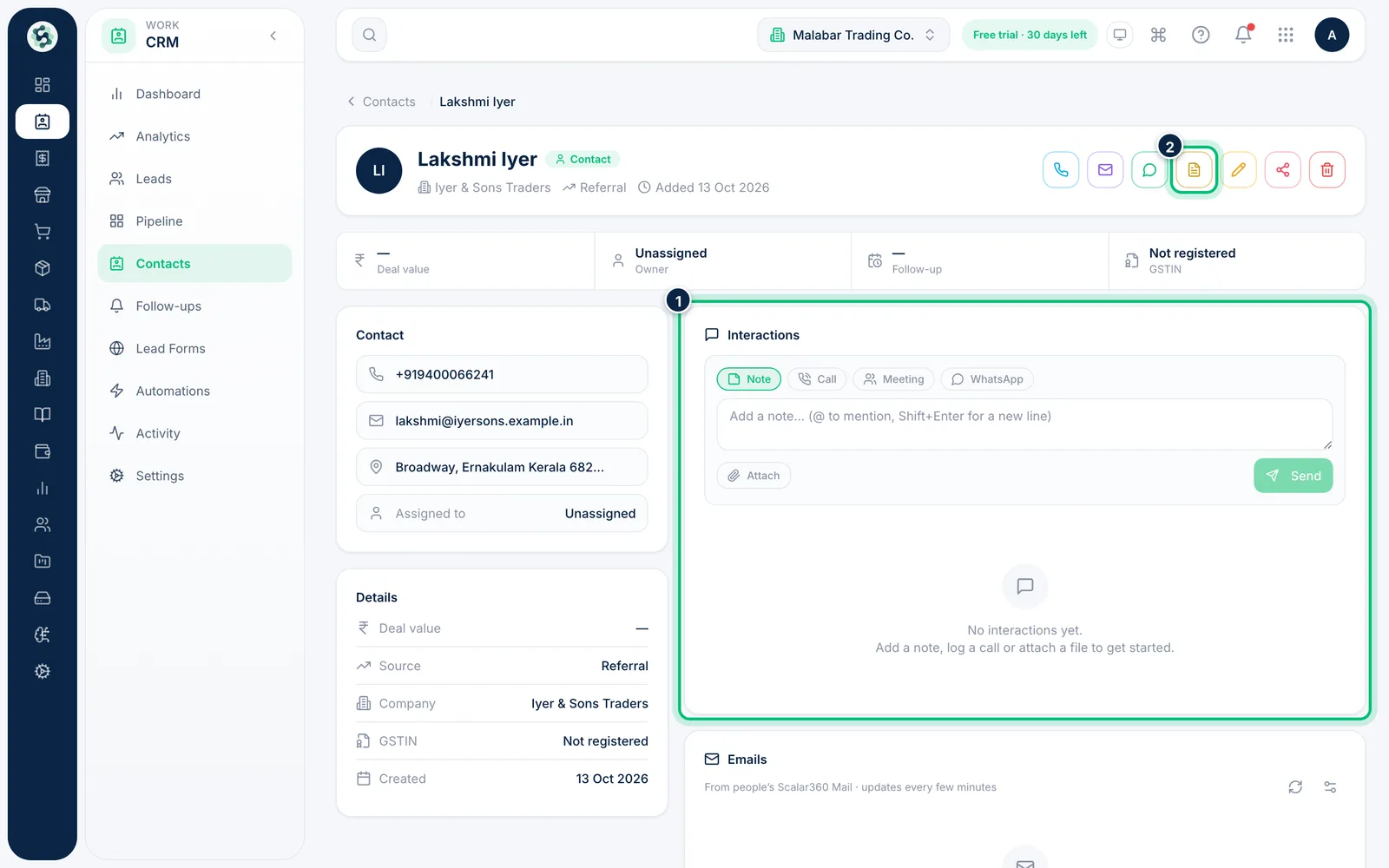
3Log interactions and bill the contact
Open a contact to see their details and log calls, meetings and notes under Interactions, just as on a lead. Choose the Invoice button at the top to bill them.
Related guides
Convert a lead into a customer or quotationWhen a deal is agreed, turn the lead into a customer in one step — and, if you like, start their quotation straight away.Add a leadRecord a new enquiry with its deal value, source and follow-up date, so it shows up in your pipeline and reminders.
Still stuck? Contact our support team — or start a free trial to try this in your own company.