
People & payroll · 4 steps
Track attendance
See who has checked in today, mark attendance for any day, and check each employee's paid days for the month before you run payroll.
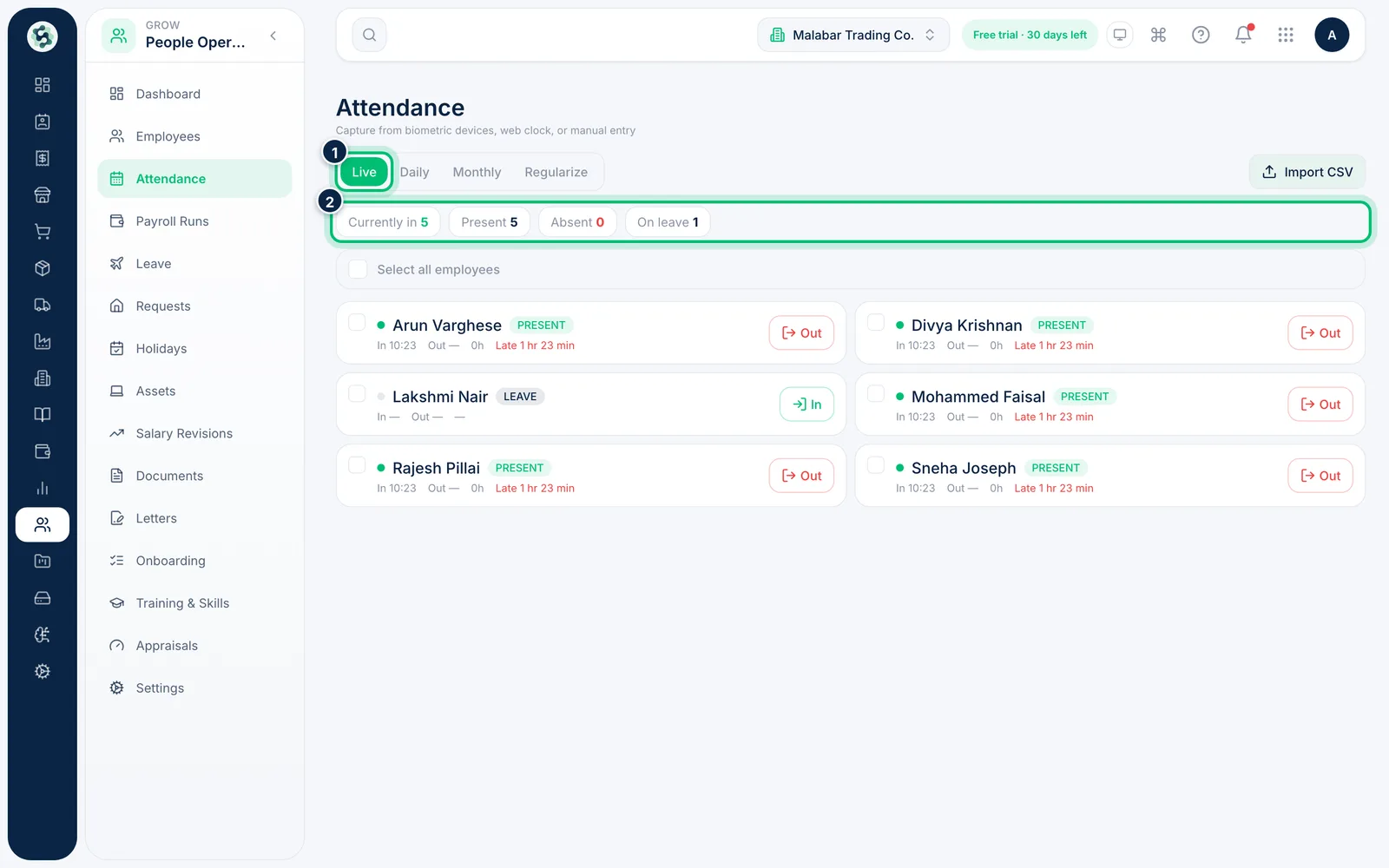
1See who's in today
Open People Operations → Attendance. The Live tab shows how many people are Currently in, Present, Absent and On leave, with each employee's check-in and check-out times. Anyone who checks in after the shift start plus the grace period is marked Late.
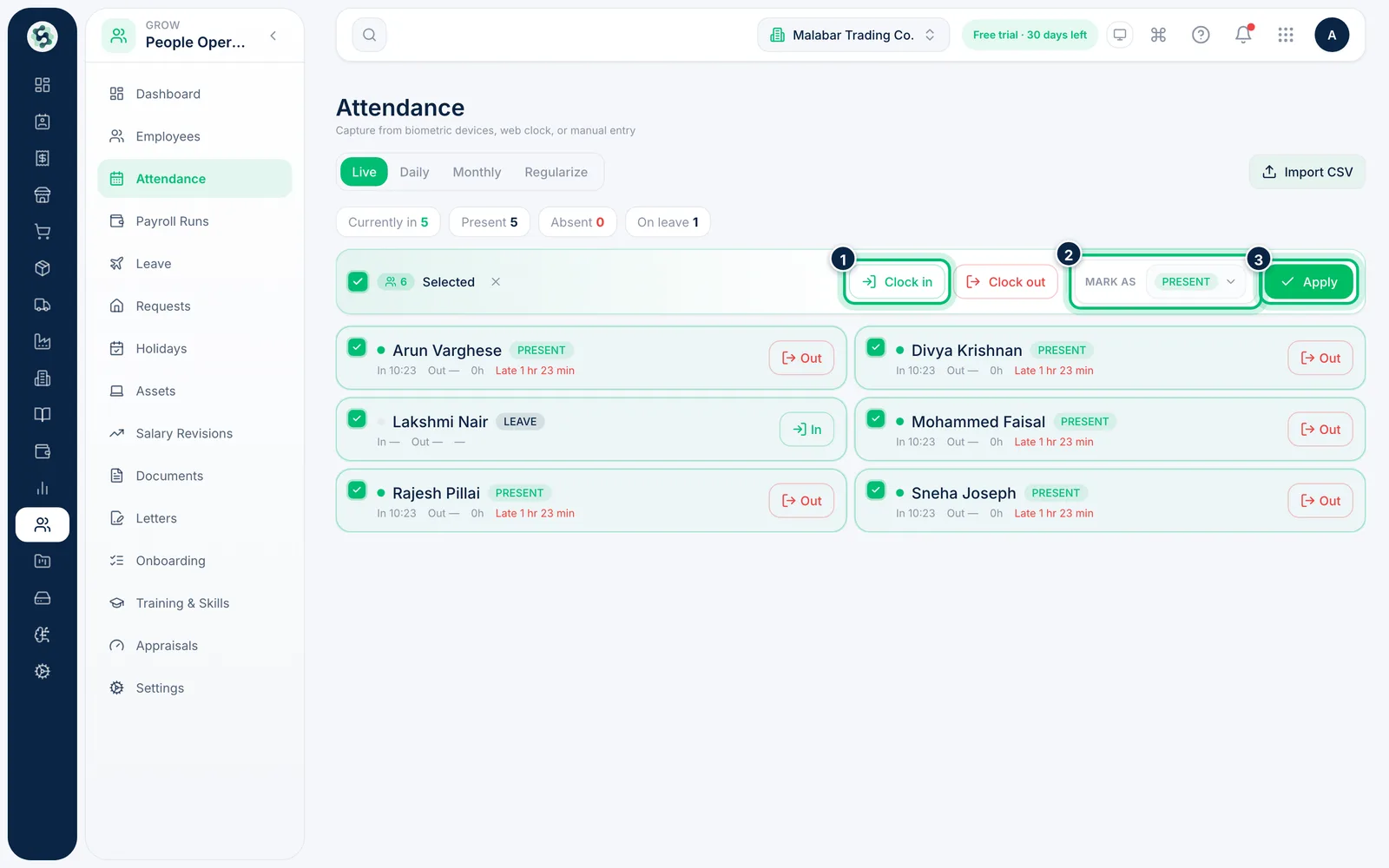
2Clock people in or out, or mark them in bulk
Tick the employees you want, or tick Select all employees. Choose Clock in or Clock out to record the time now, or pick a status under Mark as and choose Apply.
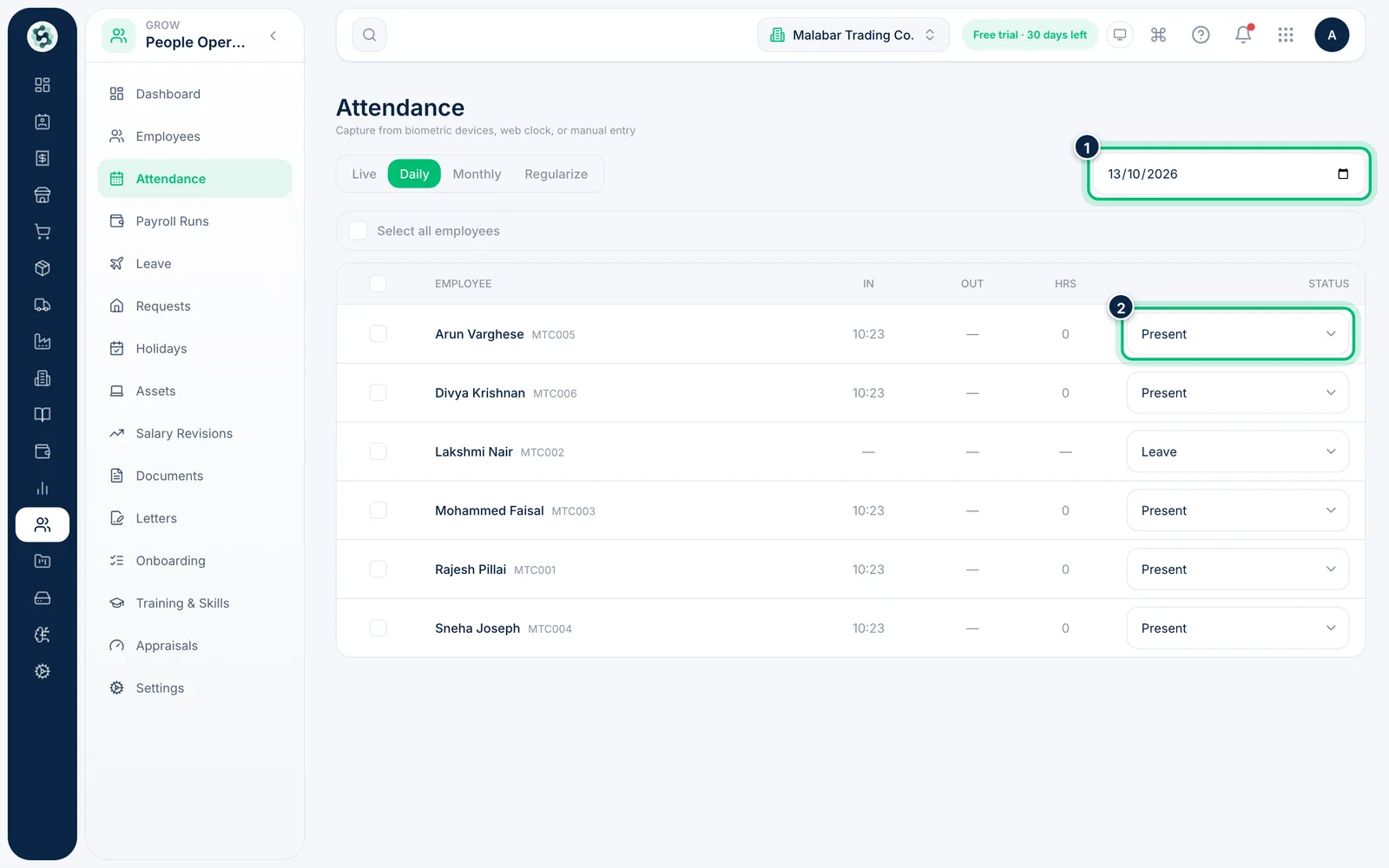
3Mark attendance for a particular day
Open the Daily tab and pick the date. Change an employee's status — Present, Absent, Half-day, Leave, Holiday or Weekly off — and it's saved straight away. An Undo message appears for a few seconds if you change the wrong one.
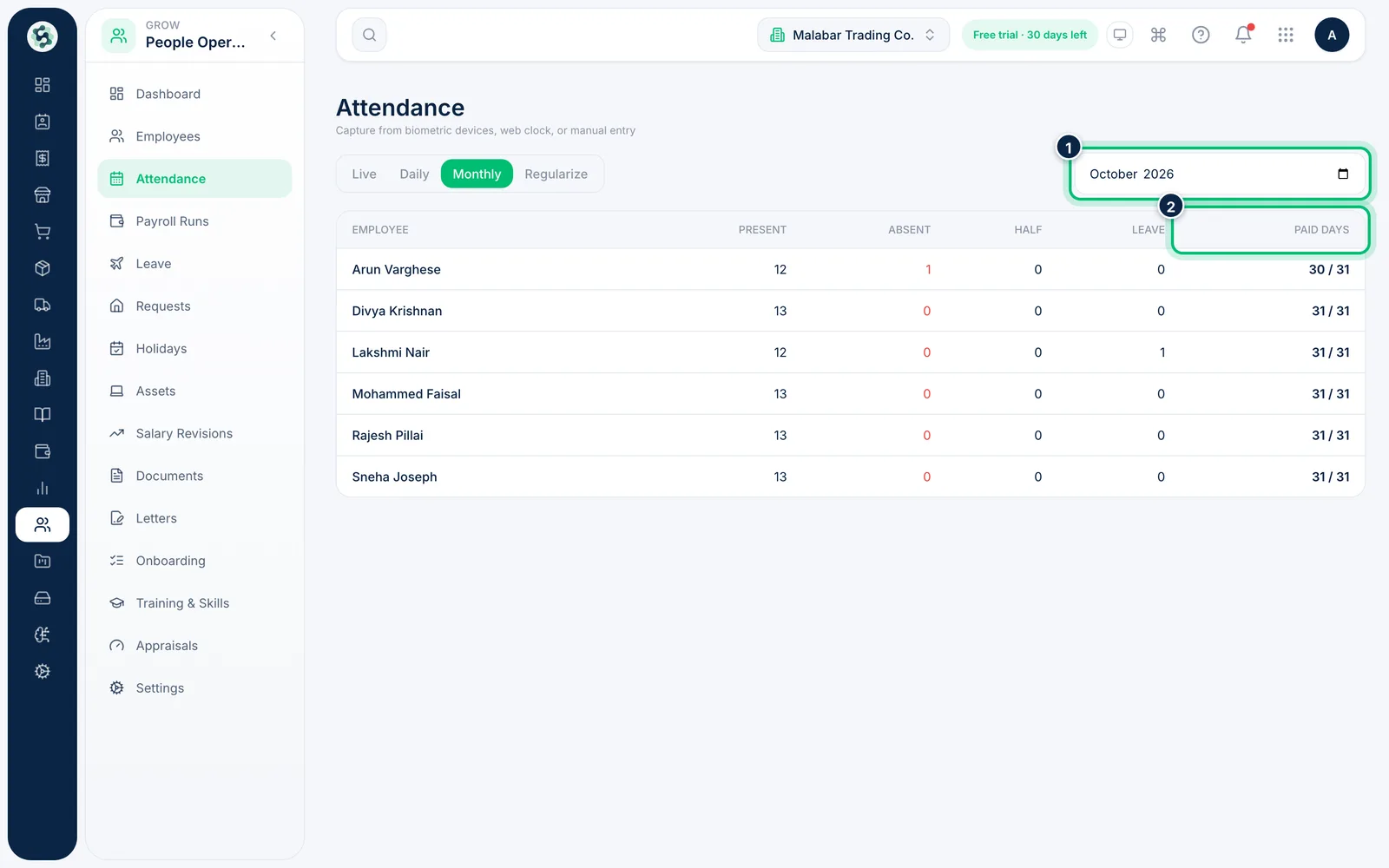
4Check paid days for the month
Open the Monthly tab and pick the month. Paid days is the number of days in the month, less one for each Absent day and half for each Half-day. Days you haven't marked count as paid, and payroll uses the same figure.
Related guides
Still stuck? Contact our support team — or start a free trial to try this in your own company.