
Asset management · 4 steps
Approve or reject a request
Work through the approval levels, then turn an approved purchase into an asset on the register.
Before you start: Only the approver named for a level, or an owner or admin, can decide that level.
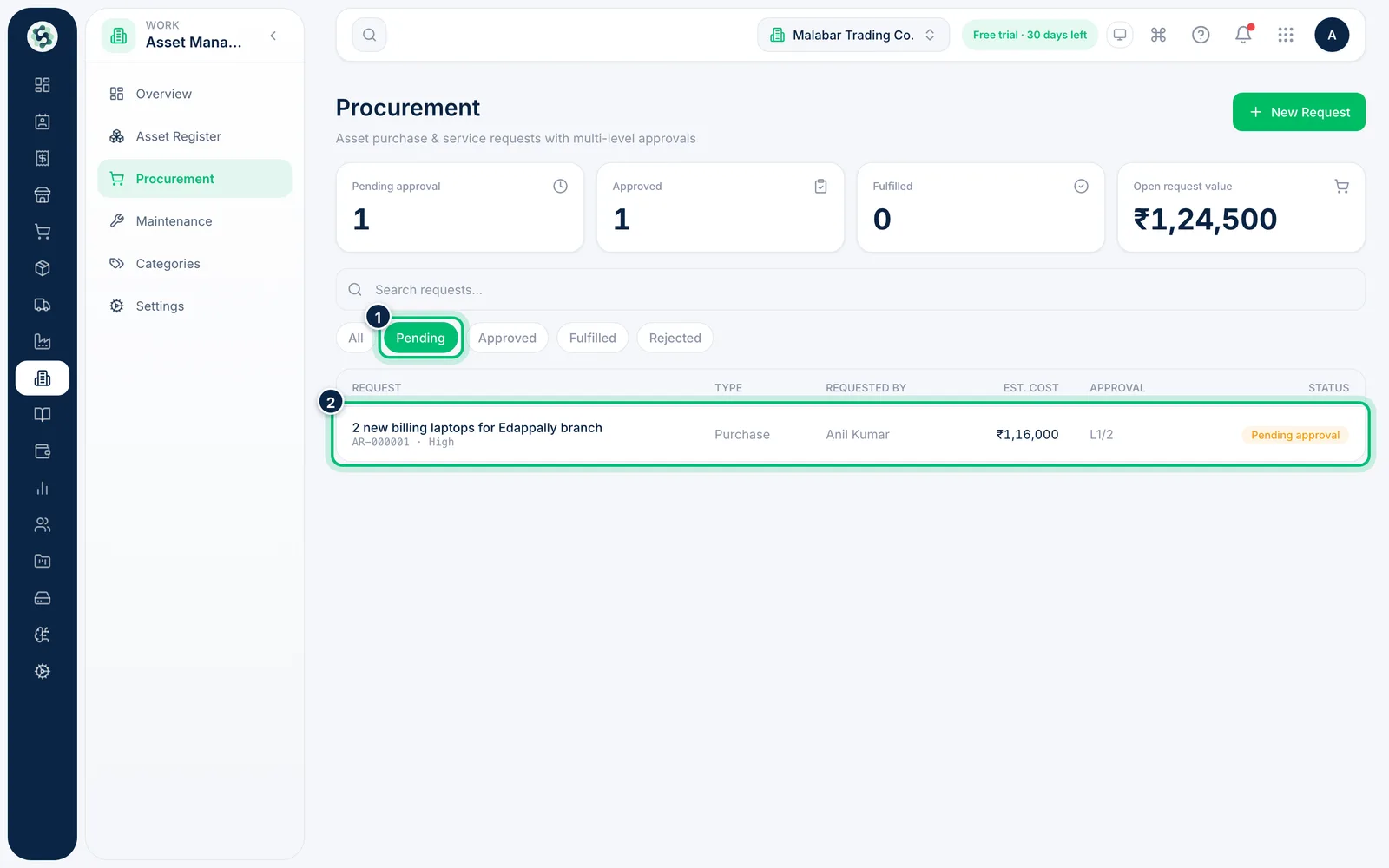
1Open the request
On Asset Management → Procurement use the Pending filter to see what is waiting, and click a request.
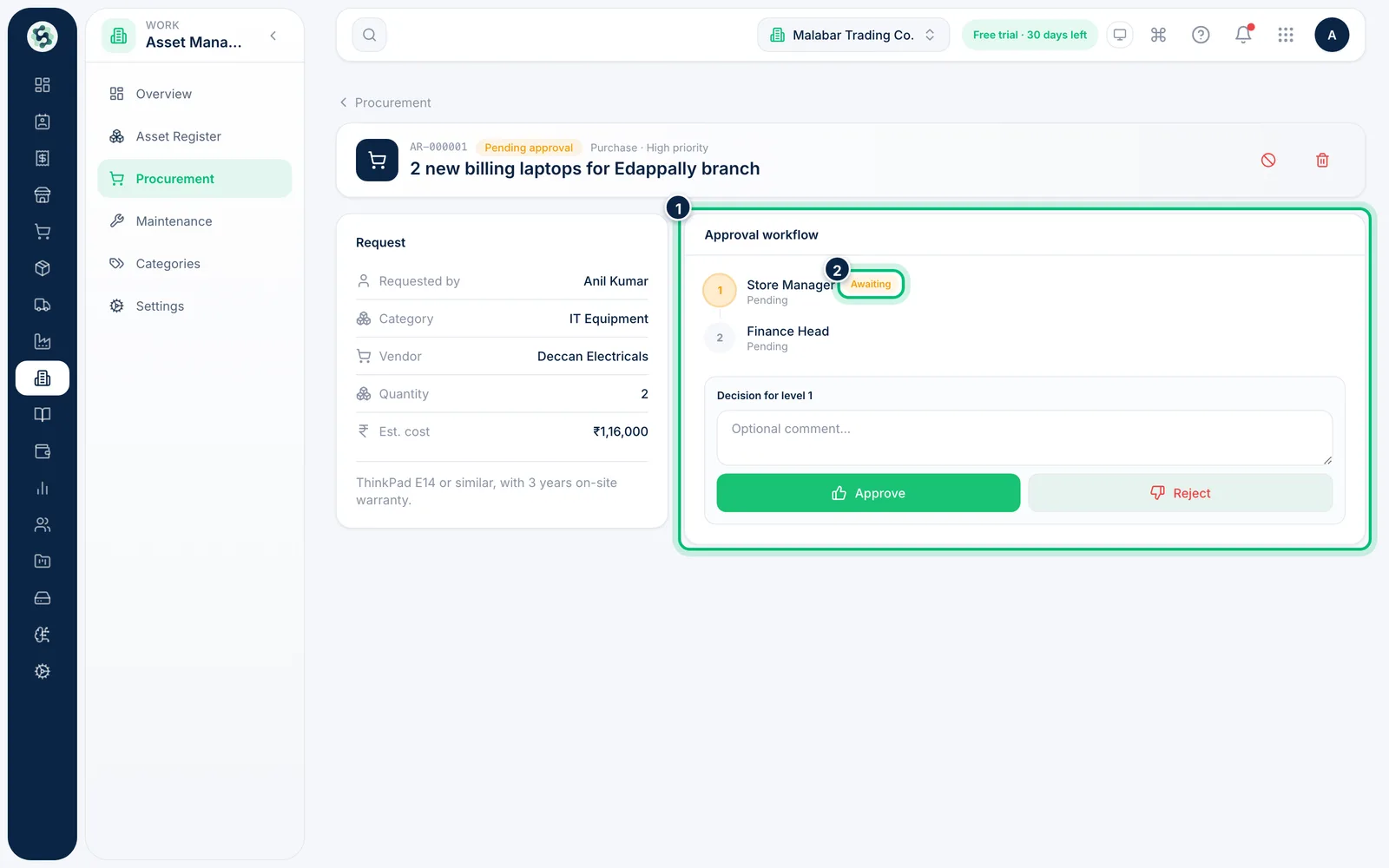
2See where it stands in the approval workflow
Approval workflow shows each level in order. The level awaiting a decision is marked Awaiting; decided levels show Approved or Rejected, with the date and any comment.
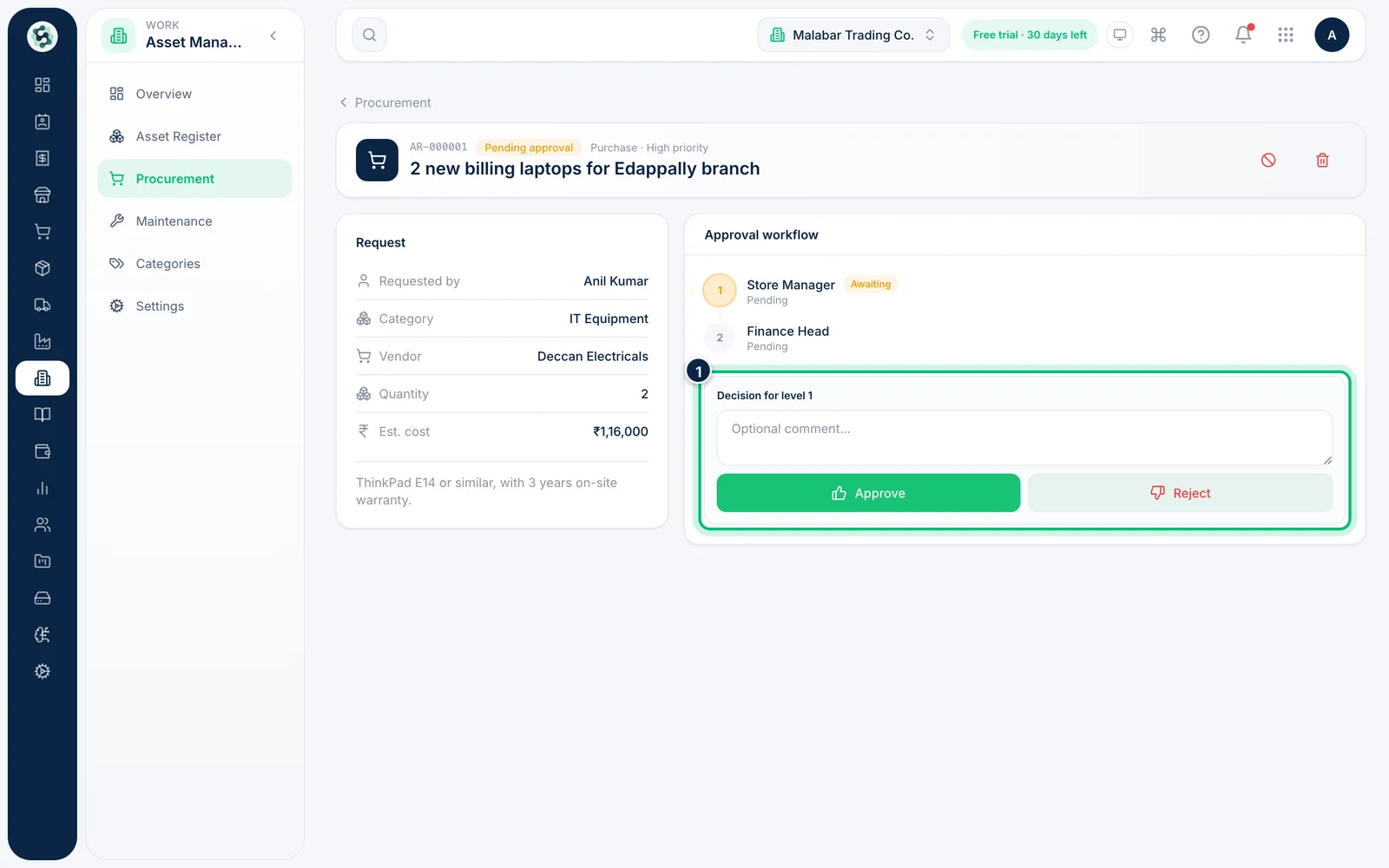
3Approve or reject
Under Decision for level 1, add an optional comment and choose Approve or Reject. An approved level passes the request to the next one. A rejection stops it.
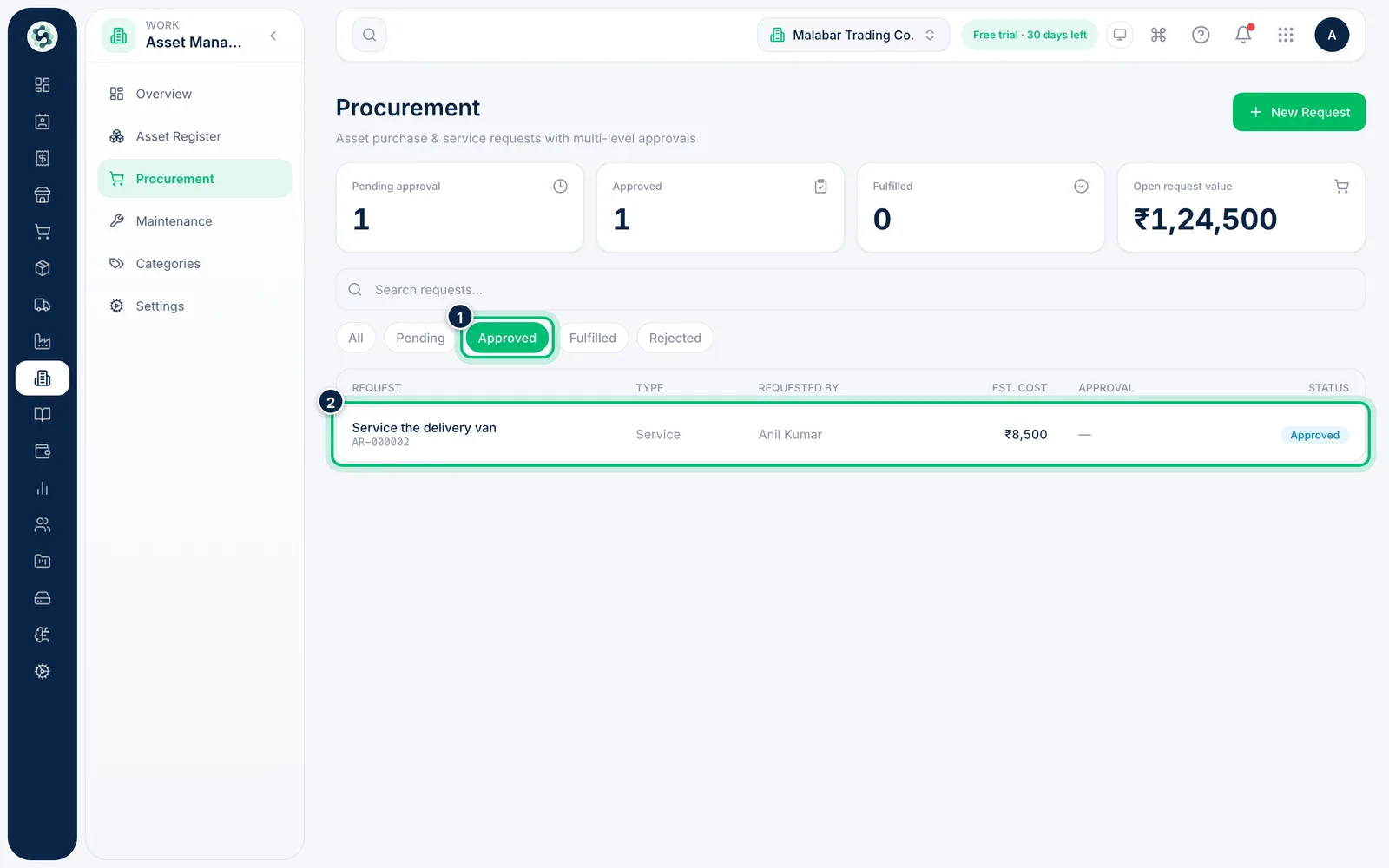
4Create the asset from an approved request
Once every level has approved, the request shows Create asset (Create work order for a service request). Choose it and the request is marked Fulfilled. A purchase links to the asset it created.
Related guides
Still stuck? Contact our support team — or start a free trial to try this in your own company.