
Sales & invoicing · 4 steps
Raise a credit or debit note
Correct an issued invoice — for returns, rate changes or extra charges — without editing the original.
Before you start: The invoice must be issued (Due, Overdue or Paid).
1Open Credit/Debit Notes
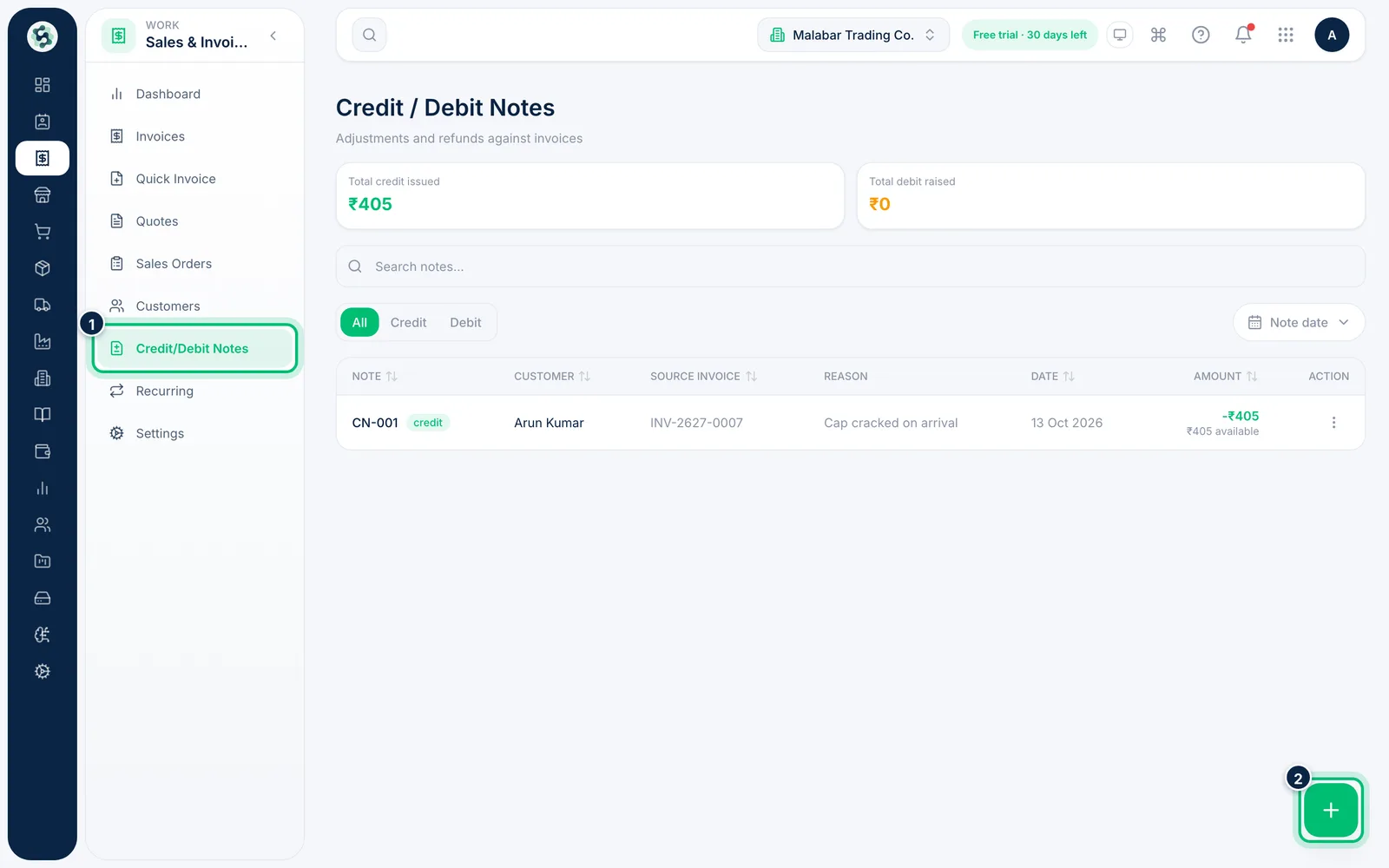
Open Sales & Invoicing → Credit/Debit Notes. You'll see the total credit issued and debit raised, and every note with its source invoice. Choose the + button to raise a new one.
2Pick the invoice and the type
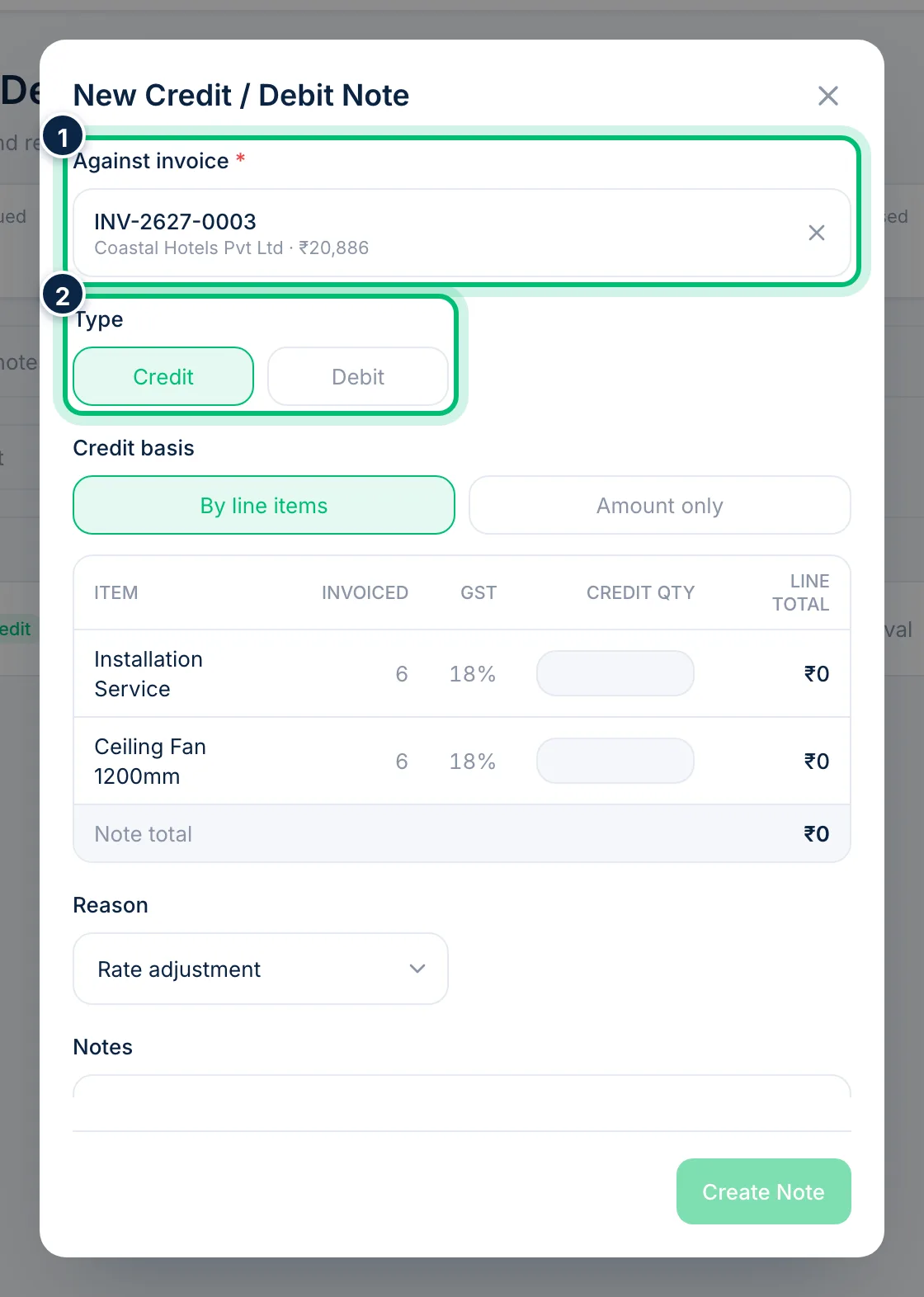
Under Against invoice, search by invoice number or customer and pick the invoice. Choose Credit to reduce what the customer owes, or Debit to increase it.
3Enter what's being credited
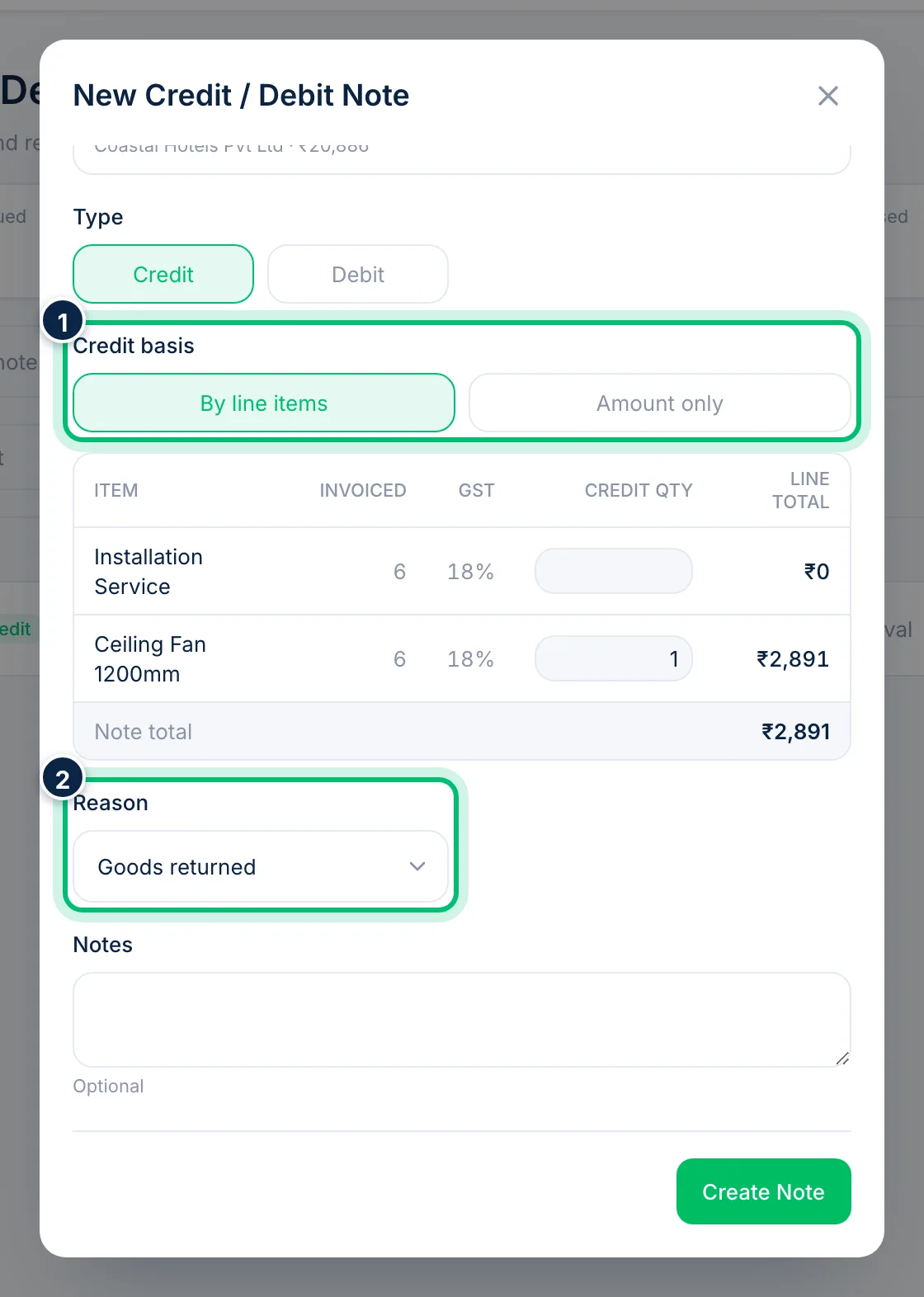
Under Credit basis, choose By line items to enter quantities against the invoice's lines, or Amount only for a lump sum. Pick a Reason, such as Goods returned or Rate adjustment, and add Notes if you need to.
4Create the note
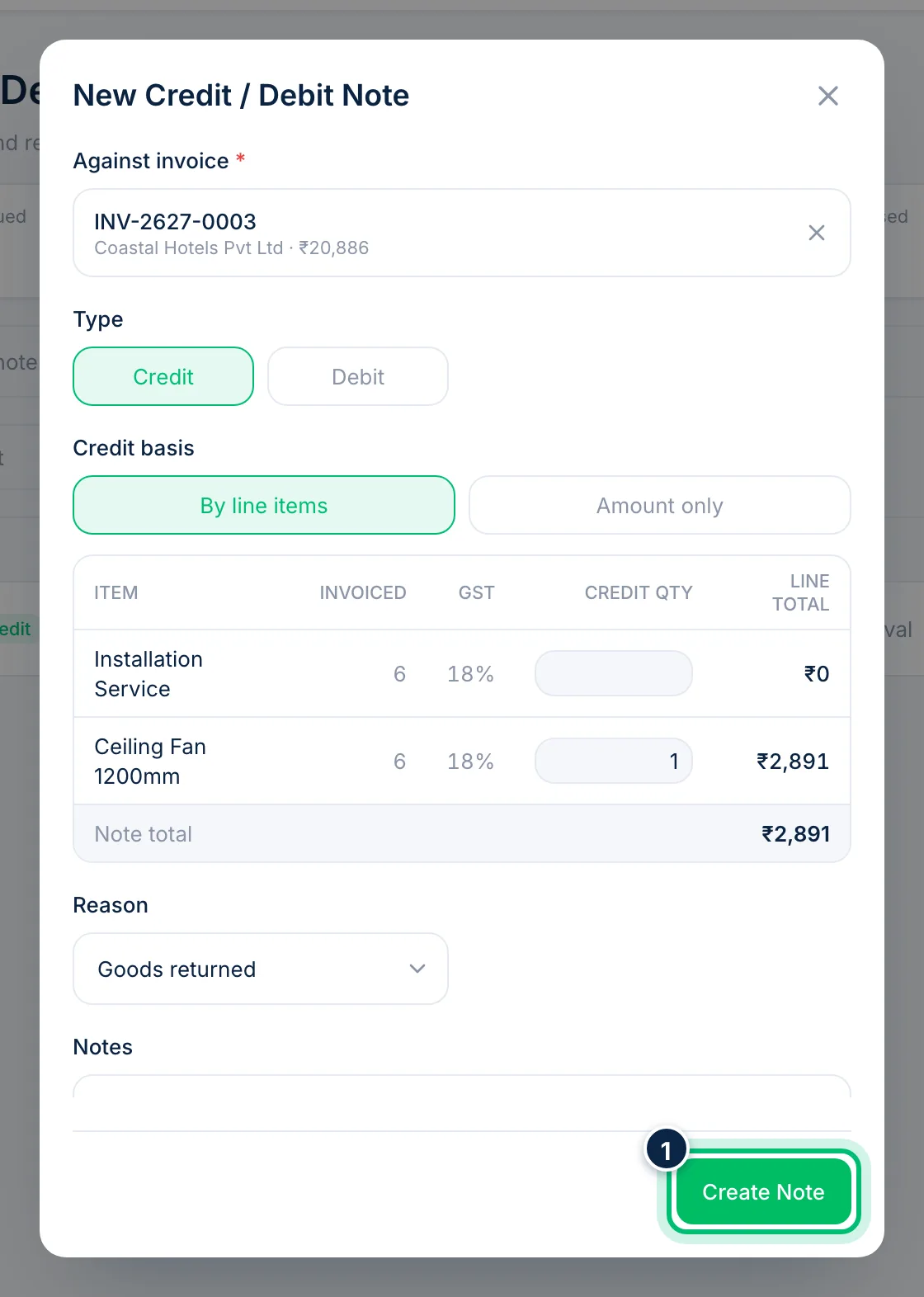
Choose Create Note. The note is linked to the invoice, adjusts the customer's balance and is included in your GST reports.
Related guides
Still stuck? Contact our support team — or start a free trial to try this in your own company.