
CRM · 5 steps
Log calls, meetings and notes on a lead
Keep a full history of every conversation with a lead, plan the next tasks and move the deal along — all from the lead's page.
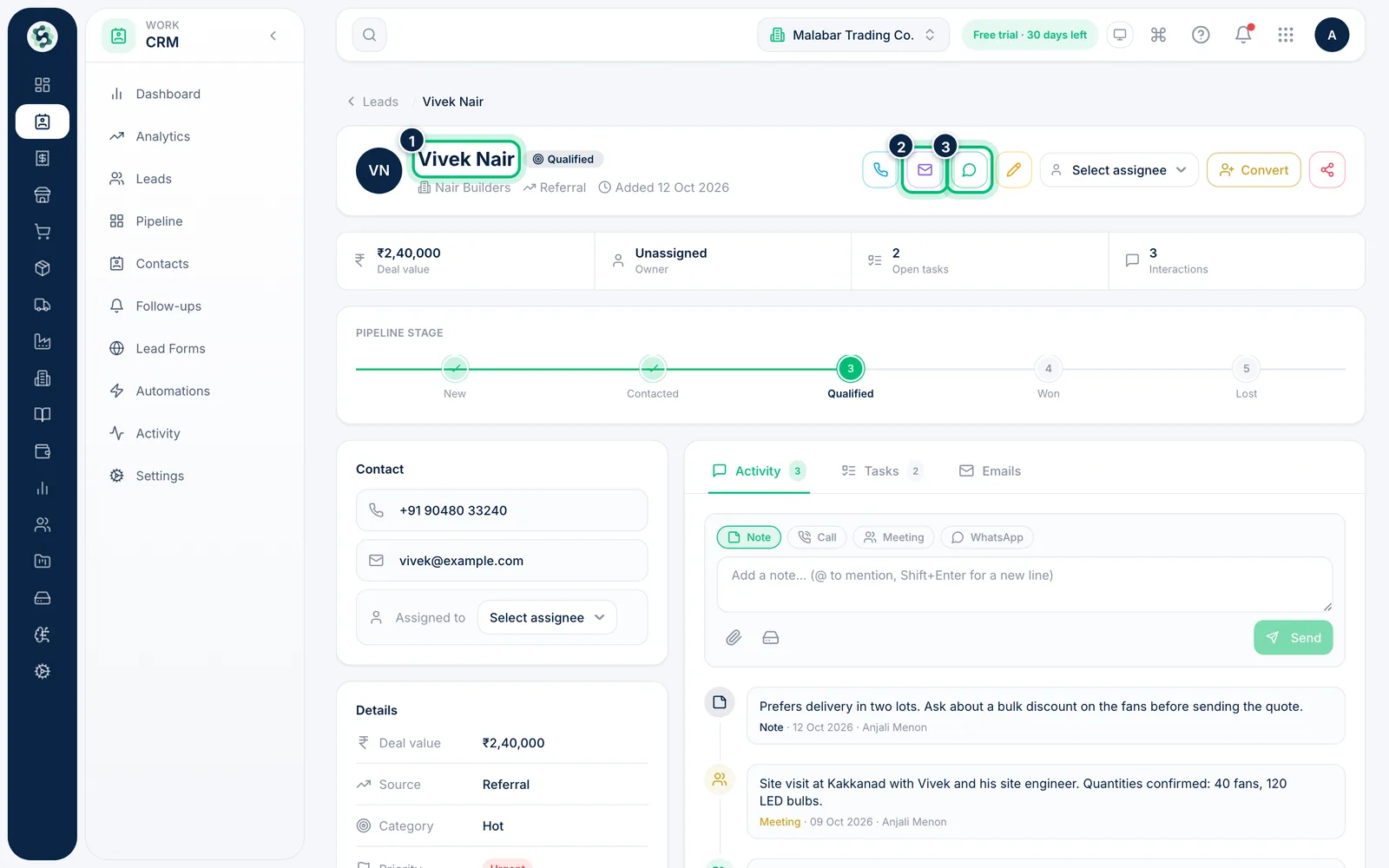
1Open the lead
Click a lead on Leads or Pipeline. The top shows the Deal value, Owner, Open tasks and Interactions count, with buttons to call, email, WhatsApp, edit or assign the lead.
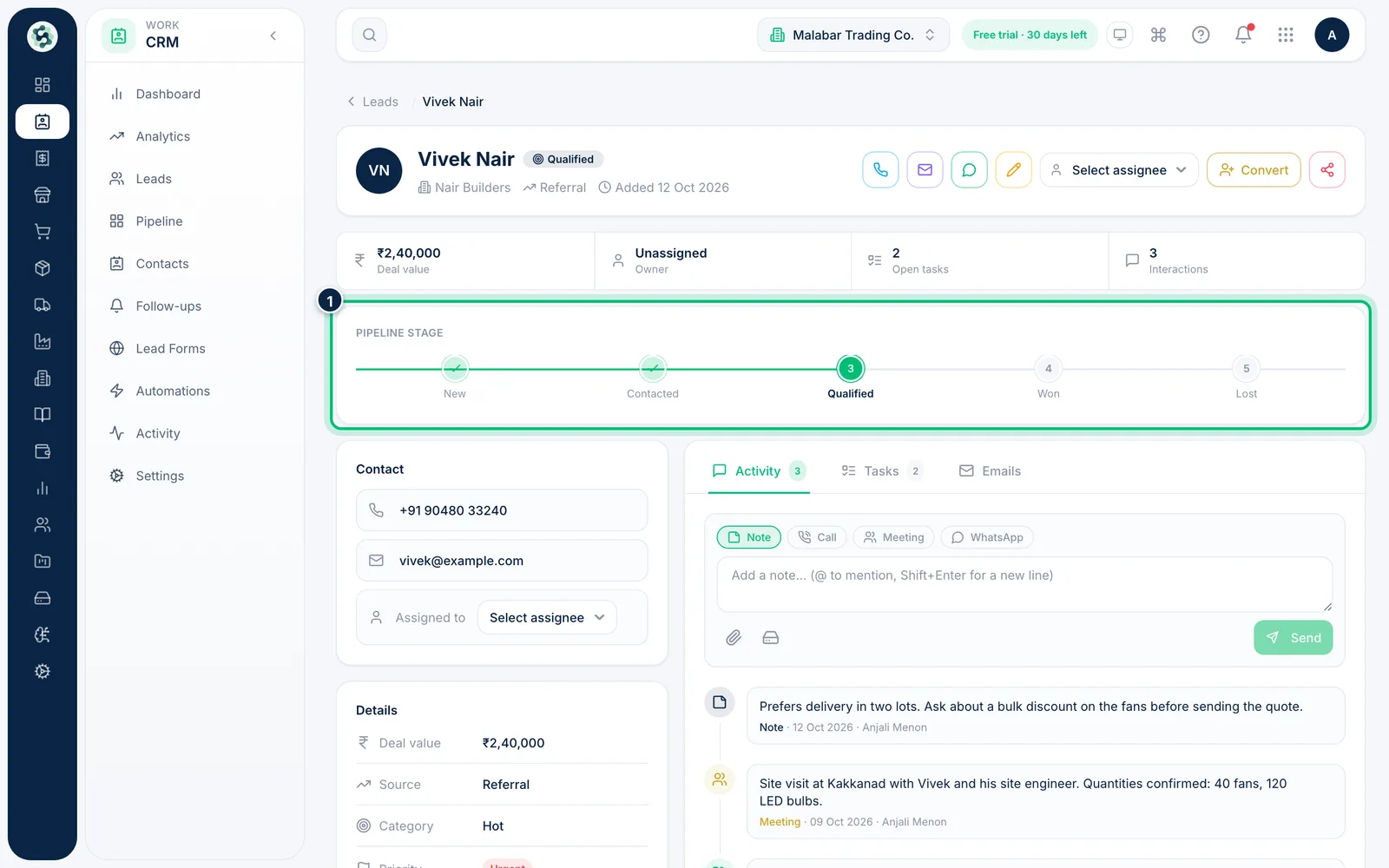
2Move the stage from the lead
Under Pipeline stage, click the next step to move the lead forward. The bar fills in as the deal progresses.
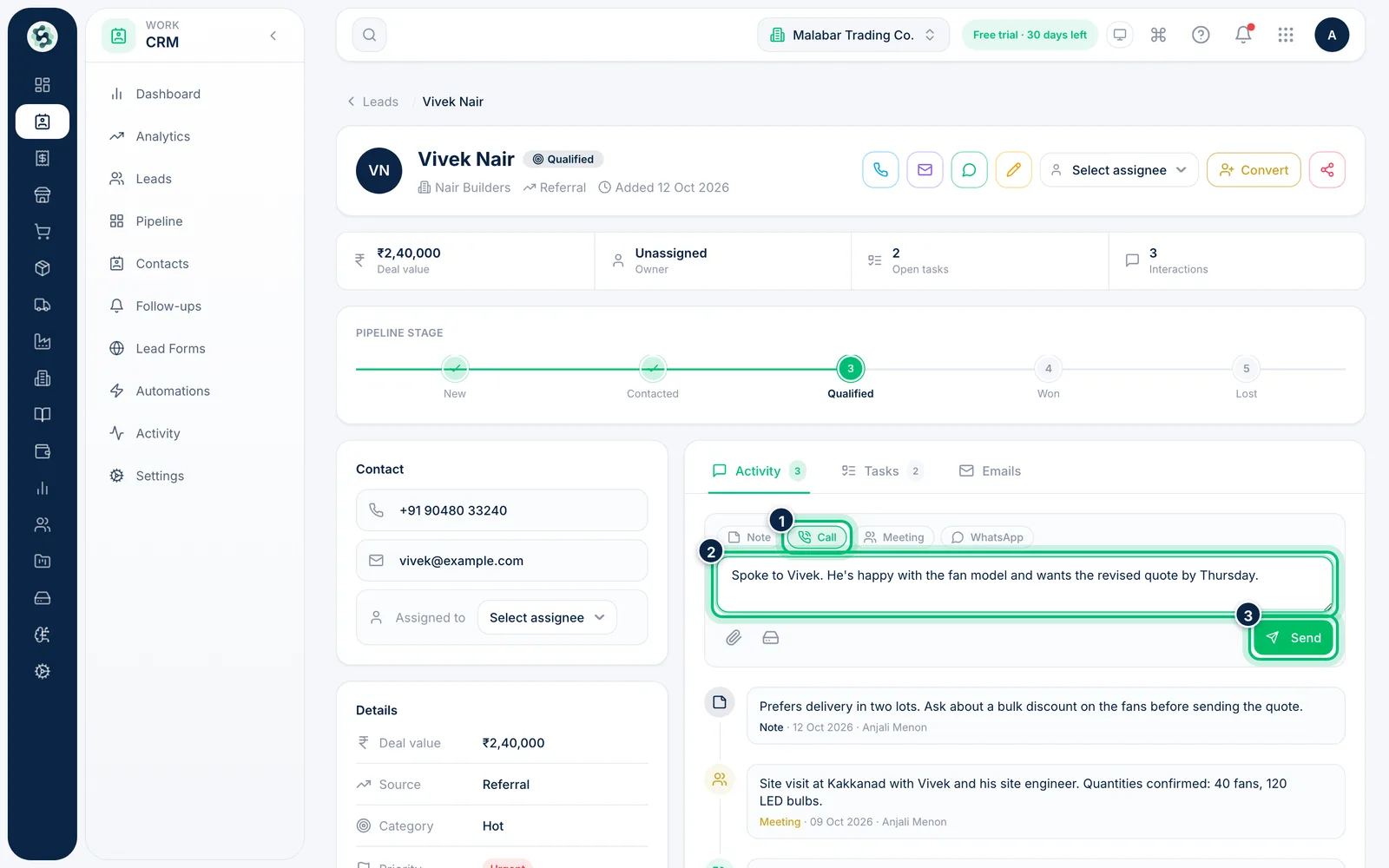
3Log a call, meeting or note
On the Activity tab, pick Note, Call, Meeting or WhatsApp, type what happened and choose Send. Type @ to mention a teammate and they're notified; use the paperclip to attach files.
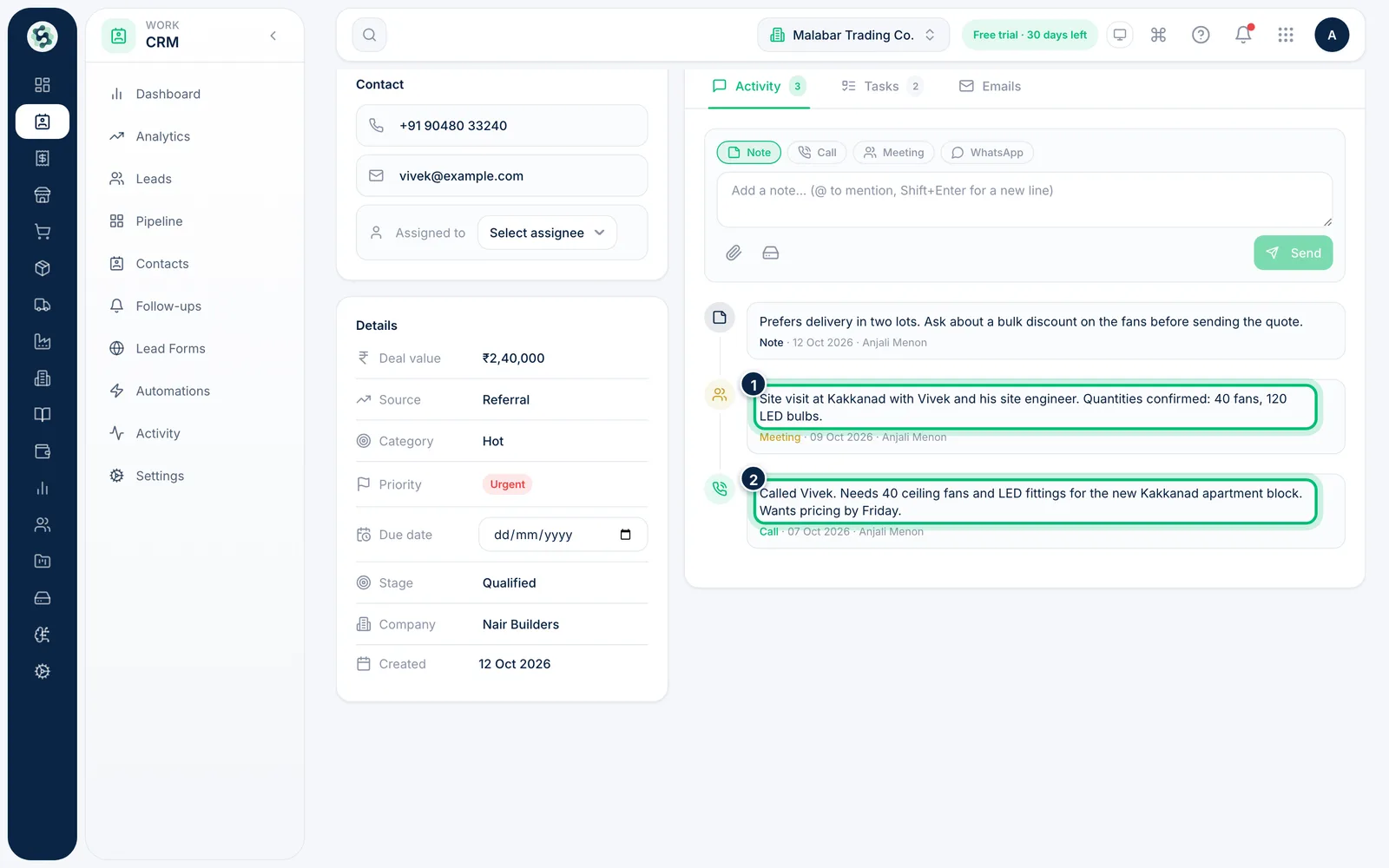
4Review the activity timeline
Everything you log appears in the timeline below, newest first, with its type, date and who added it. Emails sent from the lead are logged here too.
5Add a task with a due time
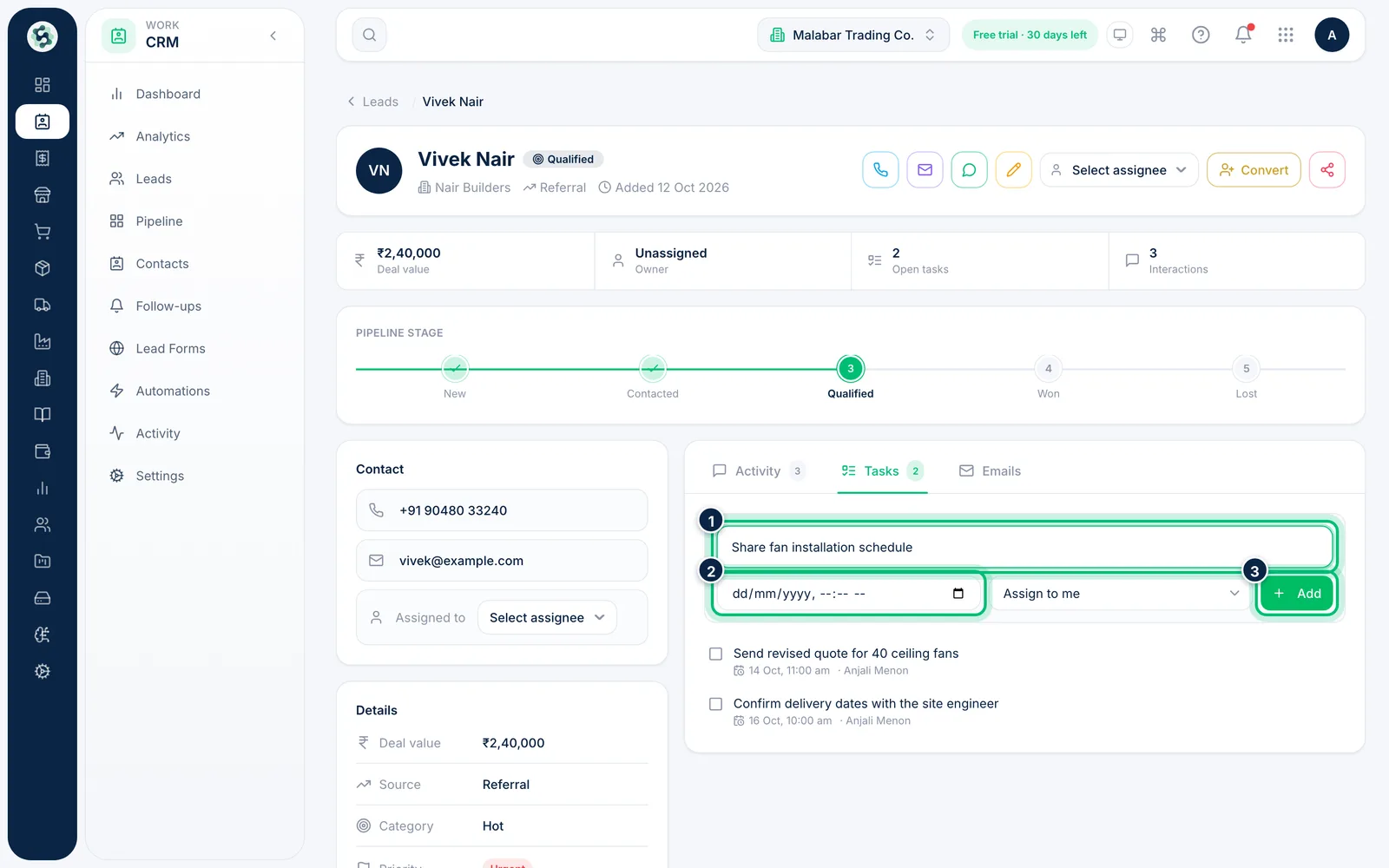
Open the Tasks tab, describe the next step, set when it's due and who it's for (it's yours unless you pick someone), then choose Add. Tick a task when it's done.
Related guides
Still stuck? Contact our support team — or start a free trial to try this in your own company.