
Manufacturing · 4 steps
Start, produce and scrap on a work order
Start a work order, check the material it will use, record good units and rejects, and watch finished stock rise as you go.
Before you start: Components must be in stock at the source warehouse. If one is short, the order can't be produced until you restock.
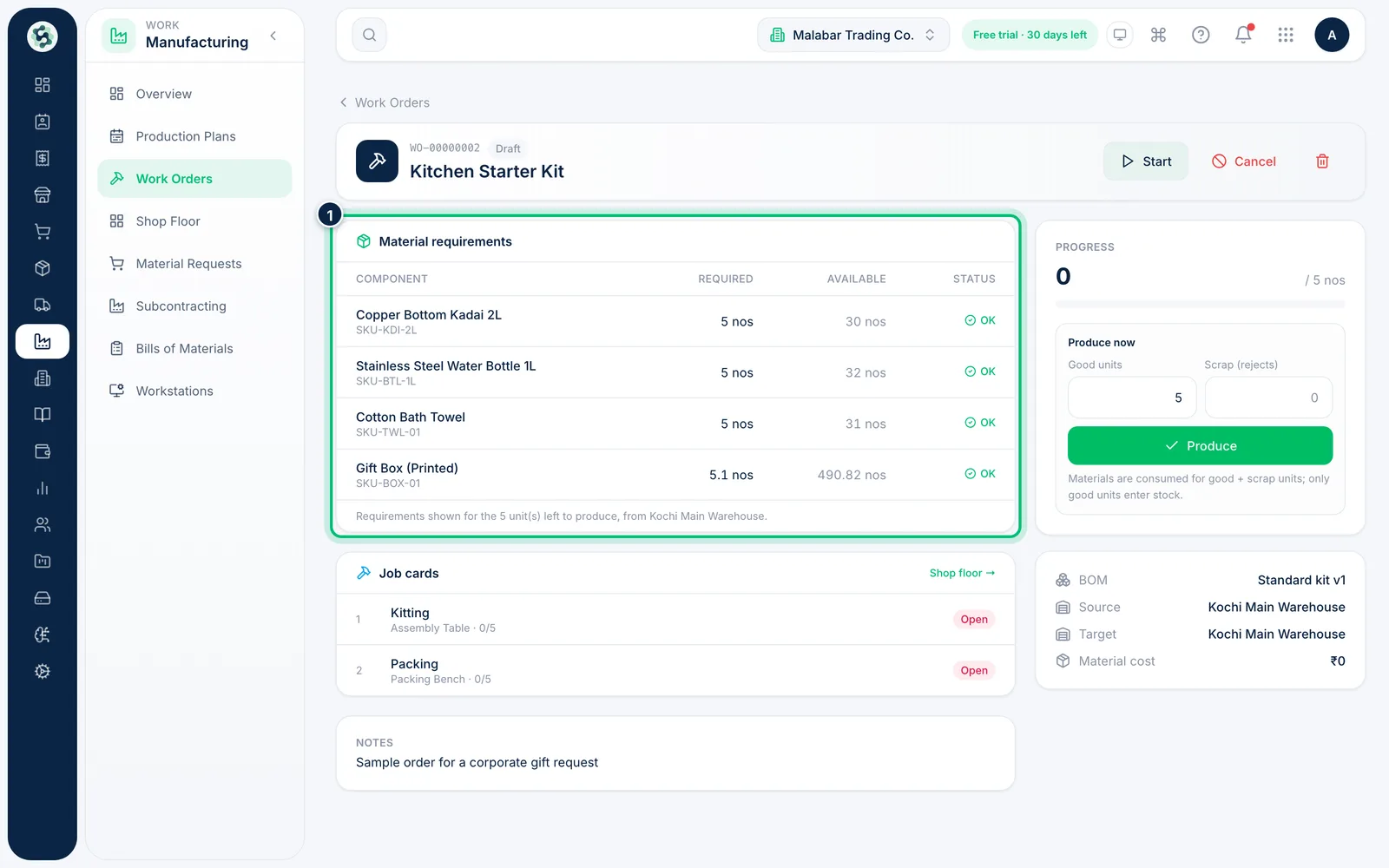
1Check the material requirements
Open a work order from Manufacturing → Work Orders. Material requirements compares what the units left to produce Required with what is Available, flagging any Short component.
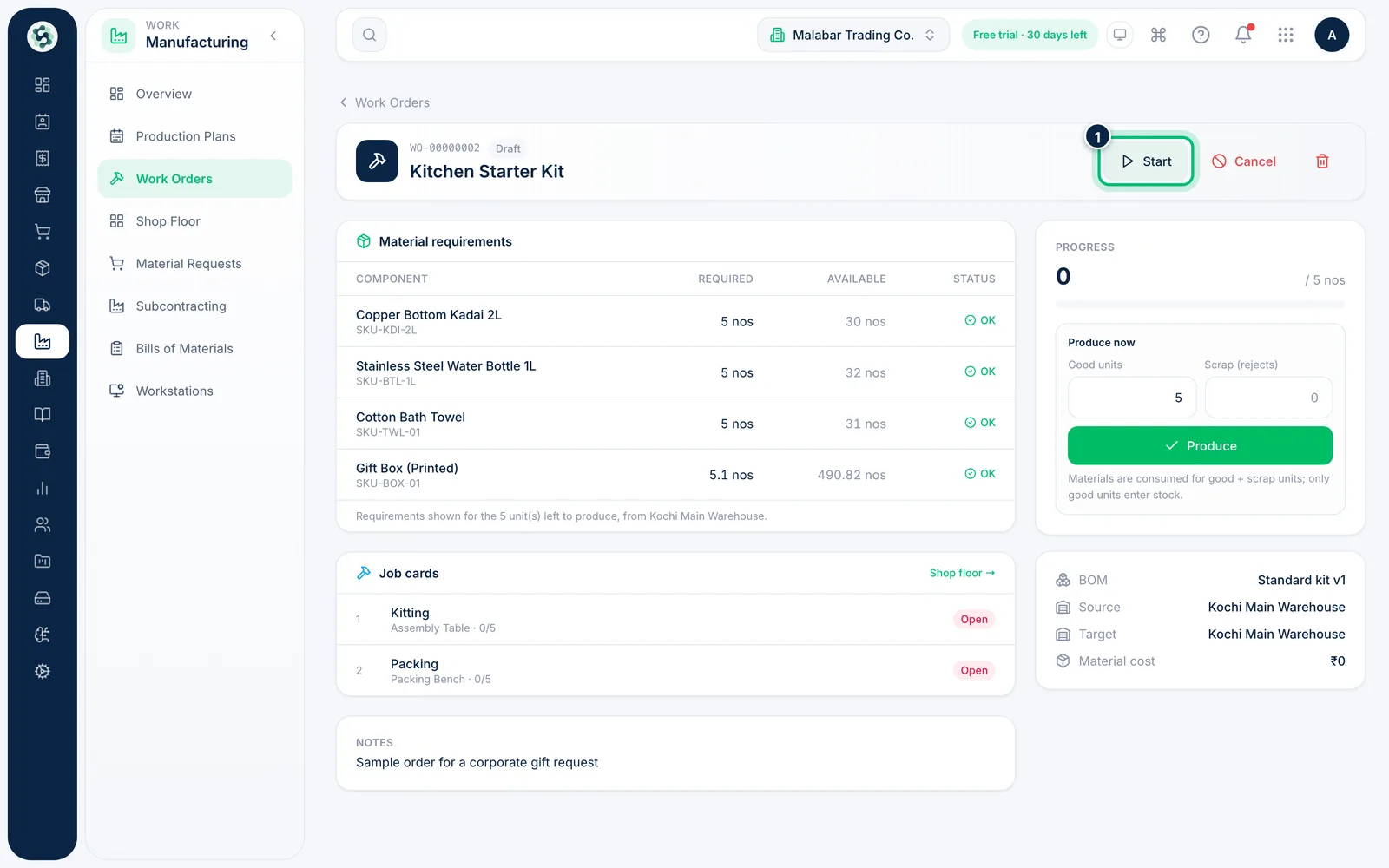
2Start the work order
Choose Start to move a Draft order to In progress. Starting does not use any stock yet — you can also produce straight from a draft.
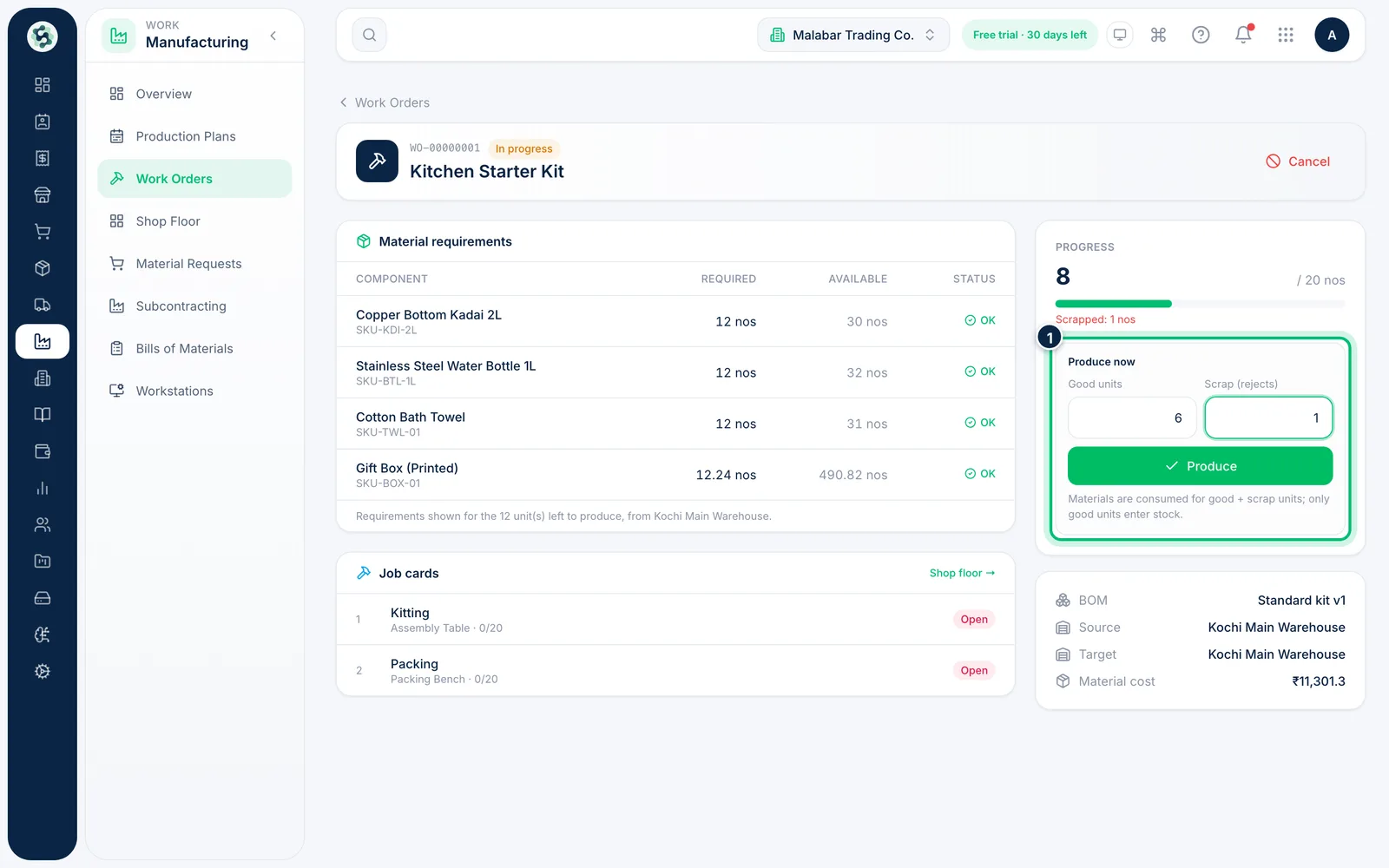
3Produce good units and record scrap
In Produce now, enter the Good units made and any Scrap (rejects), then choose Produce. Components are consumed for good and scrap units together, but only good units are added to finished stock.
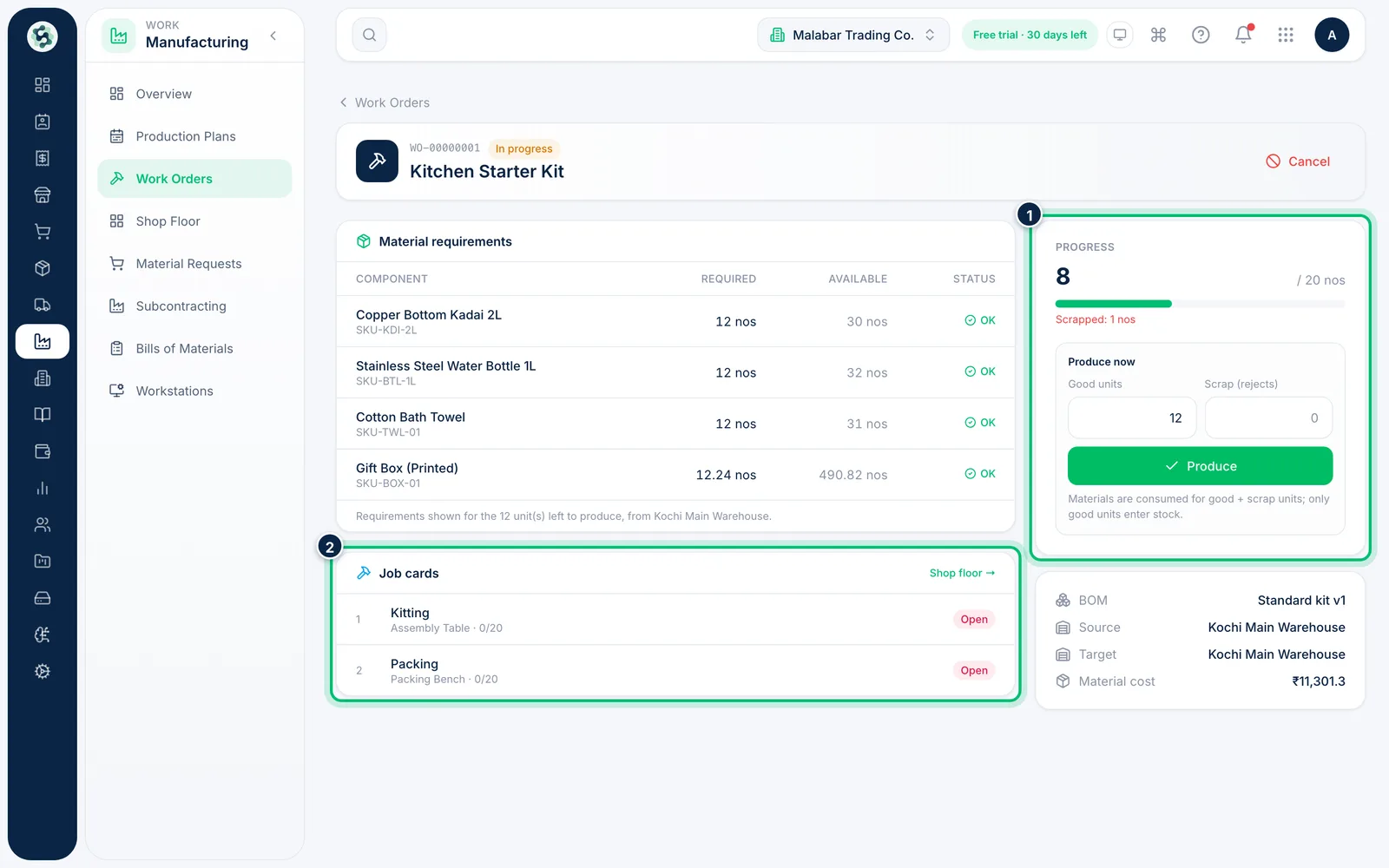
4Follow progress and job cards
The Progress panel shows units produced against the plan, plus any Scrapped quantity. Produce again for each batch; the order completes when the planned quantity is made. Job cards lists each operation and its stage.
Related guides
Still stuck? Contact our support team — or start a free trial to try this in your own company.