
Asset management · 4 steps
Find an asset with its QR tag and the scanner
Every asset carries a QR tag with its code. Scan it with a phone, or type the code, to open the asset straight away.
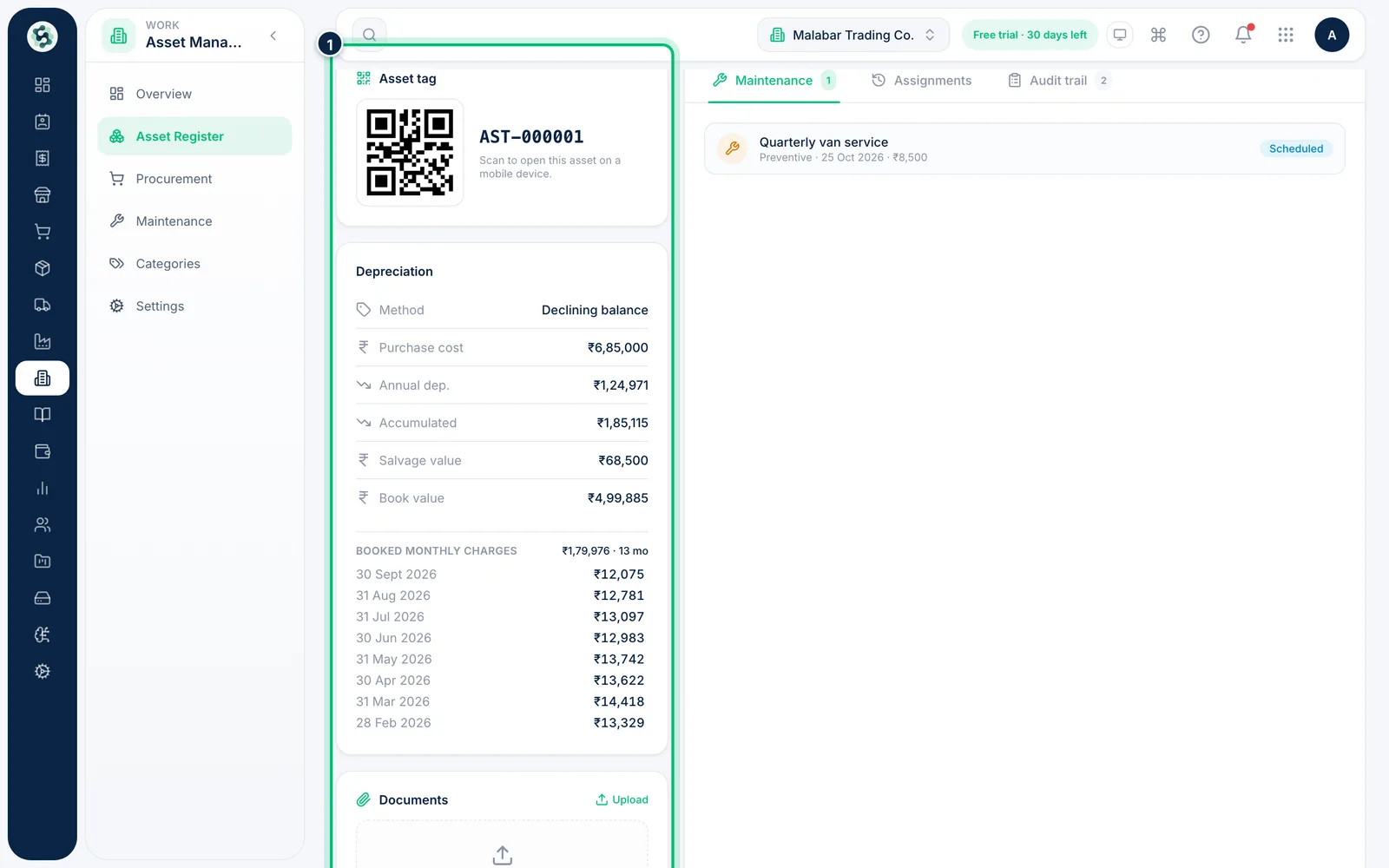
1Find the asset's tag
Open an asset from Asset Register. The Asset tag card shows a QR code and the asset code, such as AST-000001. Scanning it opens the asset on a mobile device.
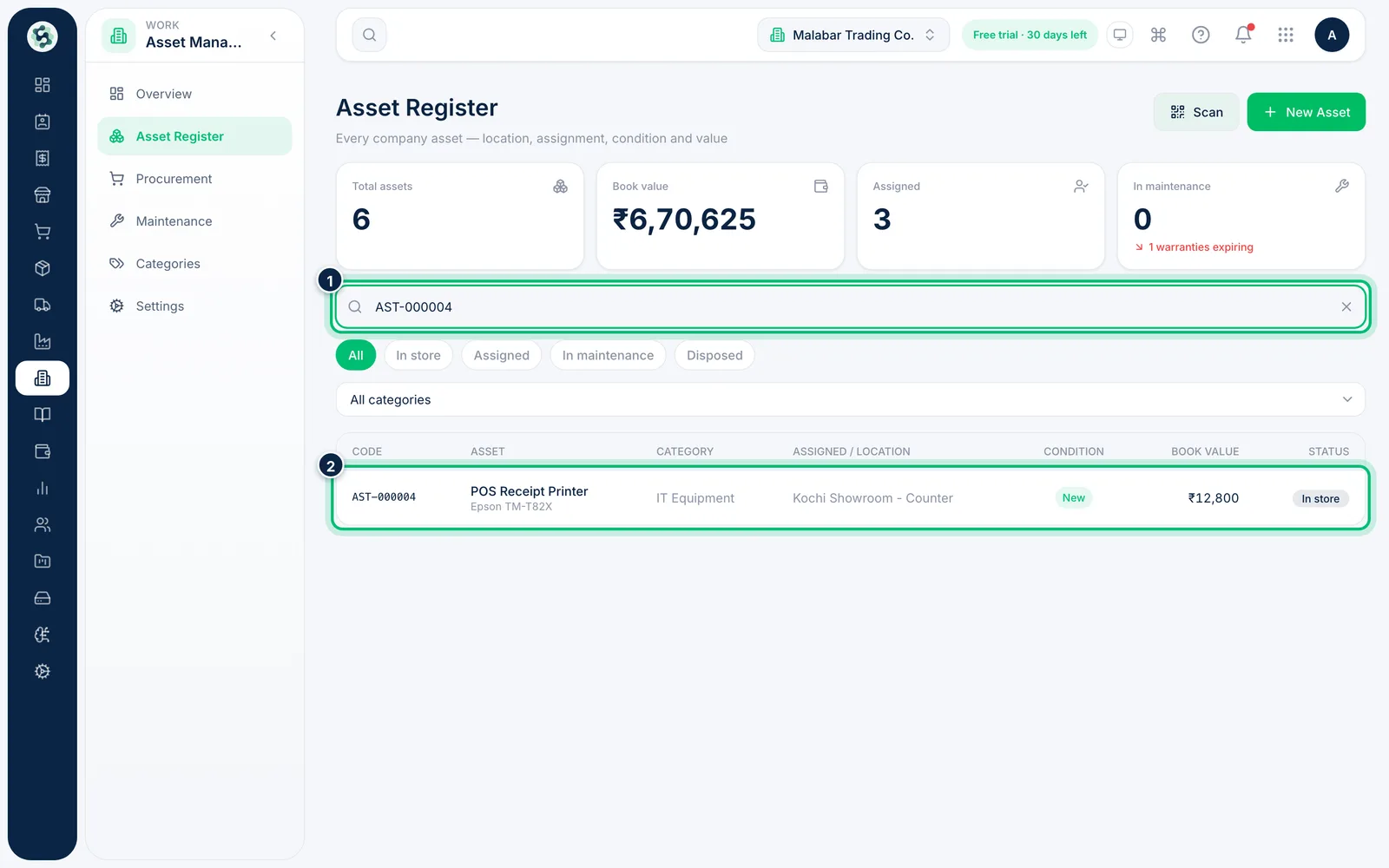
2Look an asset up by its code
On Asset Register, type the code or serial number into the search box. The list narrows to the matching asset, and clicking it opens the full record.
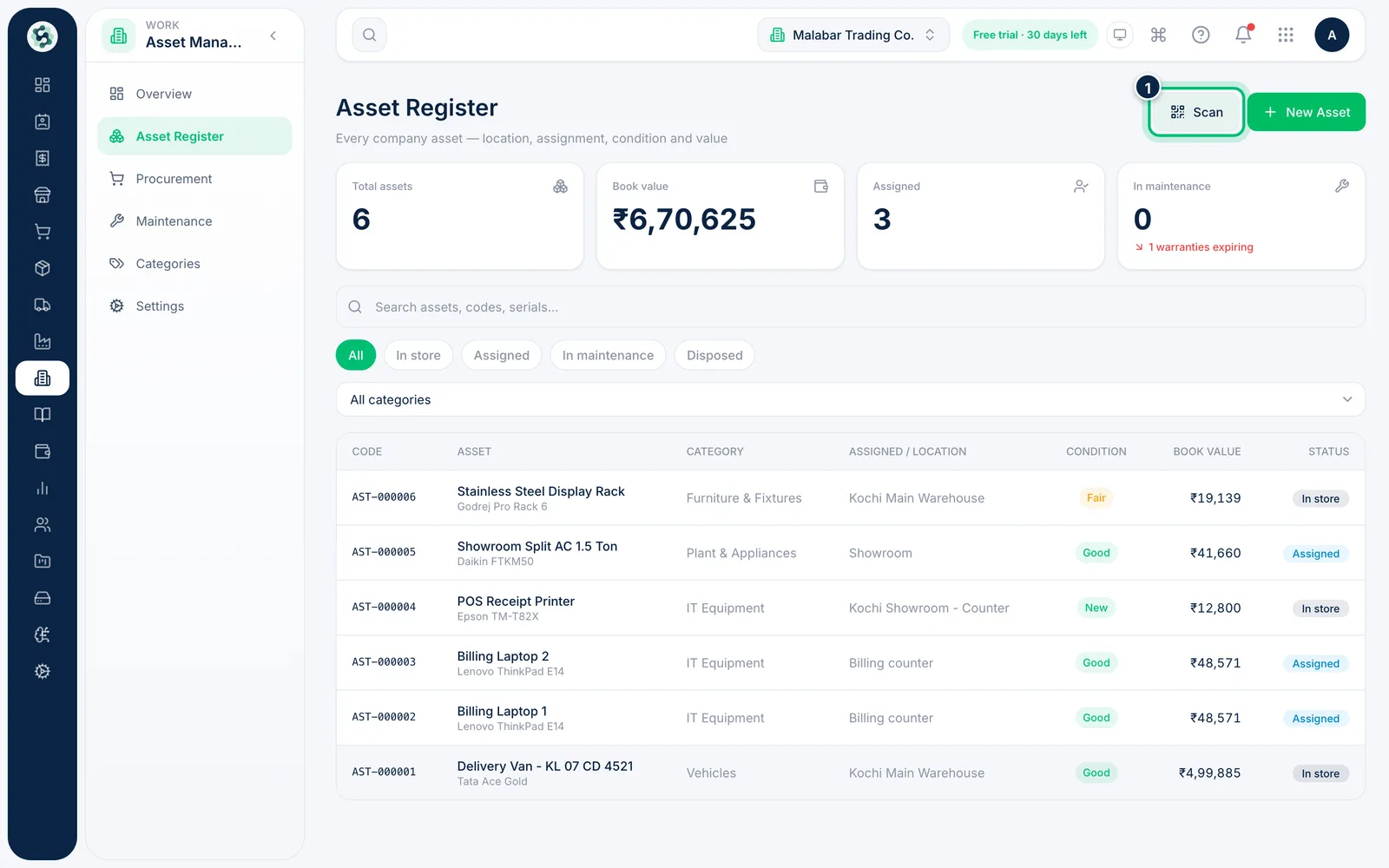
3Scan tags from the register
Choose Scan next to New Asset to open the scanner.
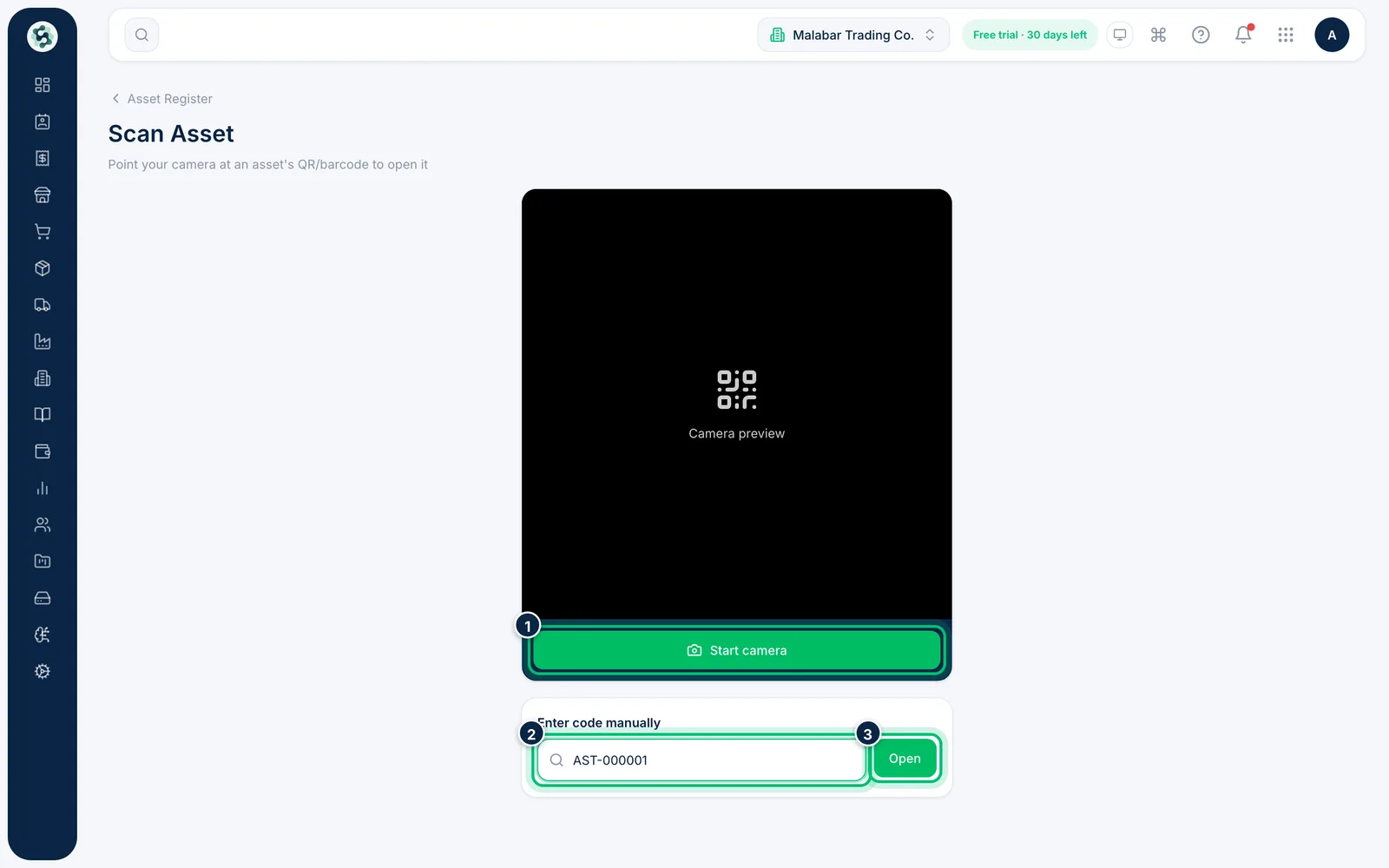
4Scan with the camera or type the code
Choose Start camera and point it at the QR tag or barcode — the matching asset opens. If there's no camera, type the code (for example AST-000001) and choose Open.
Related guides
Still stuck? Contact our support team — or start a free trial to try this in your own company.