
Point of sale · 4 steps
Reprint receipts and return items
Print an earlier sale's receipt again, set up the receipt printer, and take back items from a sale.
Before you start: A shift must be open on the register.
1Find an earlier receipt
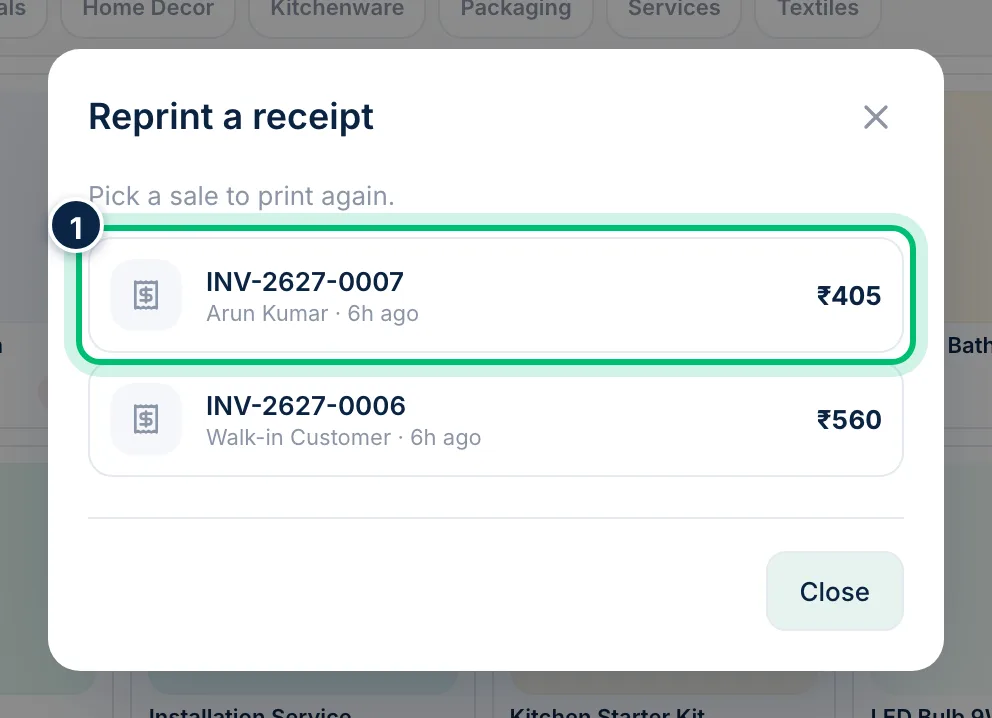
On the shift bar choose More → Receipts. Reprint a receipt lists this register's latest sales — pick one to print it again.
2Set up the receipt printer
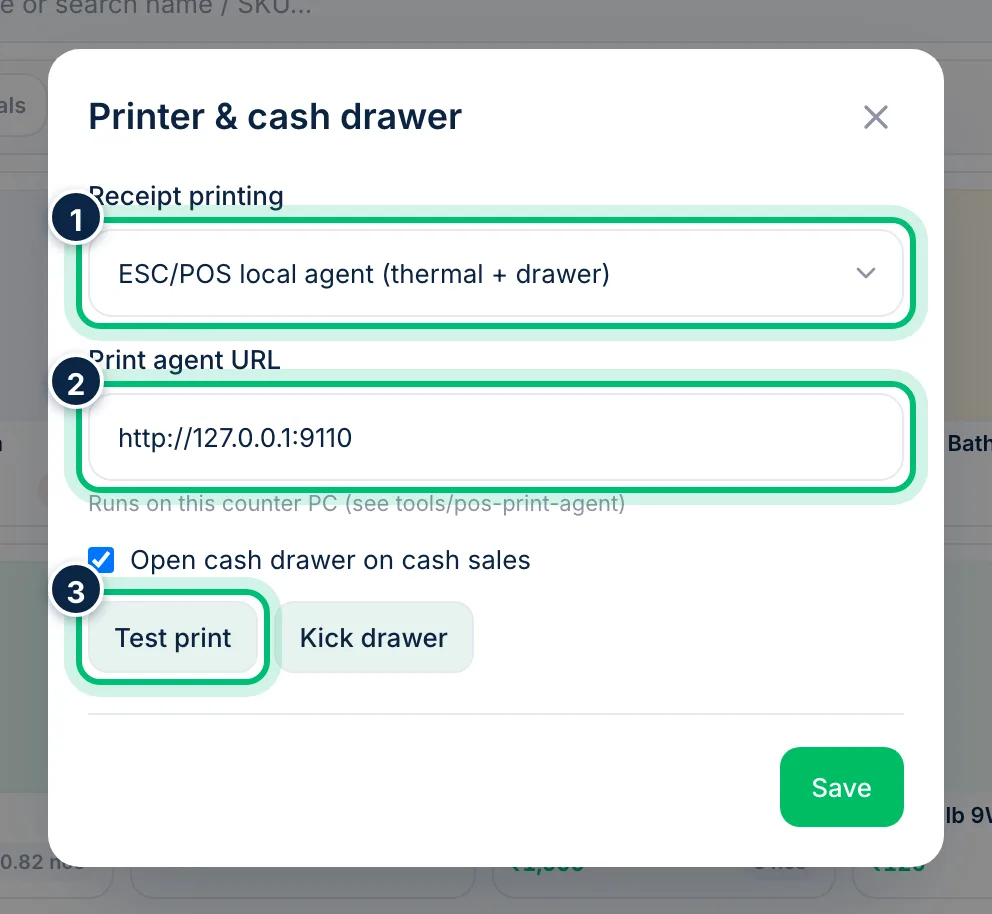
Choose More → Printer setup. Browser prints through the normal print dialog. For a thermal printer and cash drawer, choose ESC/POS local agent, enter the Print agent URL running on the counter PC and use Test print to check it. This setting is saved on this device only.
3Start a return
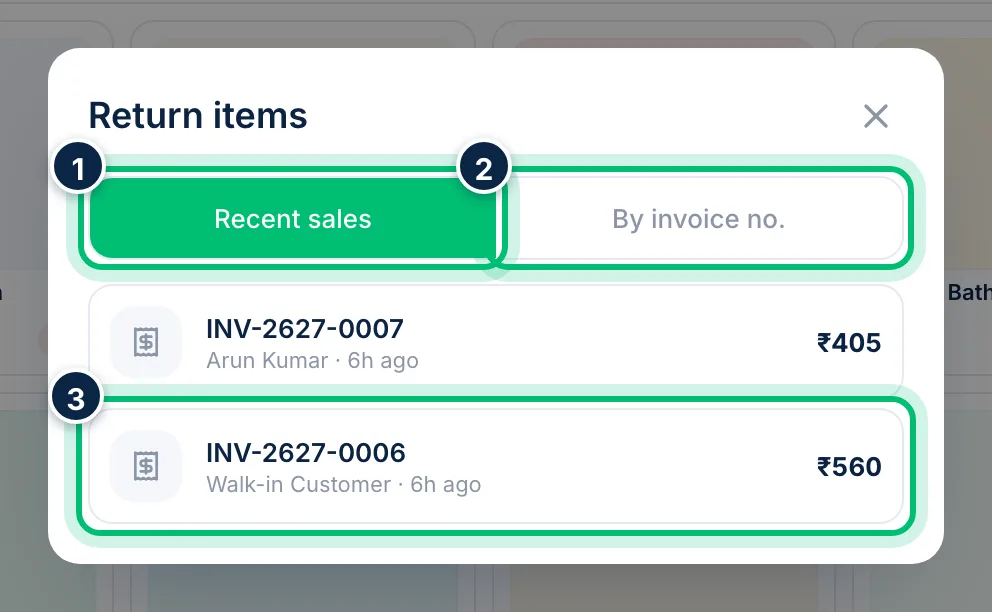
Choose Return on the shift bar (or press F4). Pick the sale from Recent sales, or switch to By invoice no. and type the invoice number from the receipt.
4Enter what's coming back and process it
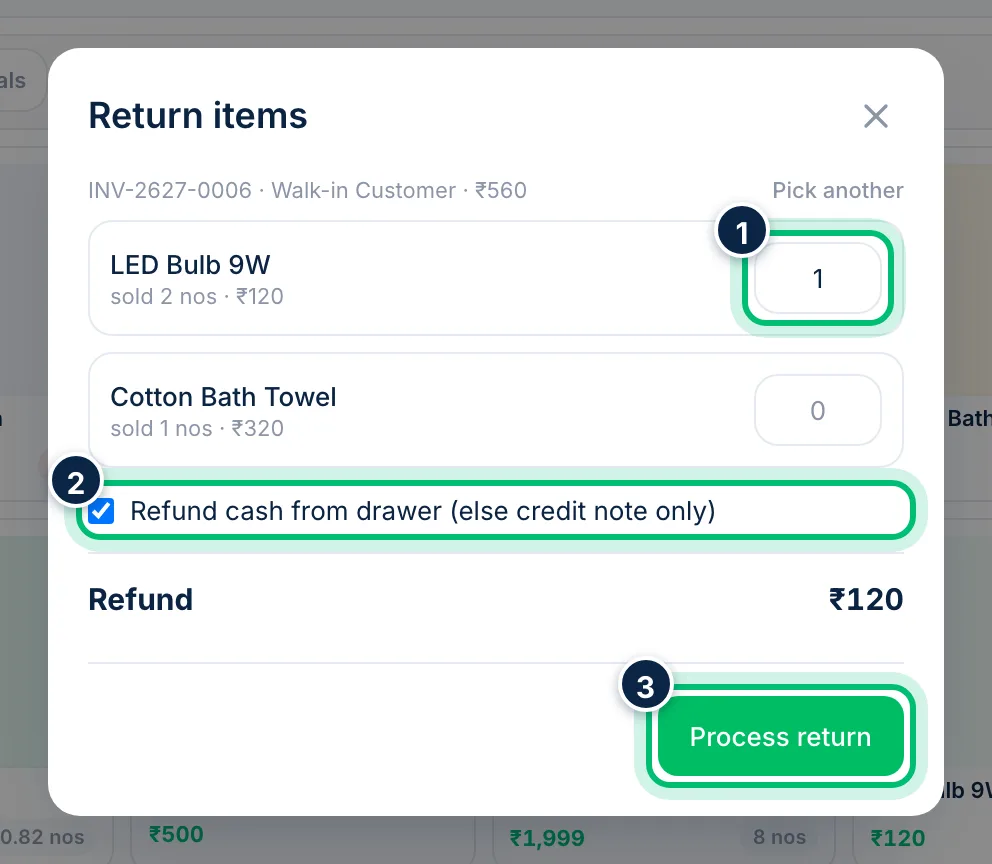
Enter the quantity returned against each item — up to the quantity sold. Leave Refund cash from drawer ticked to pay the customer from the drawer, or untick it to issue a credit note only. Check the Refund total and choose Process return. The items go back into the register's warehouse.
Related guides
Still stuck? Contact our support team — or start a free trial to try this in your own company.