
People & payroll · 3 steps
Propose and apply a salary revision
Raise a pay revision for an employee, get it approved, and apply it to their salary structure.
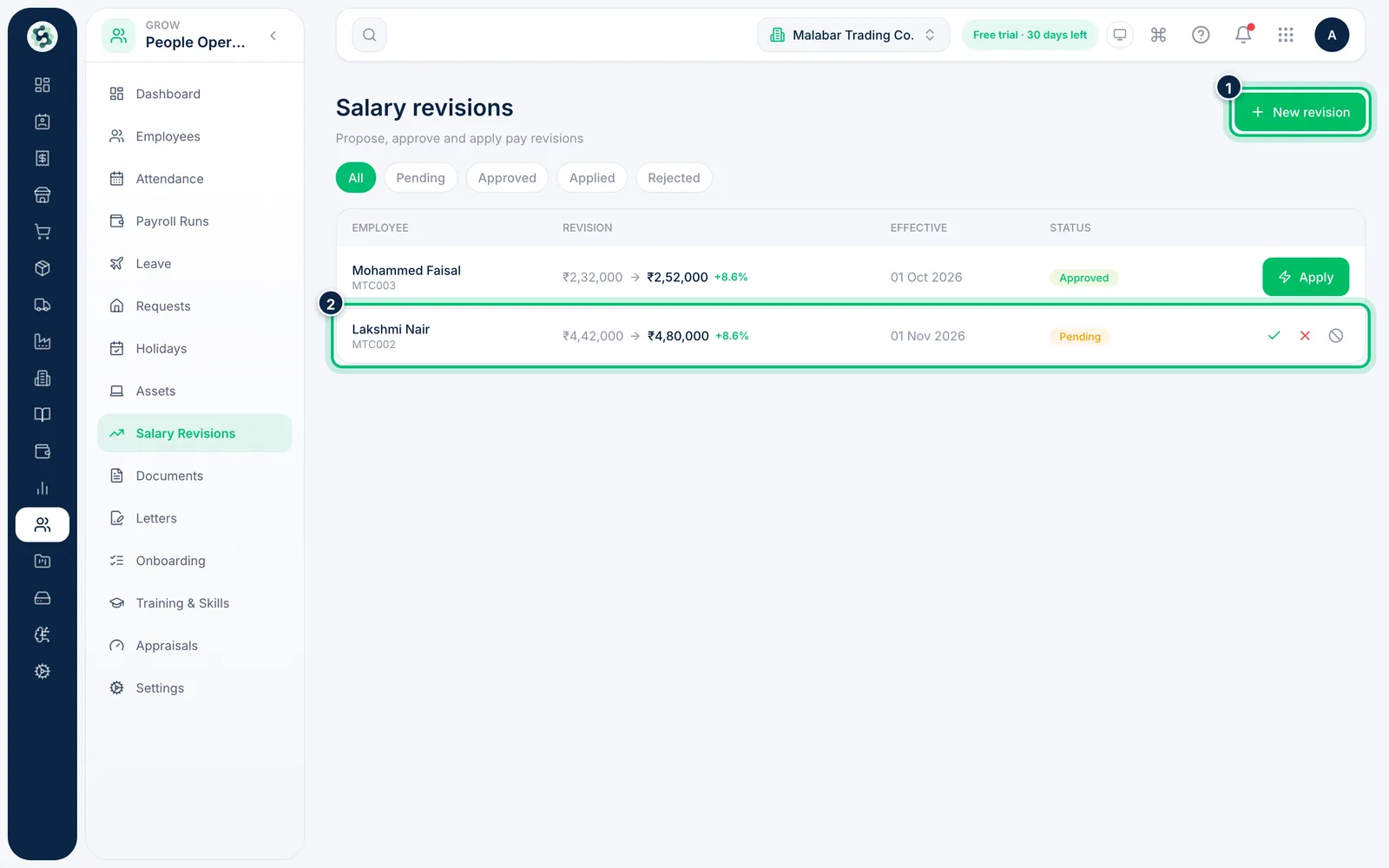
1Open Salary Revisions
Go to People Operations → Salary Revisions. Each revision shows the employee, the change, the effective date and its status — Pending, Approved, Applied or Rejected. Choose New revision.
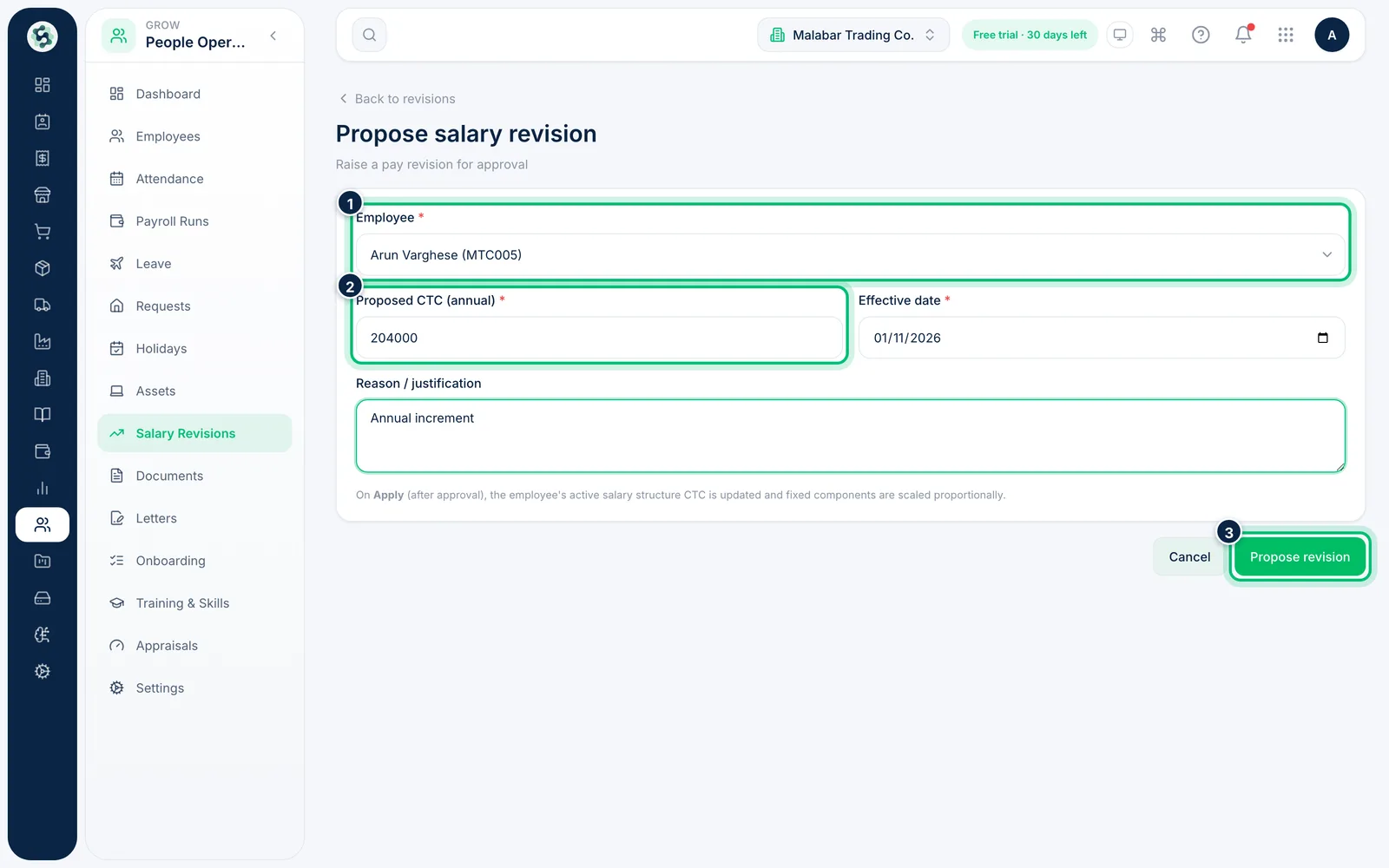
2Propose the new CTC
Pick the Employee, enter the Proposed CTC (annual) and the Effective date, and add a reason such as annual increment or promotion. Choose Propose revision.
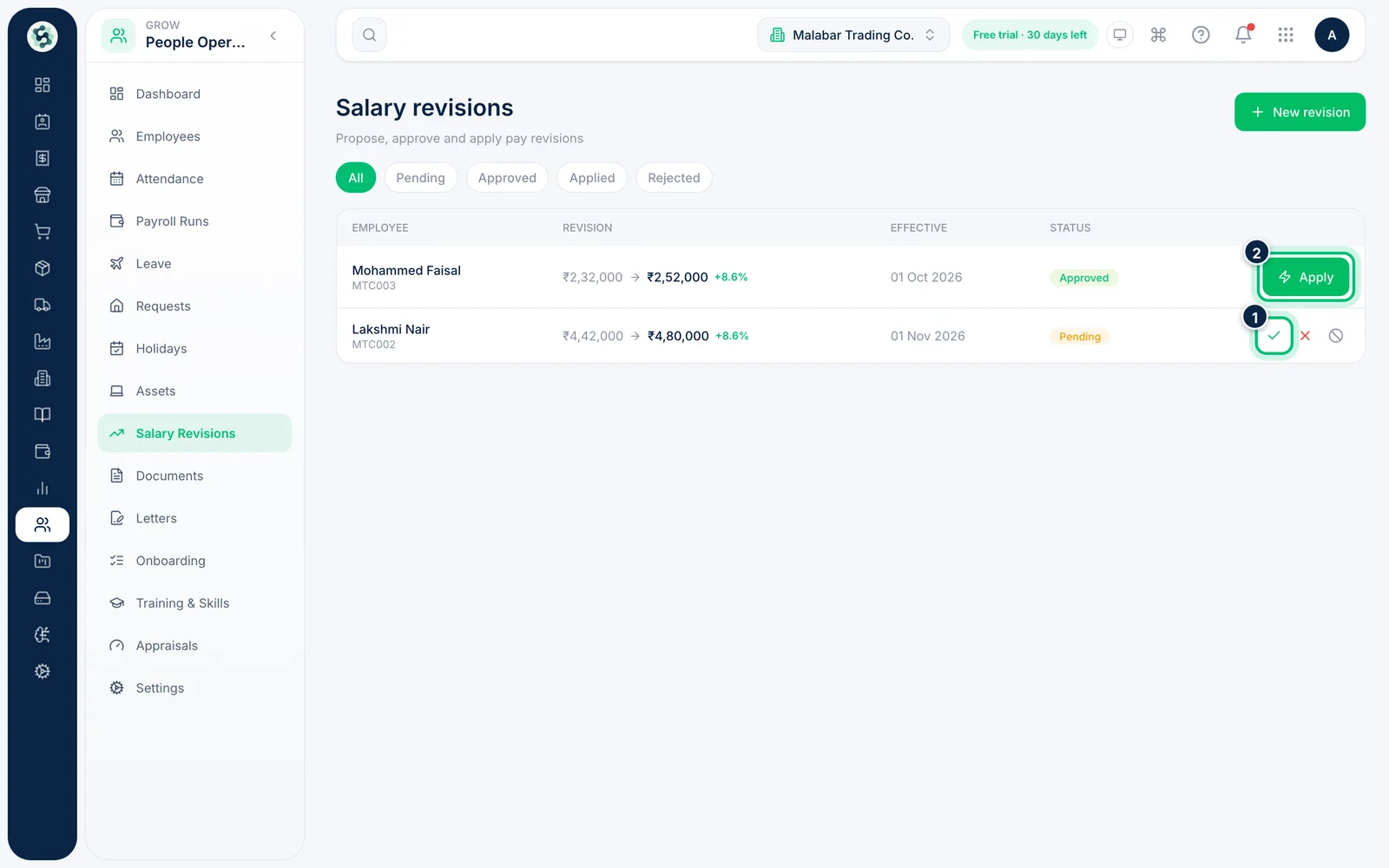
3Approve it, then apply it
Approve or reject pending revisions with the buttons on the row. Once a revision is approved, choose Apply to update the employee's salary structure: the CTC changes and the earnings are scaled in the same proportion. Fixed deductions such as TDS stay as they are.
Related guides
Still stuck? Contact our support team — or start a free trial to try this in your own company.