
Purchasing & vendors · 4 steps
Add a vendor
Save a supplier's contact, GST and payment-terms details once, so you can raise purchase orders and bills against them.
Before you start: Keep the vendor's GSTIN, PAN and billing address handy. Only the name is required.
1Open Vendors
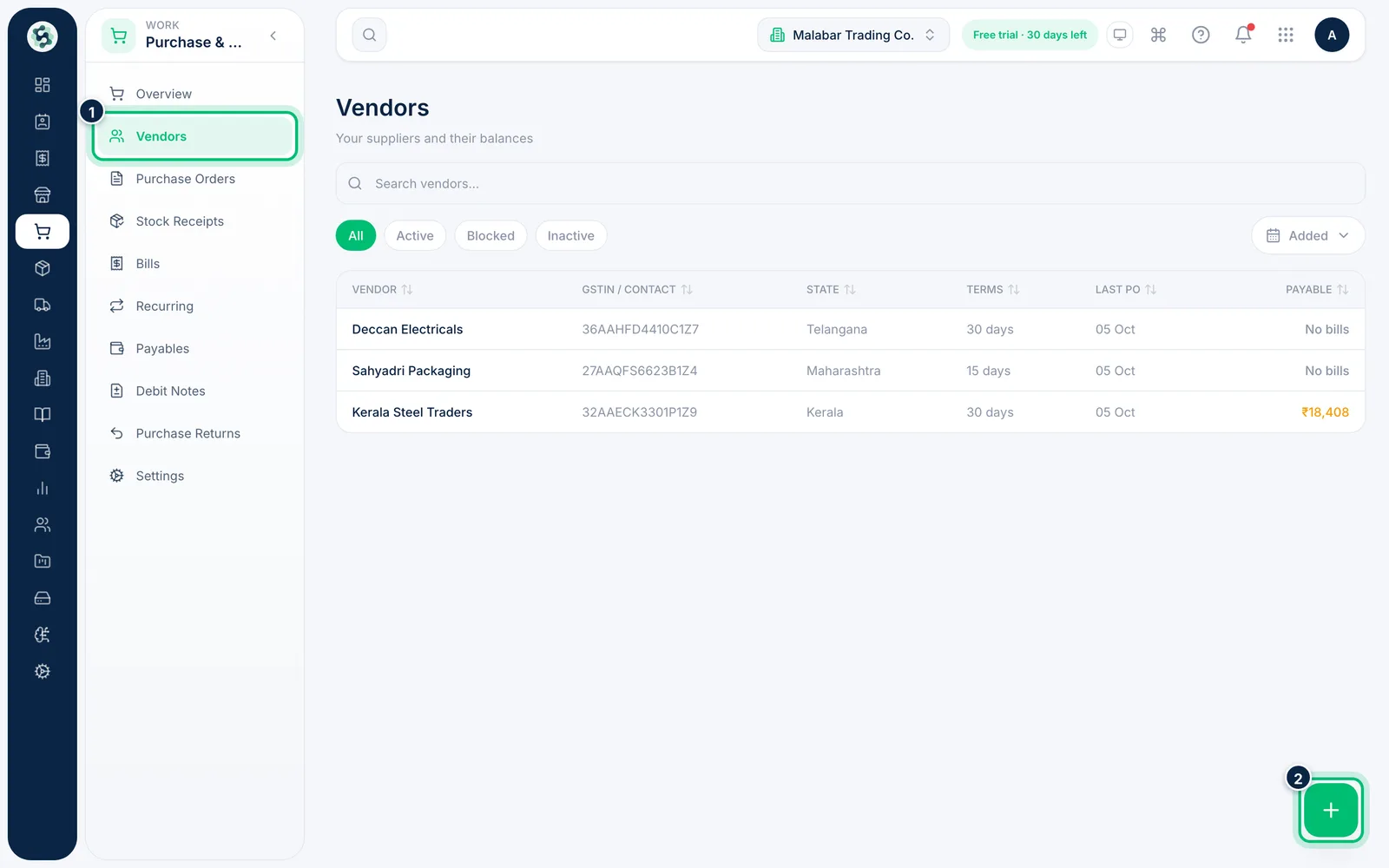
In the left menu open Purchase & Vendors → Vendors. The list shows every supplier with their GSTIN, state, terms and what you currently owe them. Choose the + button at the bottom right to add a vendor.
2Enter the vendor details
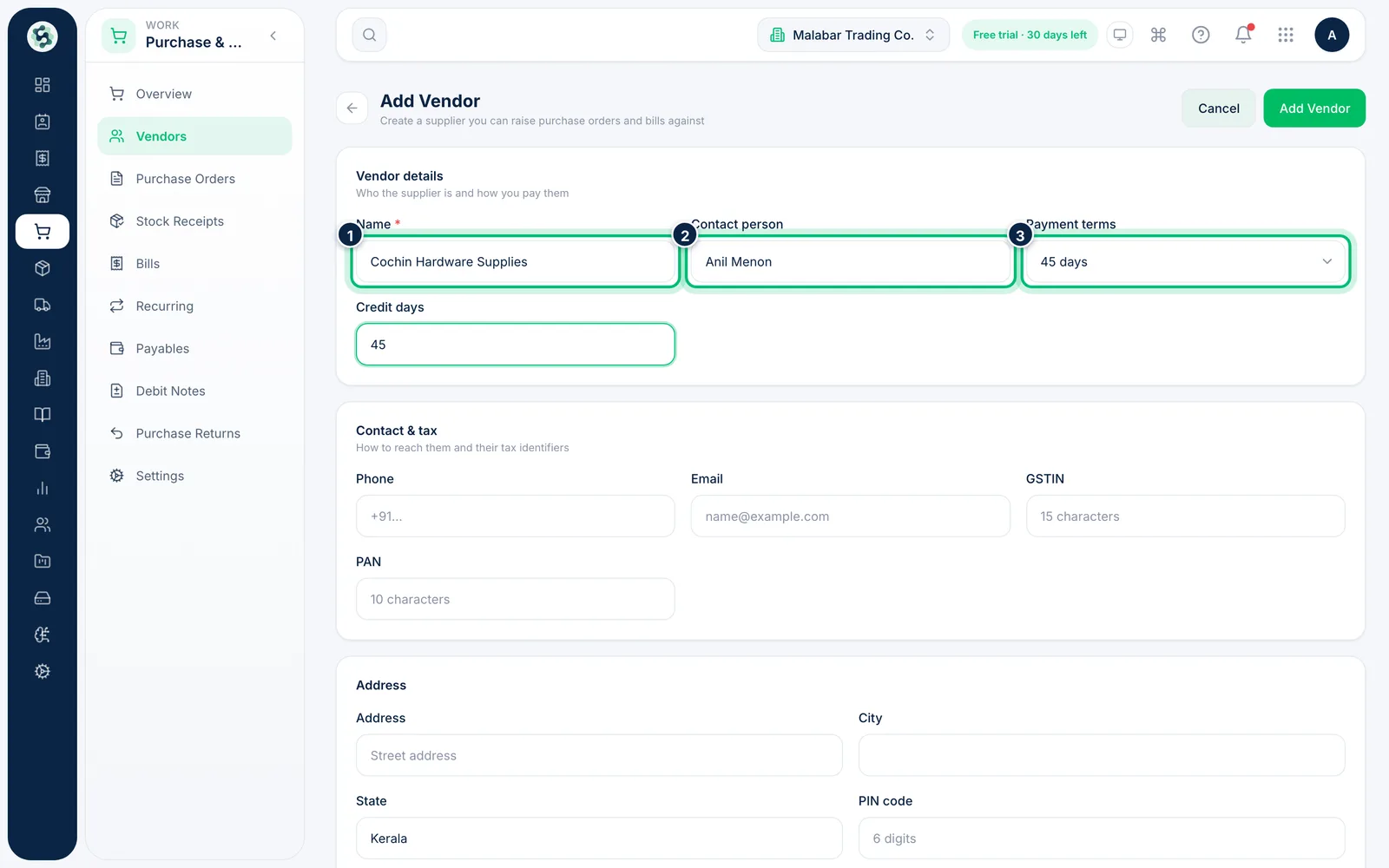
Type the vendor's Name and the Contact person you deal with. Choose their Payment terms and set the Credit days you get before a bill falls due.
3Add contact and tax details
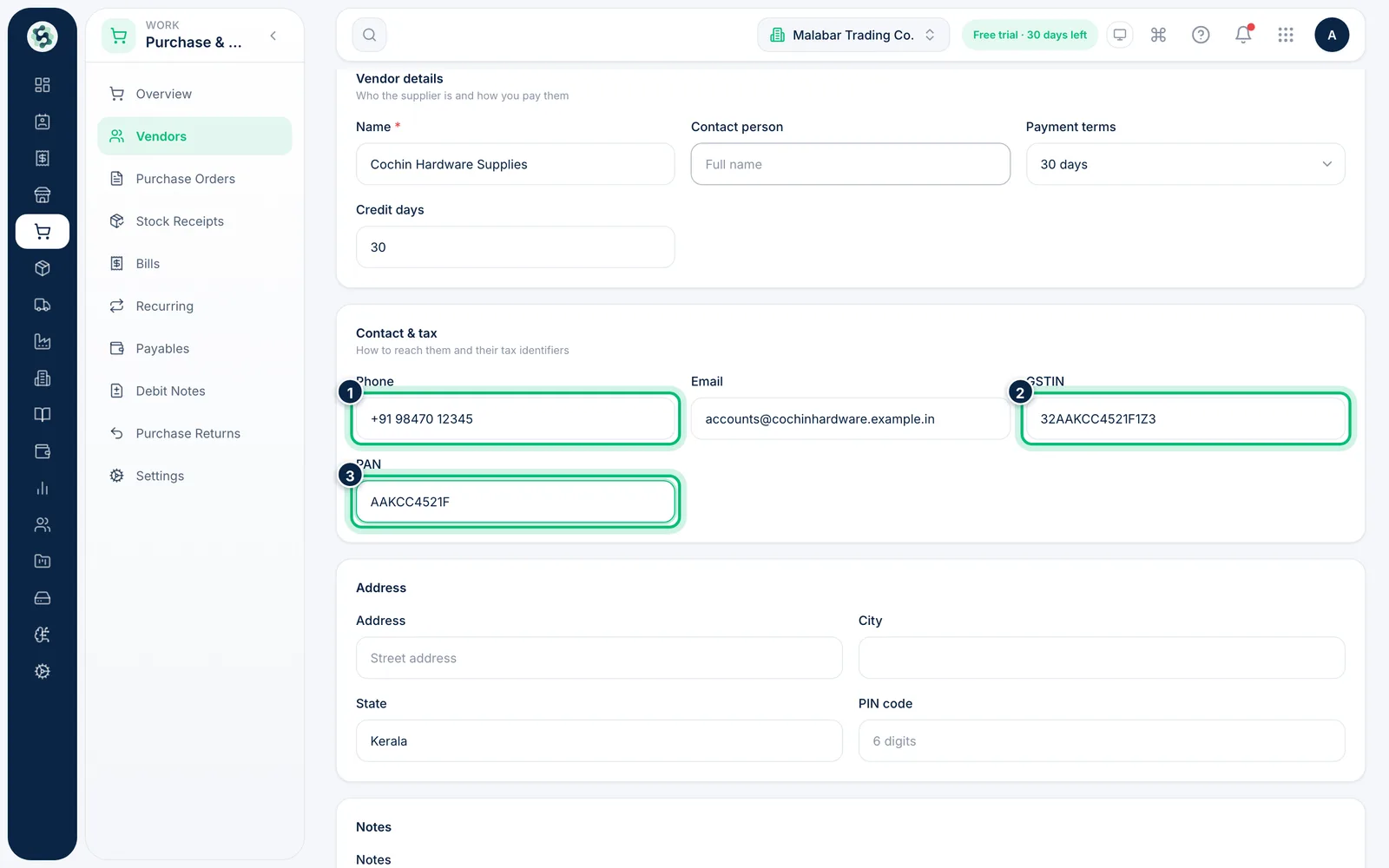
Under Contact & tax, add a Phone number and Email. Enter the vendor's GSTIN and PAN so bills from them show the right input tax — both are converted to capitals as you type.
4Add the address and save
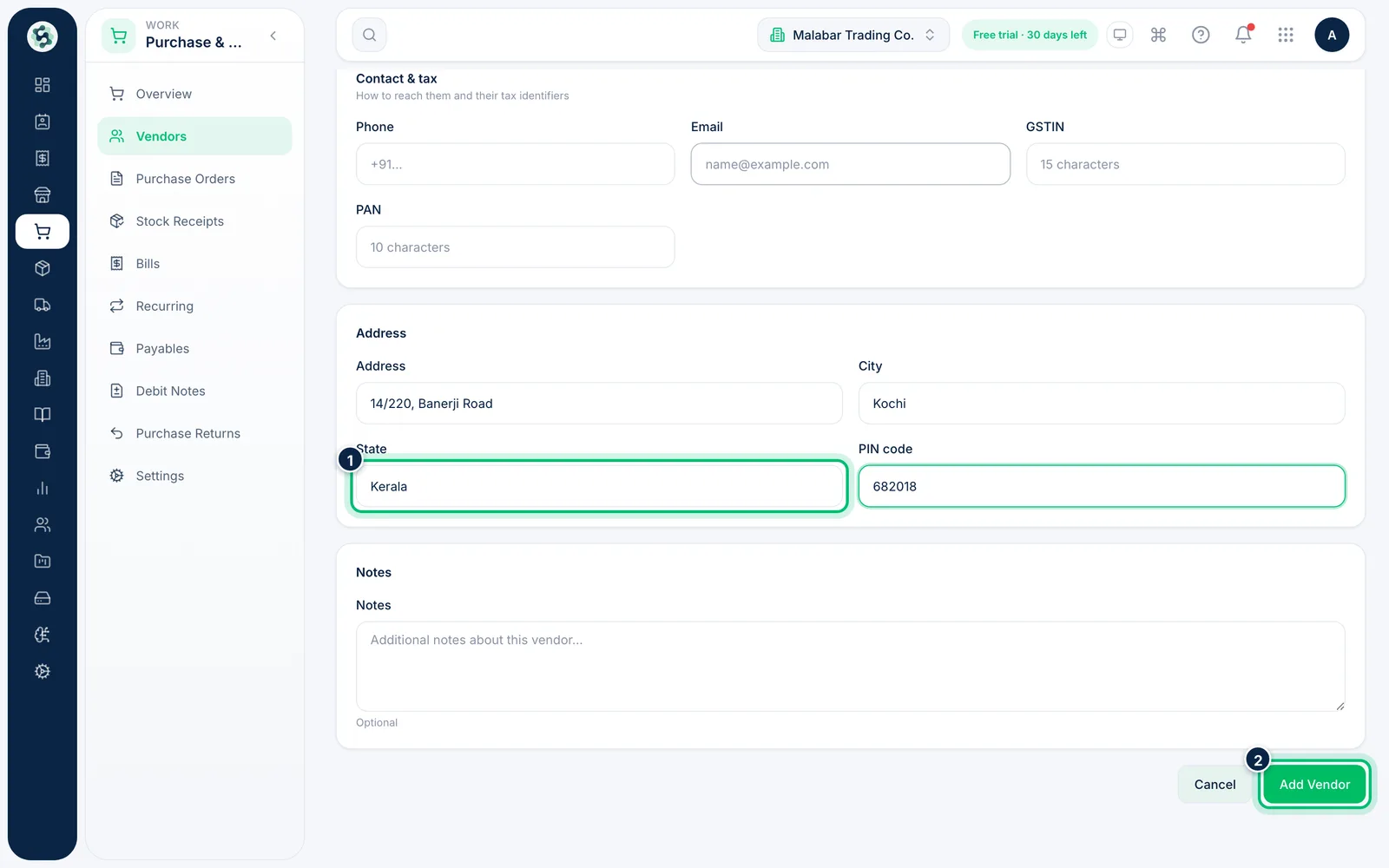
Fill in the Address, City and PIN code. State starts as your own state — change it for an out-of-state vendor, because it decides whether their bills carry IGST or CGST + SGST. Choose Add Vendor to save.
Related guides
Still stuck? Contact our support team — or start a free trial to try this in your own company.