
Purchasing & vendors · 5 steps
Record a vendor bill
Enter a vendor's invoice as a bill — from scratch or pre-filled from a purchase order — so it shows in what you owe.
Before you start: Add the vendor first. To pre-fill the lines, raise a purchase order for them.
1Start a new bill
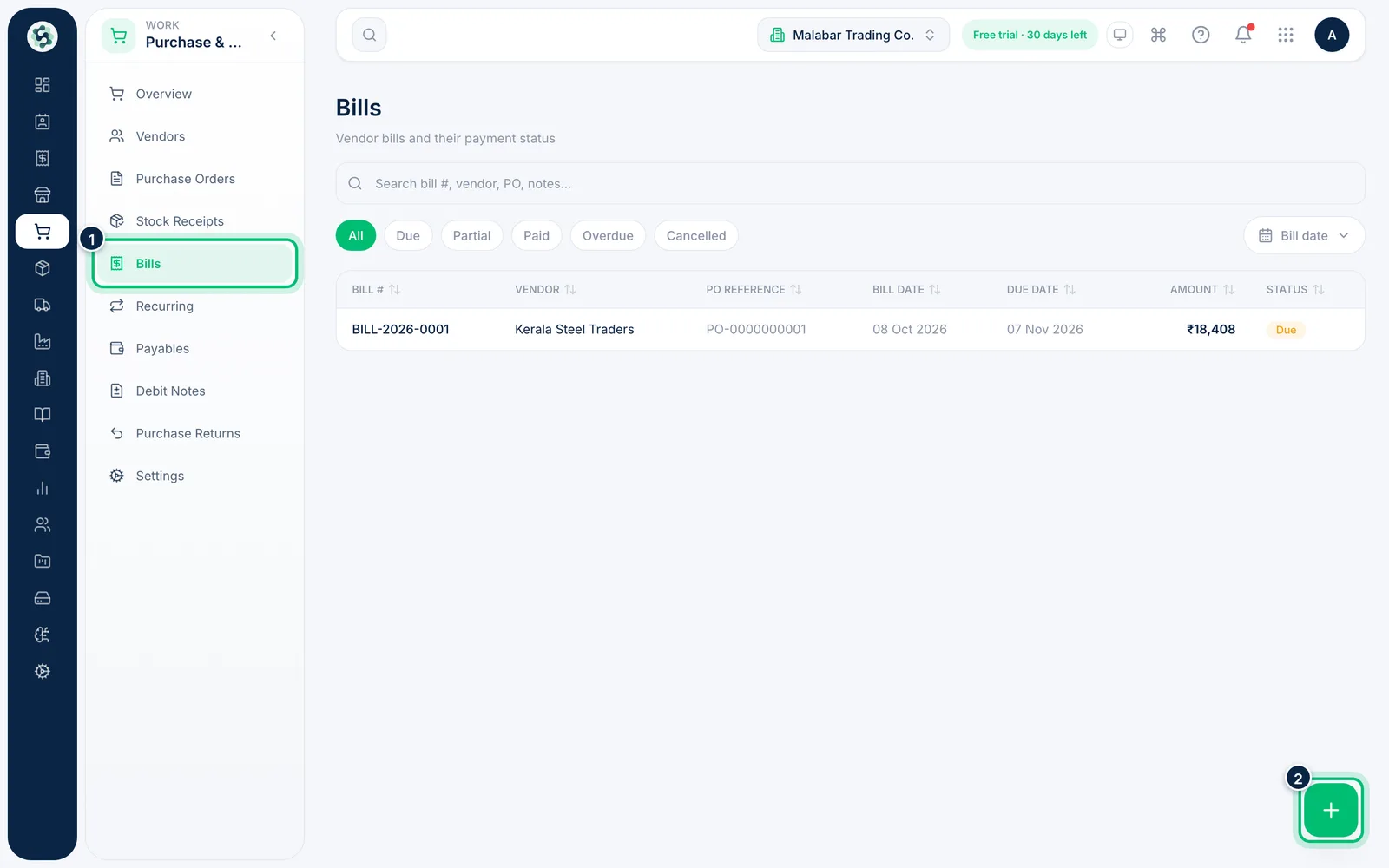
Go to Purchase & Vendors → Bills and choose the + button at the bottom right. You can also choose New Bill on the Purchase & Vendors overview.
2Pick the vendor and link a purchase order
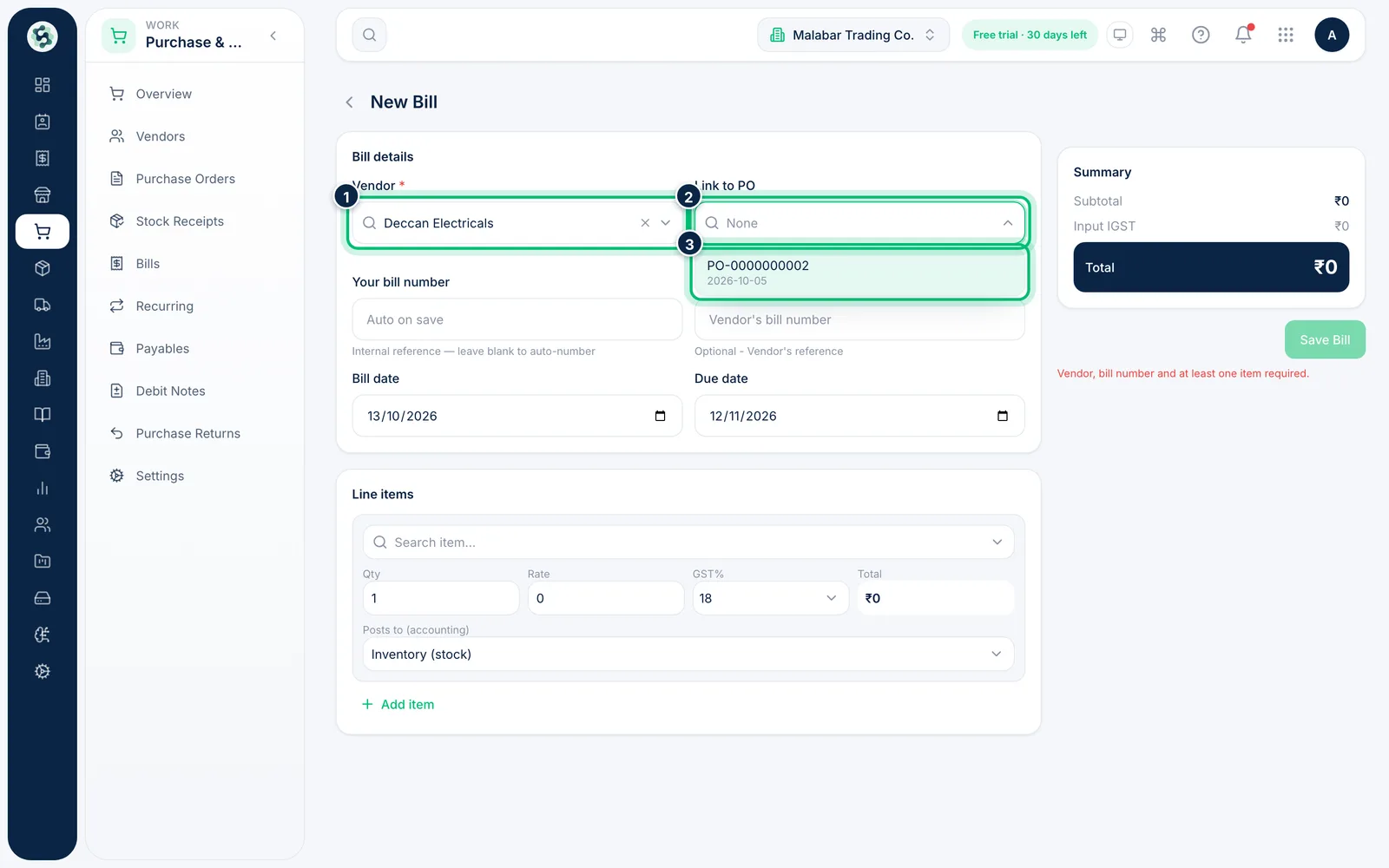
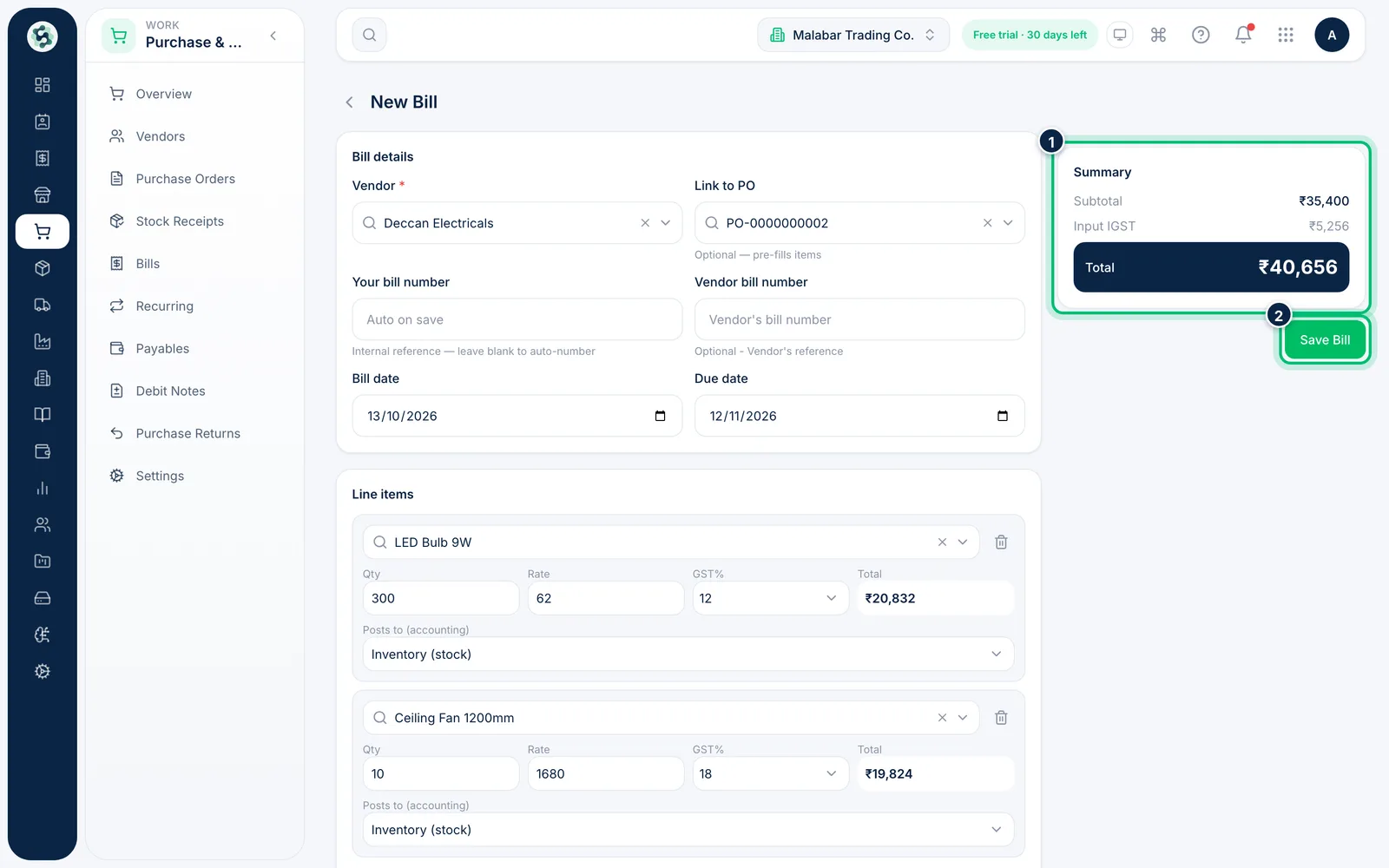
Choose the Vendor, then open Link to PO to see that vendor's purchase orders. Linking one is optional, but it copies the order's items, quantities and rates into the bill.
3Enter the bill numbers and dates
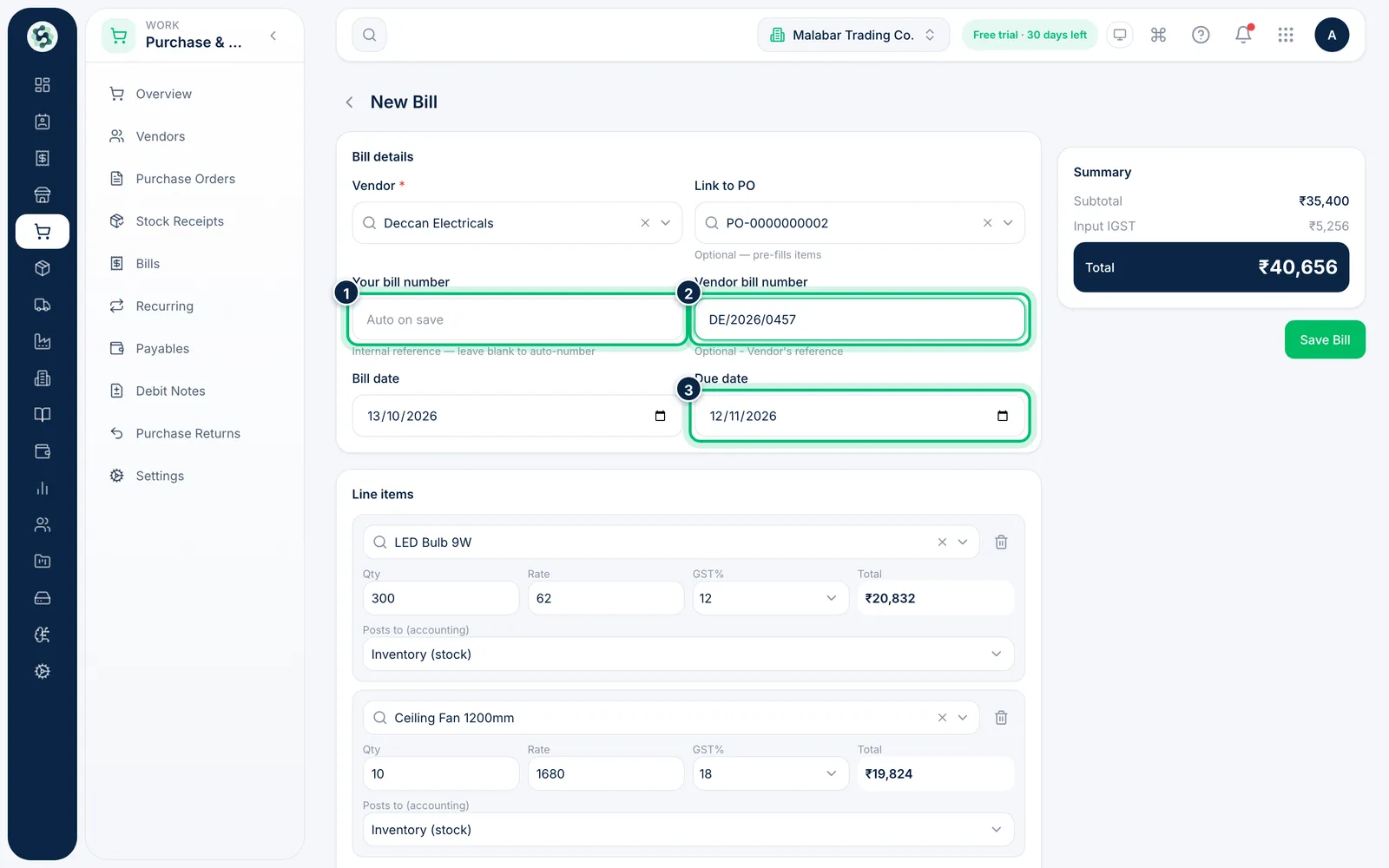
Leave Your bill number blank and Scalar360 gives the bill the next number in your series when you save (or type your own — duplicates are refused). Type the number printed on the vendor's invoice in Vendor bill number, then check the Bill date and Due date.
4Check the line items
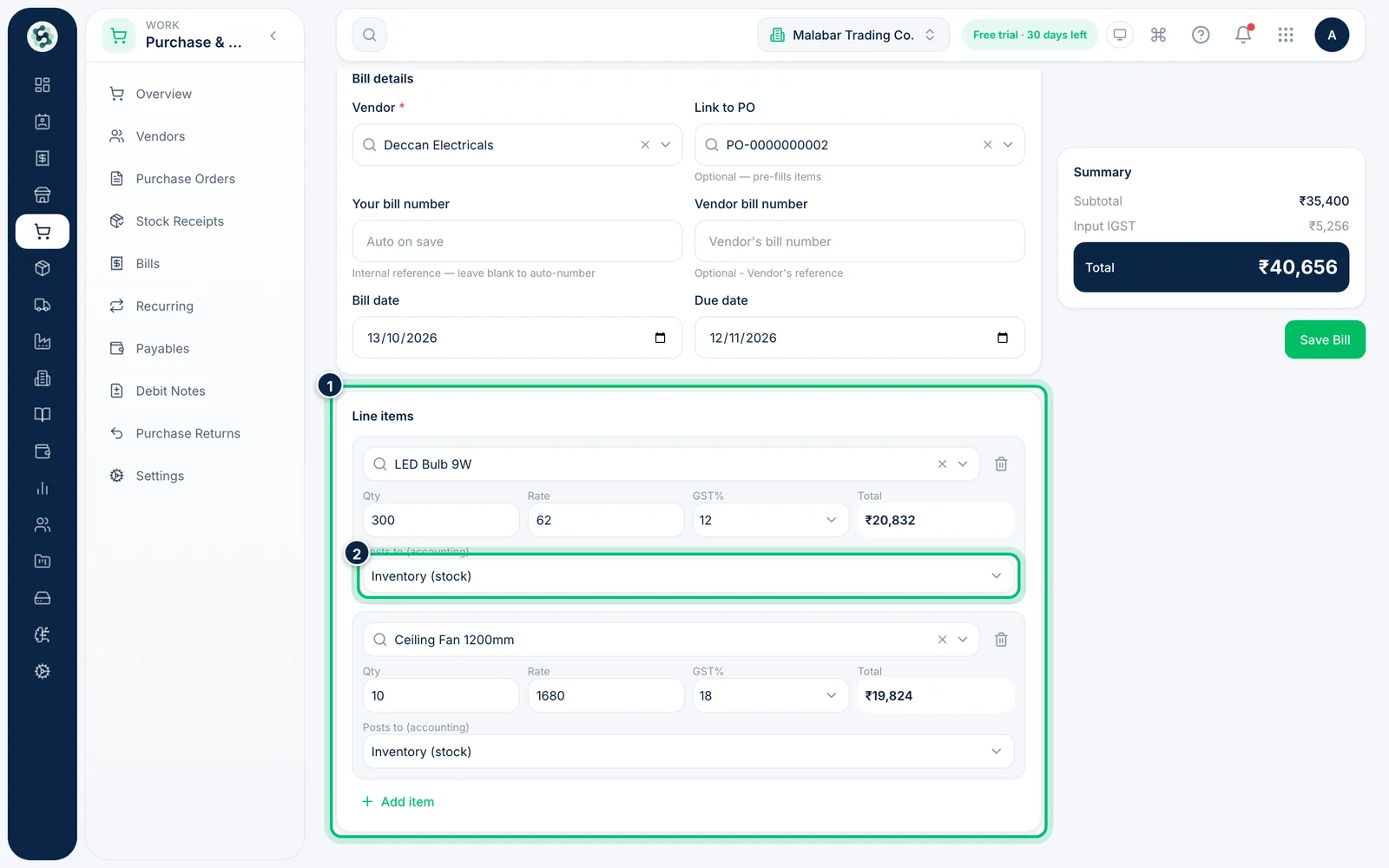
Make the Qty and Rate match the vendor's invoice. Posts to (accounting) decides where each line goes in your books: leave it on Inventory (stock) for goods you stock, or pick an expense account for services and overheads.
5Review the total and save
The Summary shows the subtotal, the input GST you can claim (Input IGST or Input CGST+SGST) and the total. Choose Save Bill — it then appears in Bills and Payables until it's paid.
Related guides
Still stuck? Contact our support team — or start a free trial to try this in your own company.