
Purchasing & vendors · 6 steps
Create a purchase order
Raise a purchase order to a vendor with items, rates and GST, then receive the stock and convert it to a bill.
Before you start: Add the vendor and the items you buy first.
1Open Purchase Orders
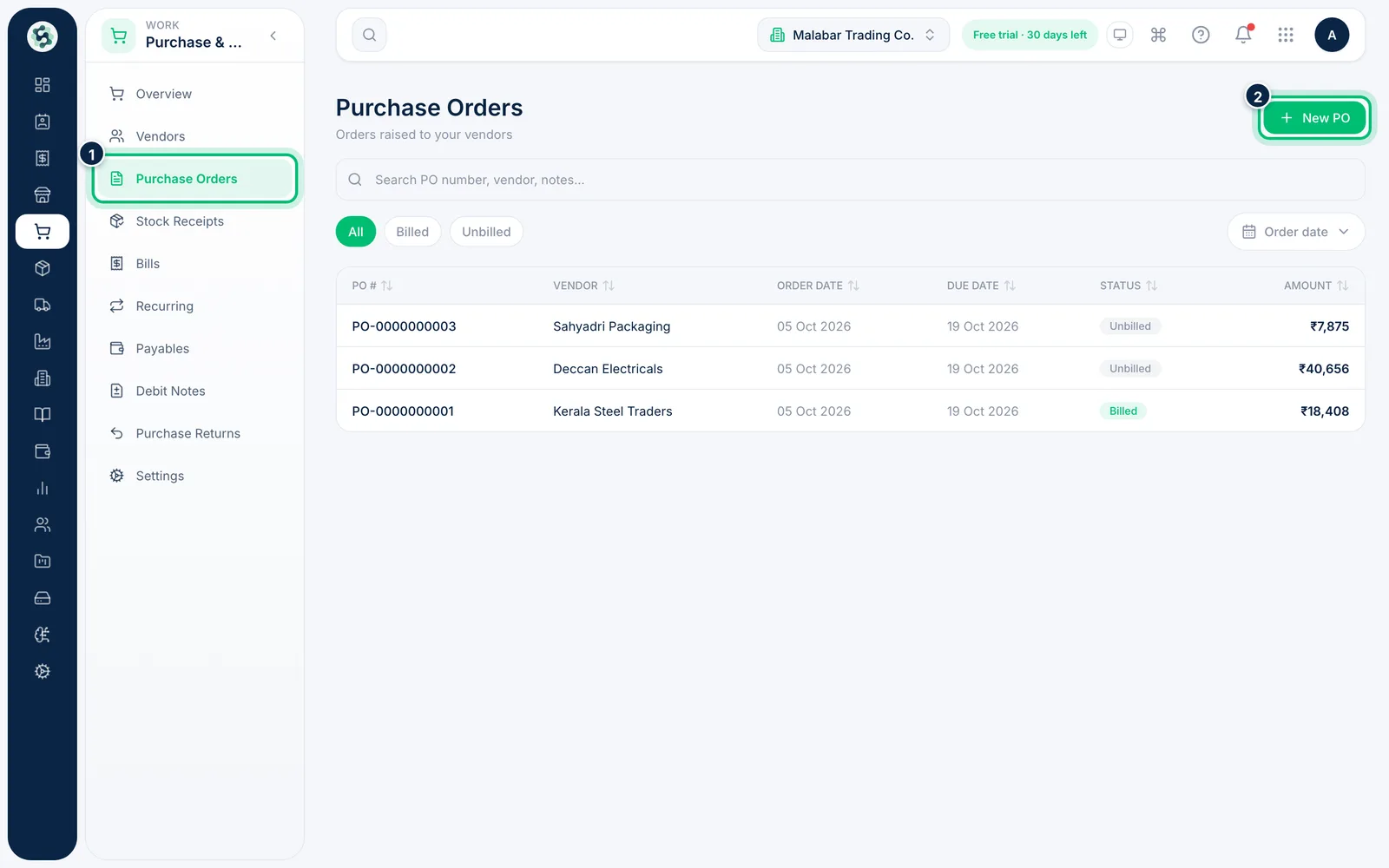
Go to Purchase & Vendors → Purchase Orders. Use the All, Billed and Unbilled chips to see which orders still need a bill. Choose New PO to start an order.
2Choose the vendor
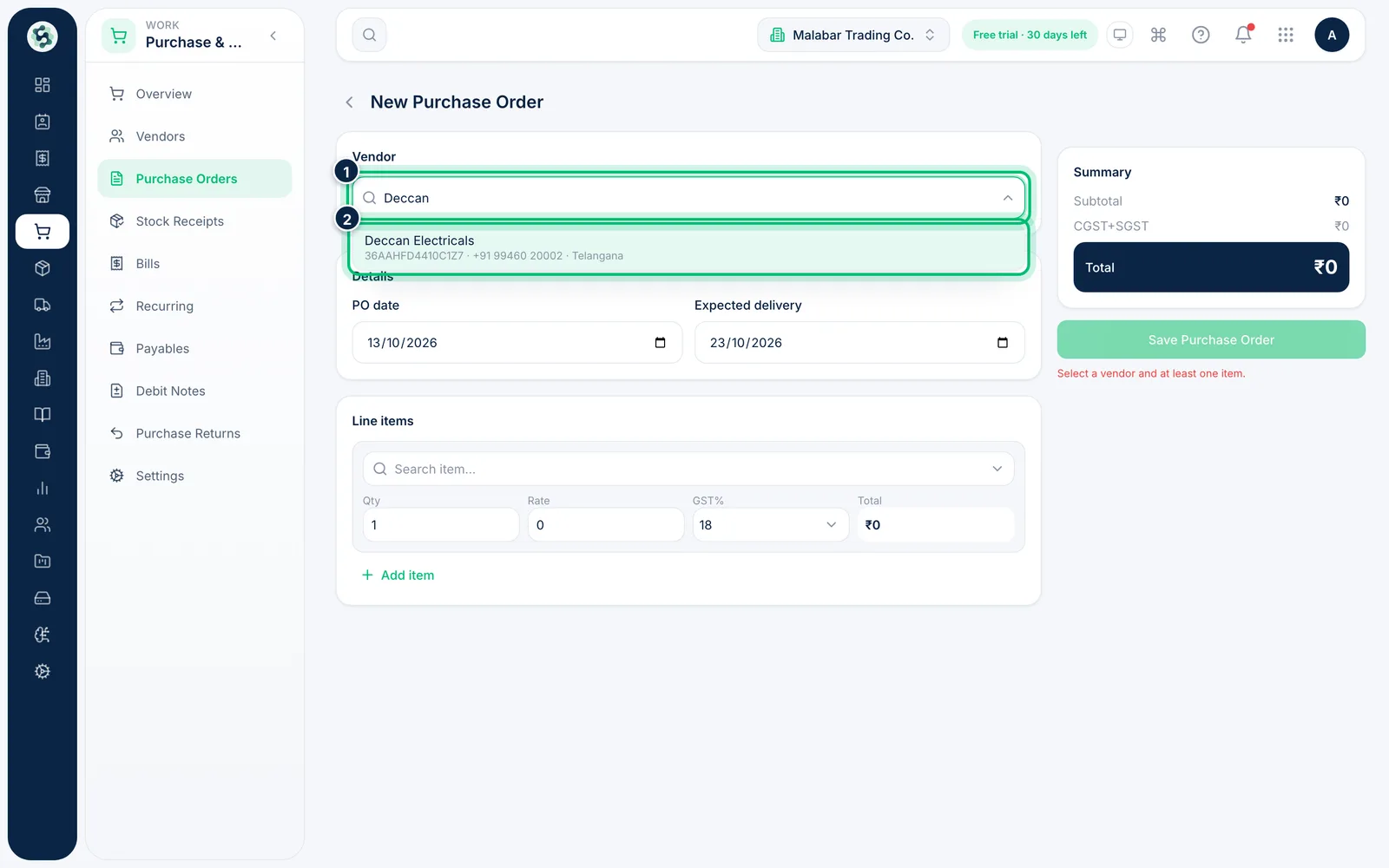
Click Search vendor... and start typing the vendor's name. Once you pick them, their GSTIN, state and payment terms appear under the box.
3Set the dates
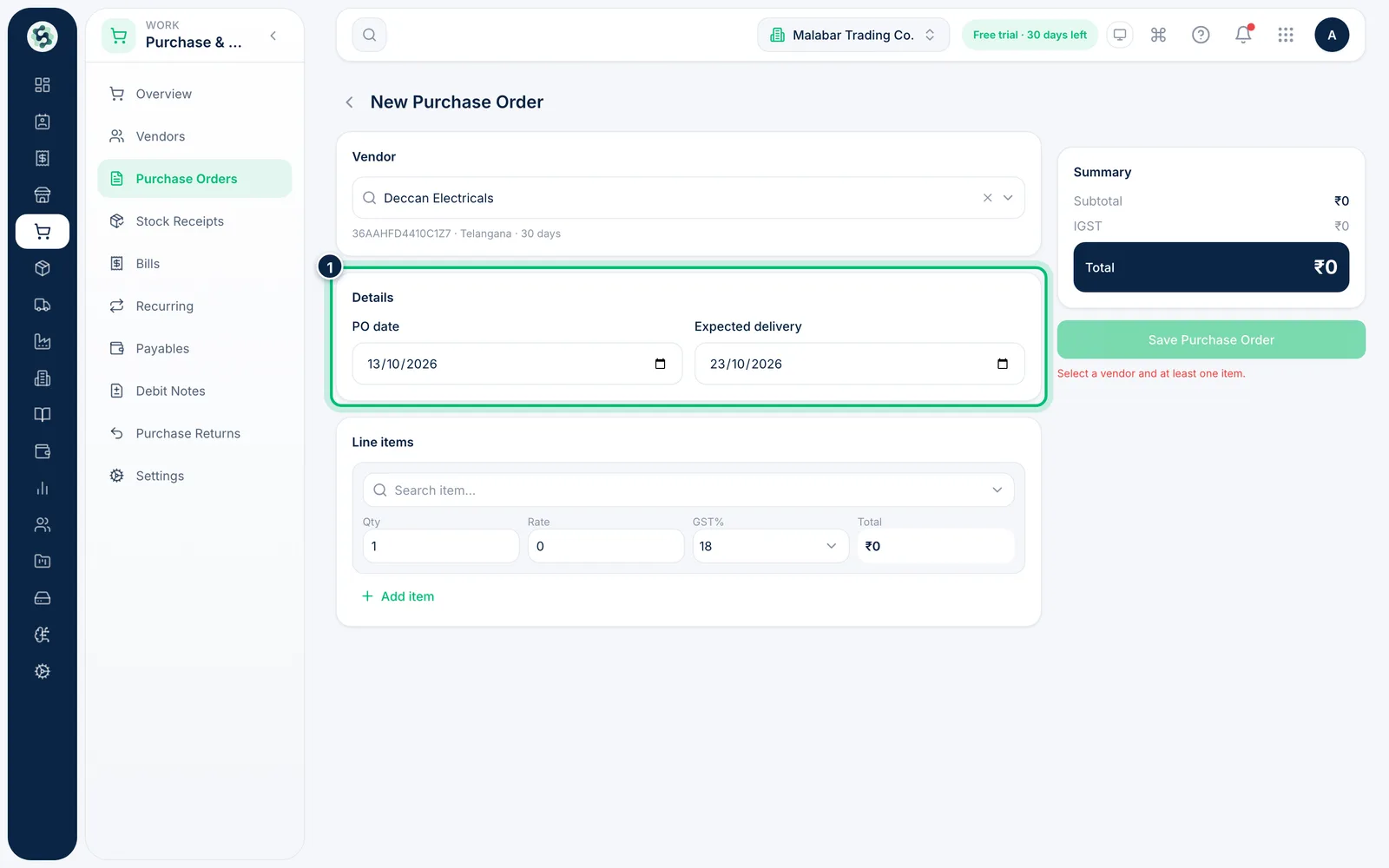
PO date starts as today and Expected delivery as ten days later. Change them to match what you've agreed with the vendor.
4Add the items
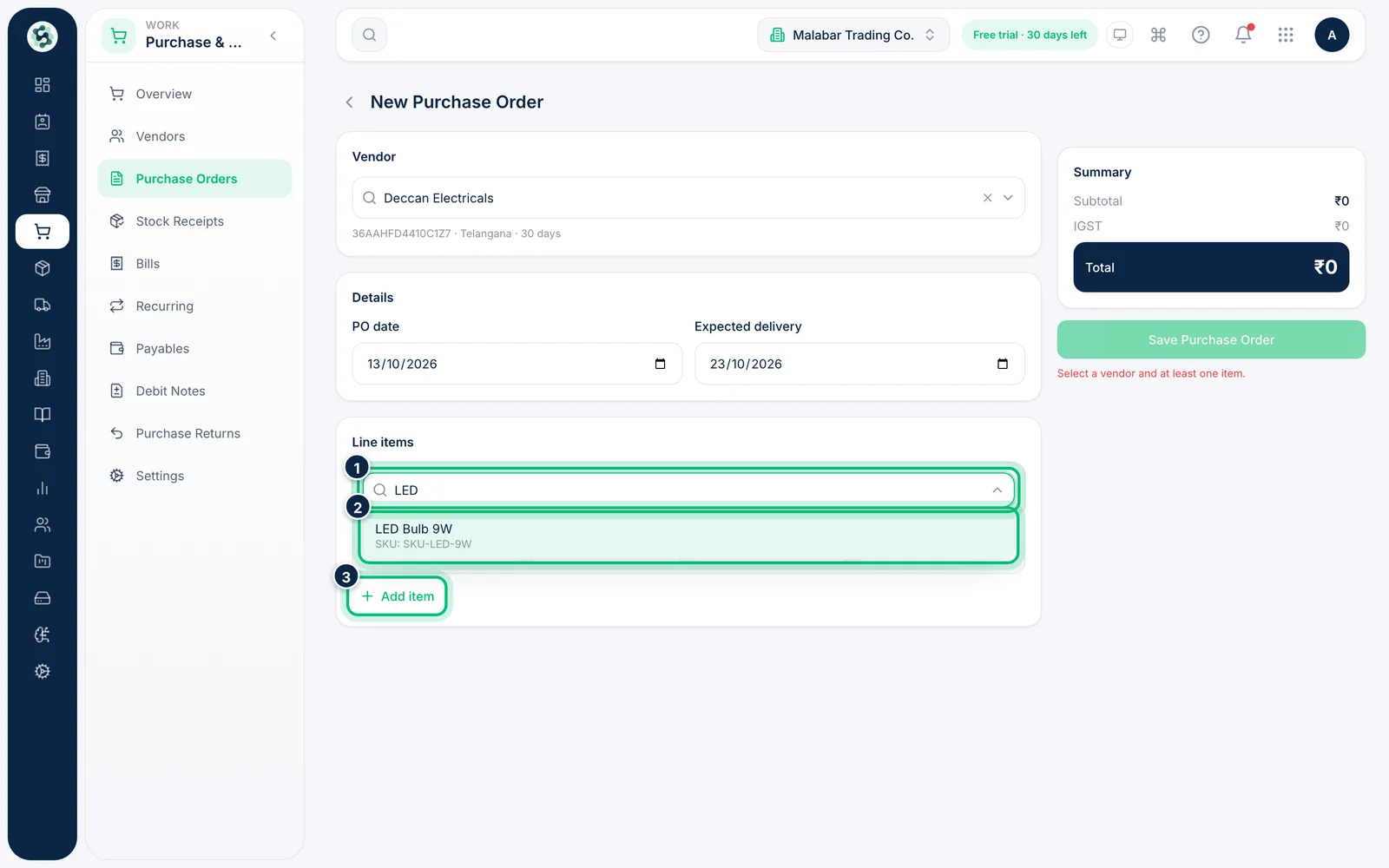
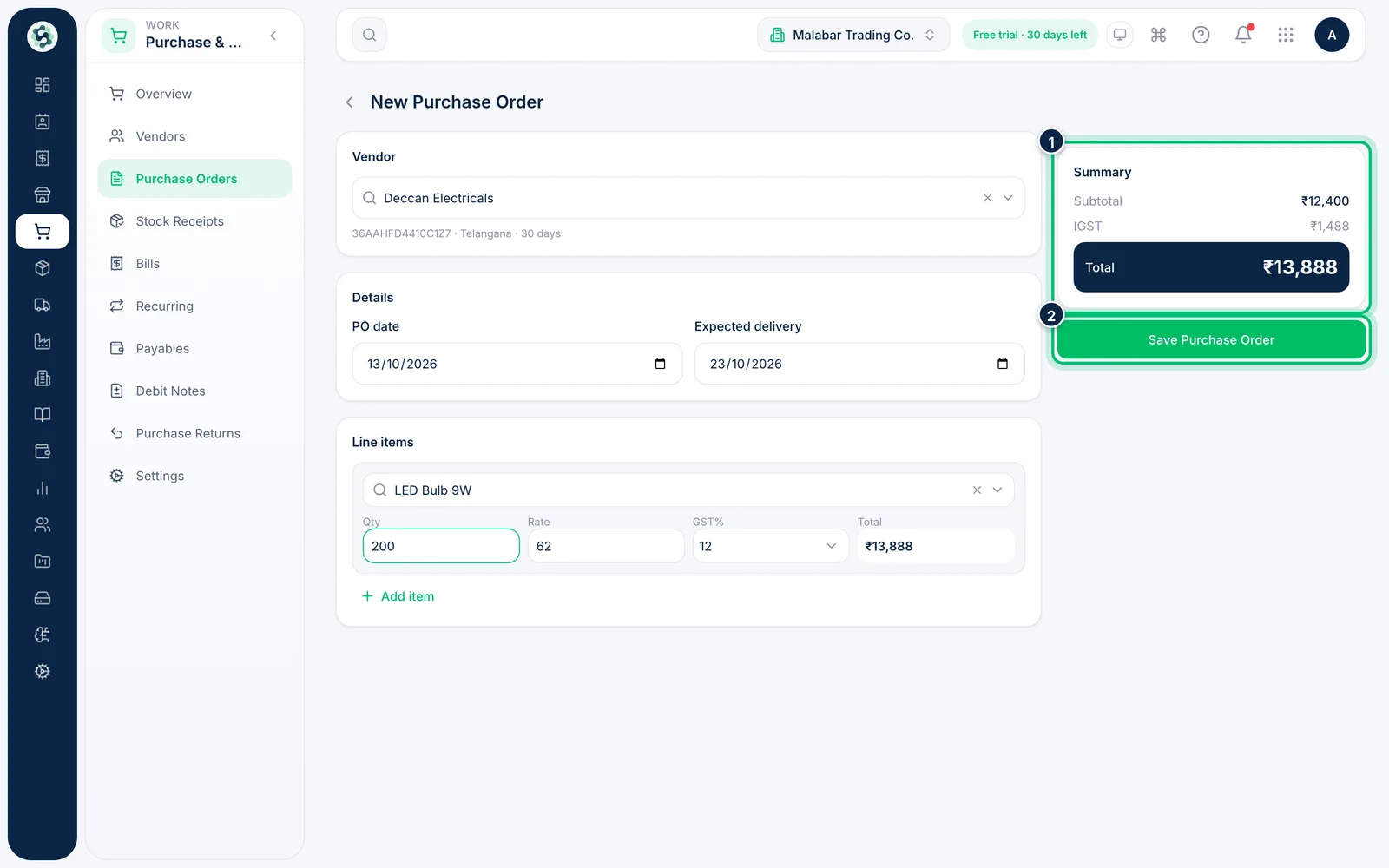
Under Line items, click Search item... and pick a product. Its cost price and GST rate are filled in for you; adjust the Qty, Rate or GST% for this order. Use Add item for more lines.
5Check the summary and save
The Summary shows the subtotal, the tax and the total. A vendor in another state is charged IGST; one in your own state is charged CGST+SGST. Choose Save Purchase Order to save it.
6Receive or bill the order later
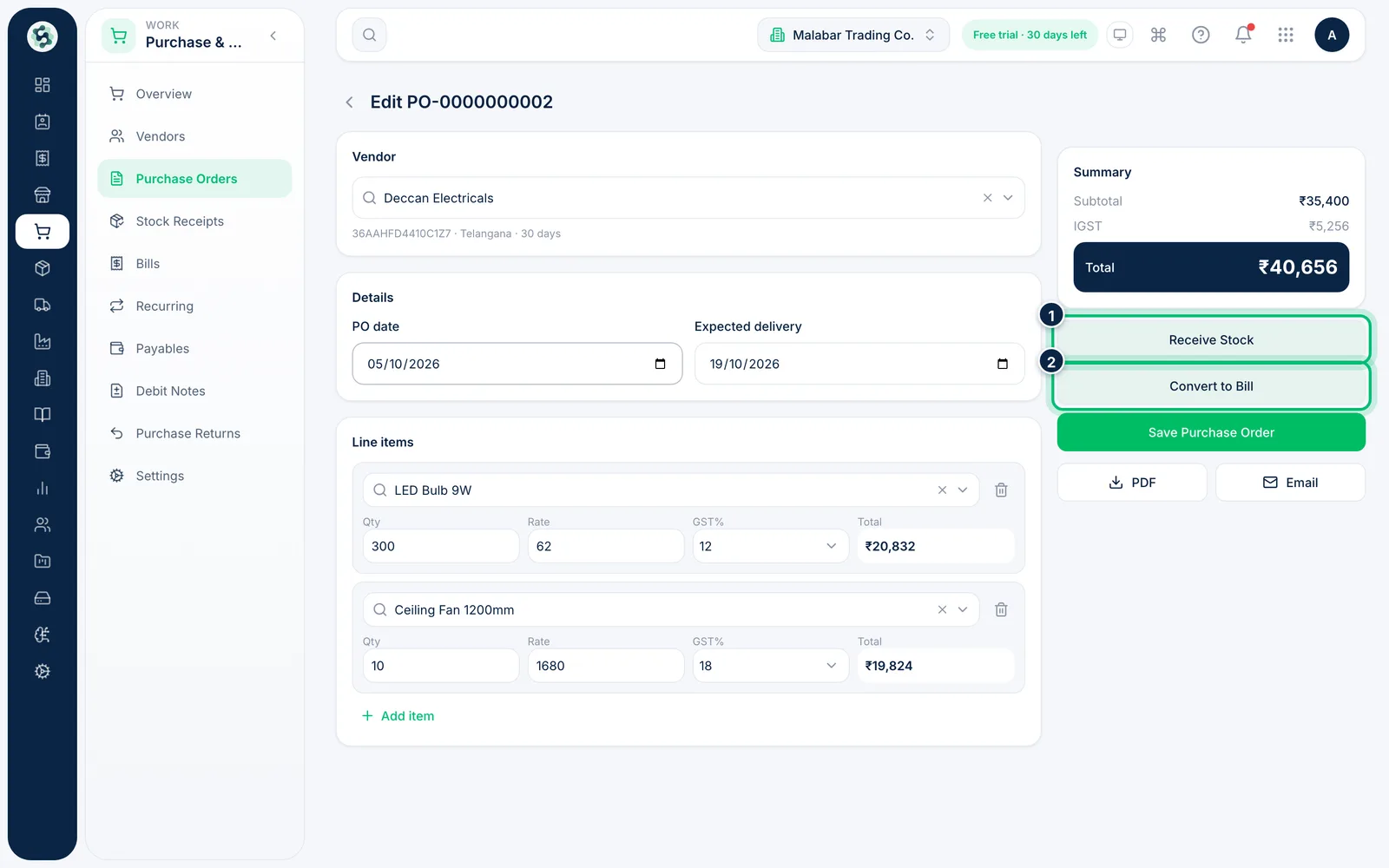
Open a saved order from the list to edit it. From there, choose Receive Stock when the goods arrive, or Convert to Bill when the vendor's invoice comes in.
Related guides
Still stuck? Contact our support team — or start a free trial to try this in your own company.