
Expenses · 4 steps
Set up recurring company expenses
Post rent, broadband, subscriptions and other regular company-paid costs automatically on a schedule.
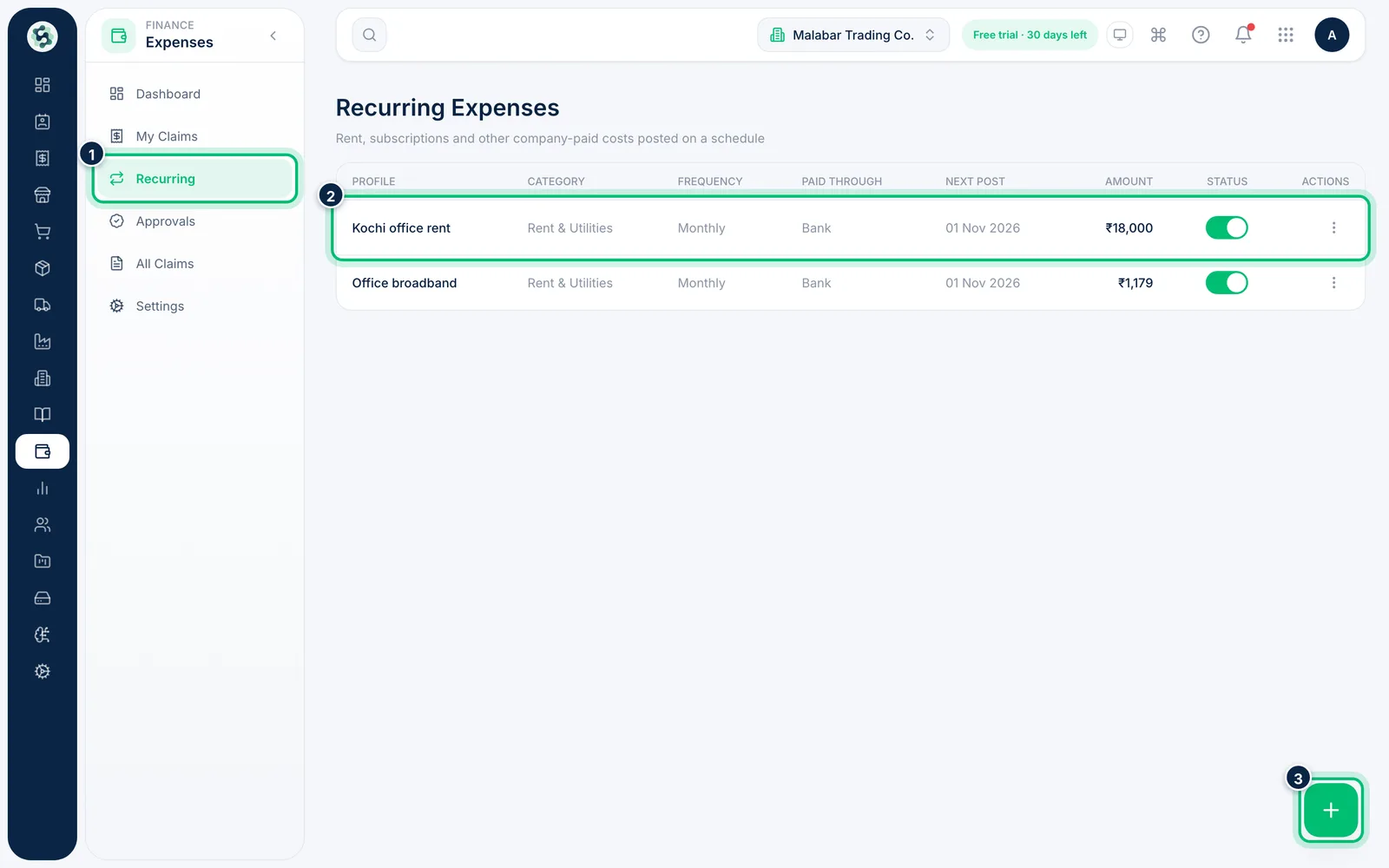
1Open Recurring
Go to Expenses → Recurring. Each schedule shows its category, how often it repeats, whether it's paid through bank or cash, the Next post date and the amount. Use the switch to pause or resume one. Choose the + button to add a schedule.
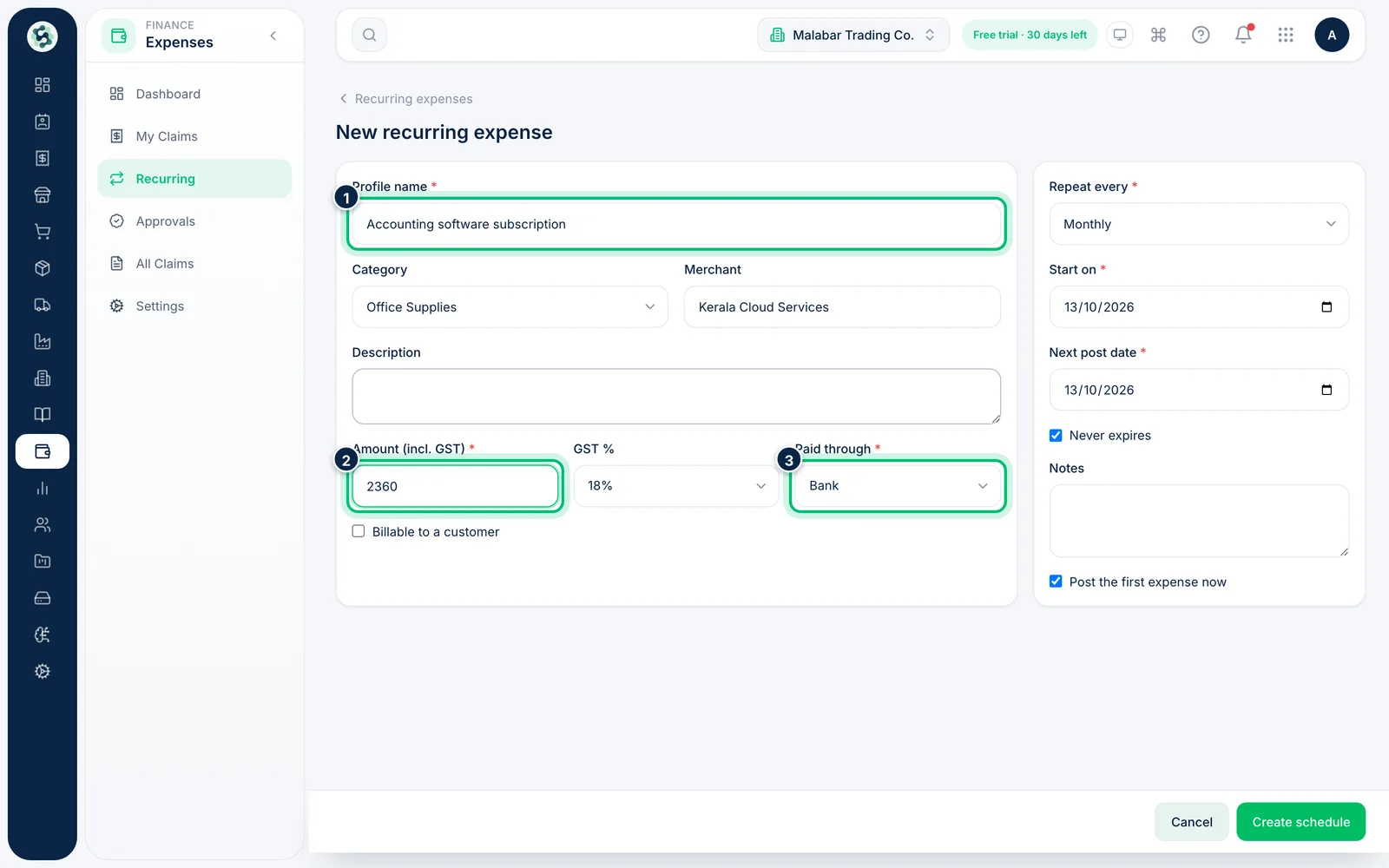
2Describe the expense
Enter a Profile name, choose the Category and the Merchant you pay. Enter the Amount (incl. GST), the GST % and whether it's Paid through bank or cash.
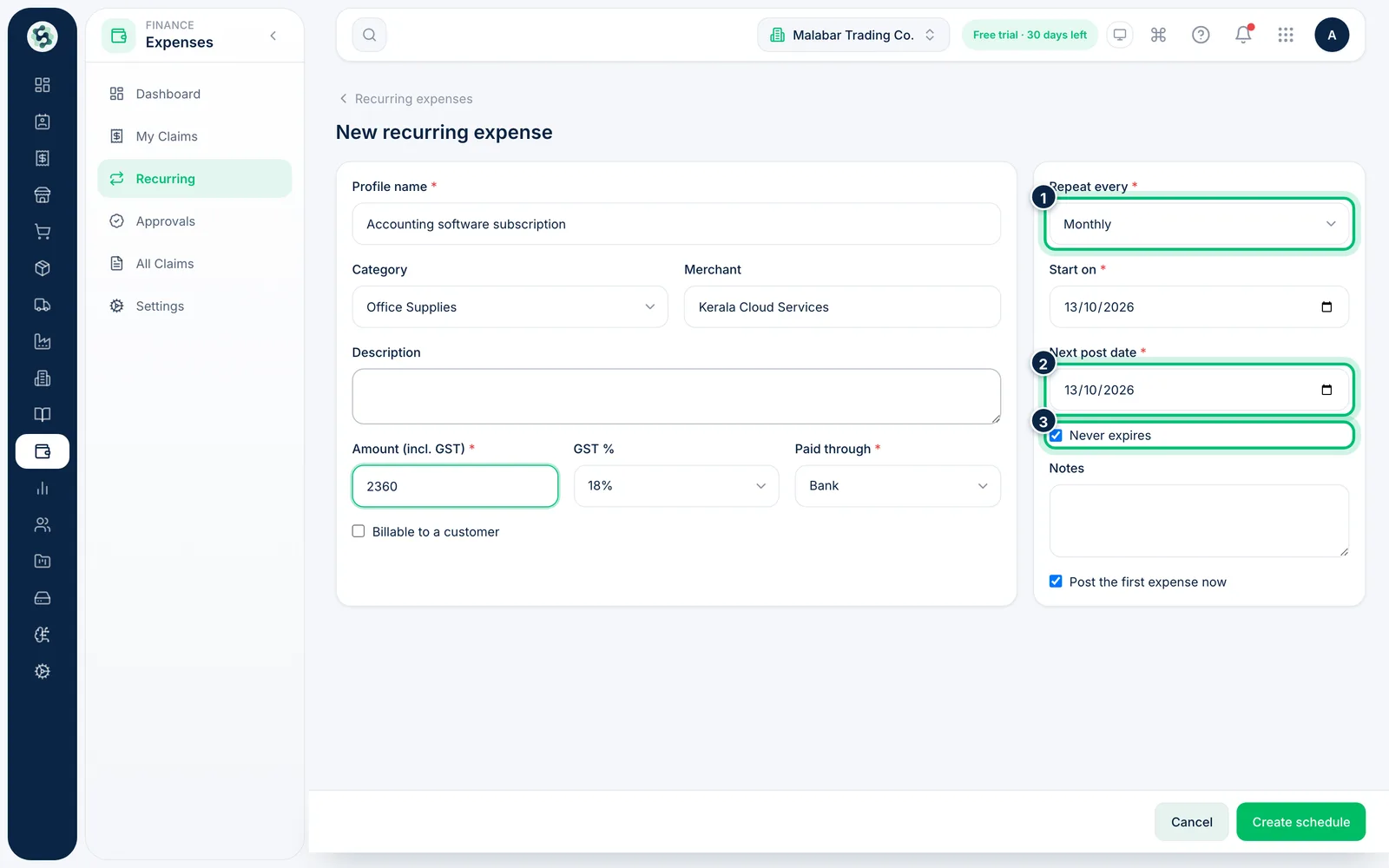
3Set the schedule
Choose how often it Repeat every — weekly, fortnightly, monthly, quarterly or yearly — and the Start on and Next post date. Leave Never expires ticked, or untick it to set an end date.
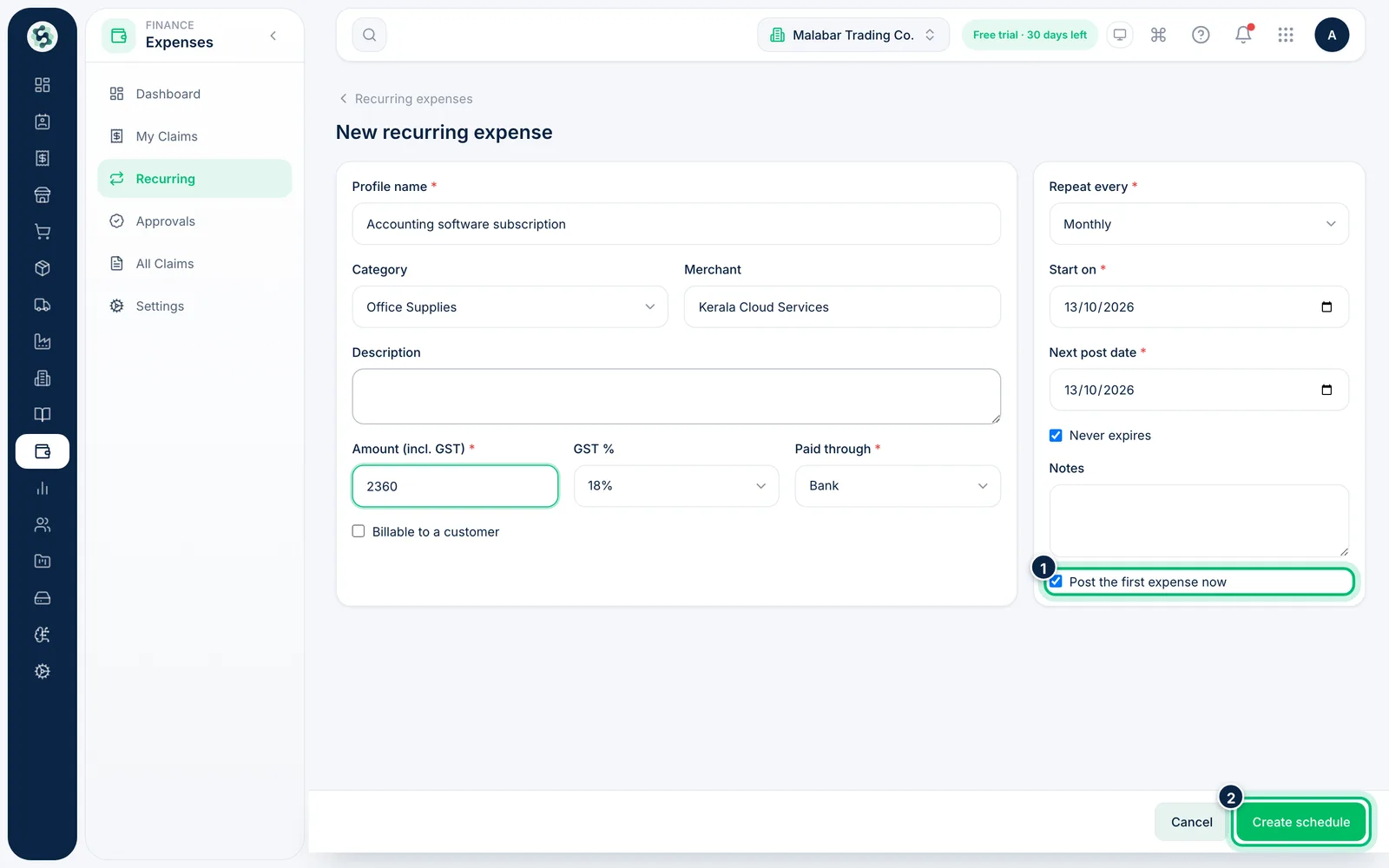
4Create the schedule
Leave Post the first expense now ticked to post this period straight away, then choose Create schedule. Each post appears as an approved, company-paid claim.
Related guides
Still stuck? Contact our support team — or start a free trial to try this in your own company.