
Sales & invoicing · 4 steps
View, download and share an invoice
Open any invoice to check its details, download the PDF, email it or share a link the customer can view and pay from.
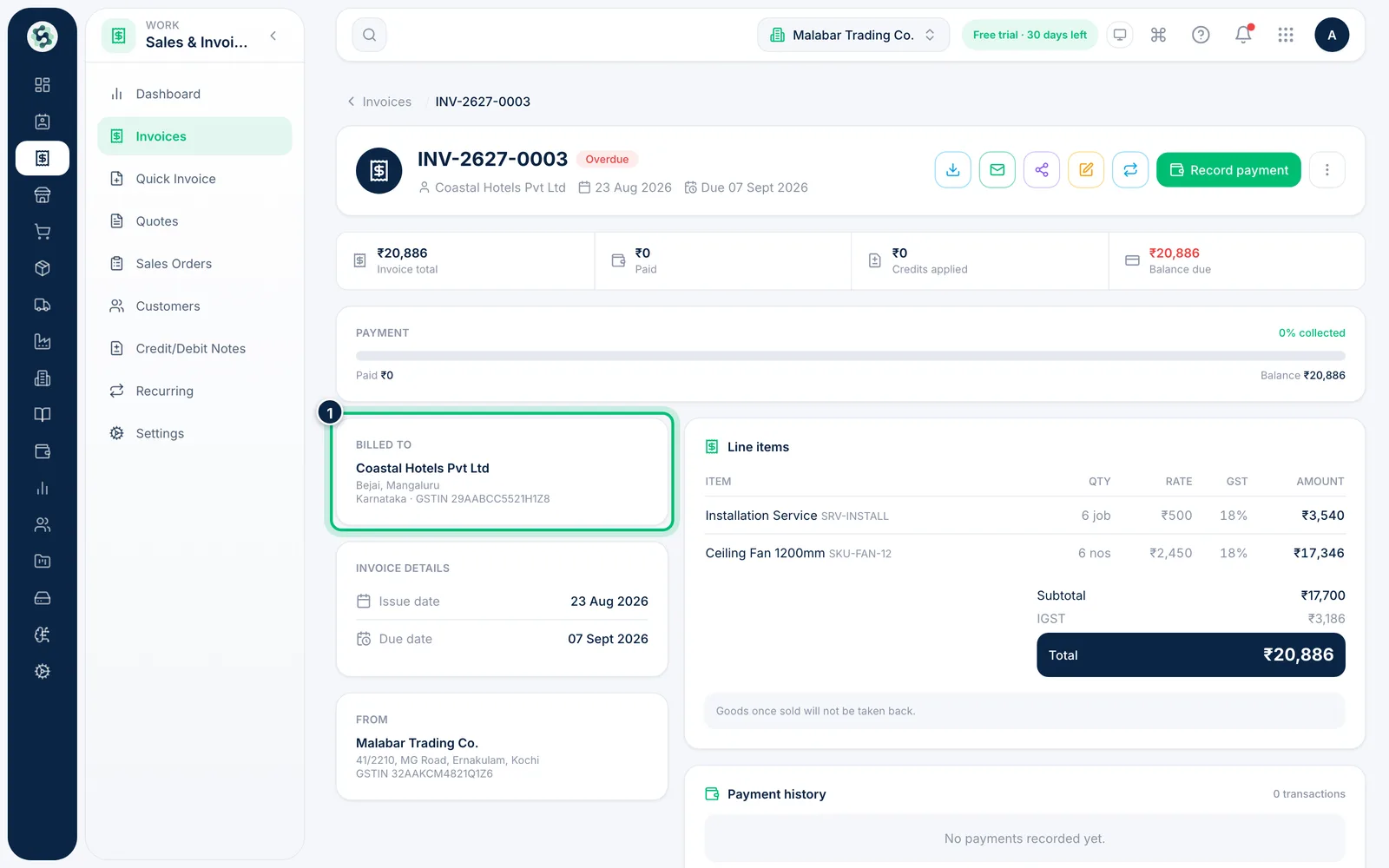
1Open the invoice
Click an invoice in Sales & Invoicing → Invoices. You'll see who it's Billed to, the line items with the GST split, payments received and any credit notes.
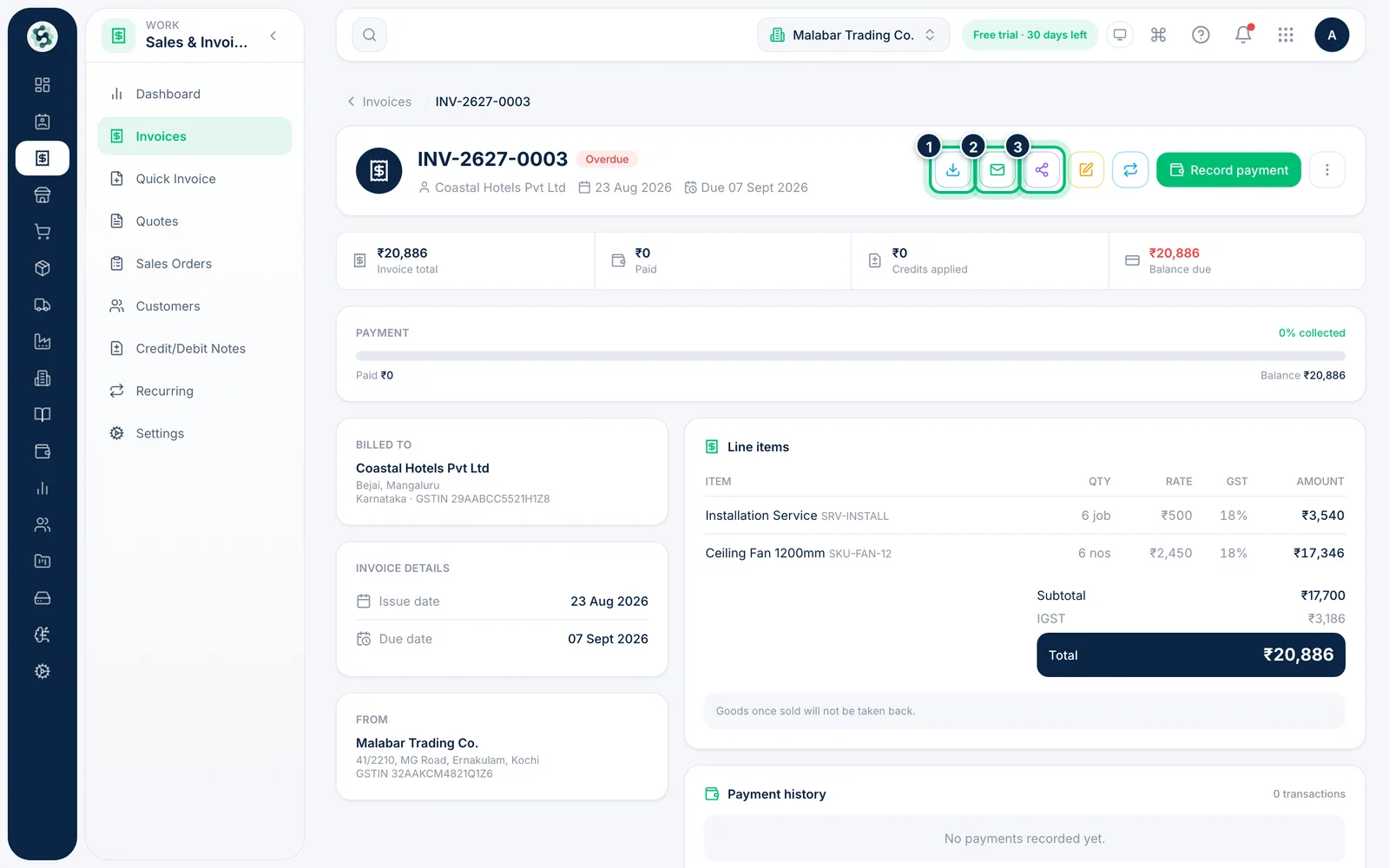
2Download, email or share
The buttons at the top let you Download PDF, Email invoice to the customer, or Share a link. Hover over a button to see its name.
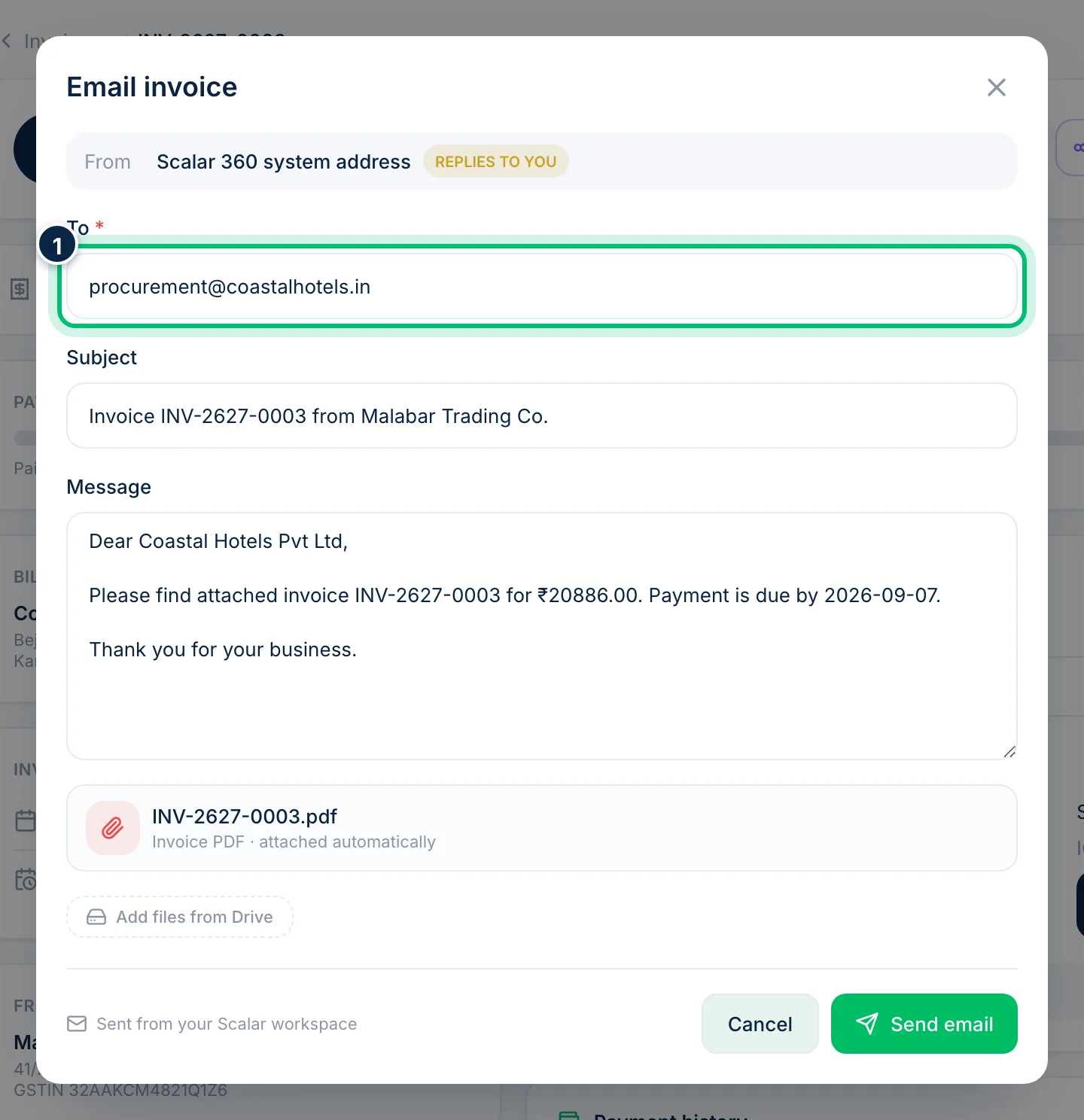
3Email the invoice
Email invoice opens a ready-made message. Check To, Subject and Message, then choose Send email. The invoice PDF is attached automatically, and you can use Add files from Drive to attach more.
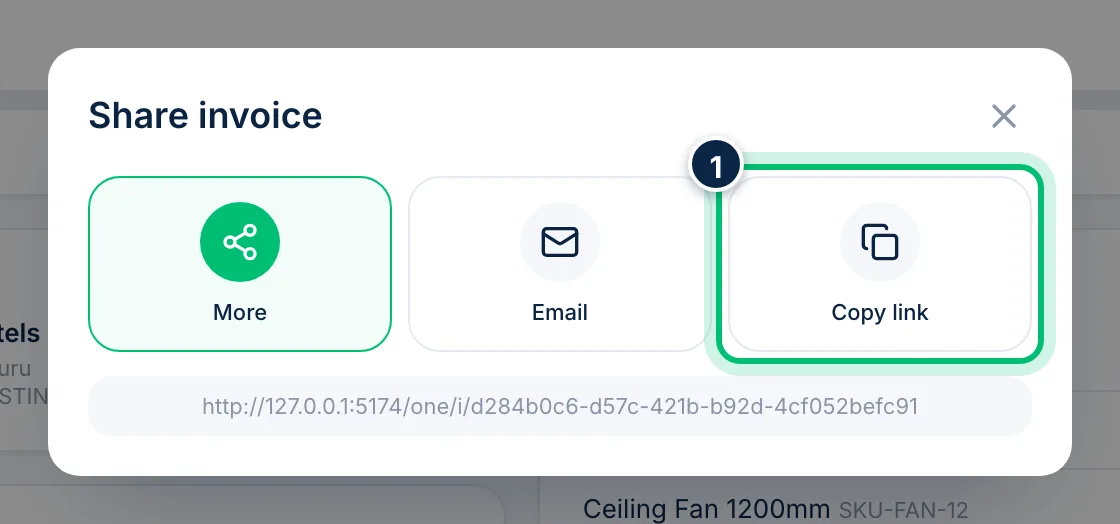
4Share a link
Share gives you the invoice link to send any way you like — Copy link and paste it into WhatsApp or a chat, or use Email to open your own mail app. The customer can view and pay from the link.
Related guides
Still stuck? Contact our support team — or start a free trial to try this in your own company.