
Super Intelligence (AI & API) · 4 steps
Approve an app and choose Read only or Read & write
Check what an AI app is asking for on the Scalar360 approval screen and decide how much it may do.
Before you start: The approval screen opens in your browser when you finish connecting an app. Sign in to Scalar360 if asked.
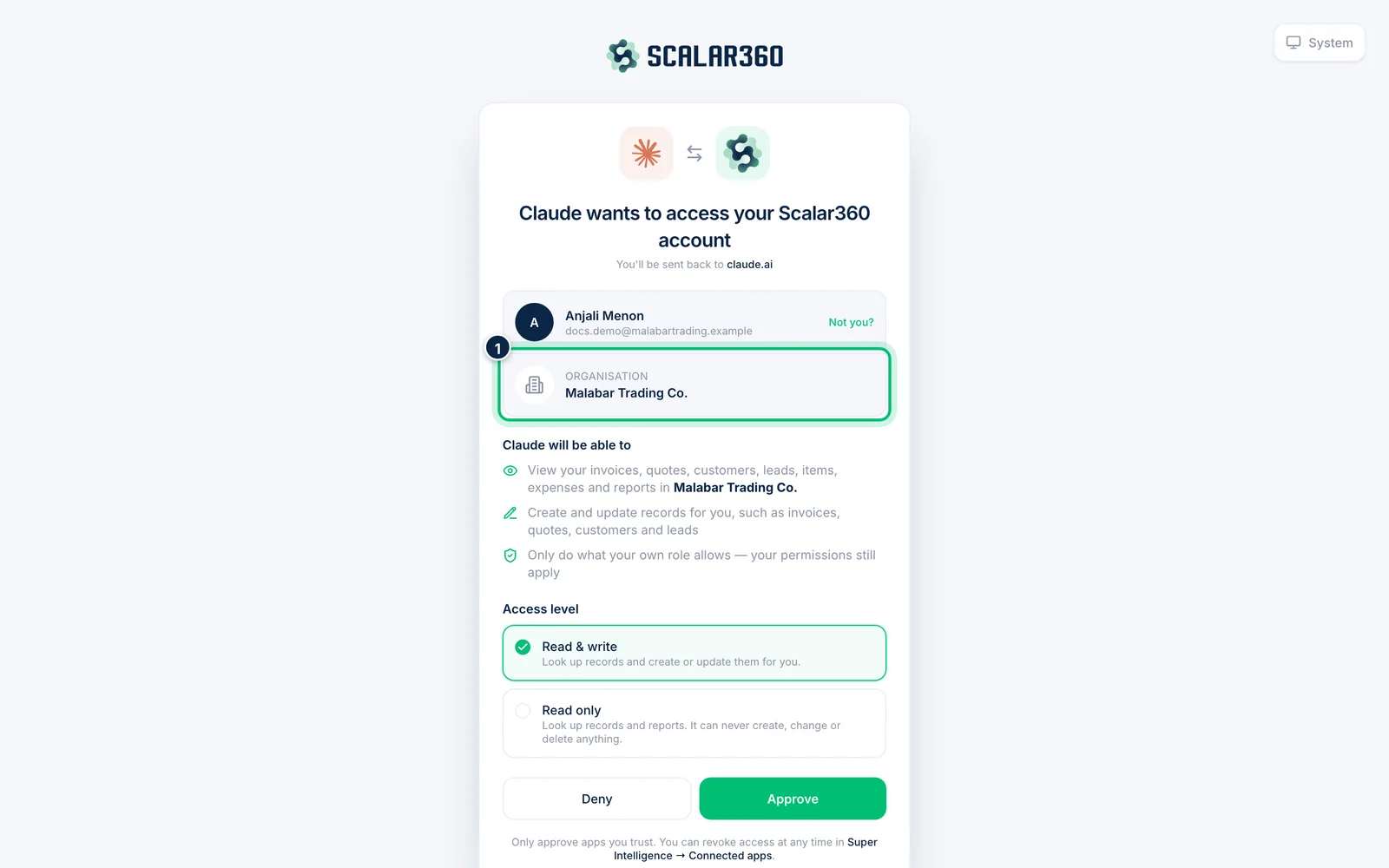
1Check who is asking and for which organisation
The page says the app wants to access your Scalar360 account. Confirm the signed-in user and the Organisation are the ones you mean. If not, use the switch-account link.
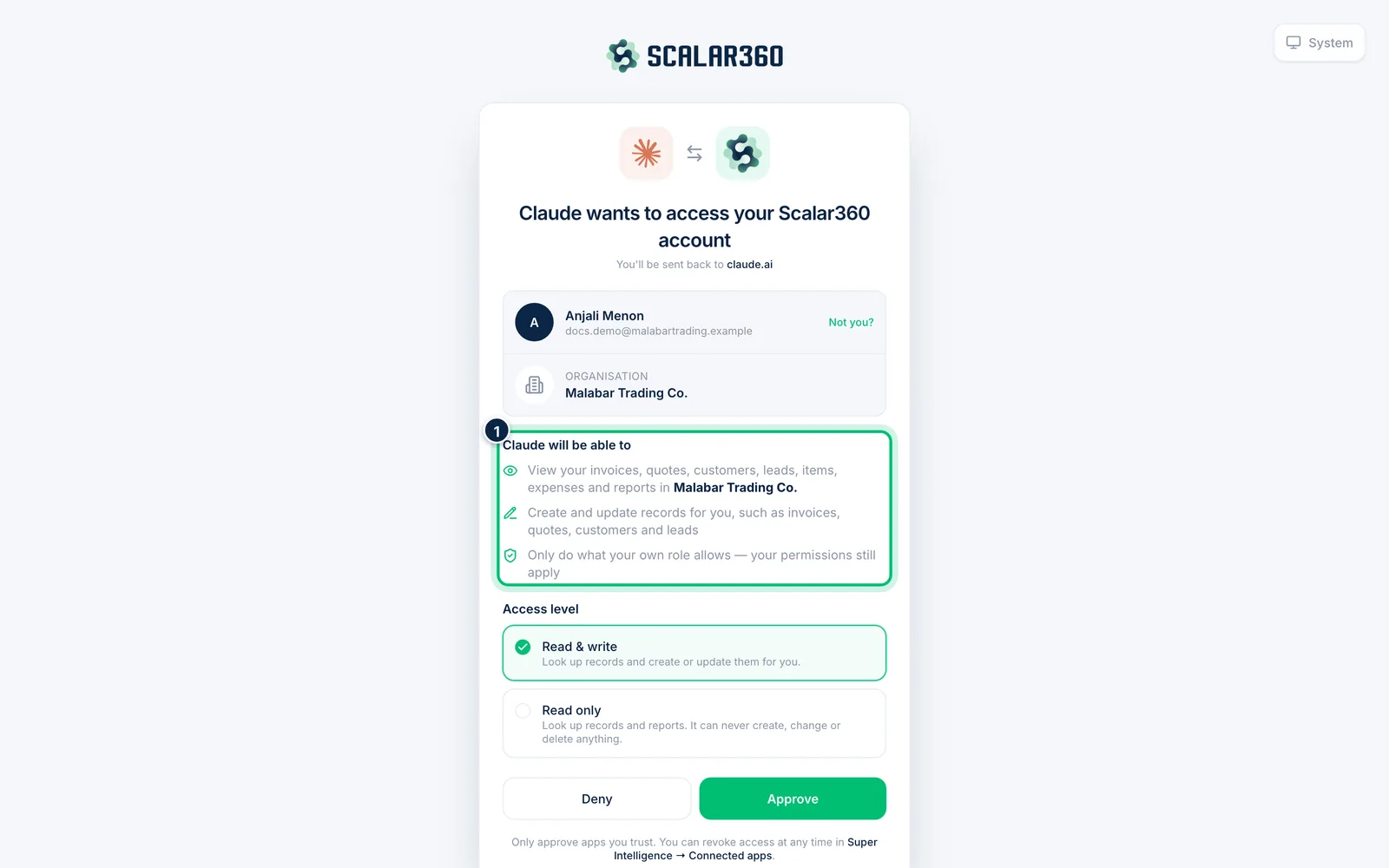
2Review what the app will be able to do
The list under will be able to states the access plainly, such as viewing invoices, quotes, customers, leads, items, expenses and reports in your organisation. It always follows your role, so an app can't open anything you can't.
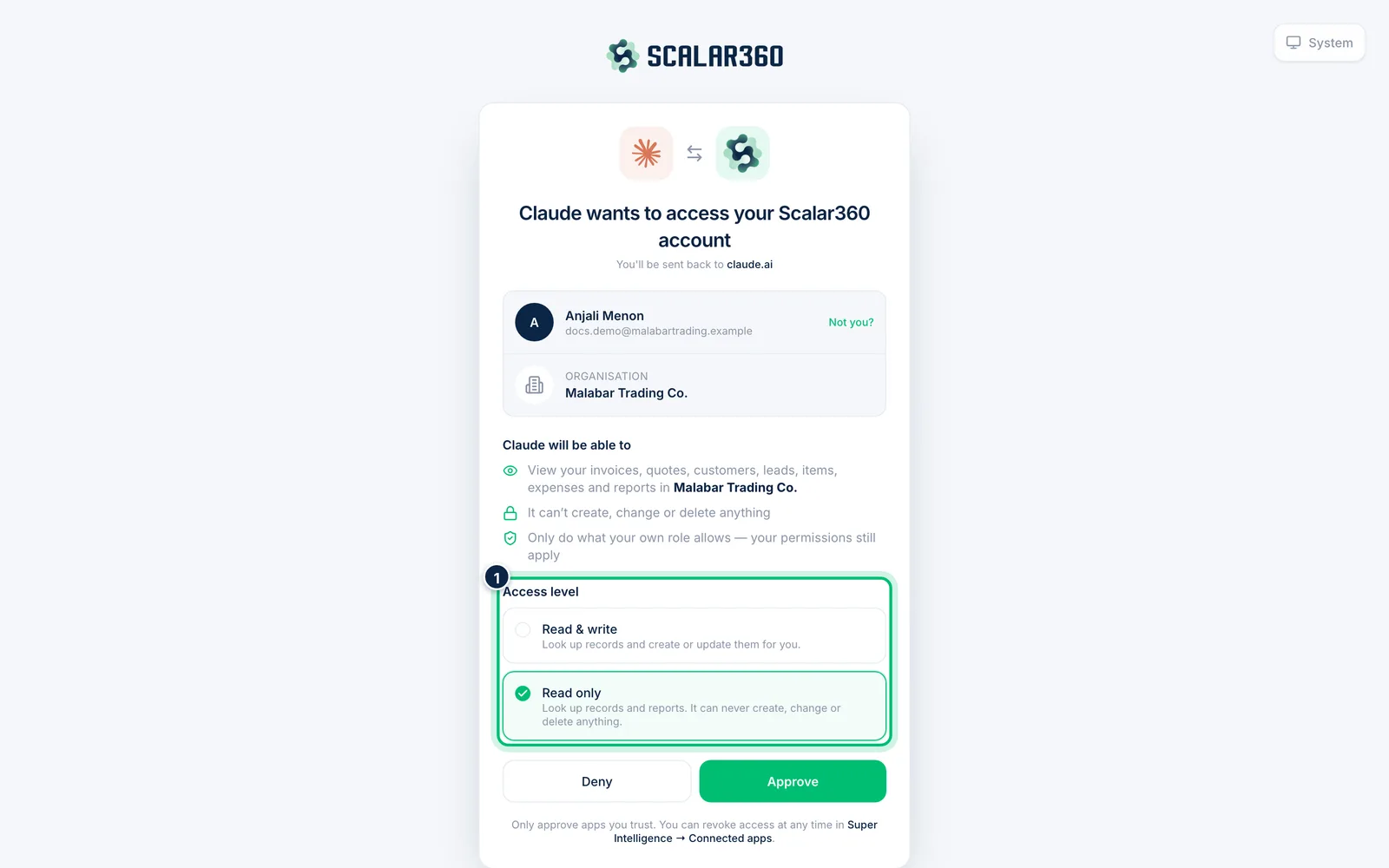
3Choose the access level
Under Access level, Read & write lets the app look up records and create or update them for you. Read only lets it look up records and reports but never create, change or delete anything.
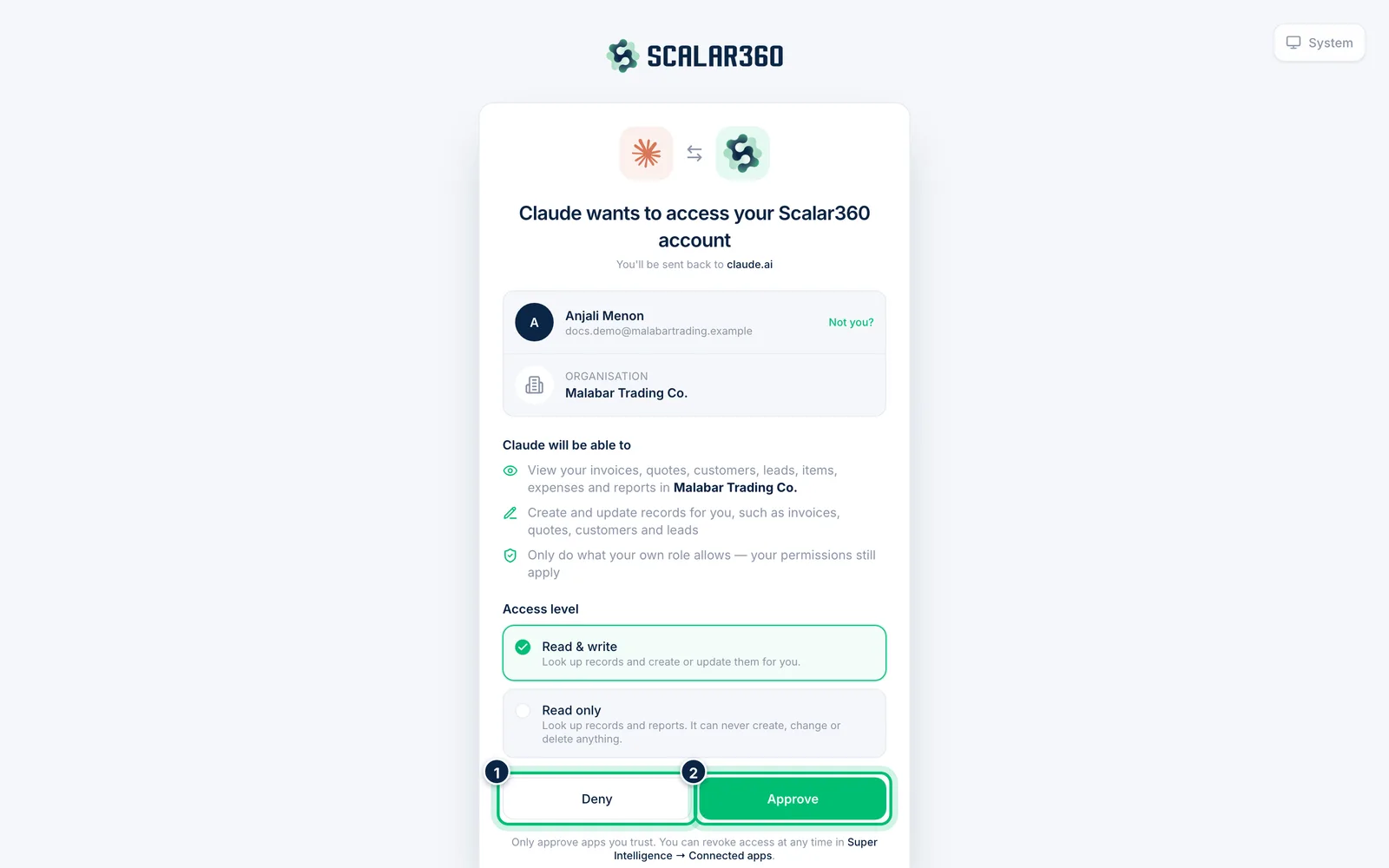
4Approve or deny
Choose Approve to send the app back with permission, or Deny to refuse. Nothing is shared until you approve, and you can revoke the app later under Connected apps.
Related guides
Still stuck? Contact our support team — or start a free trial to try this in your own company.