
Asset management · 4 steps
Schedule maintenance and service jobs
Log work orders and service requests against an asset, and set up repeating preventive schedules so nothing is missed.
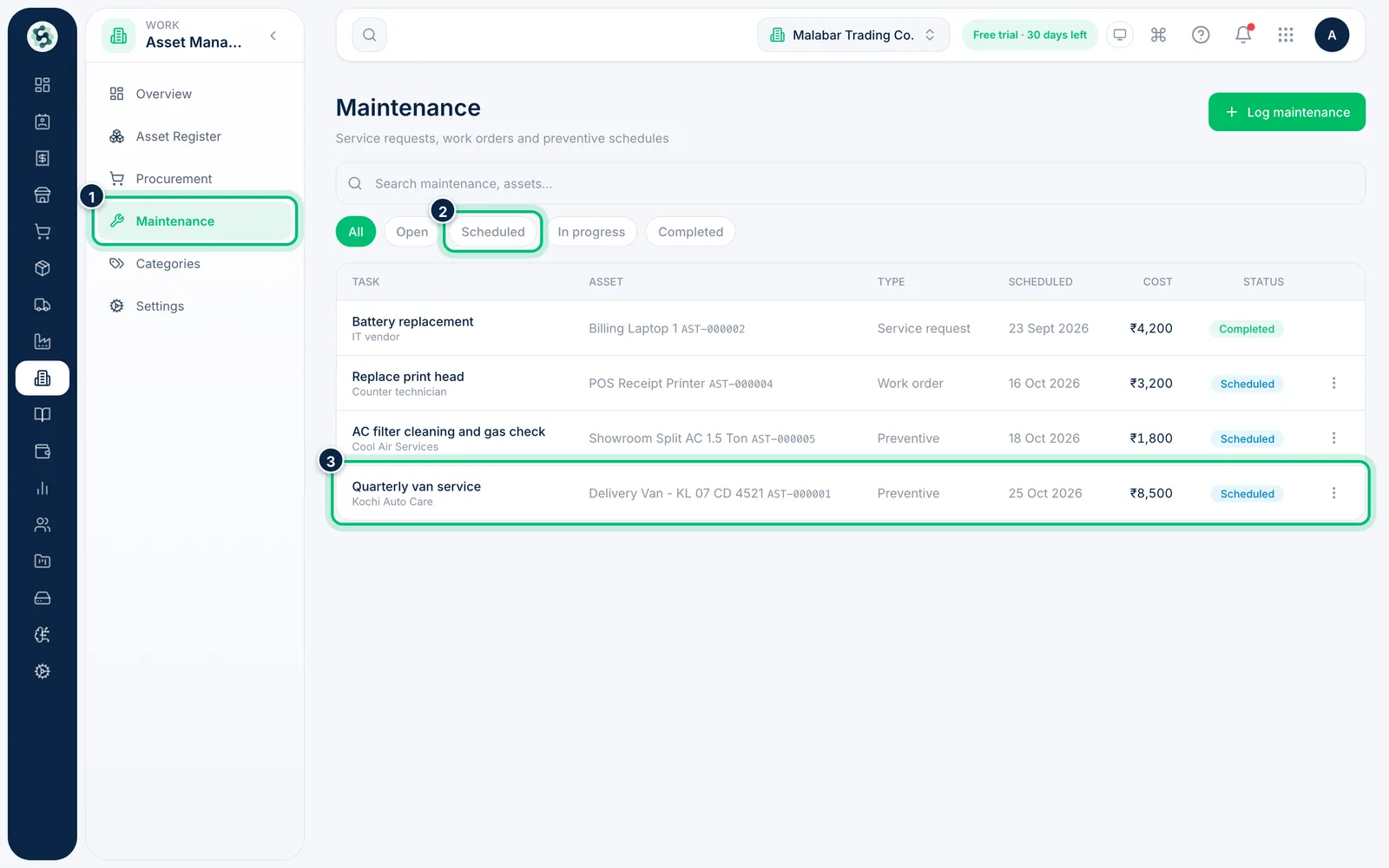
1Open Maintenance
Go to Asset Management → Maintenance. Each row shows the task, the asset, its Type, the Scheduled date, Cost and status. Filter by Open, Scheduled, In progress or Completed.
2Log a job against an asset
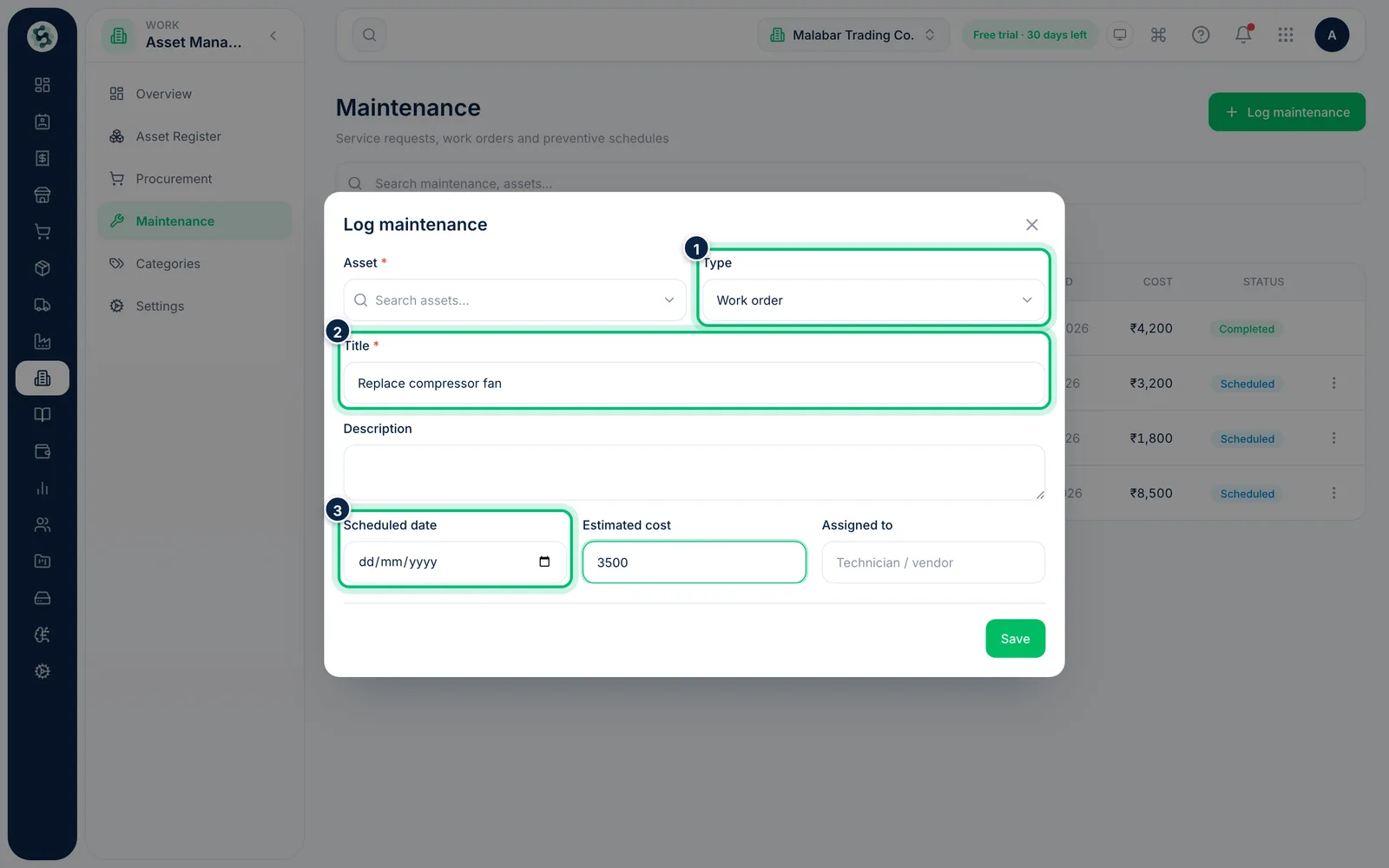
Choose Log maintenance, search for the Asset, and pick the Type — Work order, Service request or Preventive. Enter a Title, the Scheduled date, an Estimated cost and who it is Assigned to.
3Make it repeat
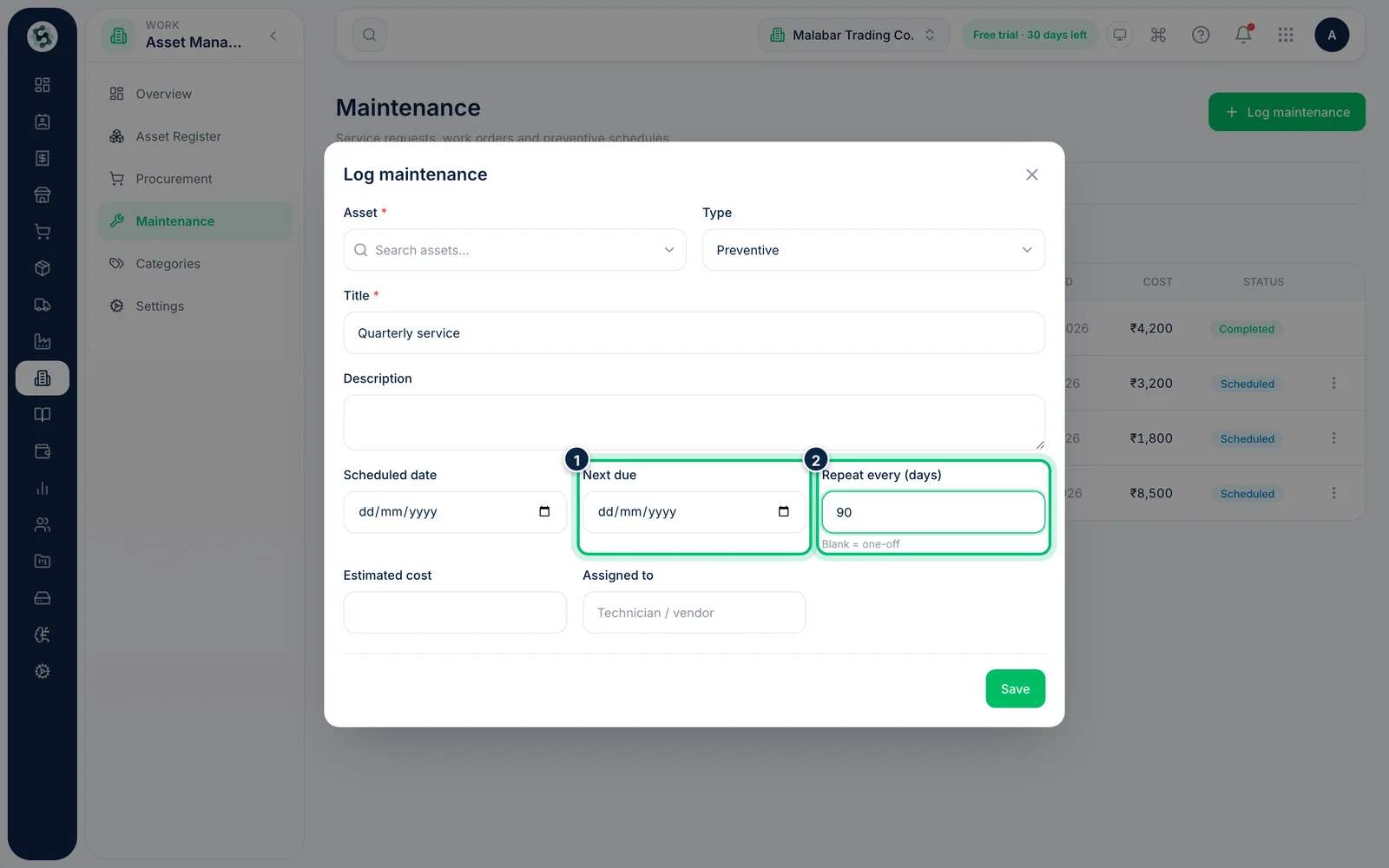
For Preventive, Next due and Repeat every (days) appear. Enter 90 and the schedule comes round every 90 days; leave it blank for a one-off job.
4Automate reminders and work orders
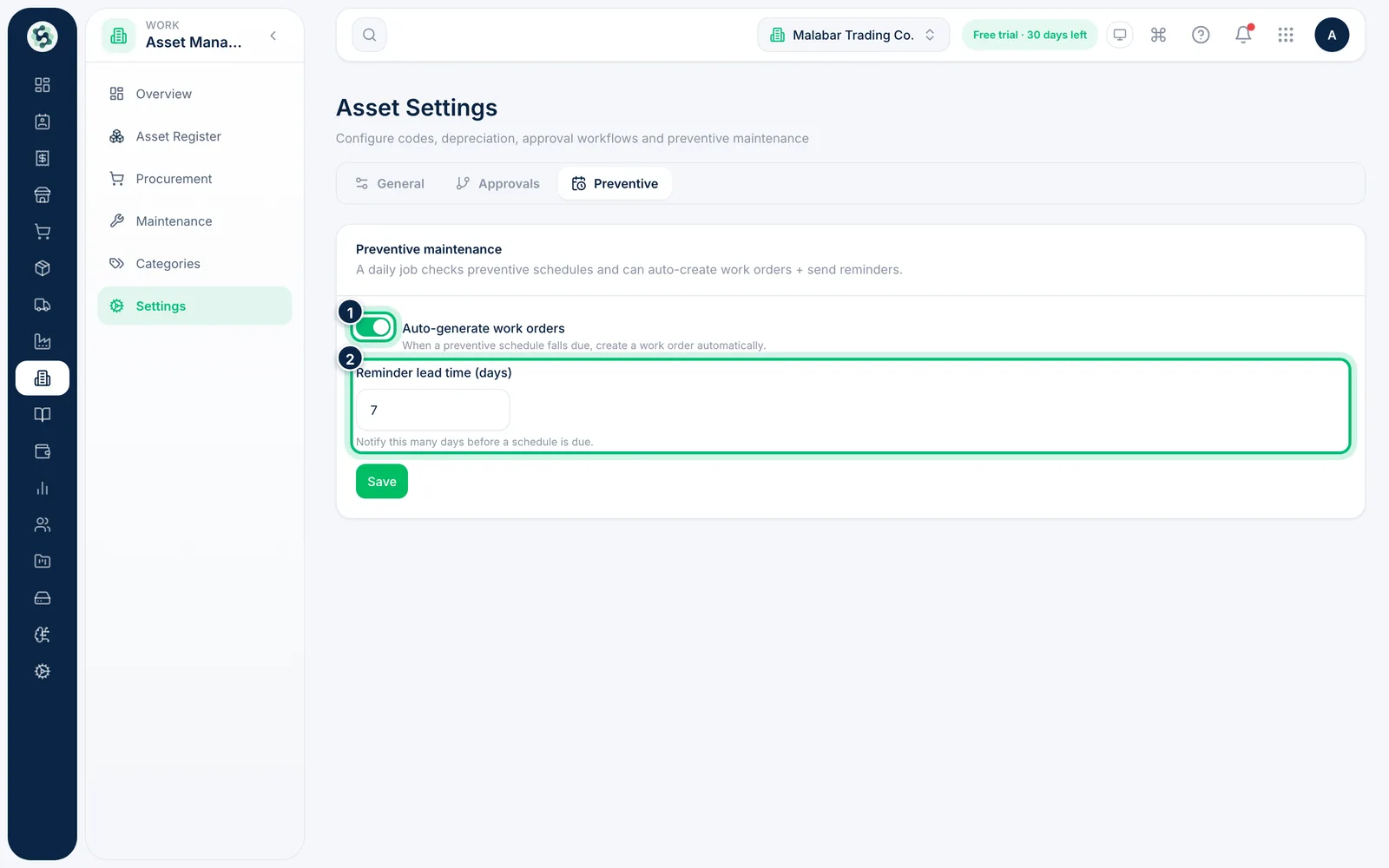
Open Asset Management → Settings → Preventive. Turn on Auto-generate work orders to create a work order when a schedule falls due, and set the Reminder lead time (days) to be notified in advance.
Related guides
Still stuck? Contact our support team — or start a free trial to try this in your own company.