
CRM · 5 steps
Capture leads with a web form
Build a form that people fill in on your website, social bio or ads — every submission creates or updates a lead automatically.
1Open Lead Forms
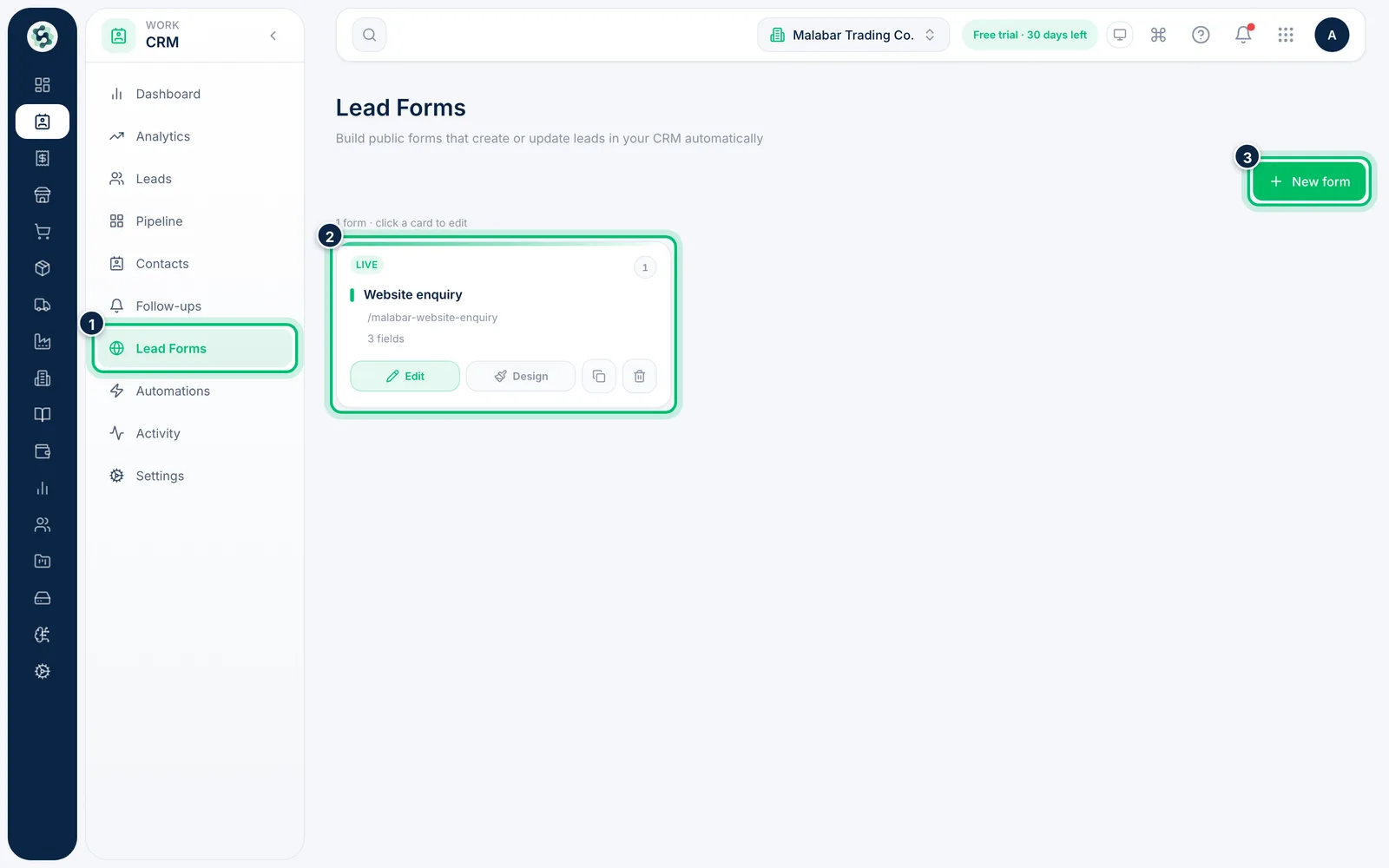
Go to CRM → Lead Forms. Each card shows the form's name, its public link and how many fields it has. Choose New form to build one.
2Name the form and write its message
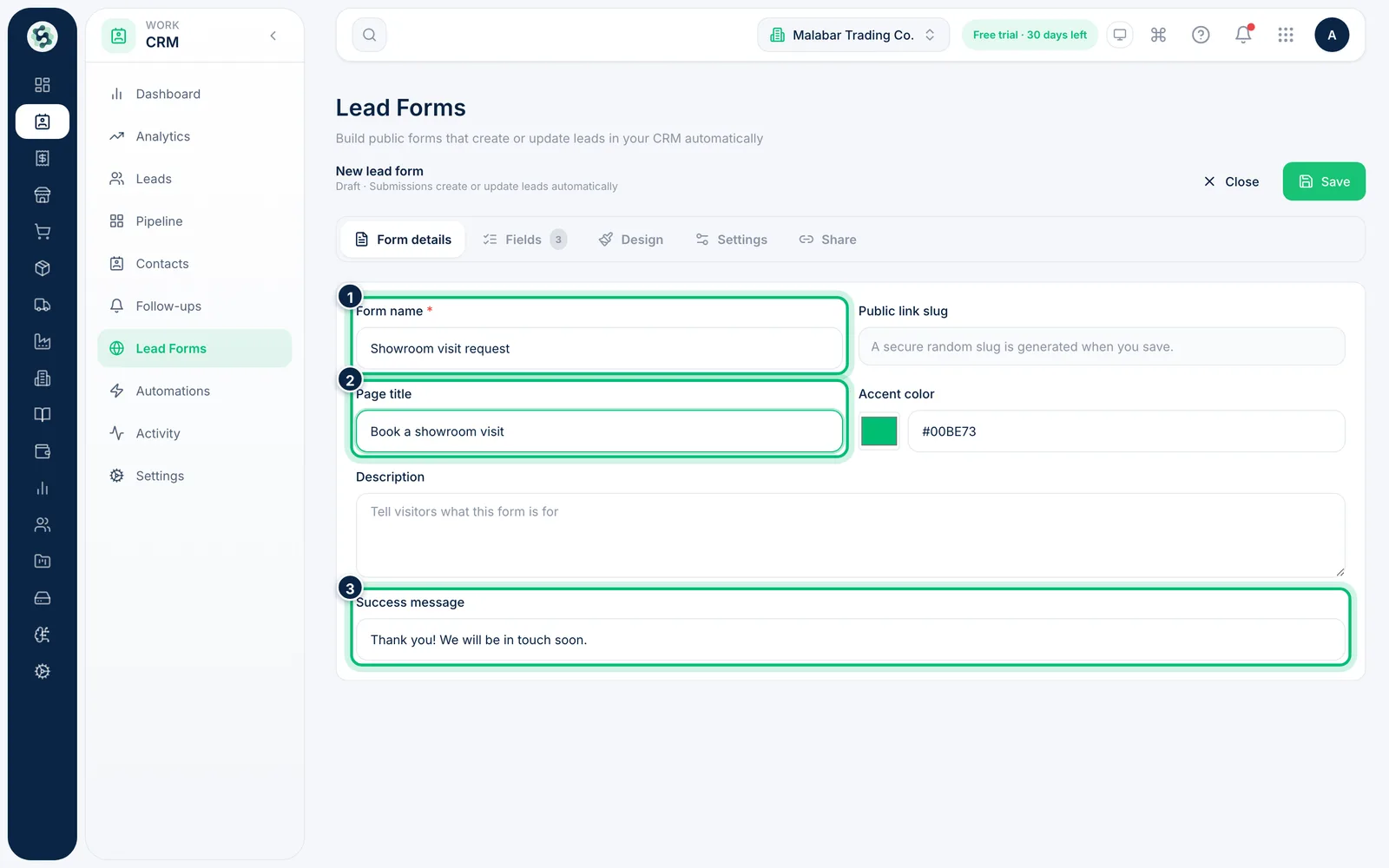
On Form details, enter a Form name for your own reference, the Page title and Description visitors see, and the Success message shown after they submit.
3Choose the fields
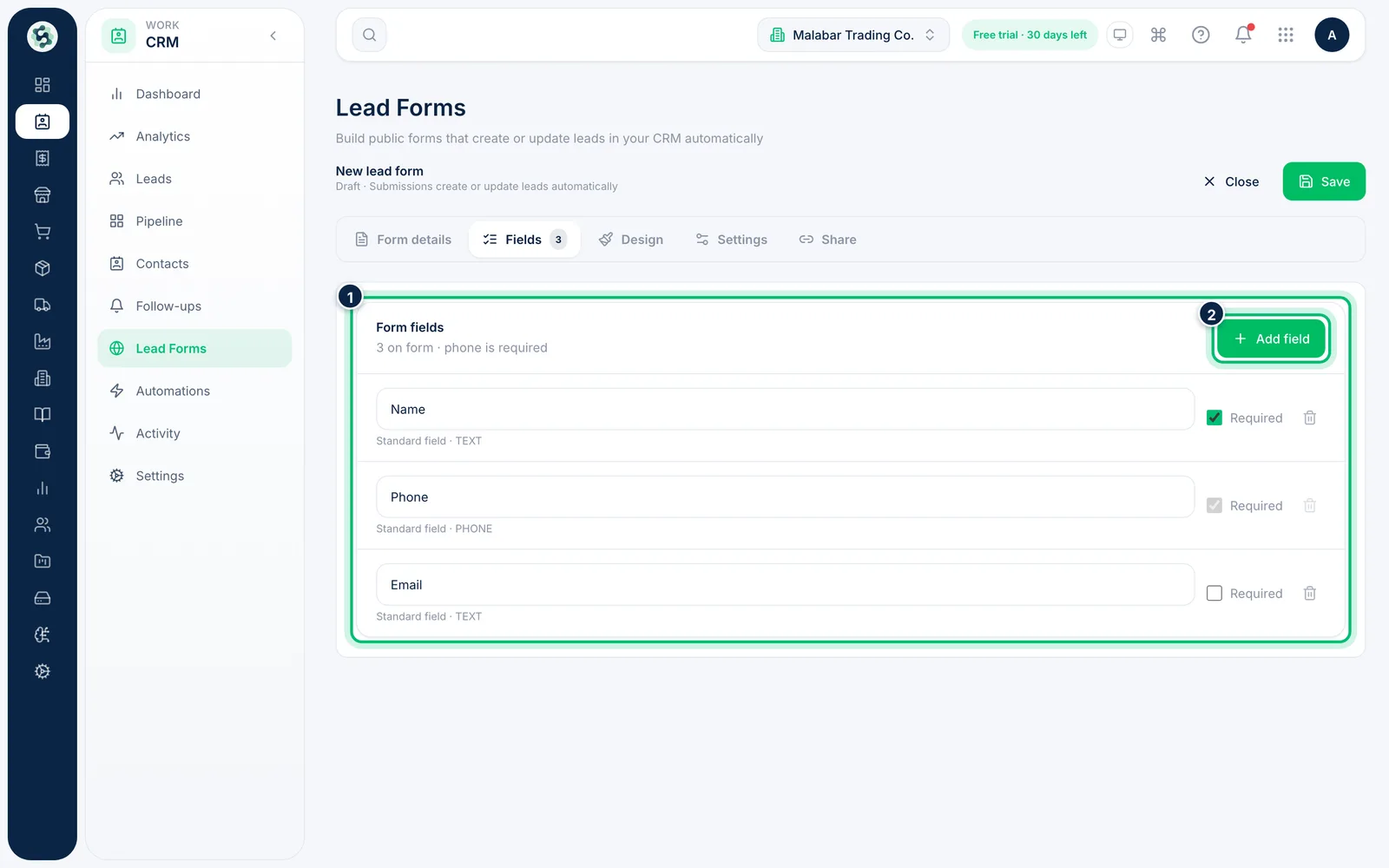
On Fields, rename any field and tick Required where you need an answer. Choose Add field to add more from your lead fields, including custom fields. Phone is always on the form and required.
4Set where new leads go
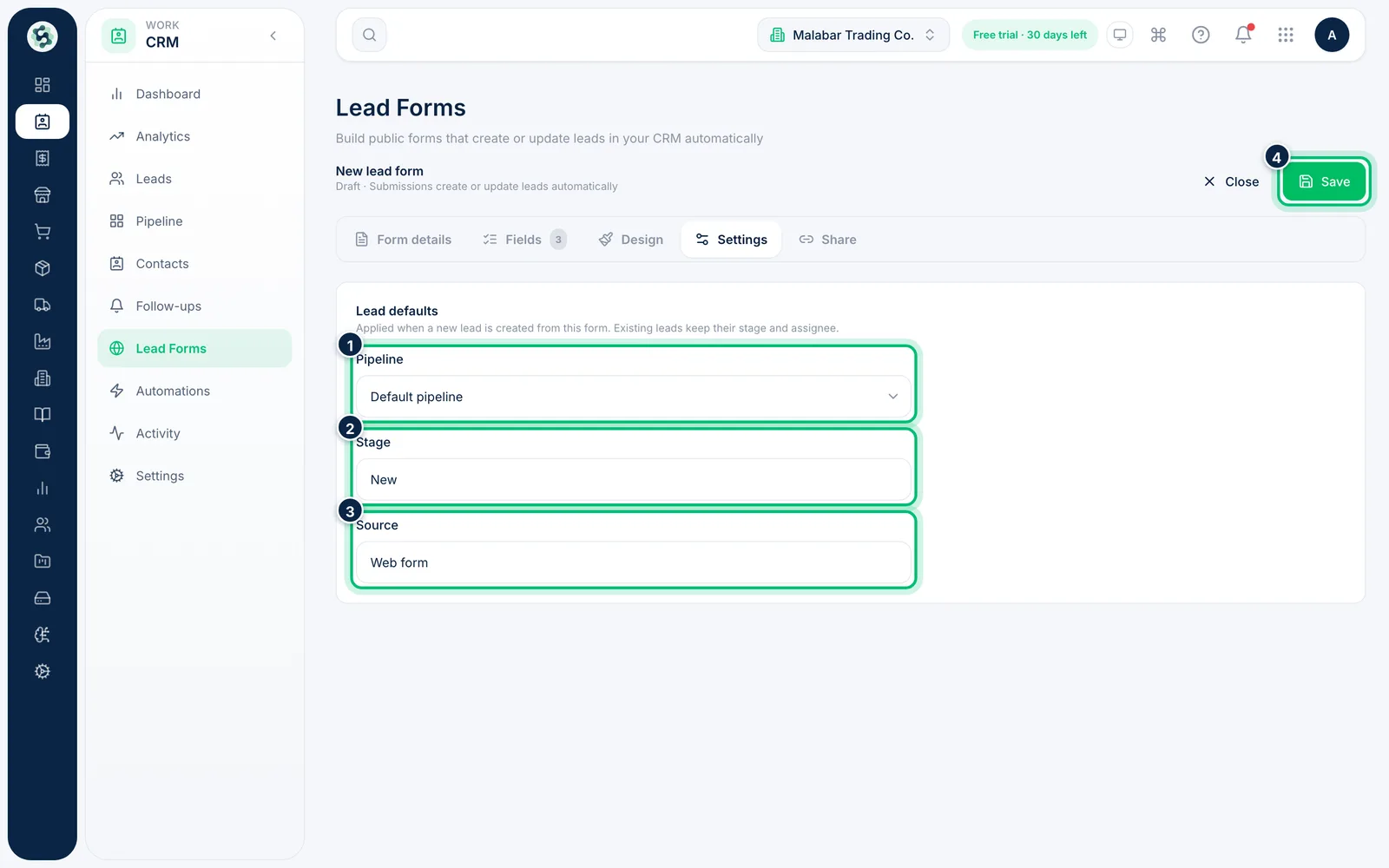
On Settings, pick the Pipeline, Stage and Source given to leads created from this form. Then choose Save, and Publish to make the form live. Use Design to change its look in the design studio.
5Share the link or embed it on your website
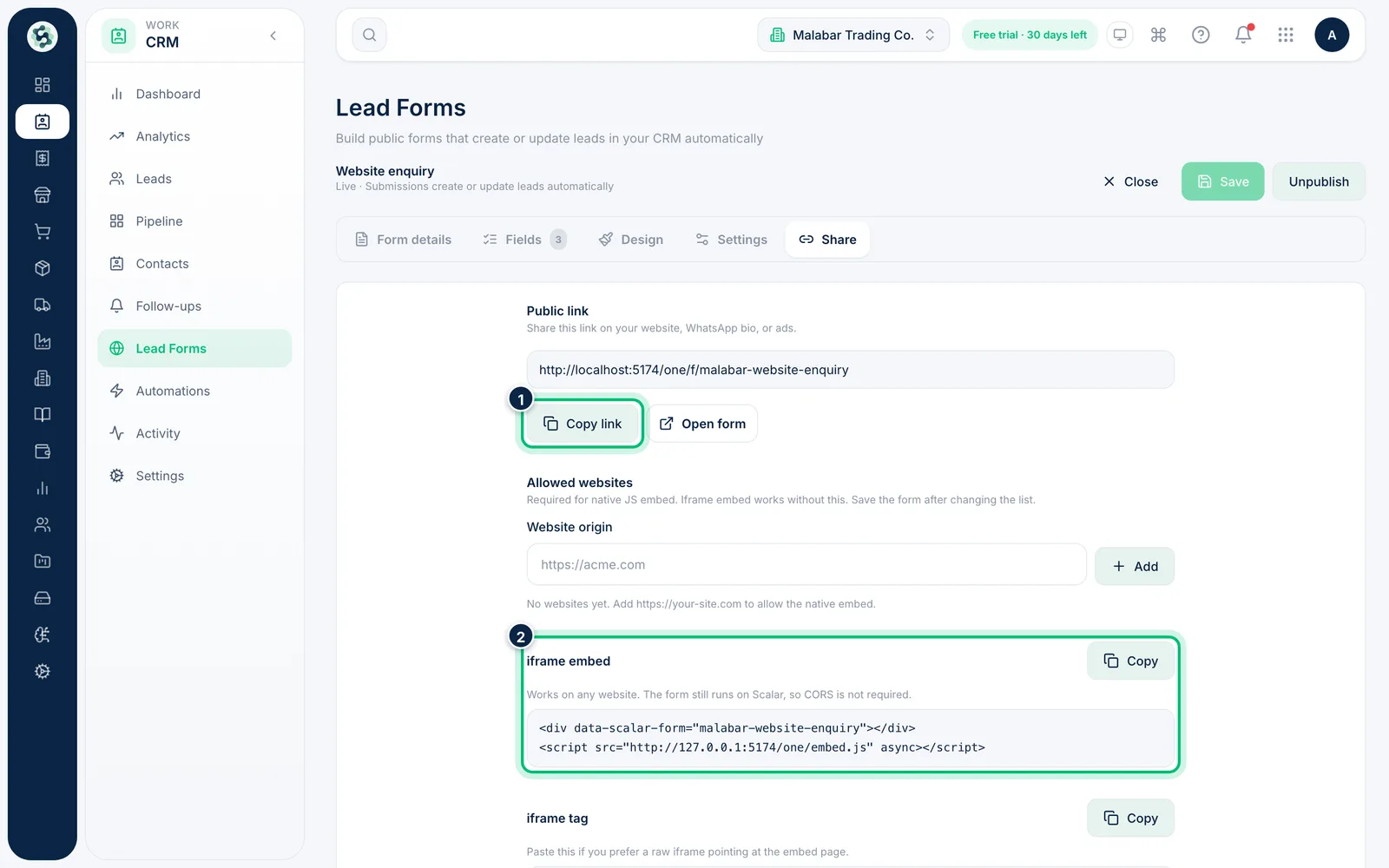
Once published, open the form's Share tab. Copy the Public link for WhatsApp or ads, or copy the iframe embed code into your website. For the Native JS embed, add your website under Allowed websites first.
Related guides
Still stuck? Contact our support team — or start a free trial to try this in your own company.