
Drive · 4 steps
Check storage and get more
See how much space Drive uses, what takes it up and who did what, and add storage when you run low.
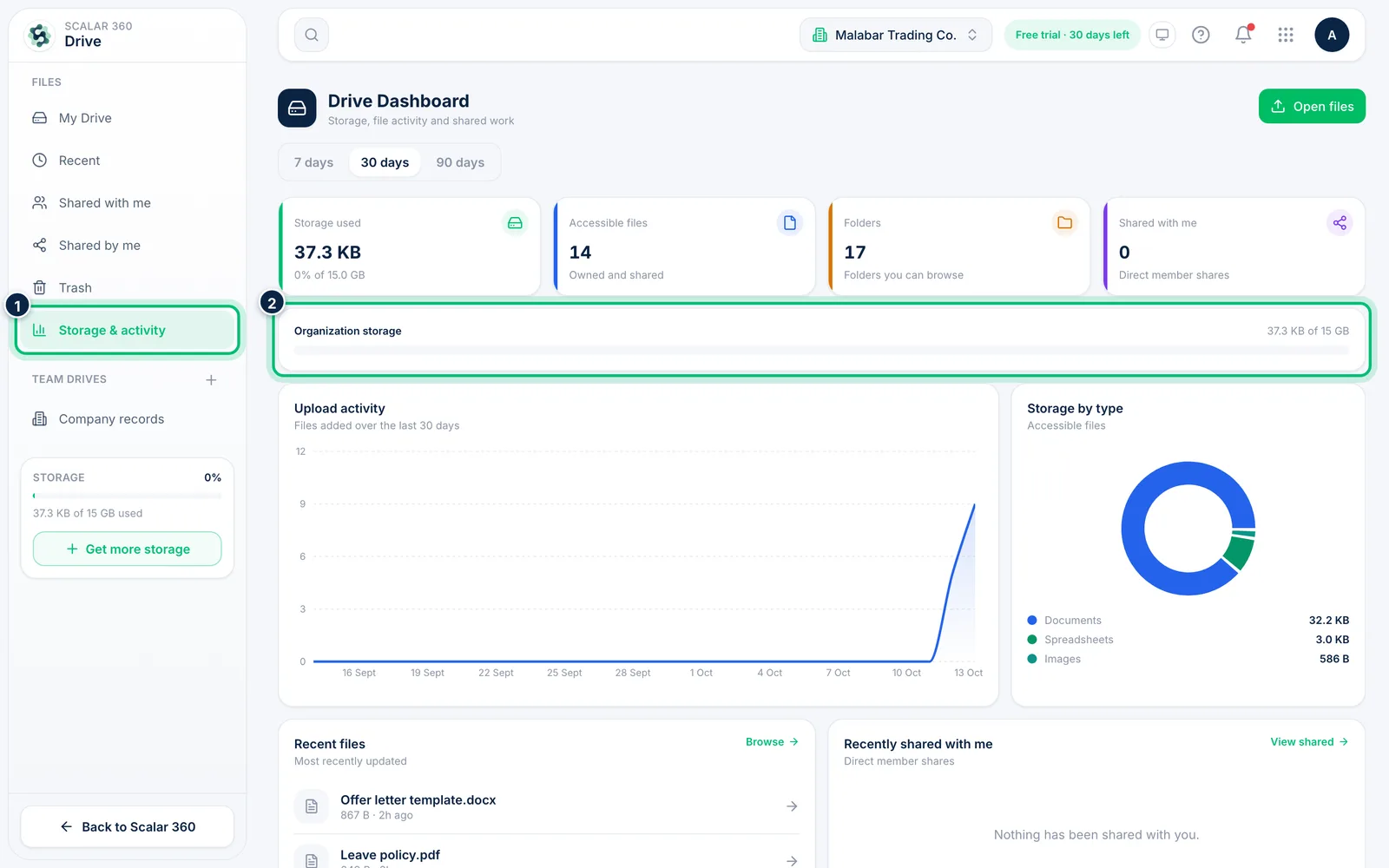
1Open Storage & activity
Choose Storage & activity in the left panel. The cards show Storage used, accessible files, folders and files shared with you, with a bar for your Organization storage.
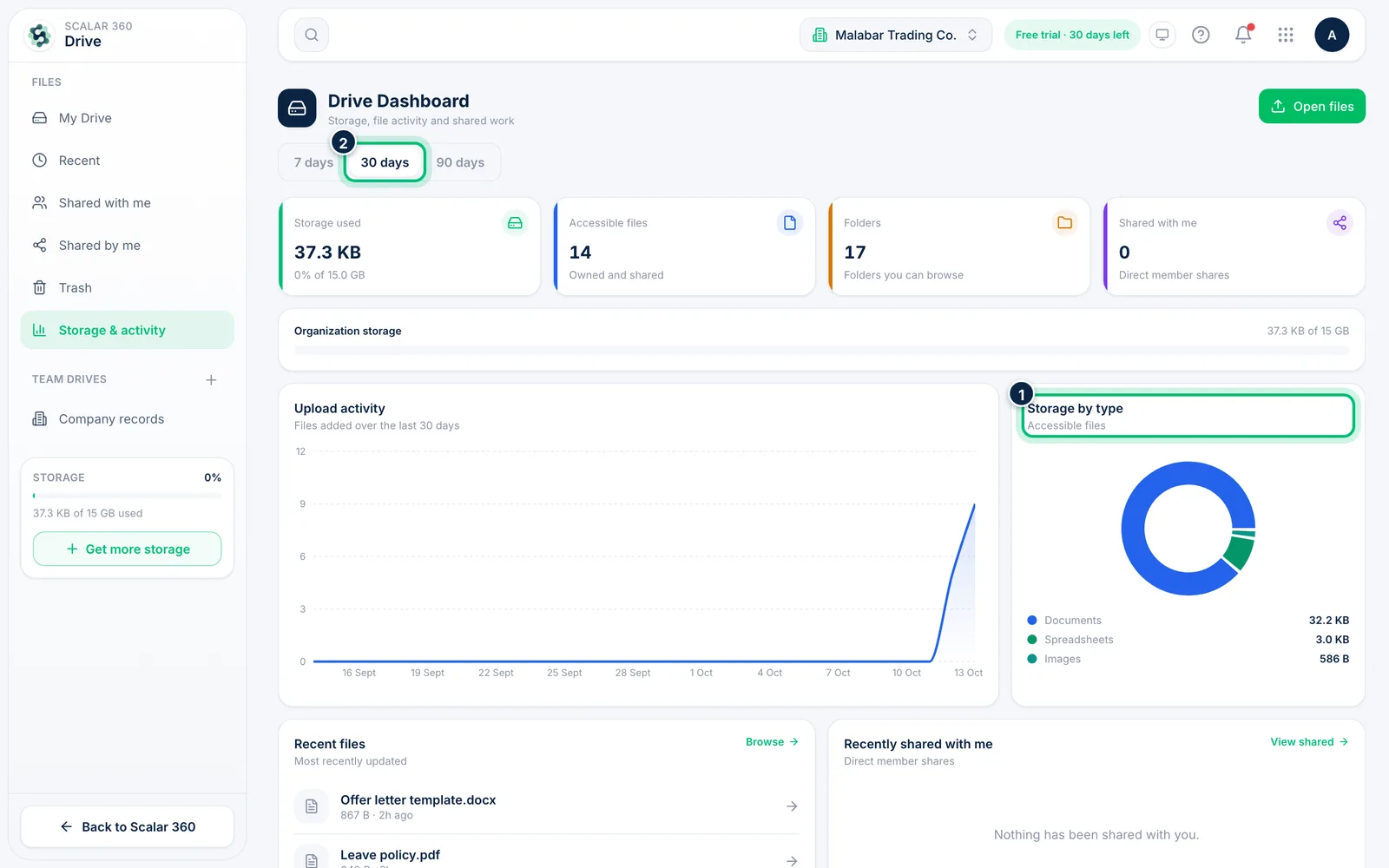
2See what takes the space
Storage by type splits space across documents, spreadsheets, images and more. Switch the period of the Upload activity chart with 7 days, 30 days or 90 days.
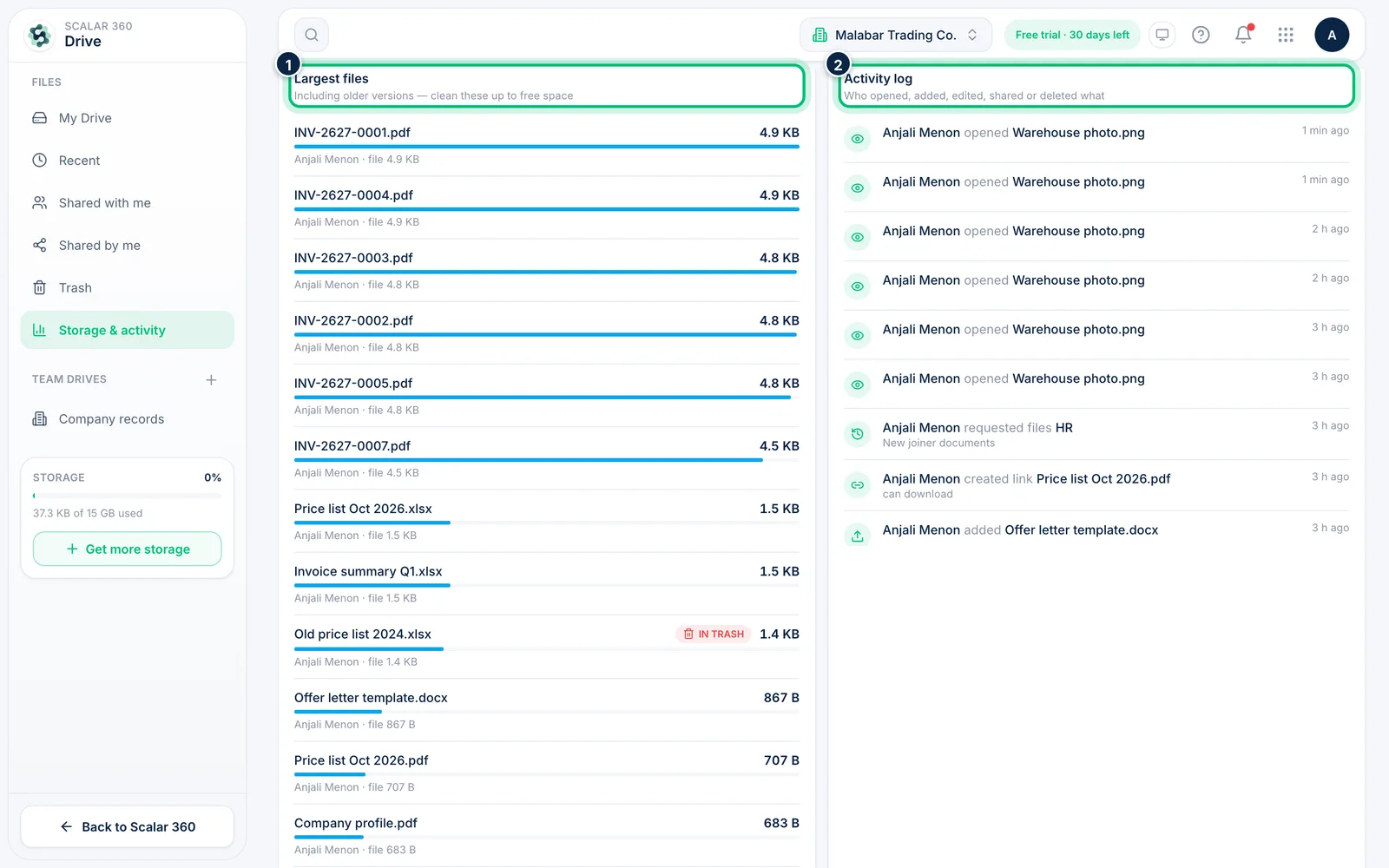
3Find big files and follow the activity log
Largest files lists the biggest items including older versions, so you know what to clean up. The Activity log shows who opened, added, edited, shared or deleted what. The same history for a single item is under Activity on its More menu.
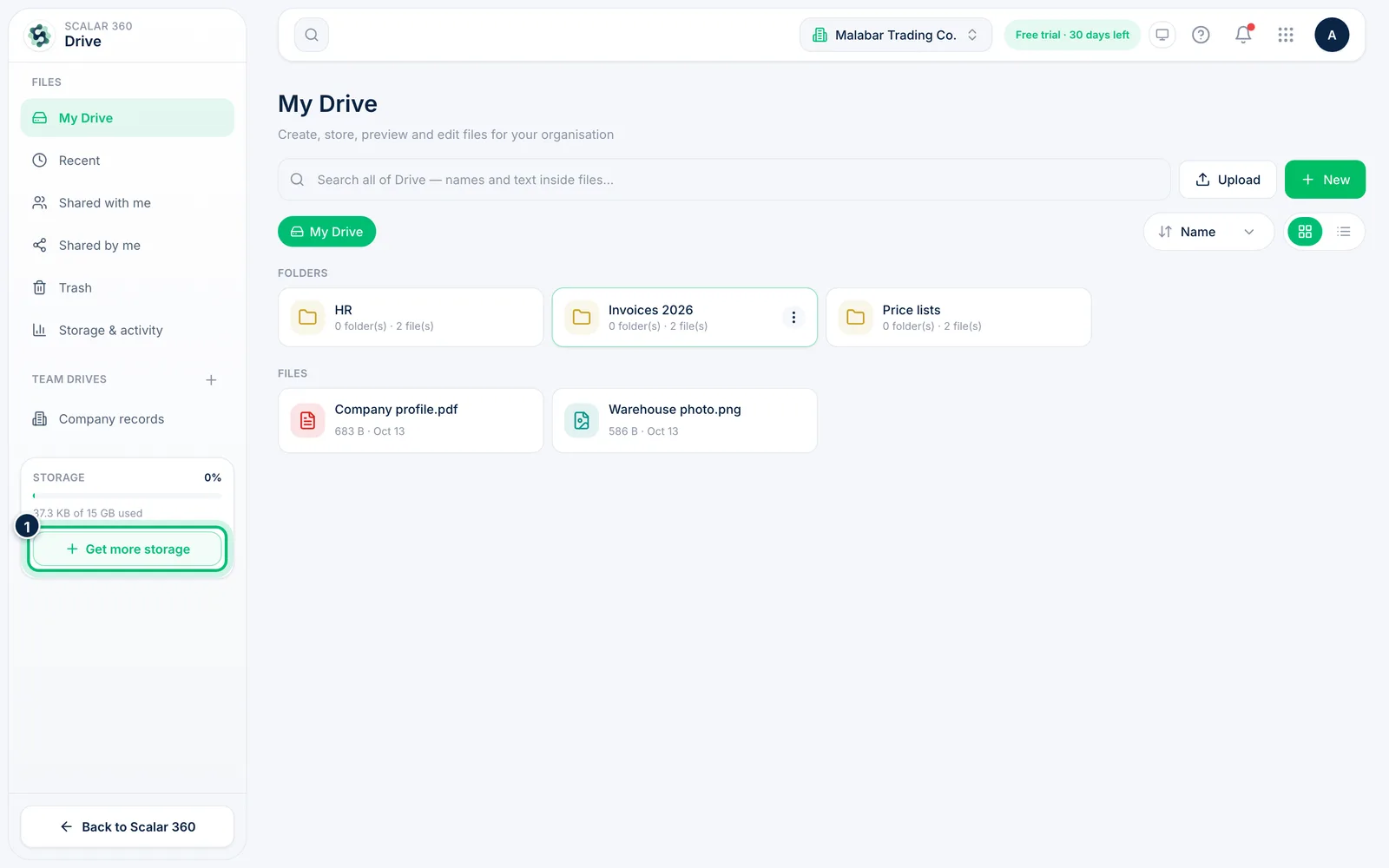
4Add more storage
Choose Get more storage in the left panel to open the Drive Storage add-on. Pick a size such as 50 GB to see its monthly price, then review and pay from your plan. Only people who can manage plans see this button.
Related guides
Still stuck? Contact our support team — or start a free trial to try this in your own company.