
Purchasing & vendors · 4 steps
Receive stock against a purchase order
Record goods as they arrive, in full or in part, and put them into a warehouse.
Before you start: You need a saved purchase order and at least one warehouse. If there's no warehouse yet, the receive window asks you to create one.
1Open Stock Receipts
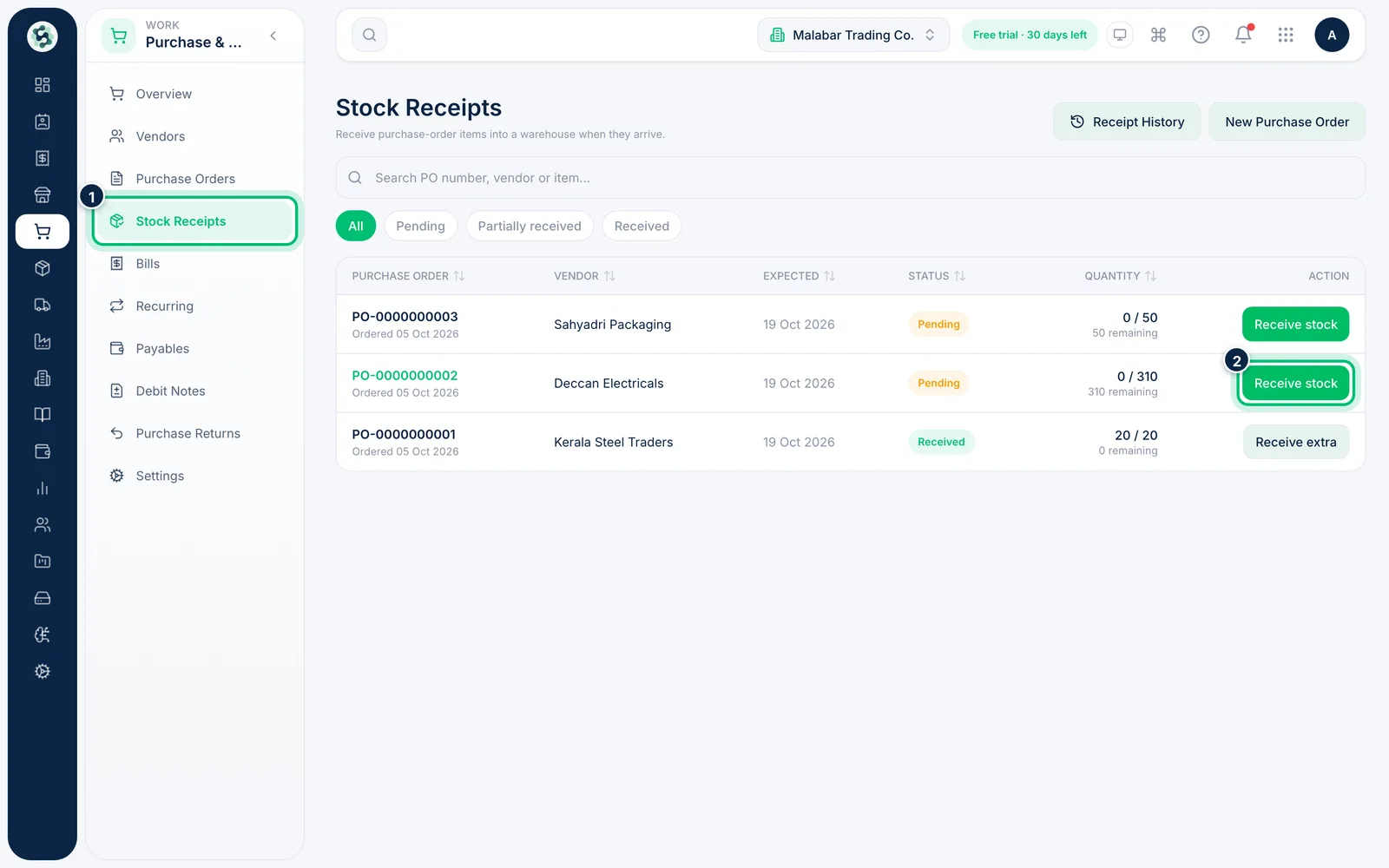
Go to Purchase & Vendors → Stock Receipts. Every purchase order is listed with its status — Pending, Partially received or Received — and how much has arrived so far. Choose Receive stock on the order that has come in.
2Choose the warehouse and date
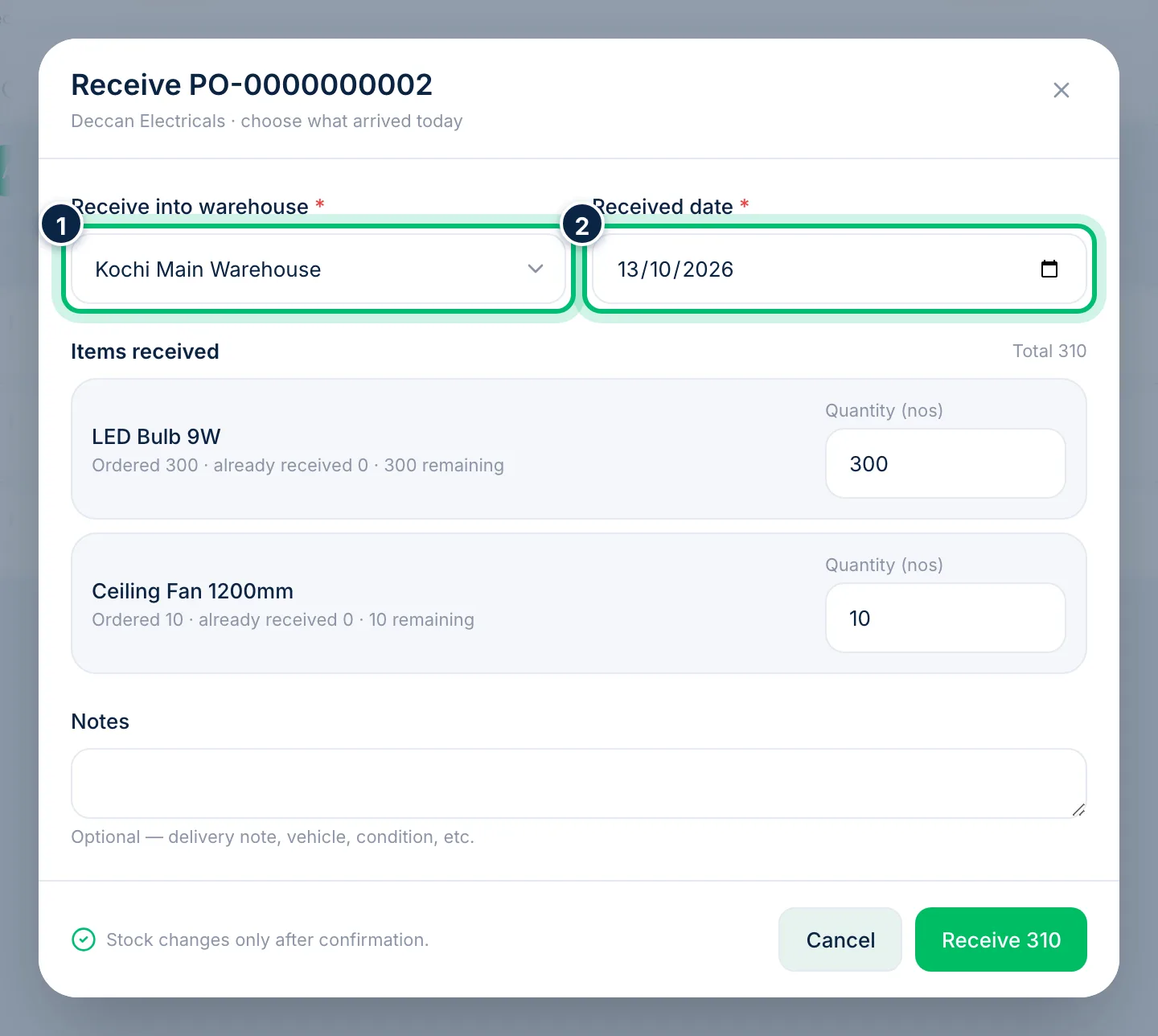
Pick the warehouse the goods are going into under Receive into warehouse, and check the Received date. The date can't be in the future.
3Enter what arrived
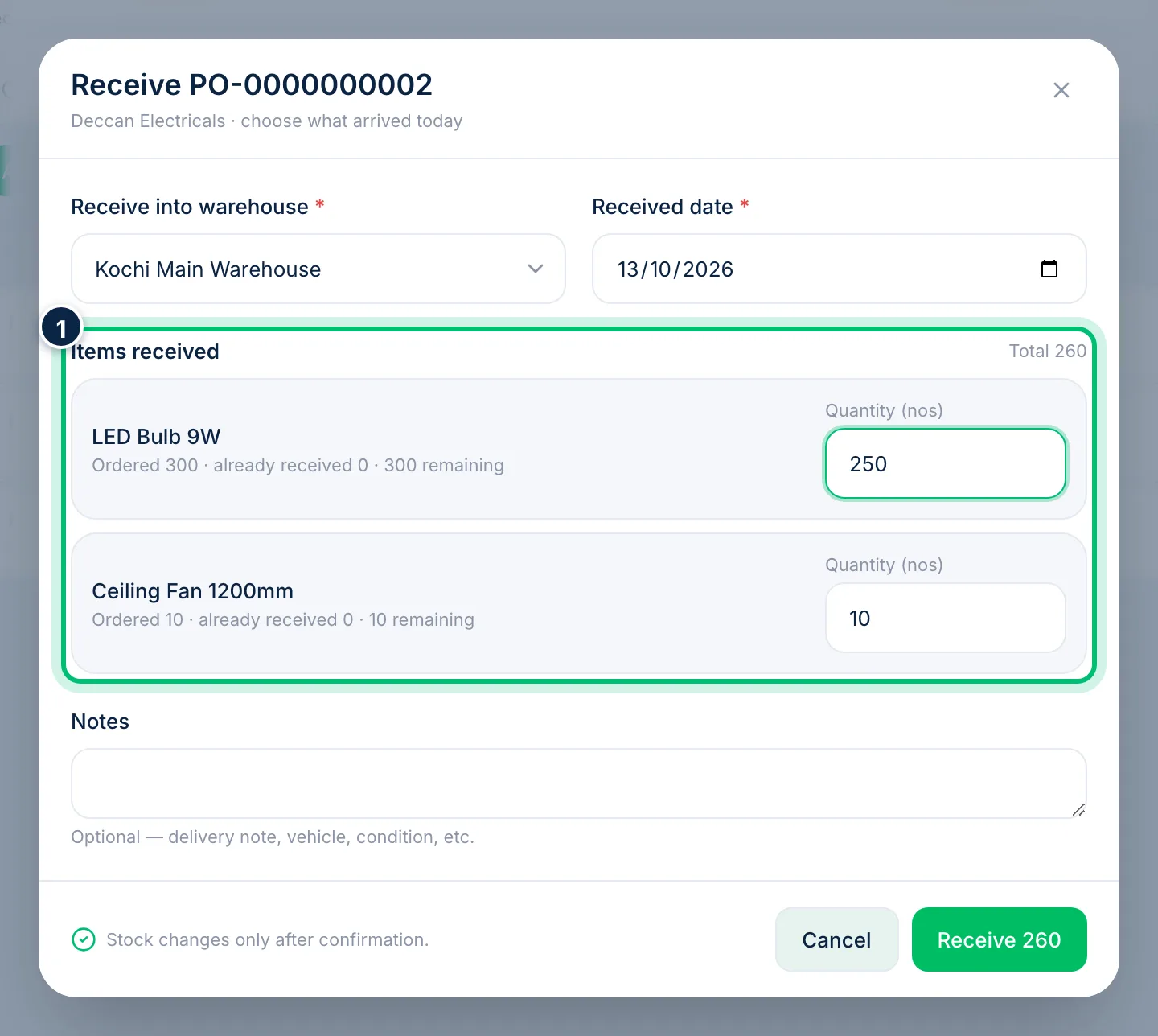
Under Items received, each line starts with the quantity still due. Lower it if only part of the delivery came — the rest stays pending for next time. If you enter more than was ordered, you're asked for a reason, and the extra units are added to stock at zero cost.
4Confirm the receipt
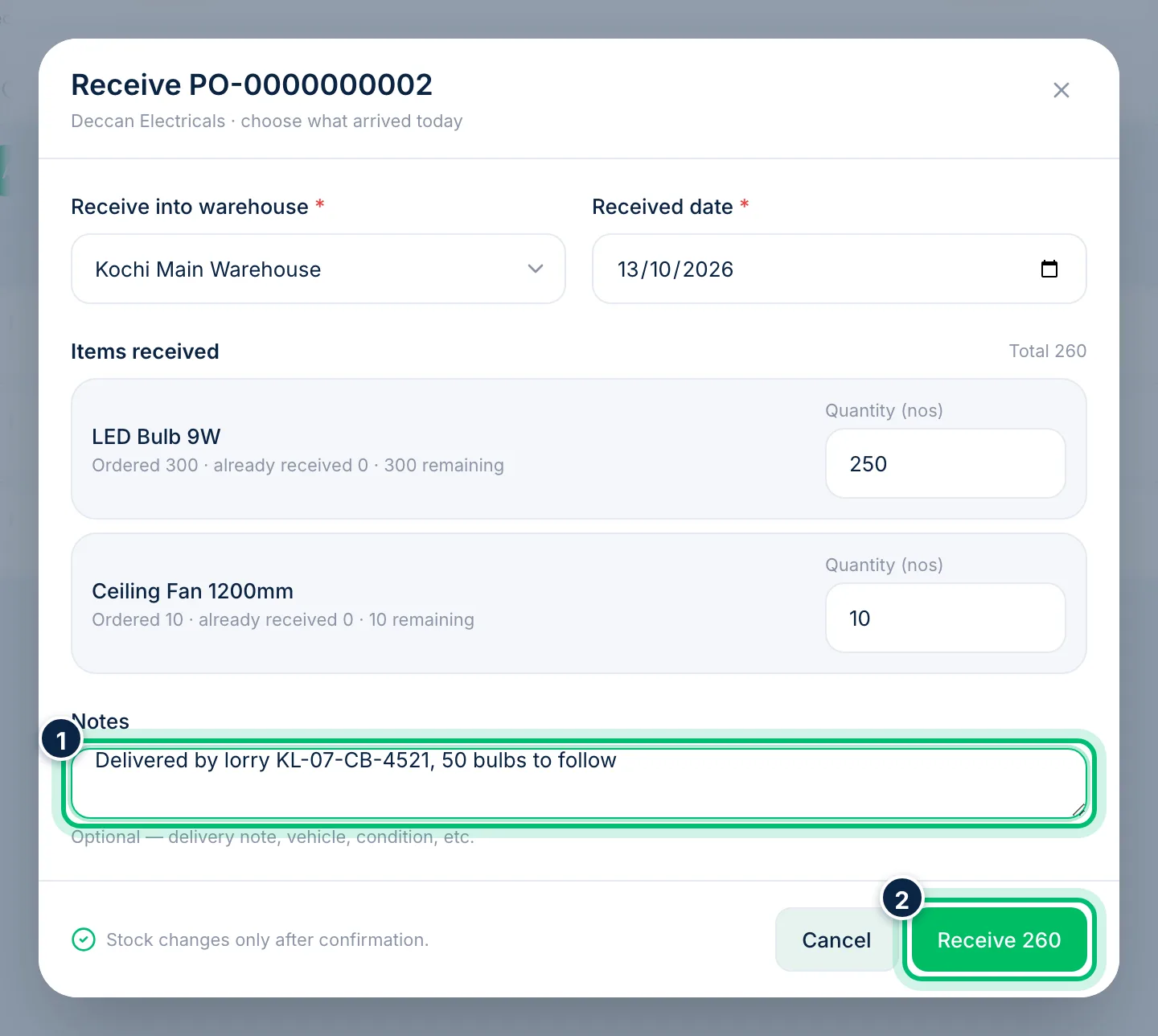
Add a delivery note, vehicle number or condition in Notes if you like. Stock changes only when you confirm, so check the quantities and choose Receive — the button shows the total you're taking in.
Related guides
Still stuck? Contact our support team — or start a free trial to try this in your own company.