
Projects · 5 steps
Add a task, assign it and set a due date
Break the project into tasks, each with a stage, priority, dates and the people doing the work.
Before you start: The project must be open — completed and archived projects are read-only.
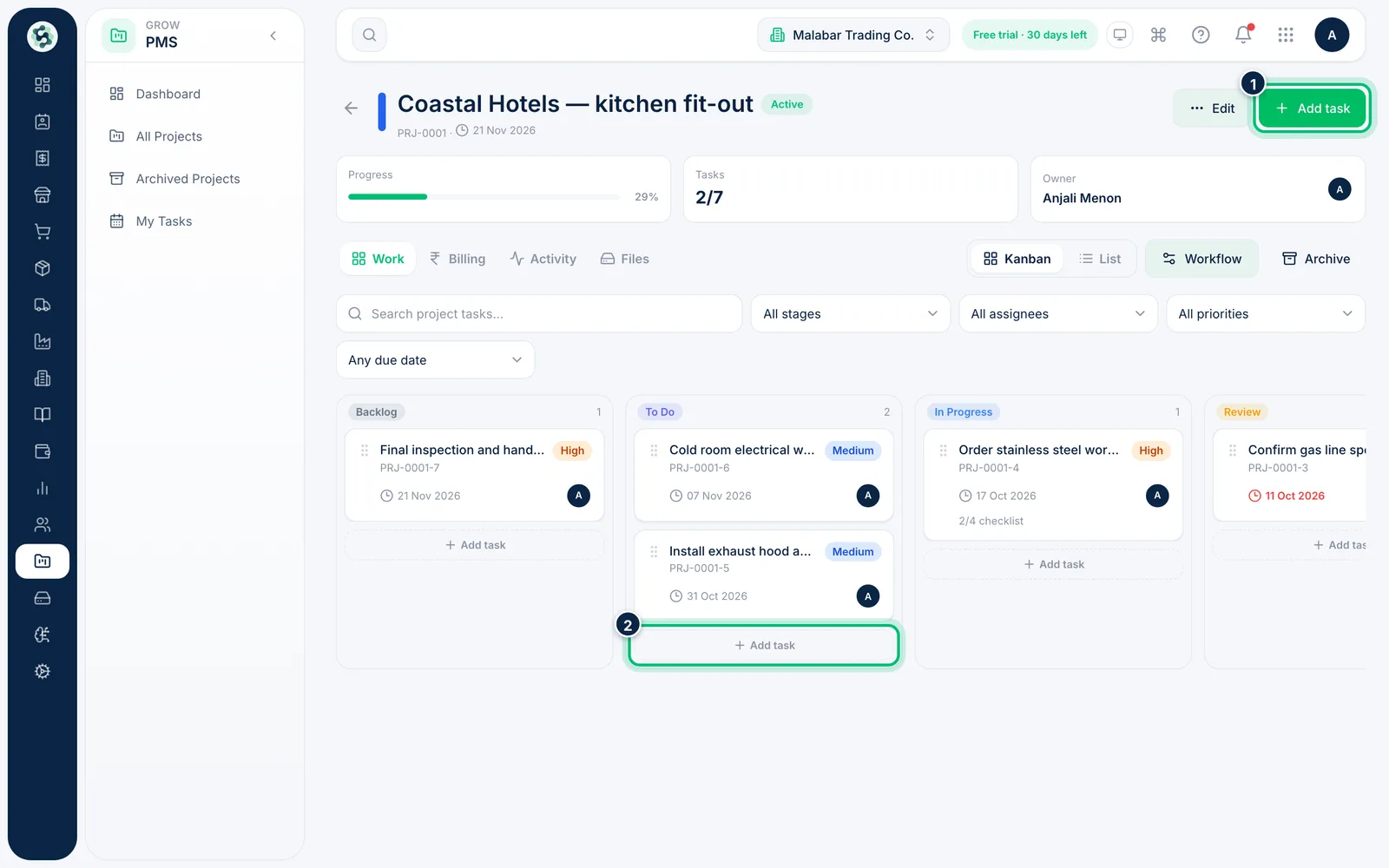
1Open the project and choose Add task
Go to PMS → Projects and open the project. Choose Add task at the top right, or Add task at the bottom of any column on the board.
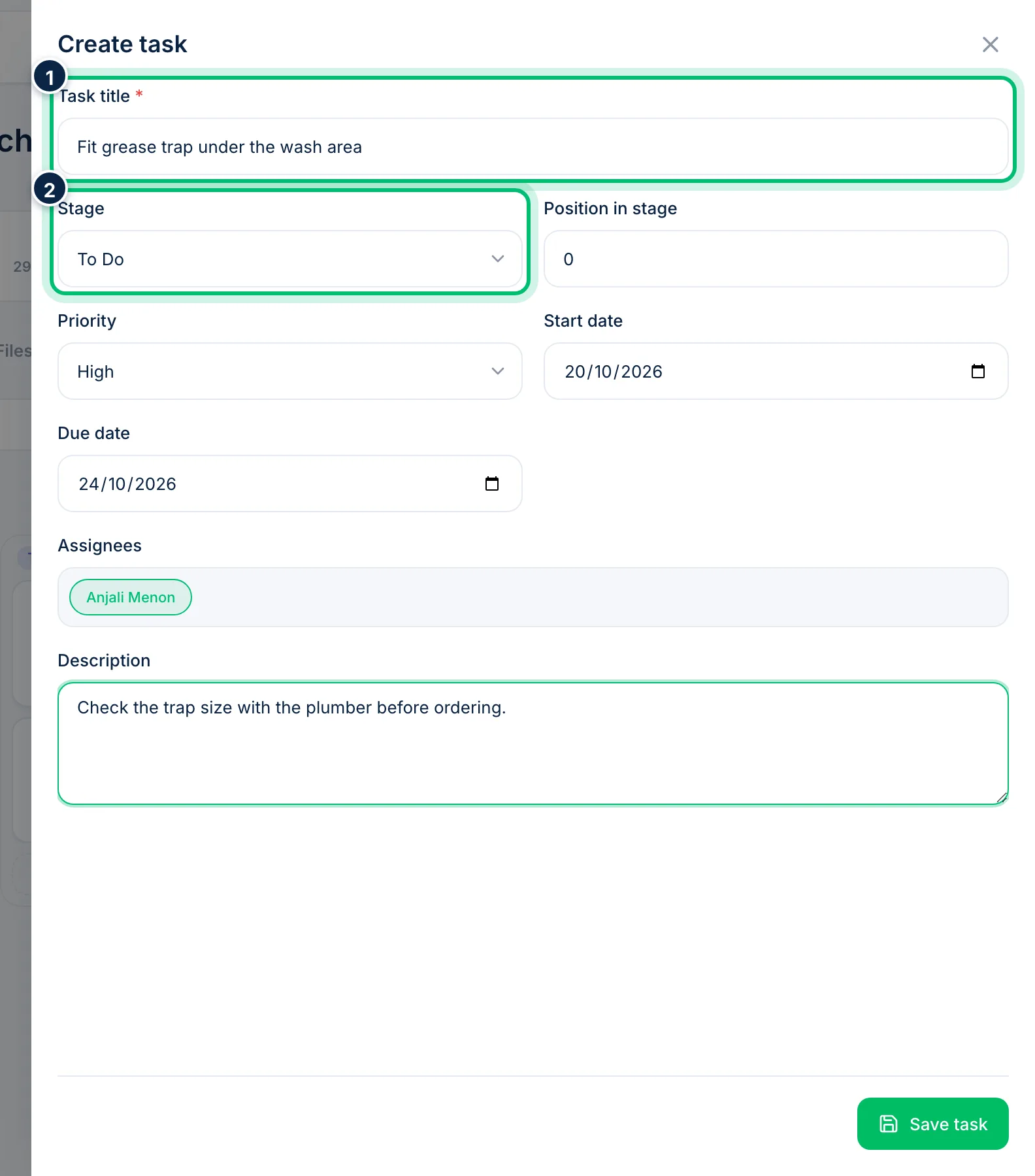
2Give the task a title and stage
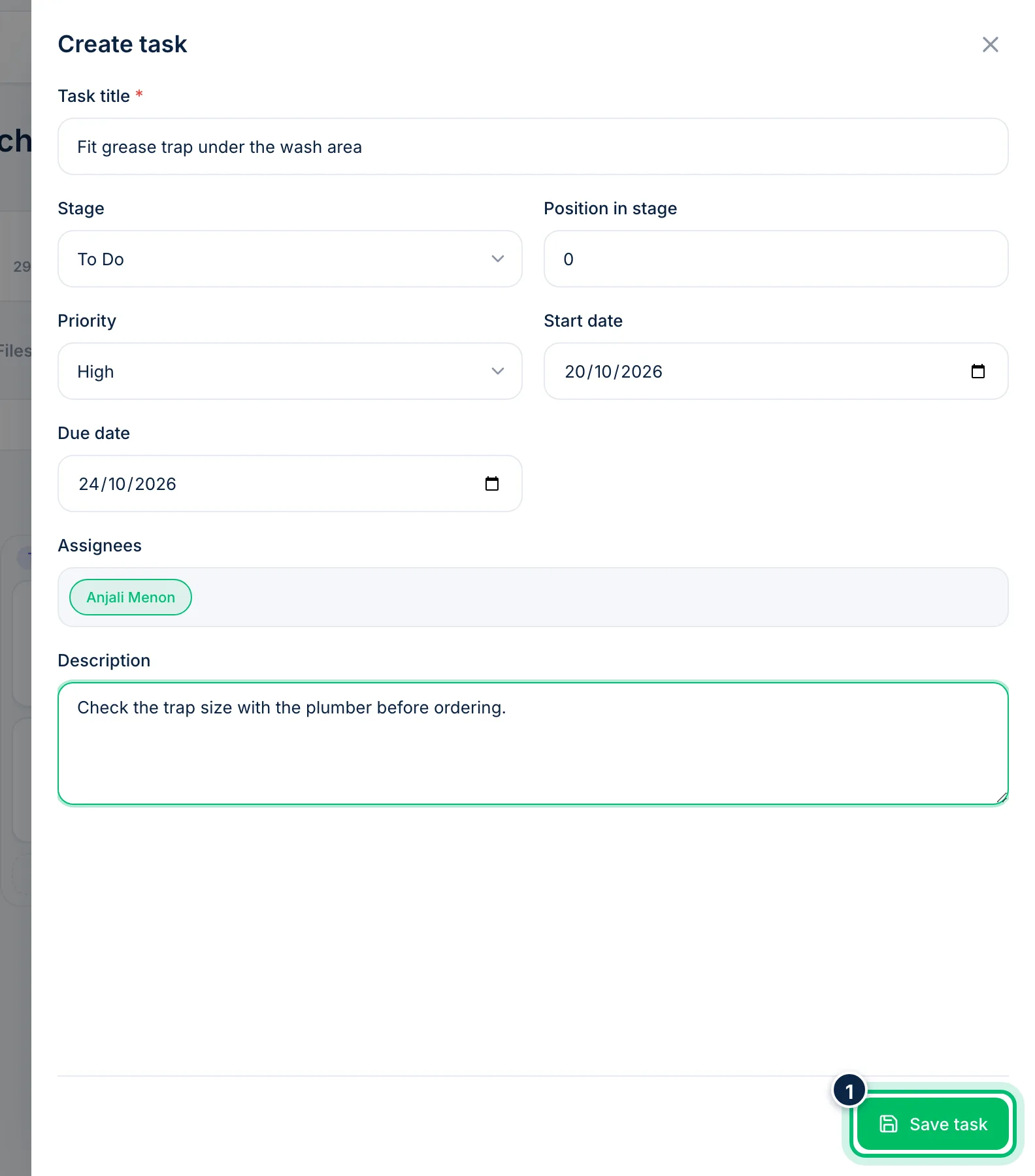
Type a Task title — it's required. Choose the Stage the task starts in; the list follows this project's workflow.
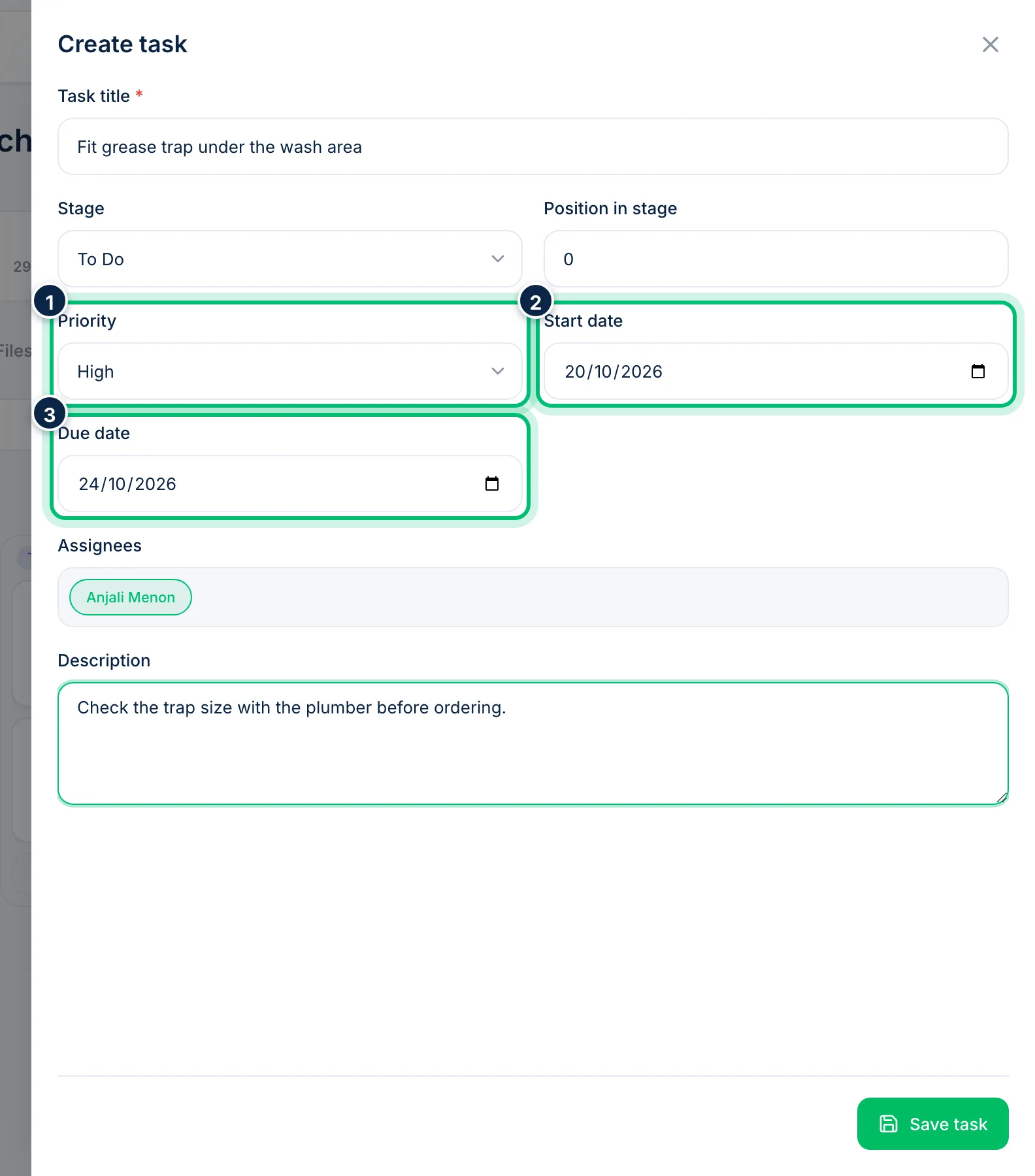
3Set the priority and dates
Choose a Priority from Low to Urgent, then the Start date and Due date. Tasks past their due date show in red and count as overdue on the dashboard.
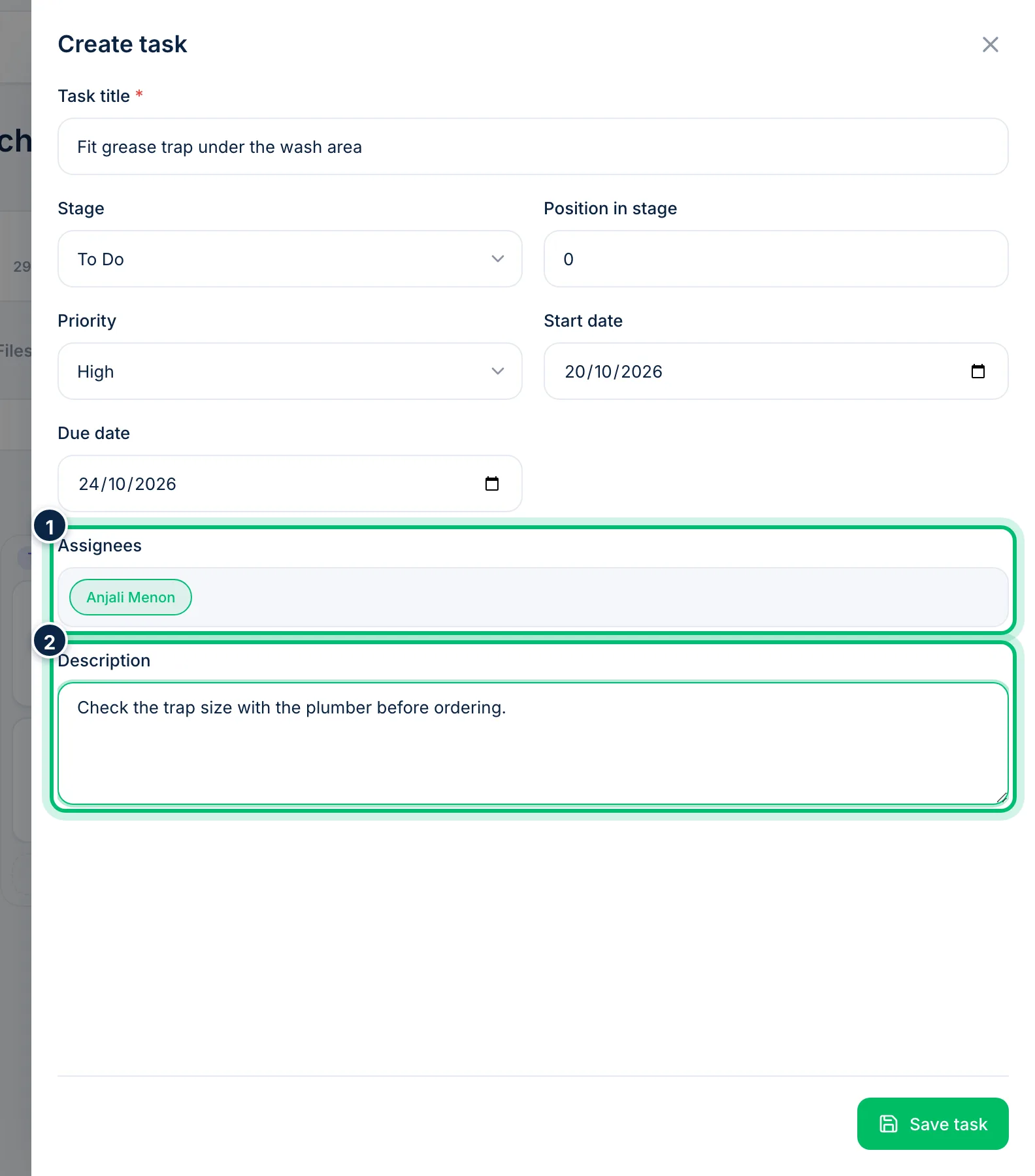
4Assign people and add a description
Under Assignees, click each team member who should work on the task — you can pick up to 50. Add any context, links or acceptance criteria in Description.
5Save the task
Choose Save task. The task appears in its stage on the board with a reference such as PRJ-0001-8, and shows up in each assignee's My Tasks.
Related guides
Still stuck? Contact our support team — or start a free trial to try this in your own company.