
Asset management · 4 steps
Assign, transfer or retire an asset
Record who holds an asset, move it between people, departments and branches, and keep a trail of every change.
Before you start: Assets issued to individual employees are also tracked from the employee side — see Track assets issued to employees in People & payroll.
1Open the asset
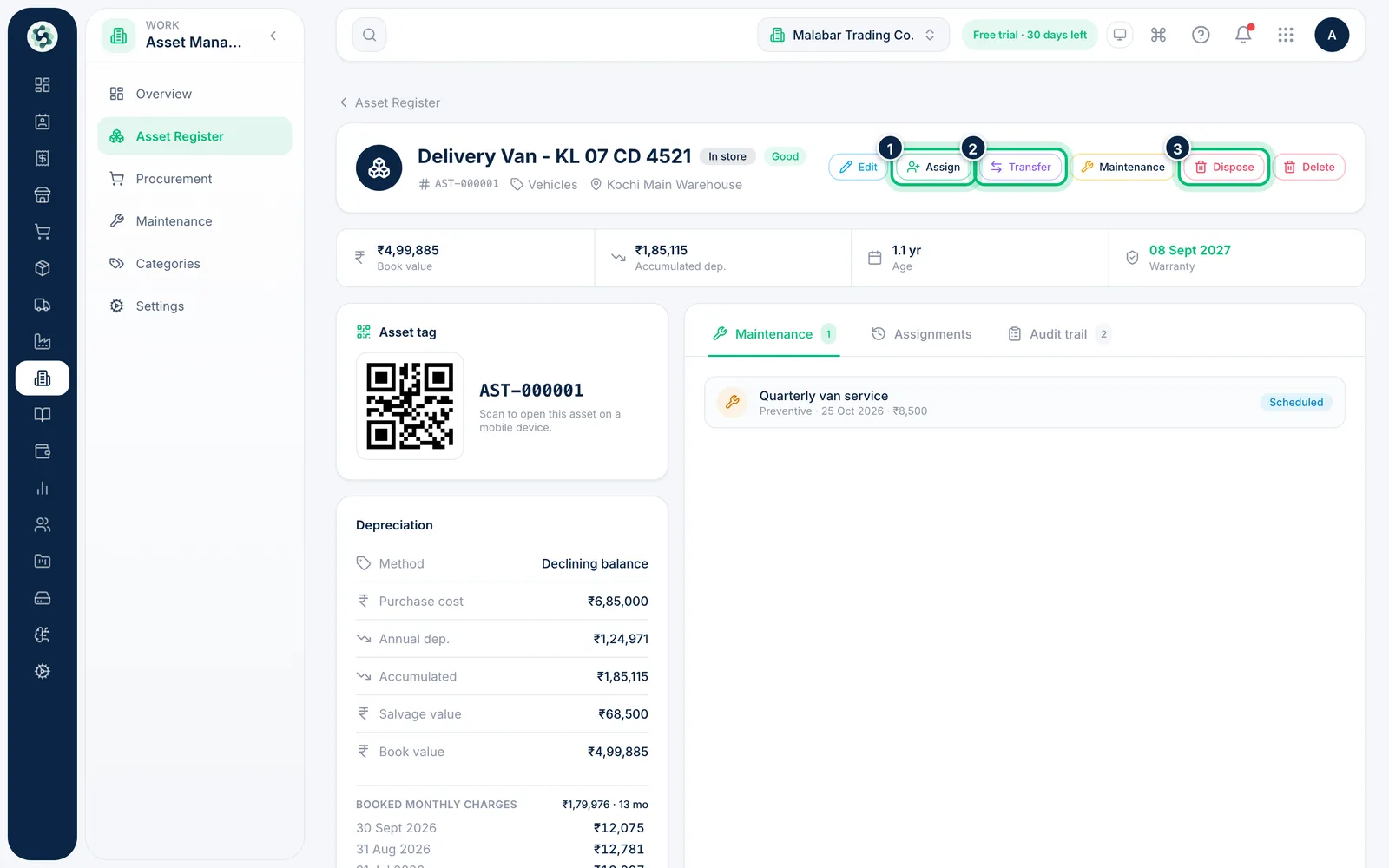
In Asset Management → Asset Register click an asset. The header shows its code, category, holder and location, with the actions Edit, Assign, Transfer, Maintenance, Dispose and Delete.
2Assign it to a holder
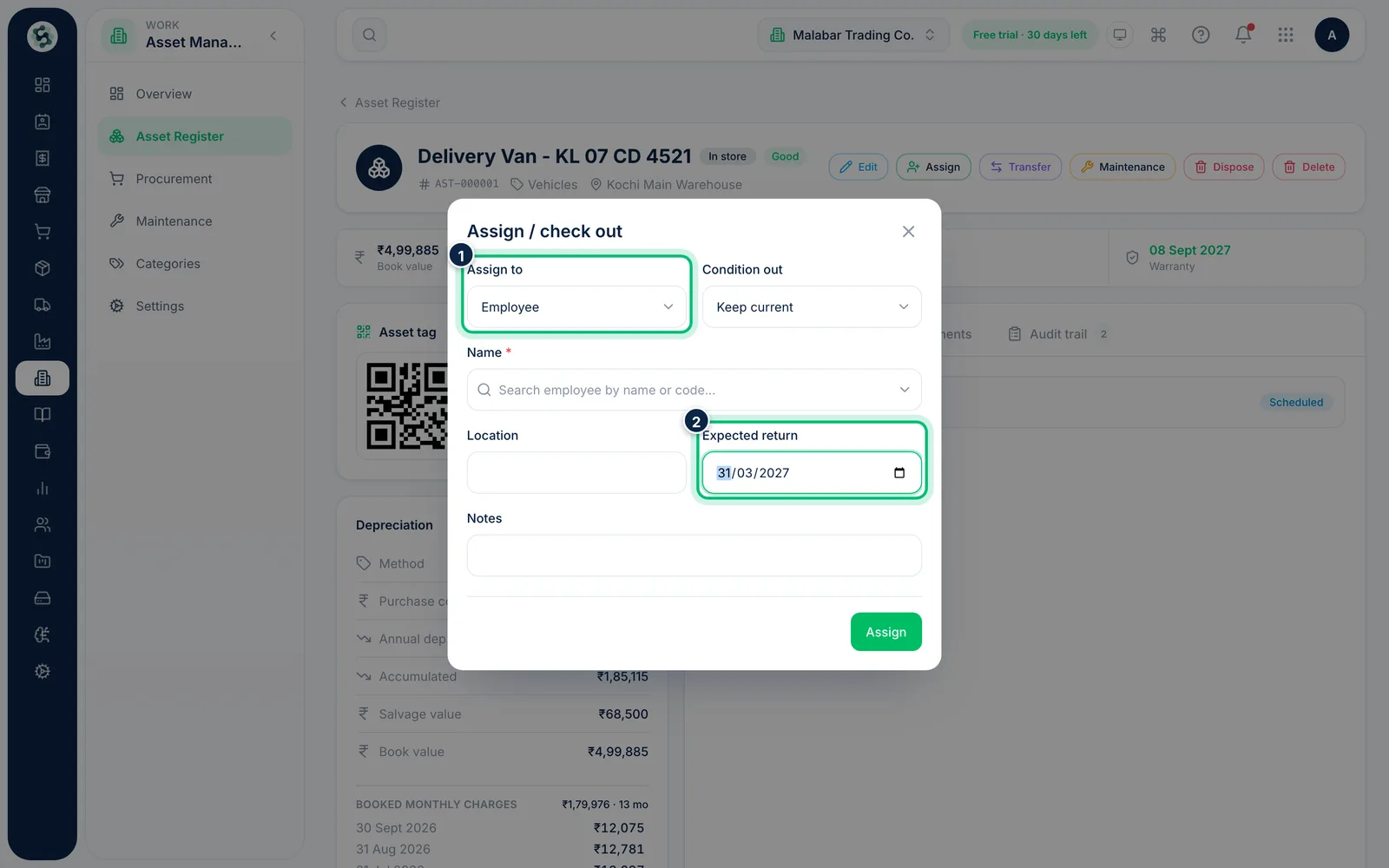
Choose Assign. Pick whether it goes to an employee, department, location or branch under Assign to, then search for the Name of the holder. Add the Location and an Expected return date if it is a loan, then choose Assign.
3Transfer it to someone else
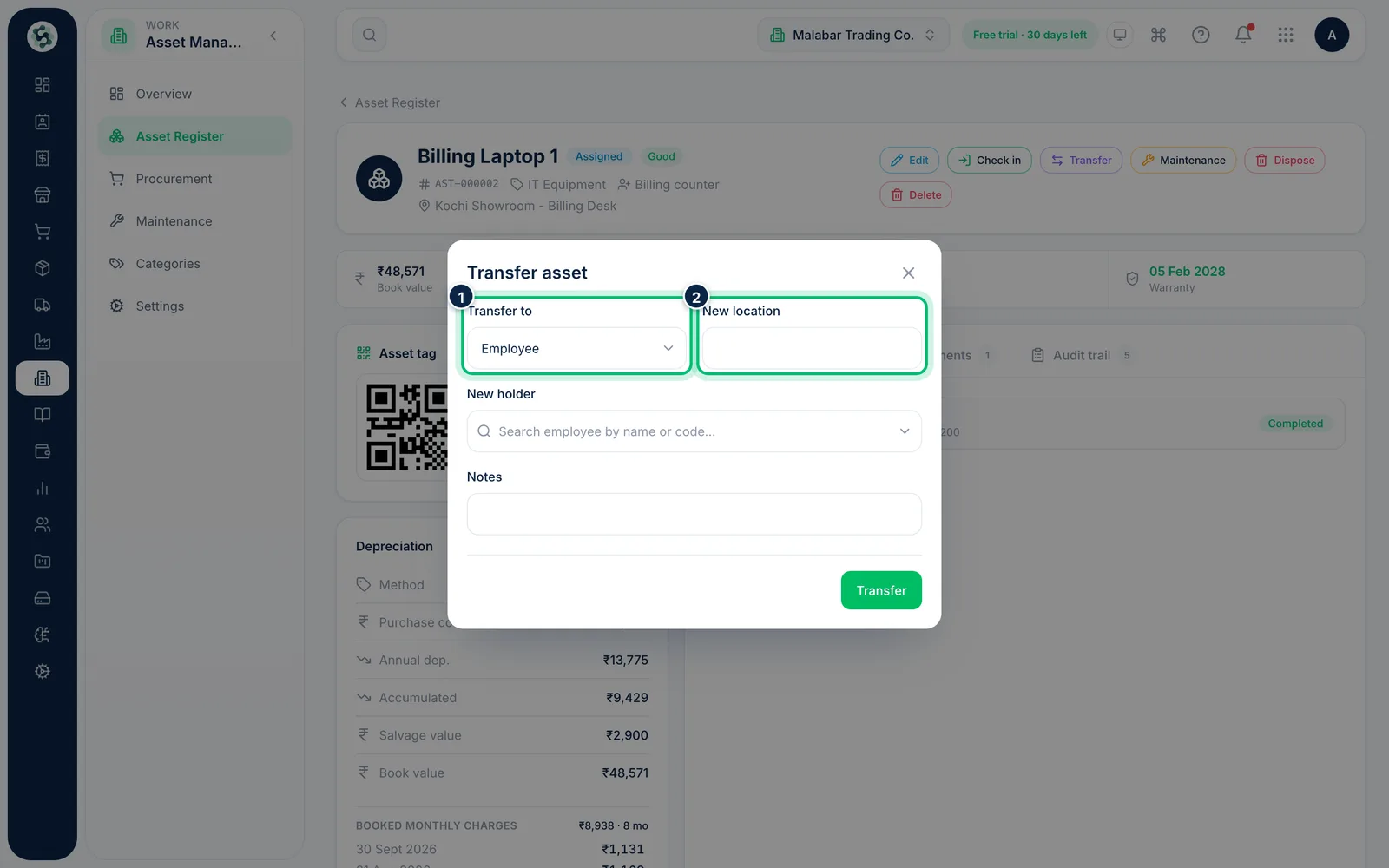
To move an asset that is already assigned, choose Transfer. Select who it goes Transfer to, enter the New holder and New location, and add a note.
4Check it back in and review the history
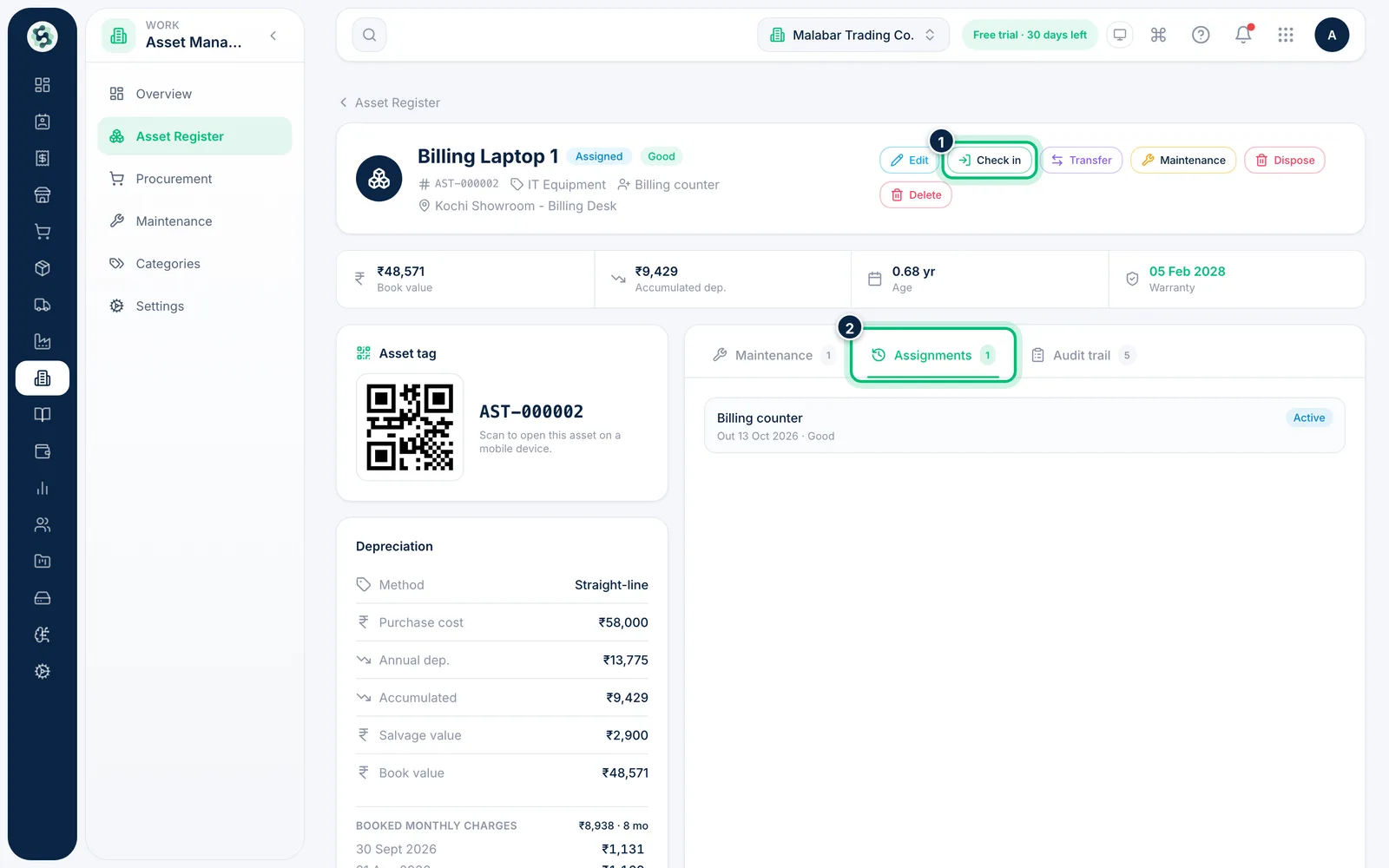
When the asset comes back, choose Check in on its page. The Assignments tab lists every holder with dates and condition, and Audit trail records each change.
Related guides
Still stuck? Contact our support team — or start a free trial to try this in your own company.