
Supply chain · 5 steps
Set up couriers and the delivery note
Add the courier companies you ship with, connect their API to push parcels and pull tracking, and brand your delivery notes.
Before you start: For automatic booking you need the courier's API address, an API key and its request format. Without them you can still enter a tracking number by hand.
1Open Supply Chain Settings
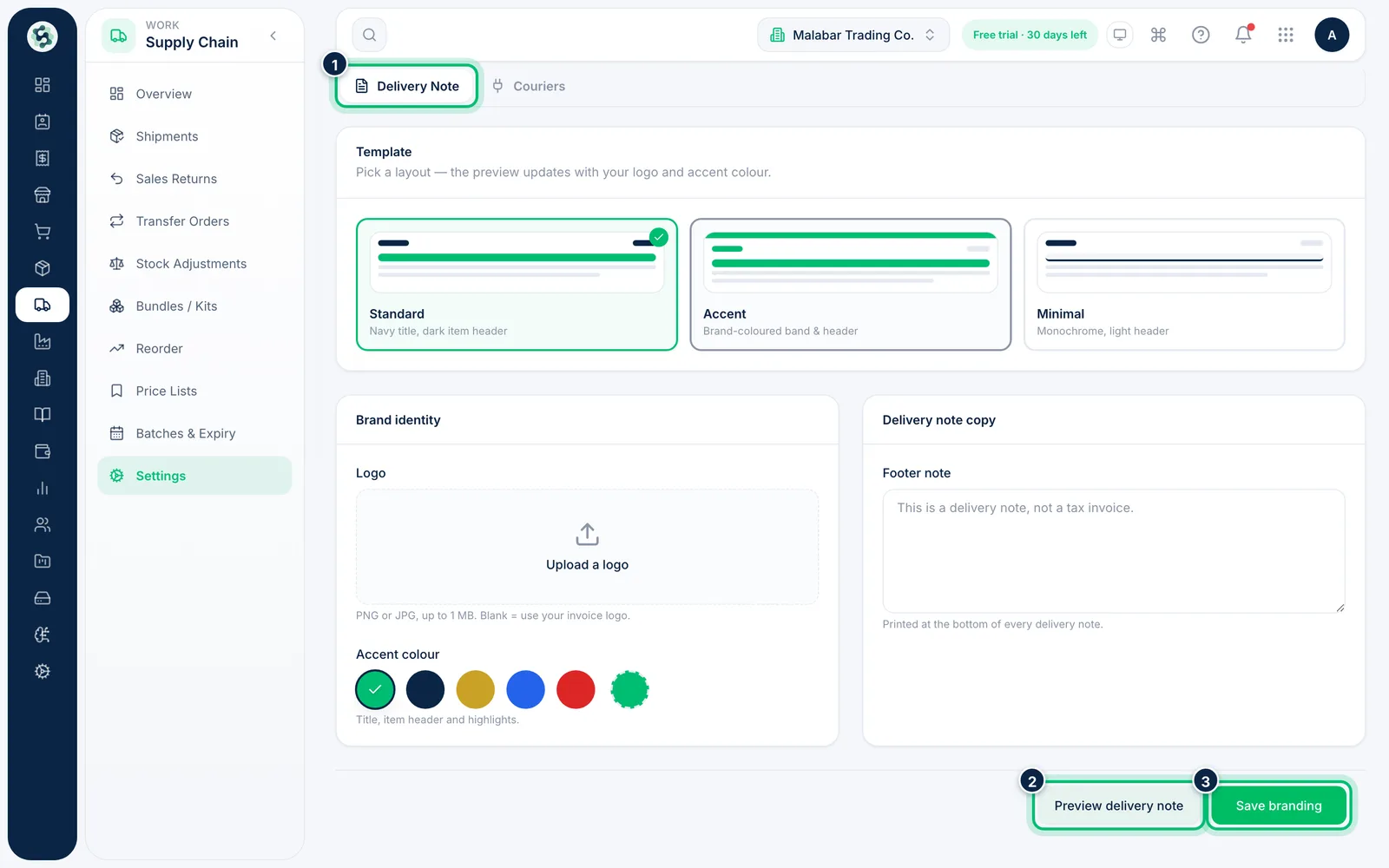
Open Supply Chain → Settings. The Delivery Note tab sets how your delivery notes look: pick a template, set your logo and Accent colour, and write the Footer note. Use Preview delivery note to check it, then Save branding.
2Go to the Couriers tab
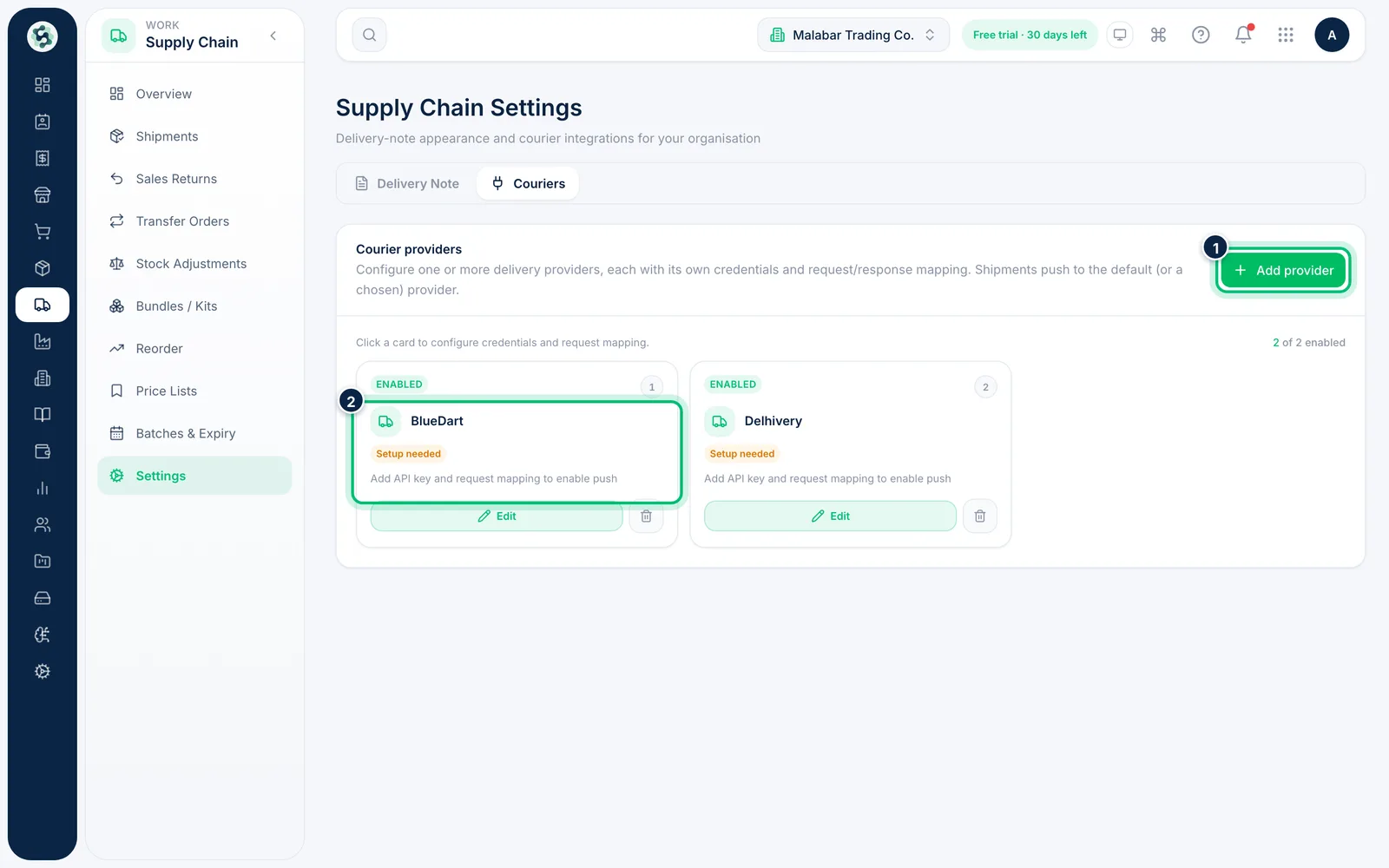
Choose Couriers. Each provider is a card that shows whether it is Enabled, whether it is the Default and whether it still needs setup. Click a card to open it, or choose Add provider.
3Name the provider
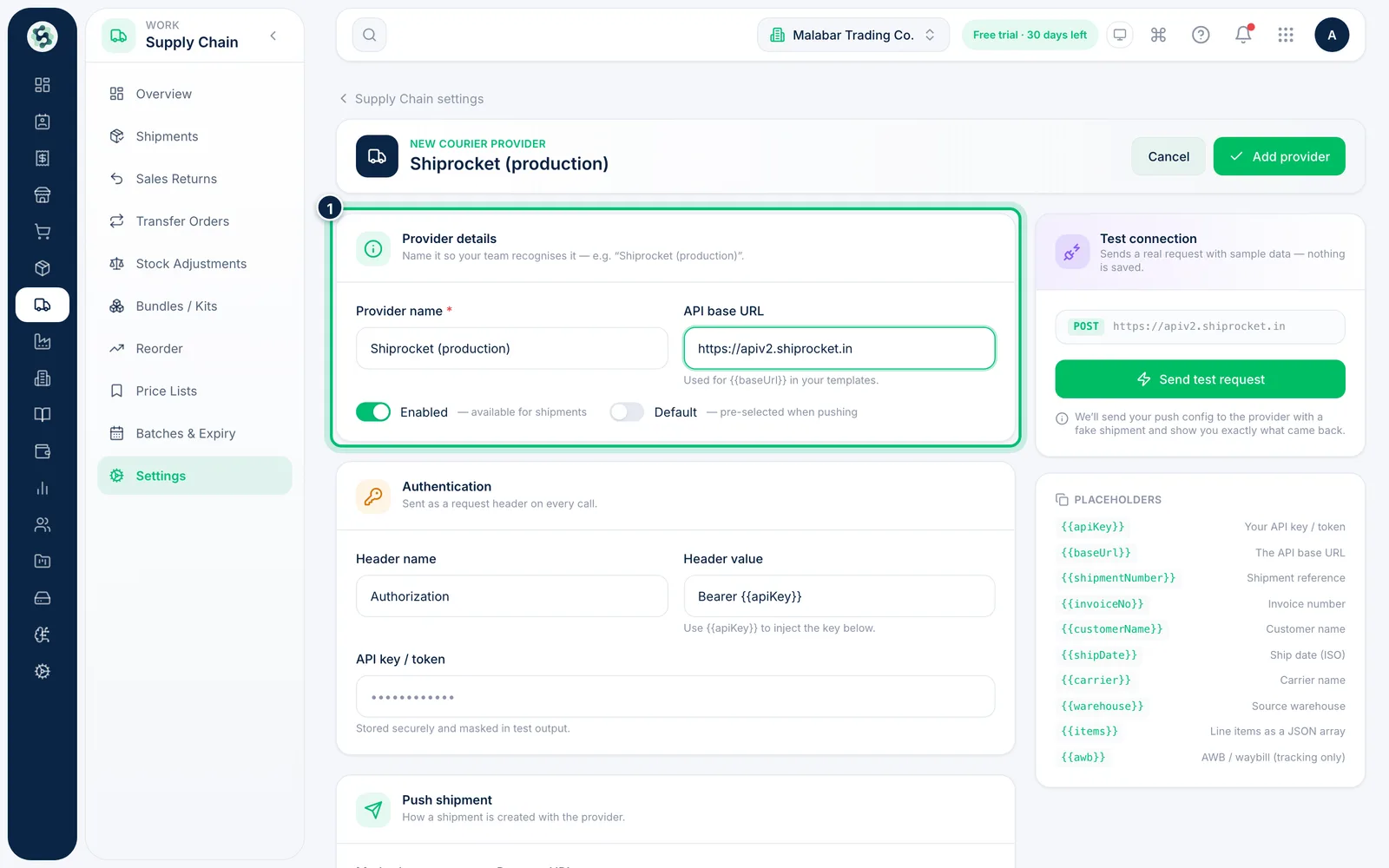
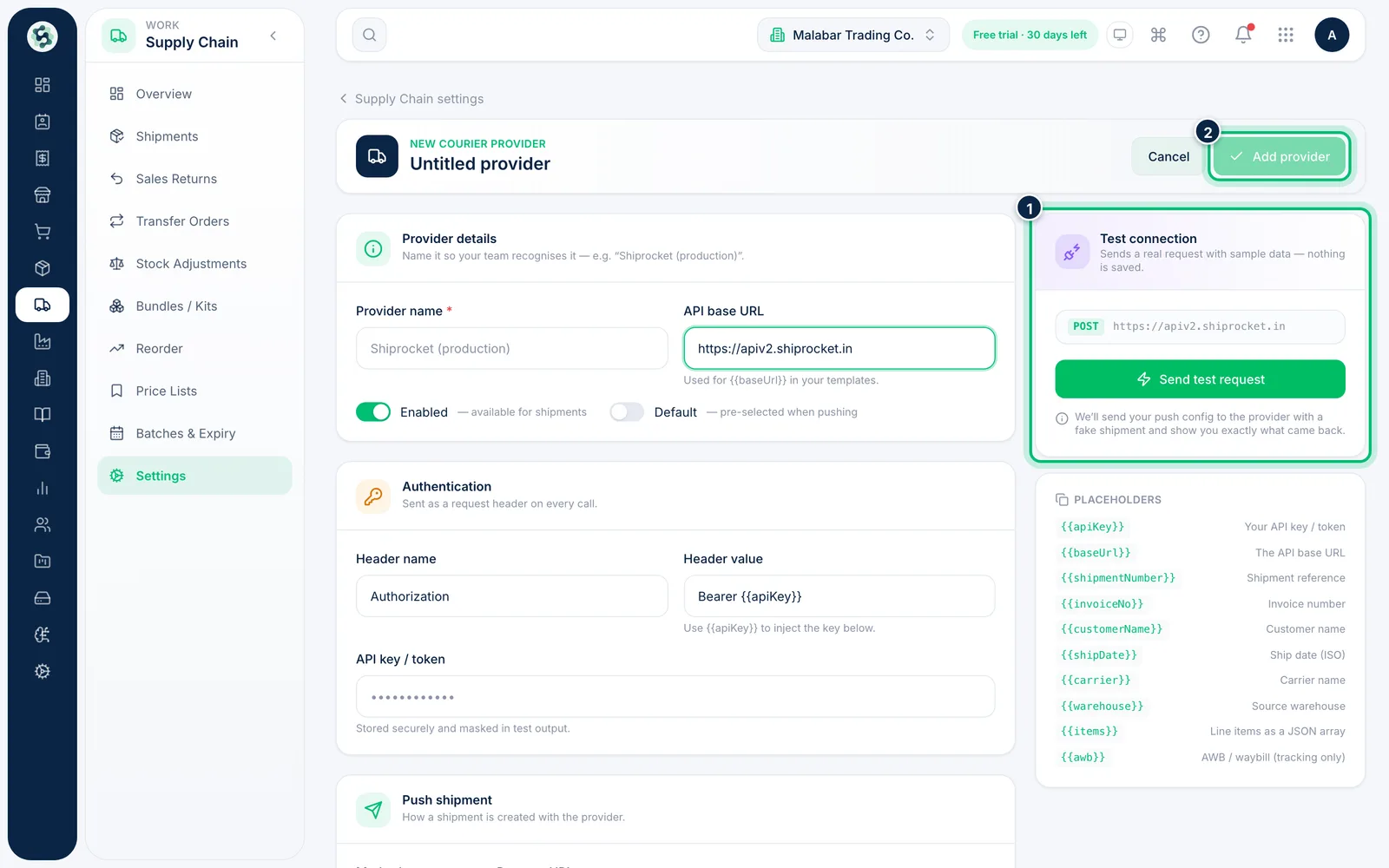
Enter a Provider name and the API base URL. The Enabled switch makes it available for shipments, and Default pre-selects it when you push a shipment.
4Add the key and the request mapping
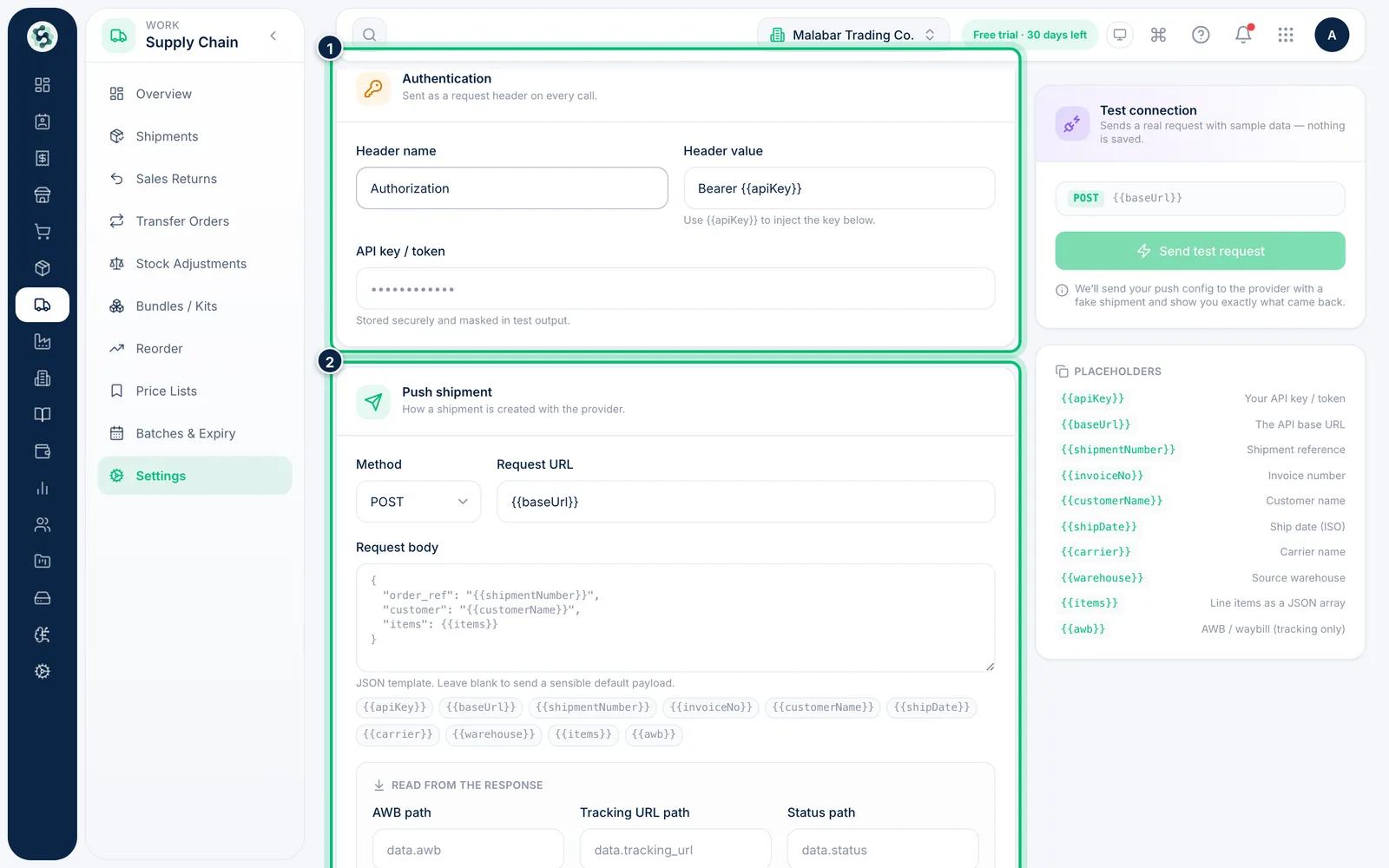
Under Authentication, set the Header name and Header value and paste your API key / token. Under Push shipment and Track shipment, give the request Method, Request URL and where in the reply to find the tracking number and status.
5Test the connection
Choose Send test request to try the setup with sample data. Nothing is saved by the test. When it works, choose Add provider.
Related guides
Still stuck? Contact our support team — or start a free trial to try this in your own company.