
Purchasing & vendors · 4 steps
Return goods to a vendor
Send goods back against a bill — take them out of stock and debit the vendor in one go.
Before you start: You can return goods that were received against a purchase order and then billed. For a value-only adjustment, raise a debit note instead.
1Start a purchase return
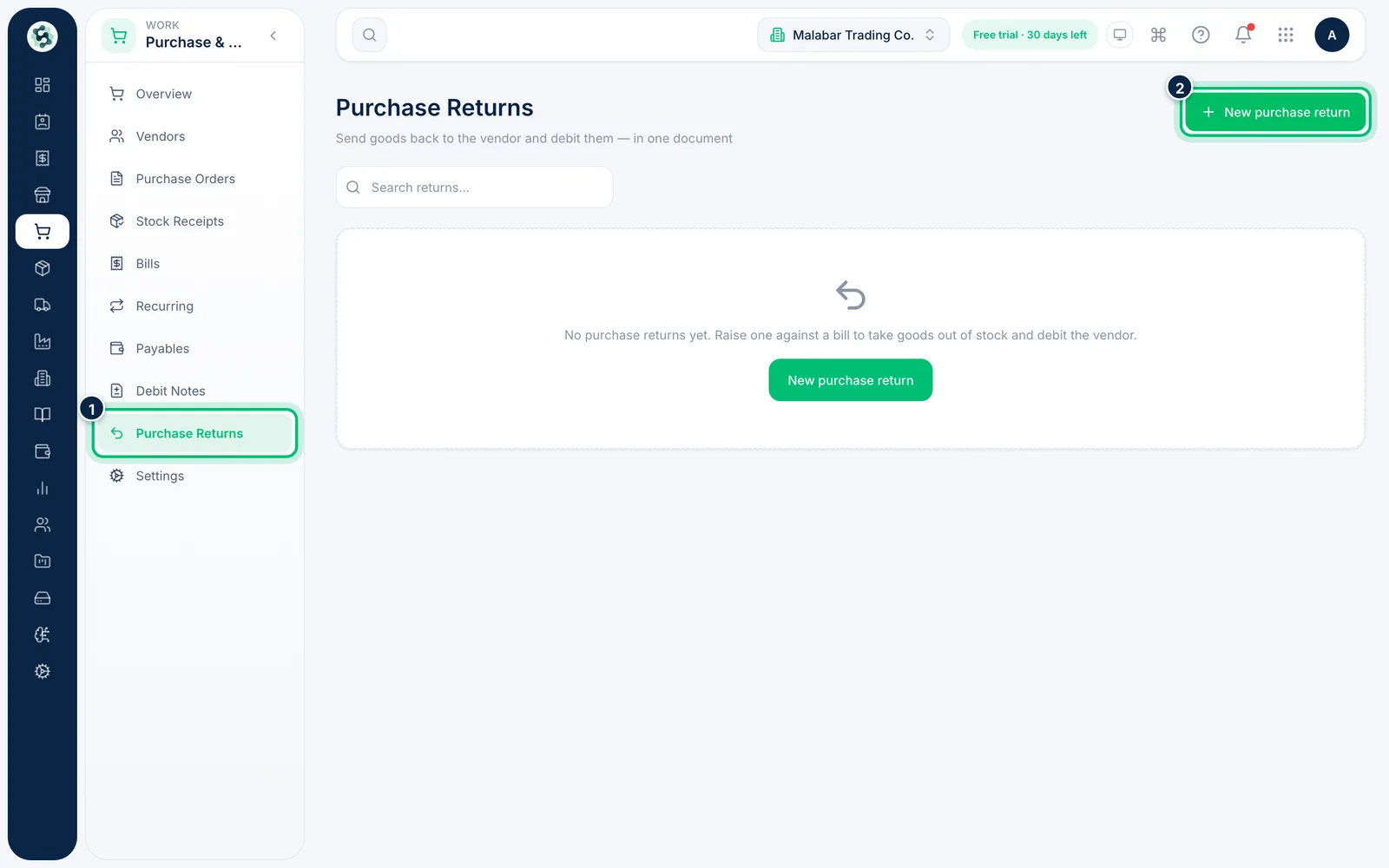
Go to Purchase & Vendors → Purchase Returns to see the returns you've made. New purchase return starts a blank return where you pick the bill yourself.
2Start from the bill
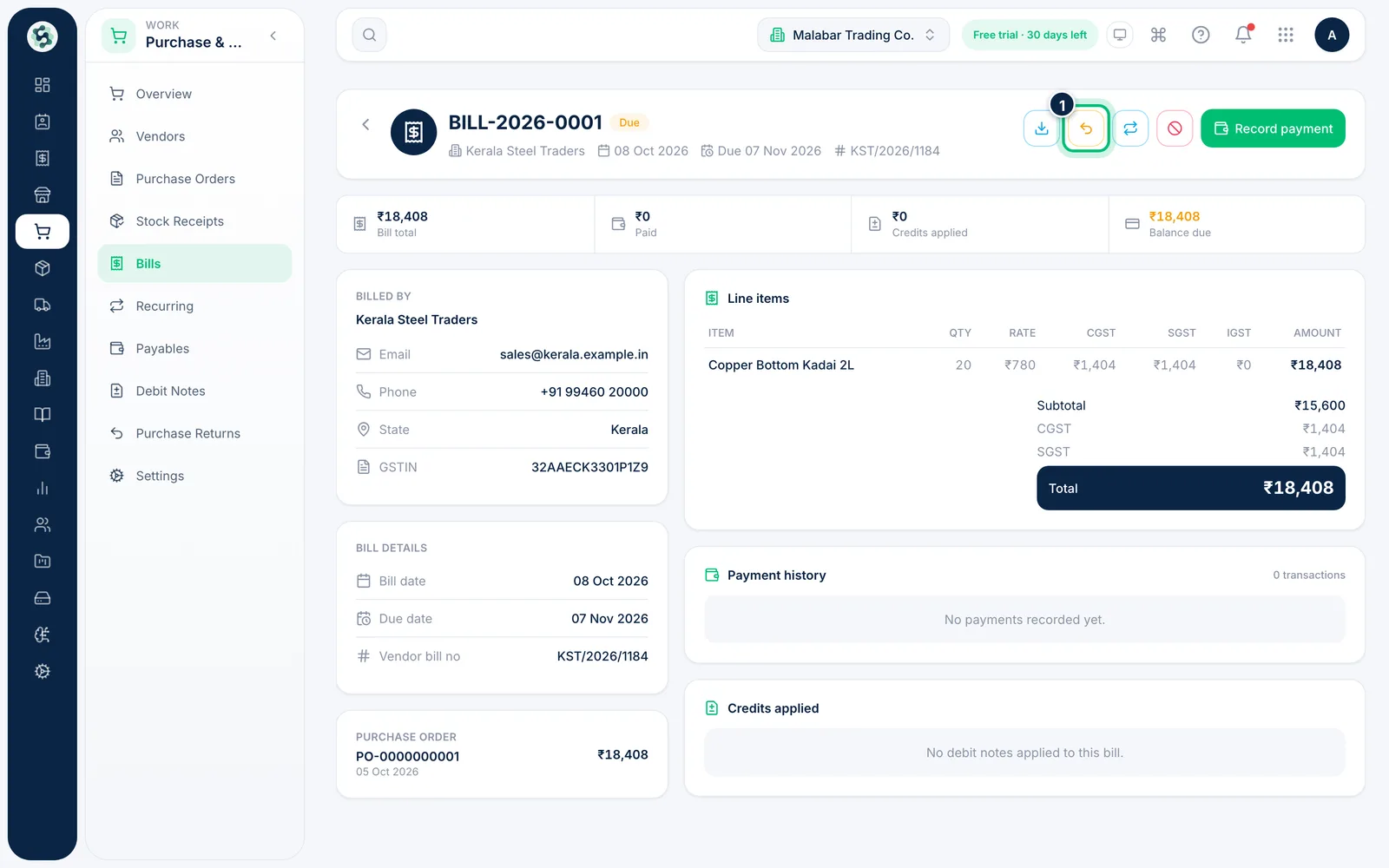
The quickest way is from the bill itself: open it from Bills and choose Return goods (the curved-arrow button at the top). The return opens with that bill already picked.
3Enter what's going back
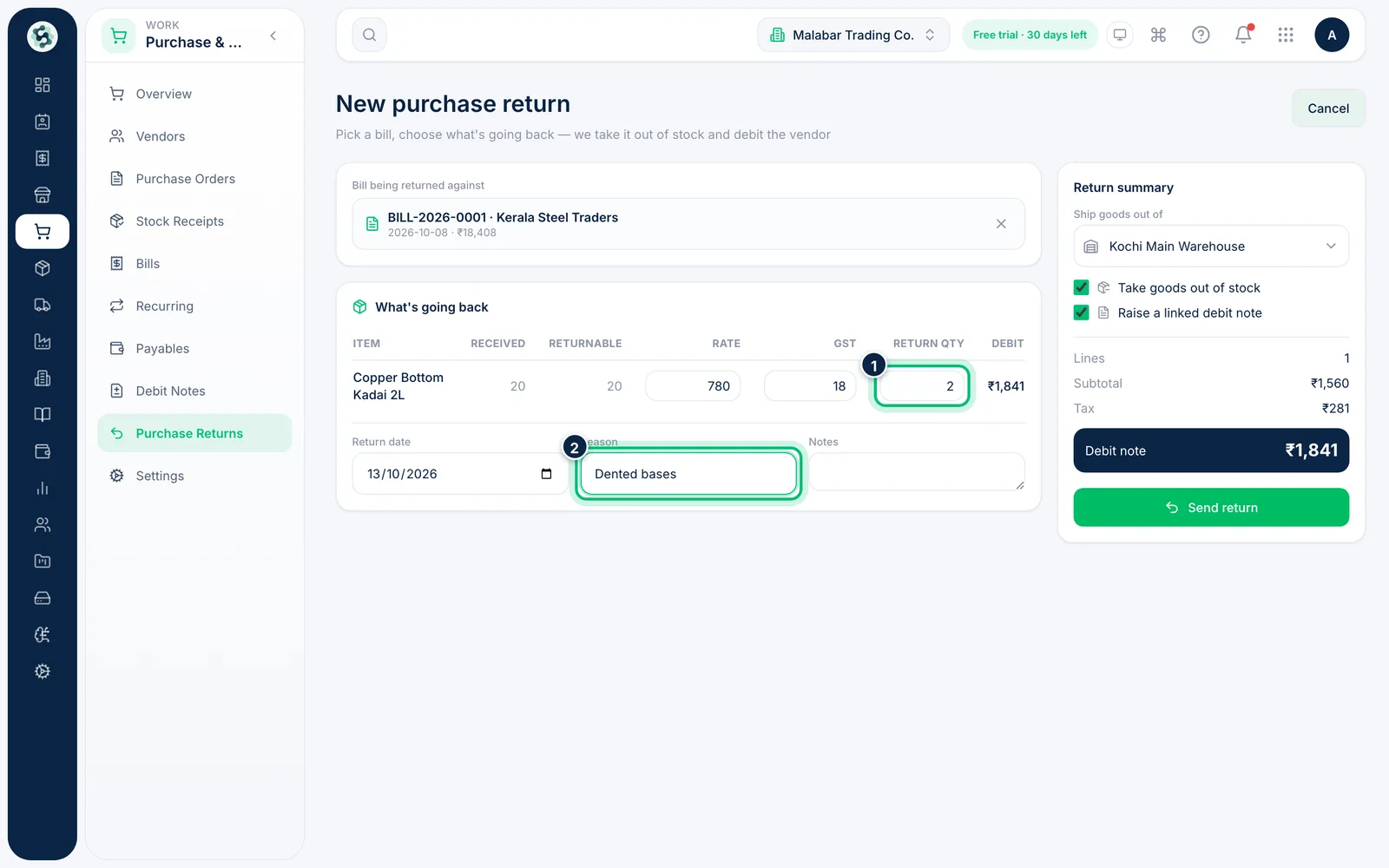
Under What's going back, type the Return qty for each item — it can't be more than the Returnable quantity. The Rate and GST come from the bill. Add the Reason for the return.
4Check the summary and send
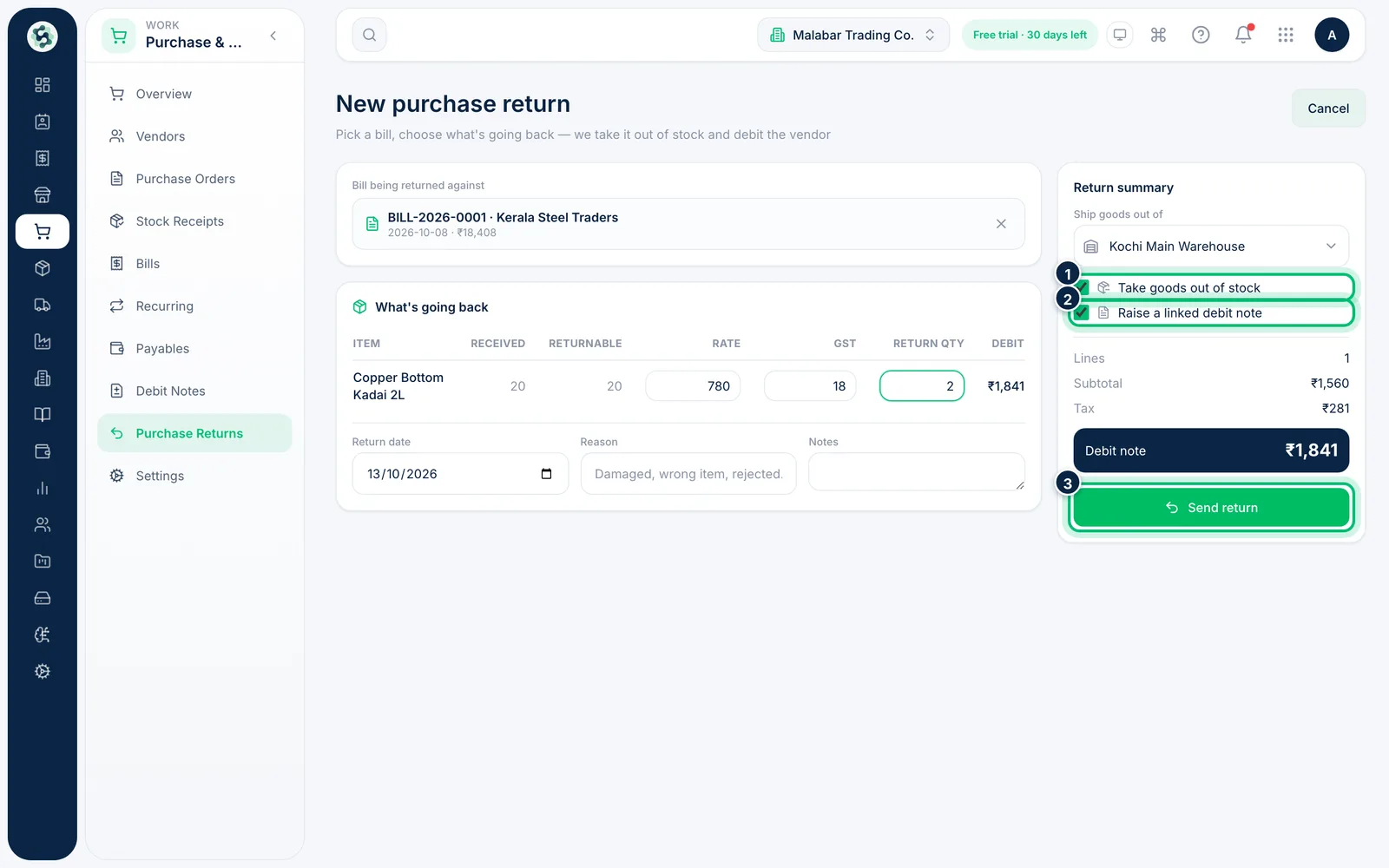
With Take goods out of stock ticked, choose the warehouse in Ship goods out of. Keep Raise a linked debit note ticked to debit the vendor for the value shown. Choose Send return.
Related guides
Still stuck? Contact our support team — or start a free trial to try this in your own company.