
Inventory · 4 steps
See an item's stock and movement history
Check how much of an item you have, where it's stored and every stock movement that got it there — and make a quick stock in or out.
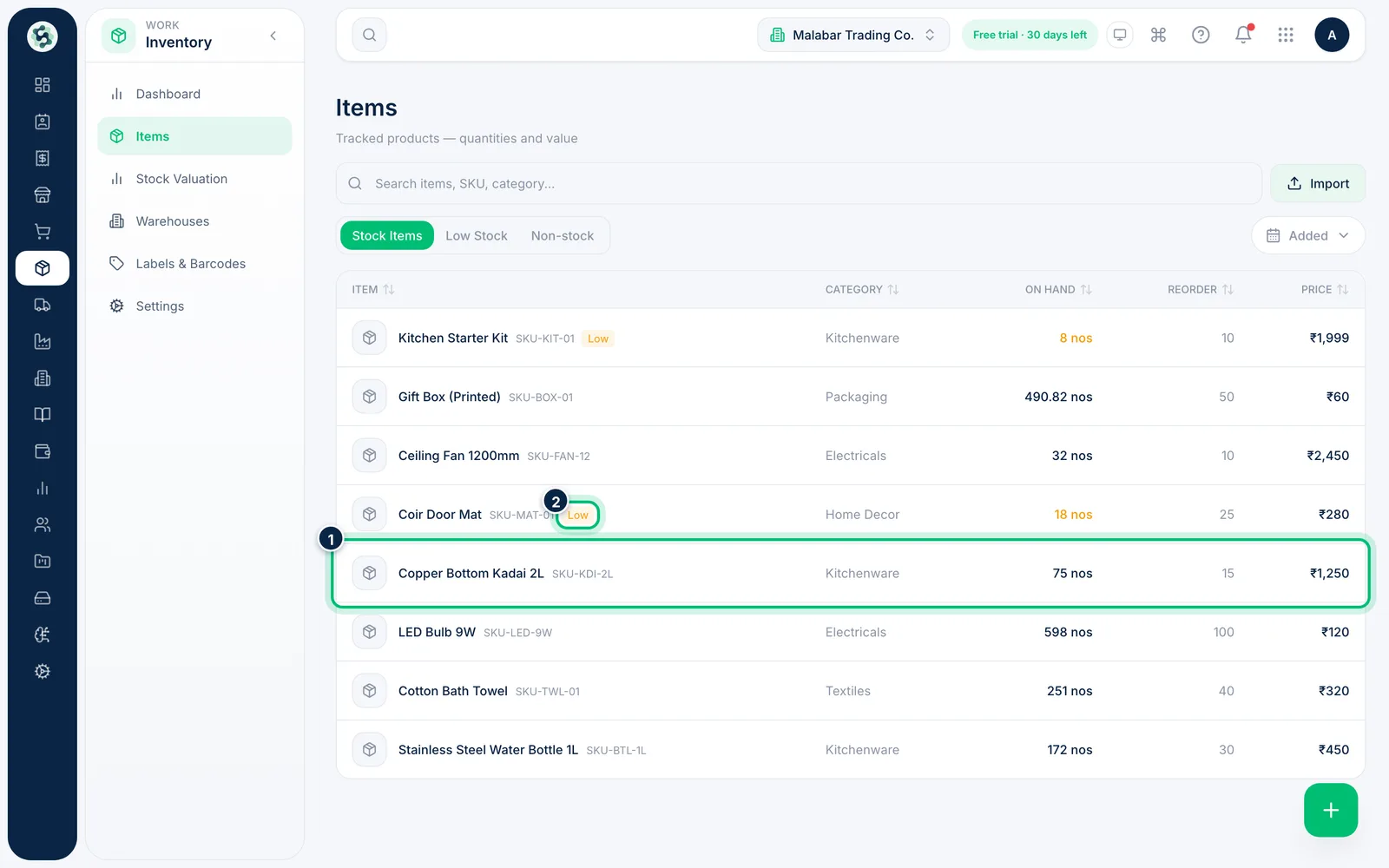
1Open the item
Go to Inventory → Items and click an item. Items at or below their reorder level are marked Low.
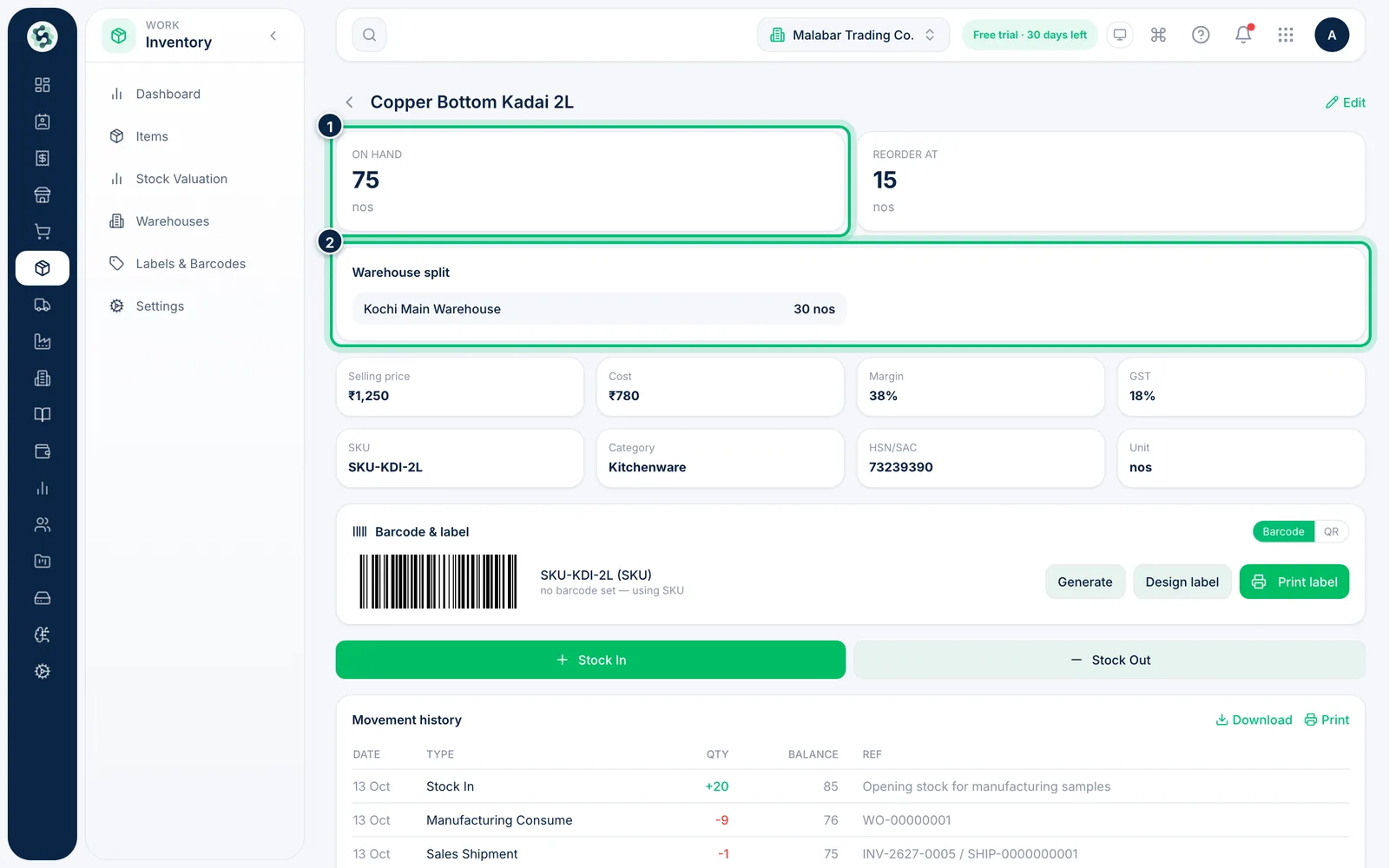
2Check stock on hand and by warehouse
The top cards show On hand and Reorder at. Warehouse split shows how much sits in each warehouse, and the details below show the price, cost, margin, GST rate and HSN/SAC code.
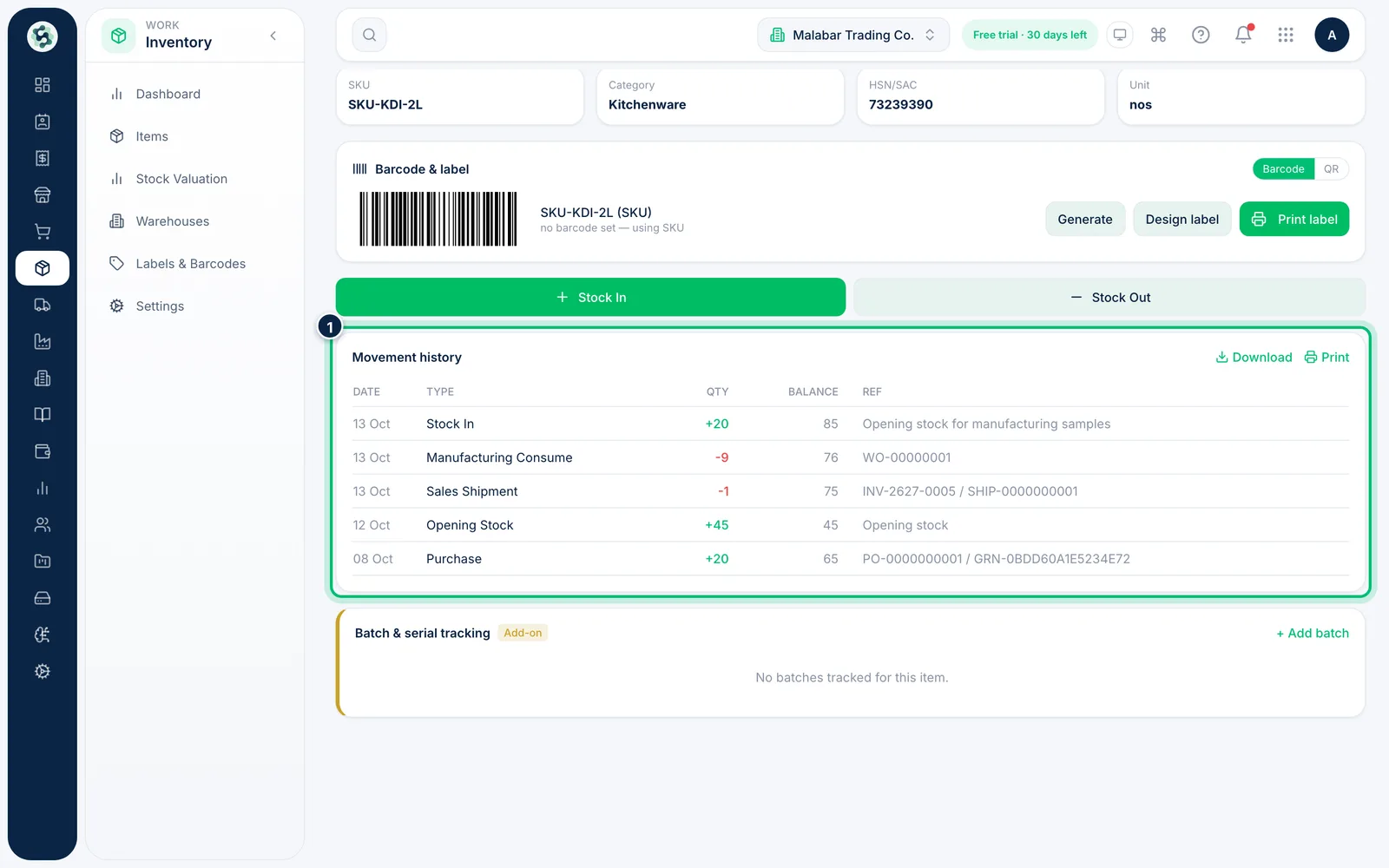
3Review the movement history
Movement history lists every change in stock — the date, type, quantity, the running Balance after each movement and the Ref (the document that caused it). Use Download for a PDF or Print for a paper copy.
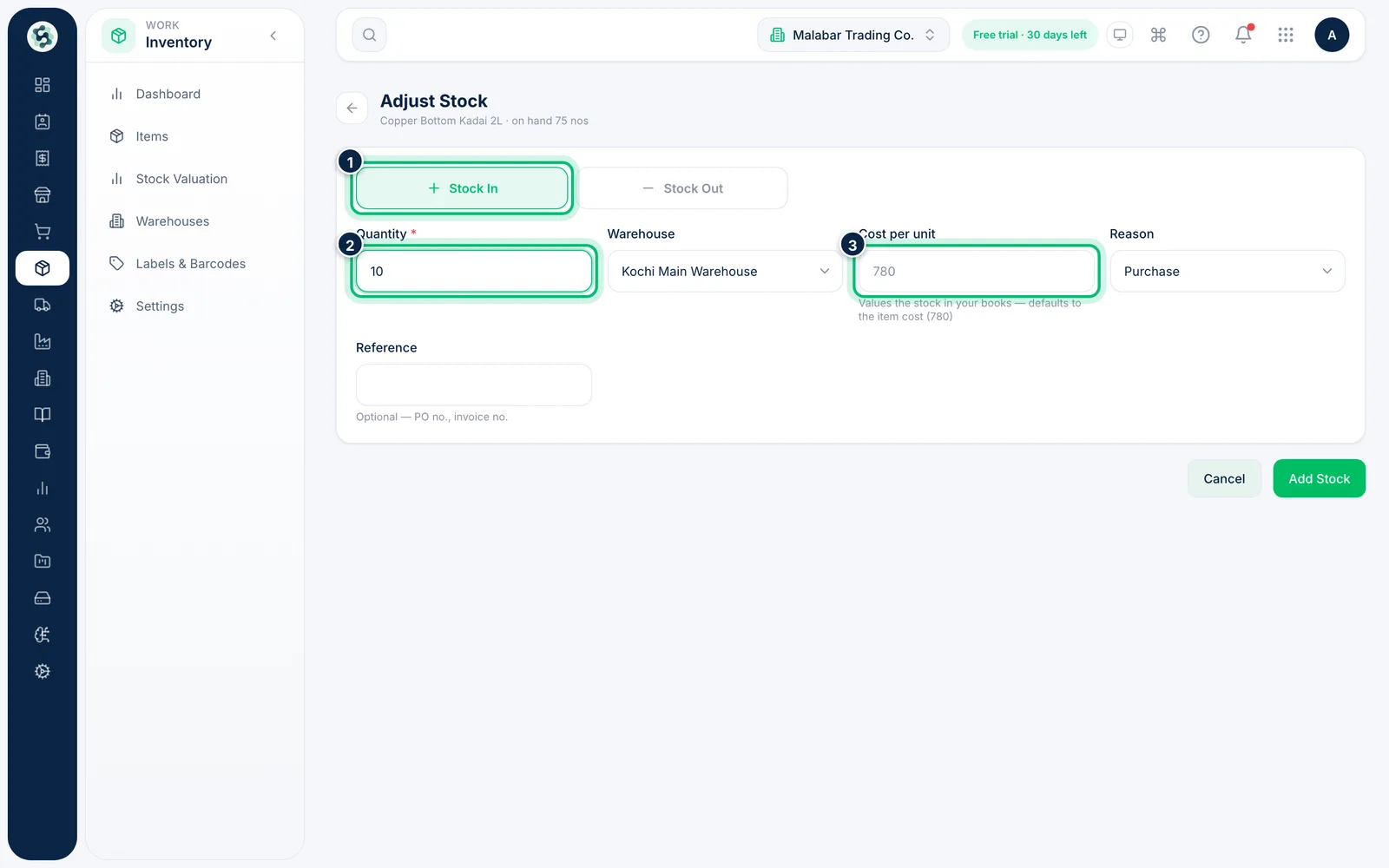
4Make a quick stock in or out
Choose Stock In or Stock Out on the item. Enter the Quantity, check the Warehouse (your first warehouse is picked for you) and choose a Reason. For a stock in, enter the Cost per unit if it differs from the item's cost. Add a Reference such as a PO number if you like, then choose Add Stock or Remove Stock.
Related guides
Still stuck? Contact our support team — or start a free trial to try this in your own company.