
Projects · 5 steps
Use checklists, comments and files on a task
Keep the smaller steps, the discussion and the supporting files with the task, and follow its history.
Before you start: Checklists, comments, files and time are available once a task has been saved.
1Open the task
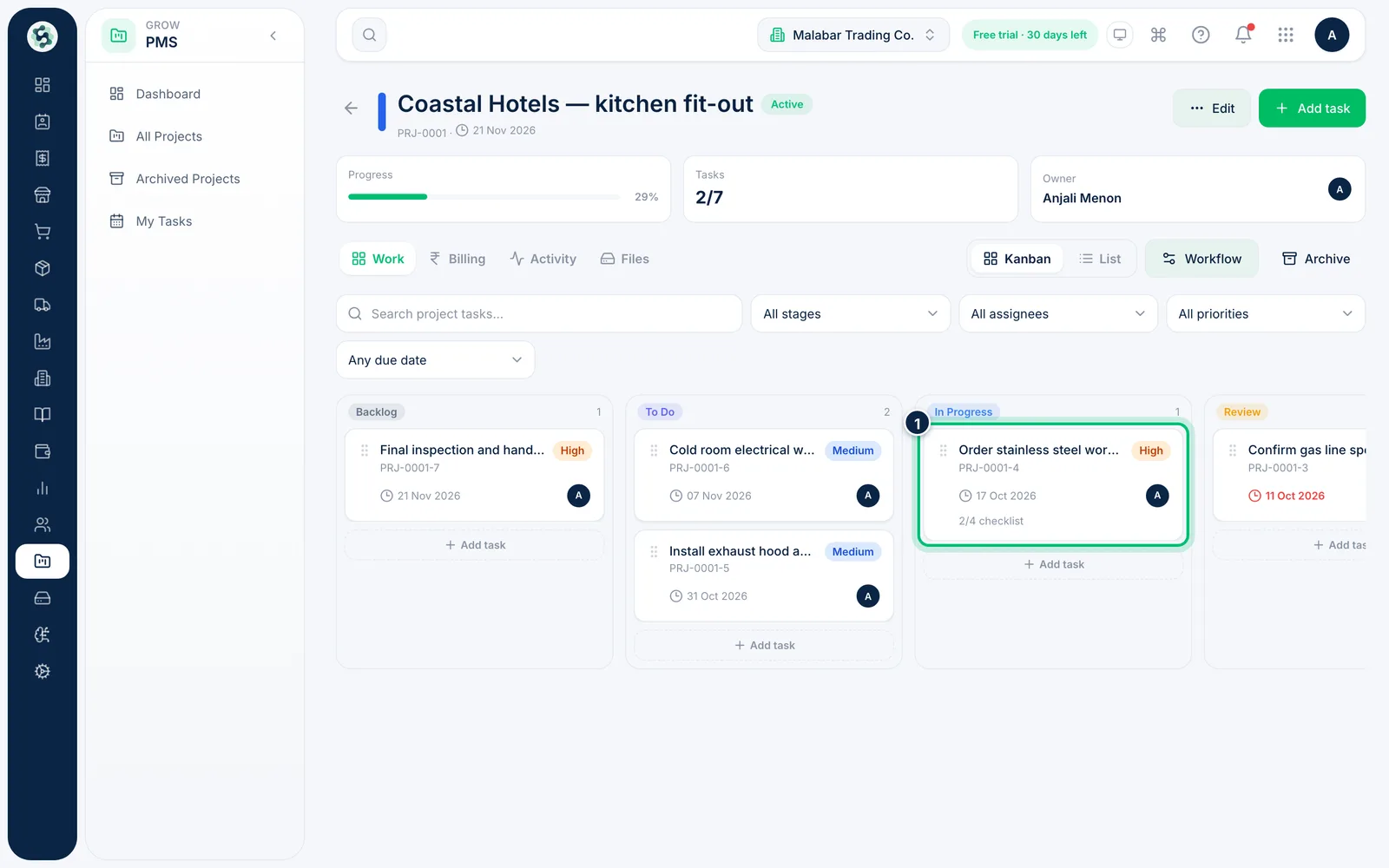
On the project board or list, click a task to open it. Cards show the priority, due date, assignees and checklist progress, such as 2/4 checklist. The task sheet remembers the tab you pick (Checklist, Comments, Time and so on) and reopens on it for the next task.
2Break the work into a checklist
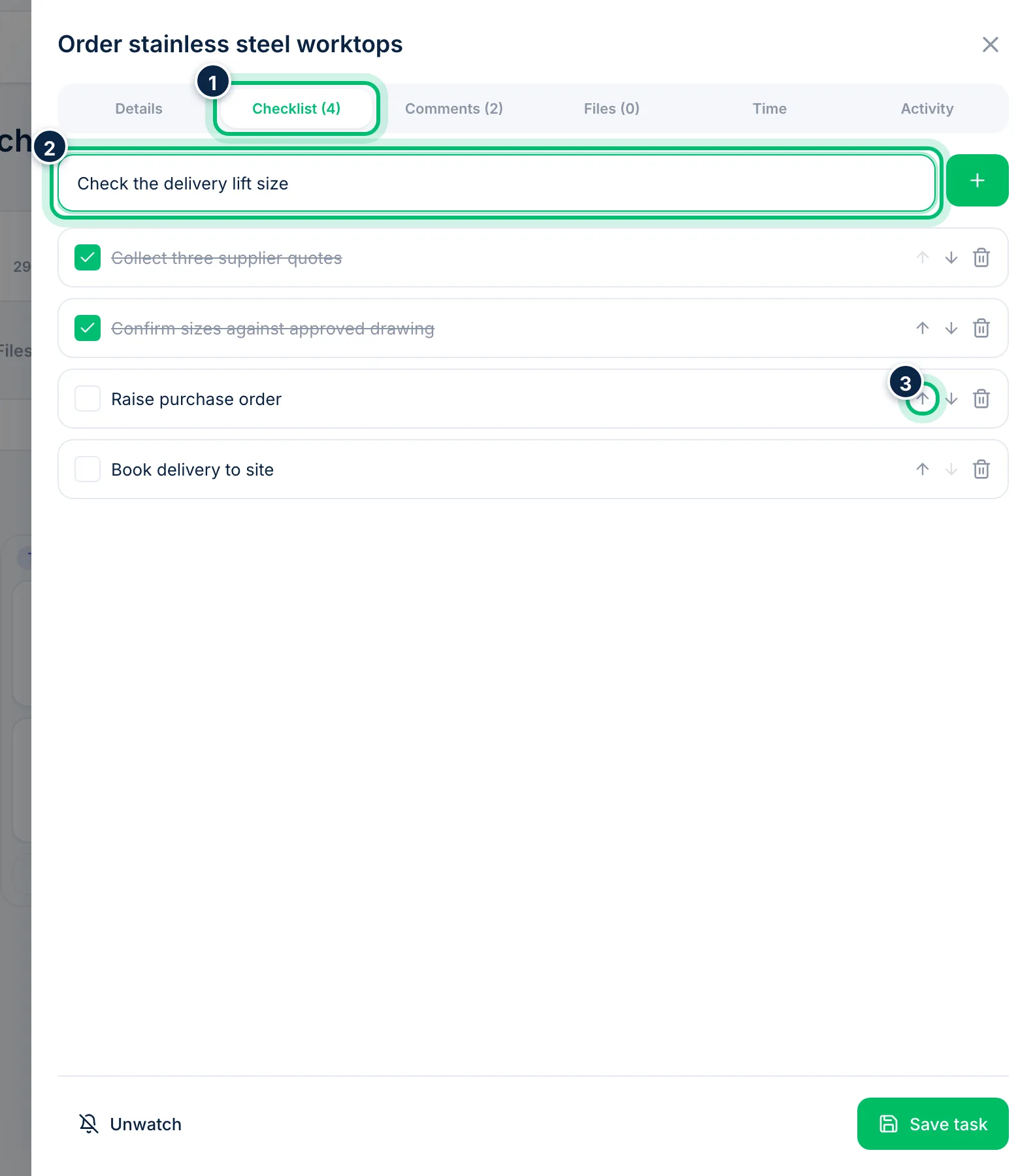
Open the Checklist tab, type a step in Add checklist item and choose +. Tick the box when a step is done, click its text to rename it, or move it up and down with the arrows.
3Discuss the task in comments
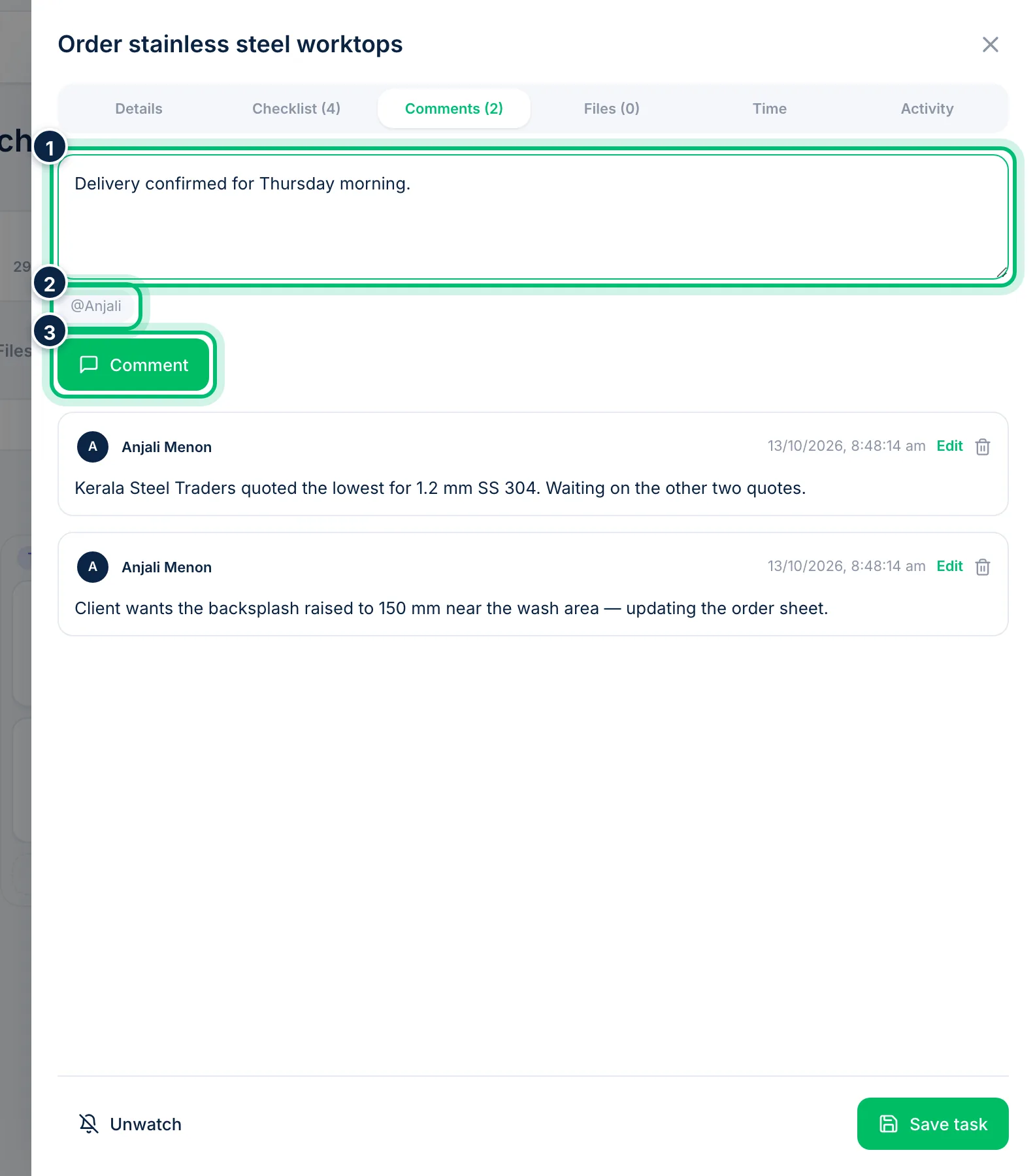
Open Comments, write your note and choose Comment. Click a person's name, such as @Anjali, to mention them so they're notified.
4Attach files
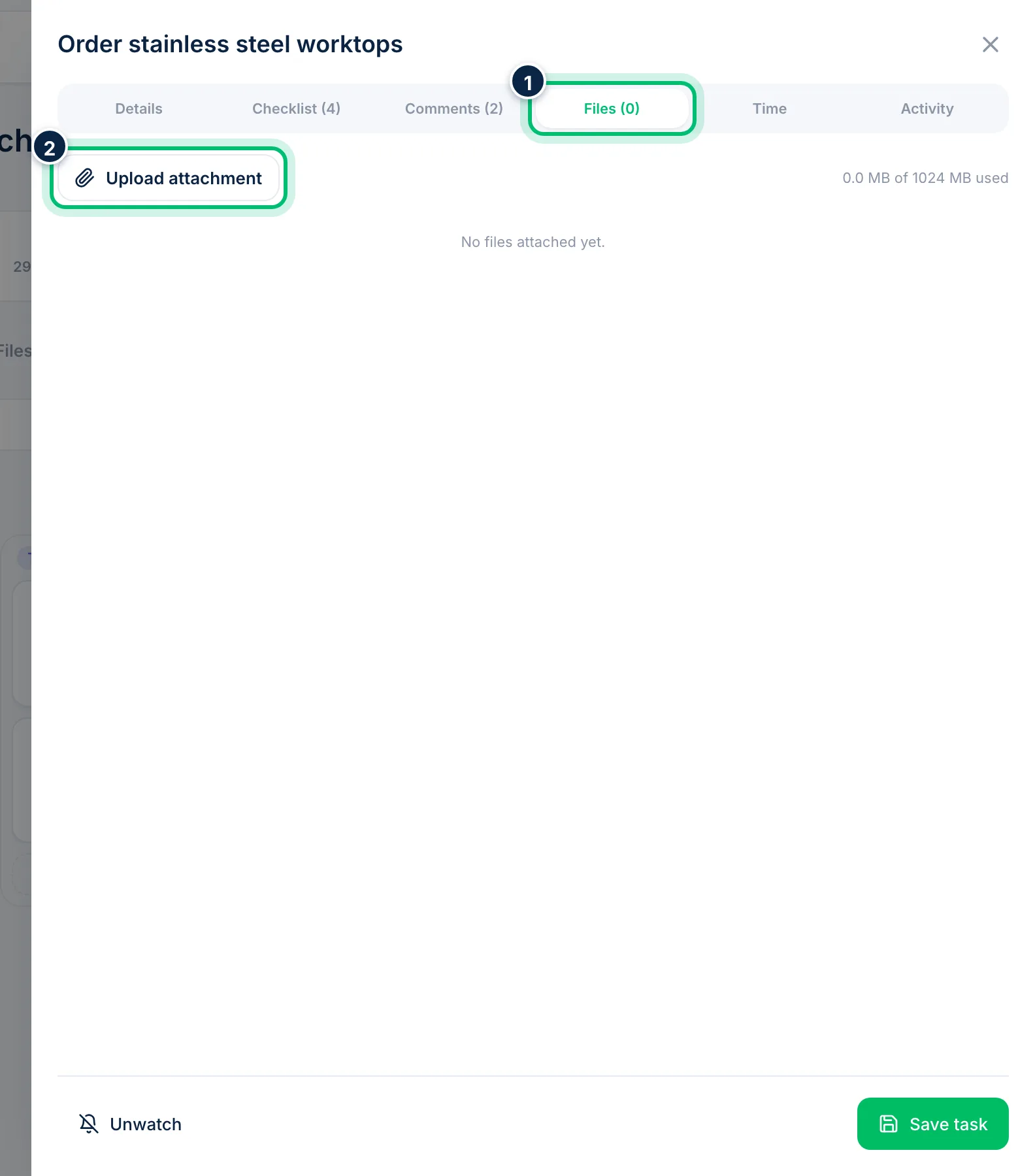
Open Files and choose Upload attachment to add a drawing, quote or photo. Each file can be up to 10 MB.
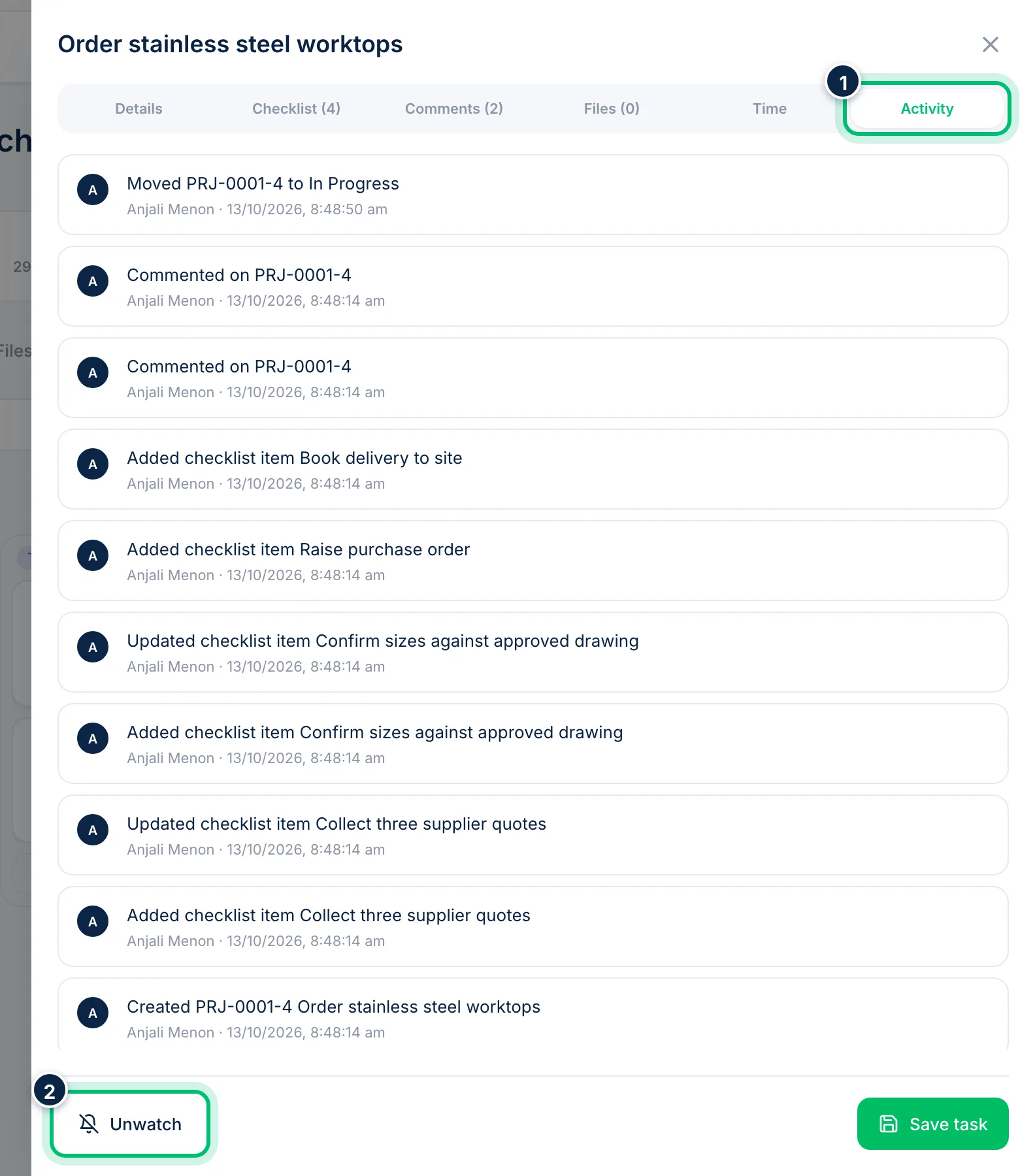
5Follow the task and its history
Open Activity to see who changed what and when. Choose Watch to follow the task — the button shows Unwatch when you're already following it.
Related guides
Still stuck? Contact our support team — or start a free trial to try this in your own company.